Create a task
Select New task, then enter a name you’ll recognize later, such as Daily product research.
Example screen · Click to enlarge Choose your APIs
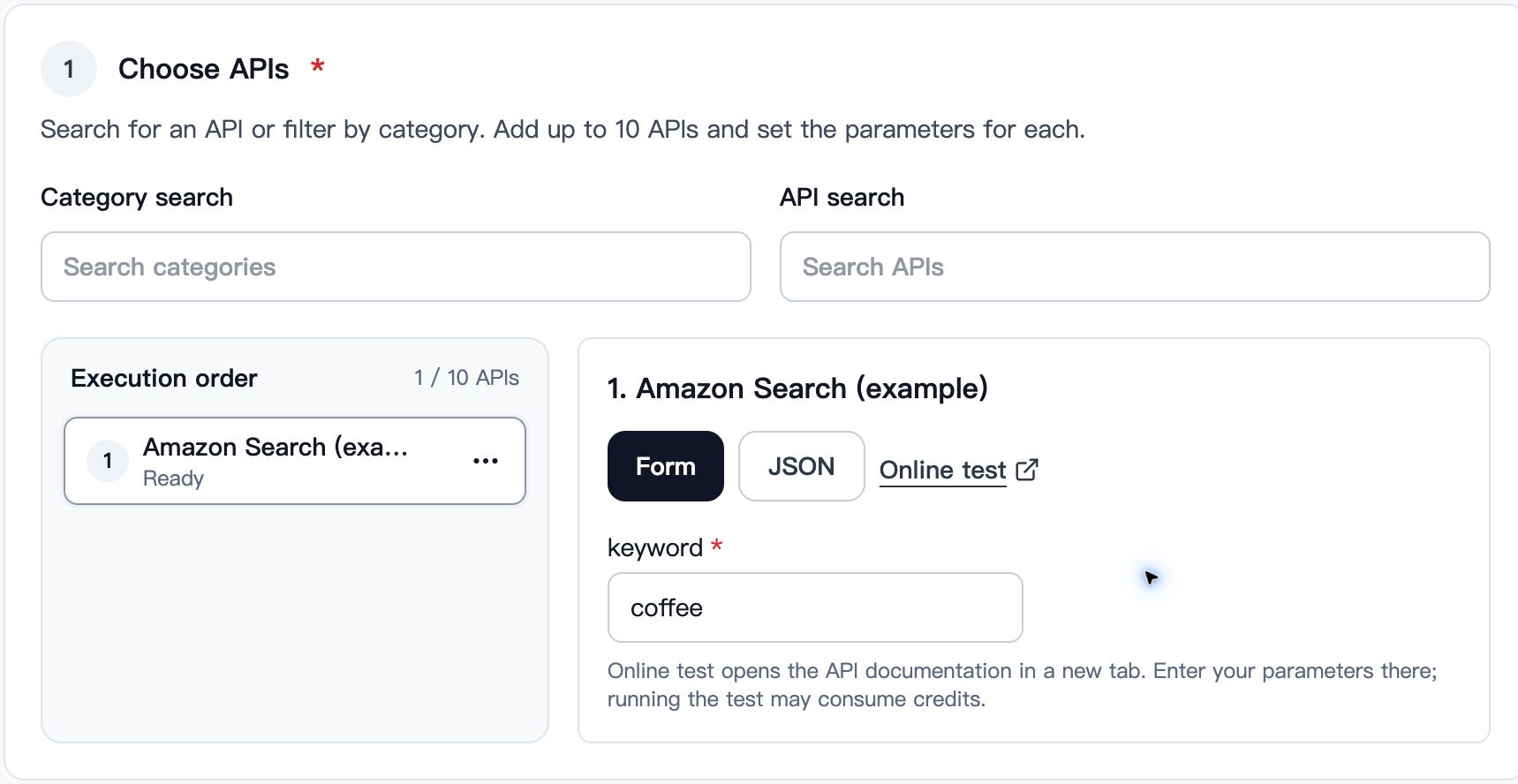
Use Category search or API search to add up to 10 APIs. Enter the inputs for each API in Form or JSON. Use the menu beside an API to move it up, move it down, or remove it. Online test opens the API documentation in a new tab; running a test may use Data Credits.
Example screen · Click to enlarge Set your schedule
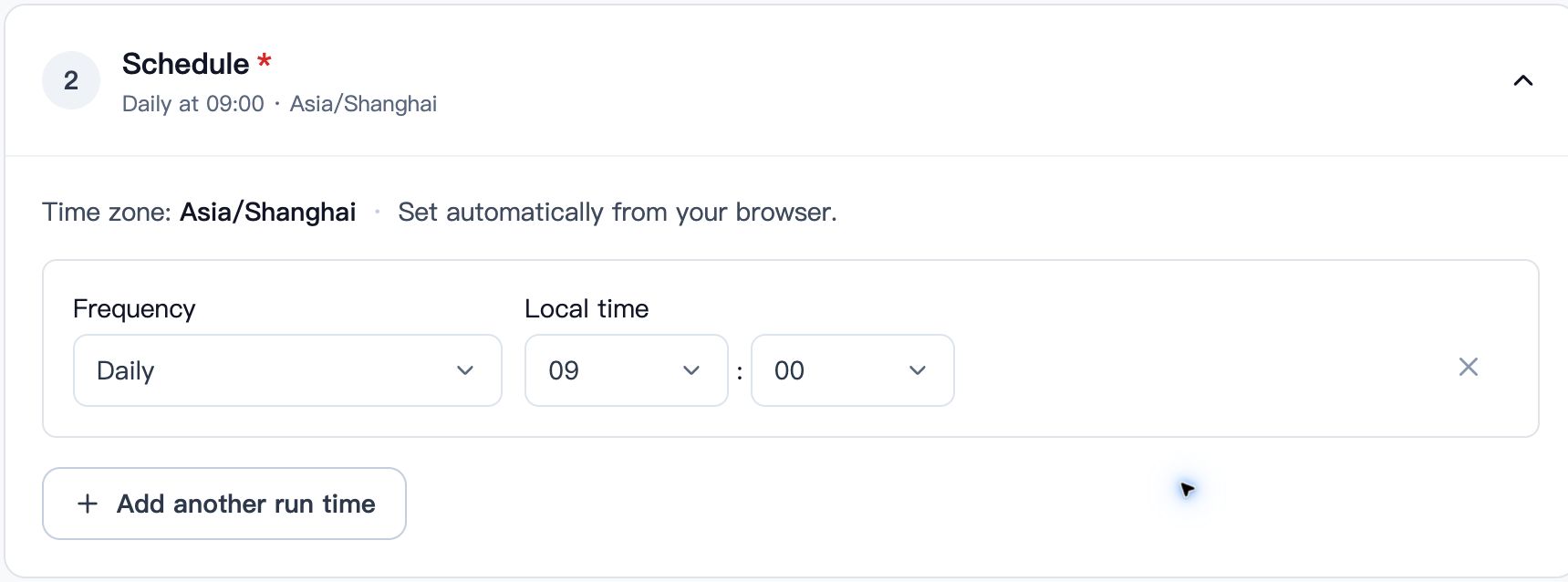
Choose how often to run: Once, Every N hours, Daily, Weekly, or Monthly. Set the local time and, where needed, the days. The time zone comes from your browser and cannot be changed here. Need more than one schedule? Select Add another run time.
Example screen · Click to enlarge Choose how to receive results
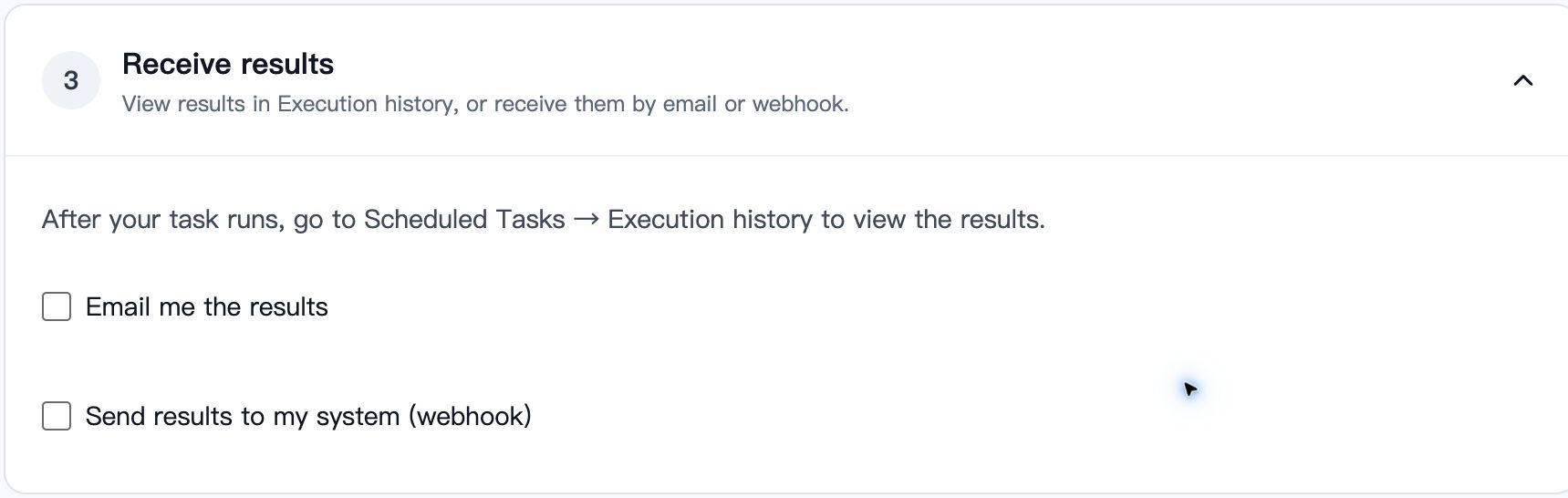
Results are saved on the platform under Scheduled Tasks → Execution history. To receive them automatically as well, select Email me the results or Send results to my system (webhook), then enter the destination. You can send all API results together or each result separately, and choose whether to include failed runs.
Example screen · Click to enlarge Review and save
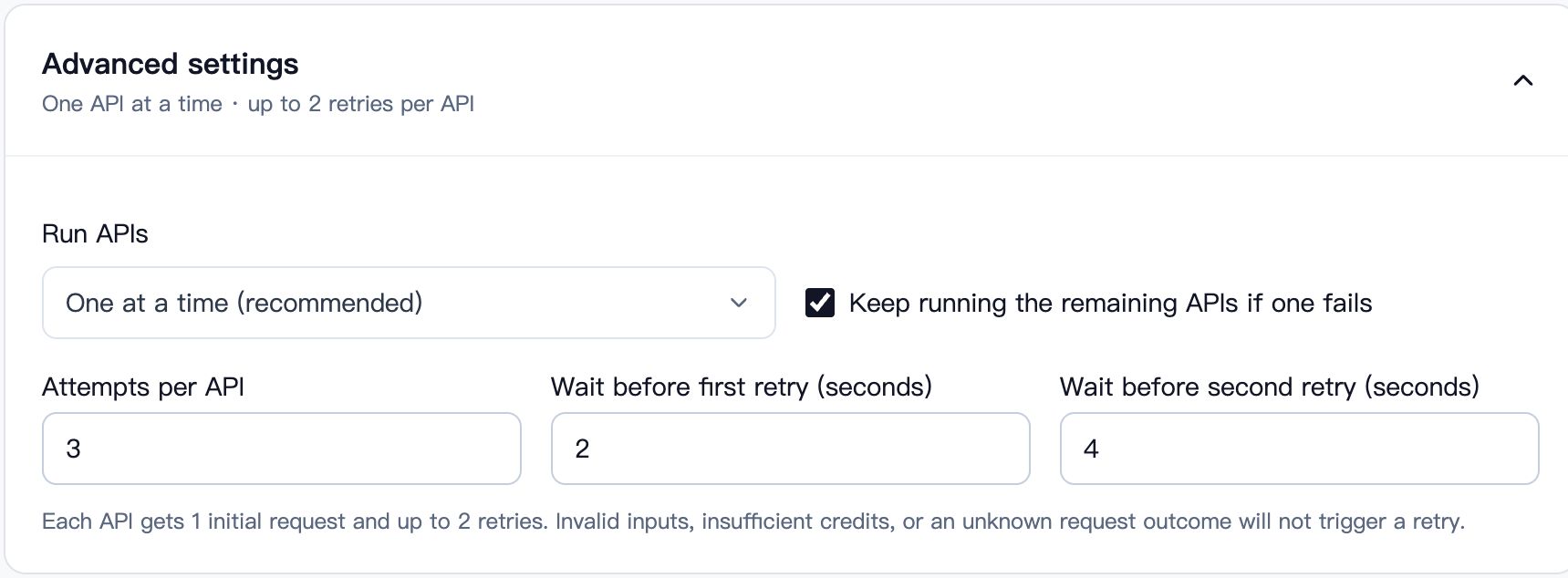
In Advanced settings, keep One at a time (recommended) or choose At the same time. Decide whether to keep running the remaining APIs if one fails. Retries per API after failure excludes the first request: 2 means up to 2 retries. Review your settings, then select Save task.
Example screen · Click to enlarge View your results
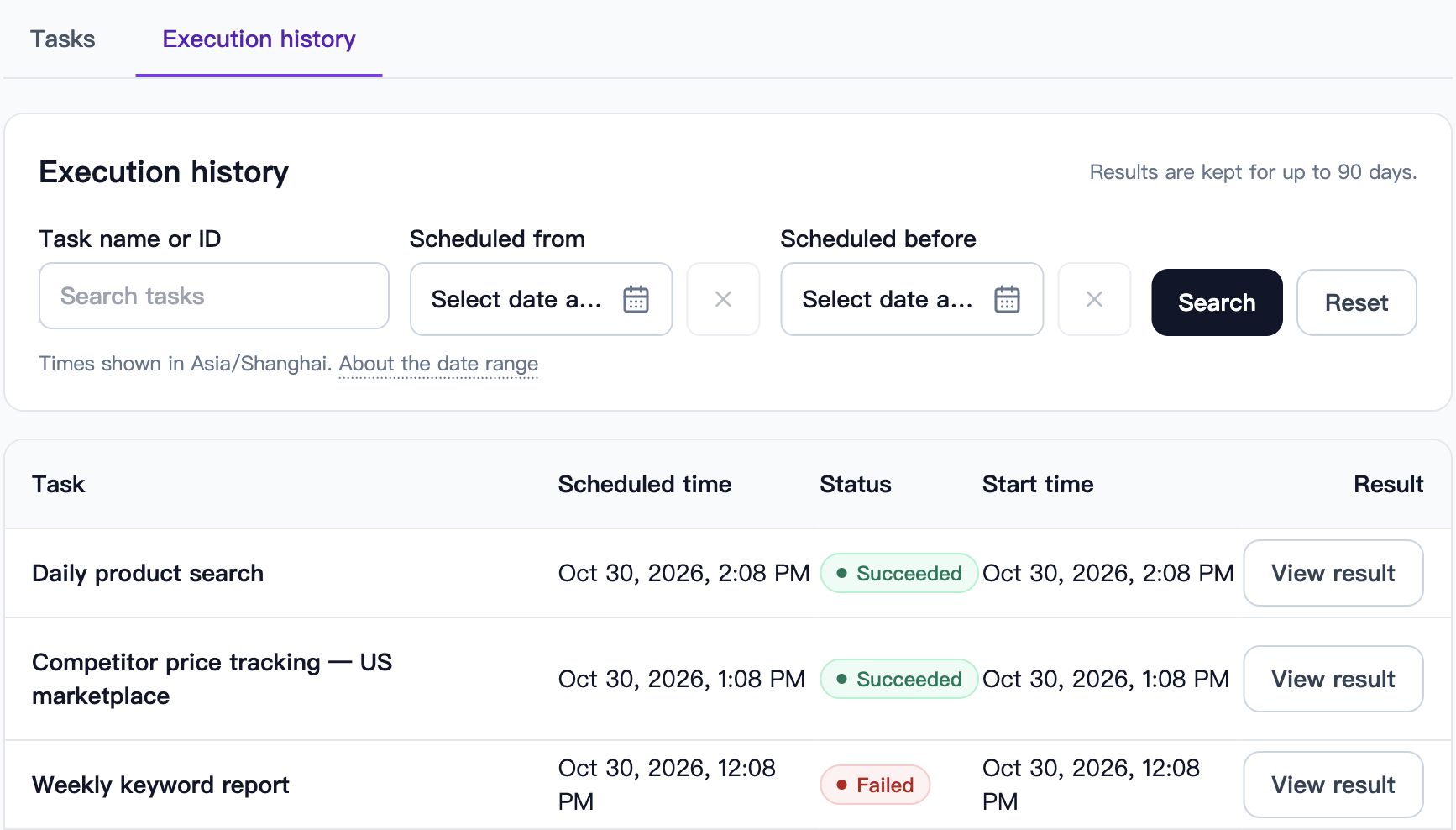
After a task runs, open the Execution history tab. Search by task name or ID, or filter by scheduled time. Select View result to see the API results, any failure reason, and delivery status. Results are kept for up to 90 days.
Example screen · Click to enlarge
Common questions
- Do I need a subscription?
- You need an active eligible subscription to use Scheduled Tasks. Check View plans for pricing and any first-subscription offer available to your account. Without a subscription, you can still view past runs and disable or delete existing tasks.
- How do I change or pause a task?
- In the Tasks tab, select Edit to change a task, then Save task. Open its three-dot menu and select Pause task to stop future runs, or Resume task to start scheduling again. View execution history opens that task’s past runs.
- What happens if I cancel while editing?
- If you have unsaved changes, you’ll be asked whether to Keep editing or Discard changes. If nothing has changed, Cancel takes you straight back to the task list.
- What happens if I run out of credits?
- API calls may use Data Credits. Calls with insufficient credits are skipped. After you add credits, calls can run at the next scheduled time. Invalid inputs, insufficient credits, and an unknown request outcome do not trigger retries.
- What do I need for email or webhook delivery?
- Use destinations you trust: delivery includes your API inputs and results. Sending each API result separately can produce several messages per run. A webhook needs a public HTTPS endpoint that accepts JSON. Open Technical details under the webhook settings for the requirements and an example payload.
- Why was a scheduled time skipped?
- Monthly schedules skip months without the selected day. During daylight saving changes, times that do not exist are skipped and repeated local times run only once. If multiple schedules match the same minute, the task runs once.
Ready to set up your task?
Go to Scheduled Tasks