
AI Image Variations
For Products
Explore new compositions from a product image while preserving the details shoppers need to recognize the same item.
What Would You Like To Create?
Start with one product photo. Compare the finished variations with your source image.
What You Can Do With
AI Image Variations For Products
Plan Image Variations
Illustrative ExampleKeep the product as the anchor, then describe what may change: framing, lighting or background.
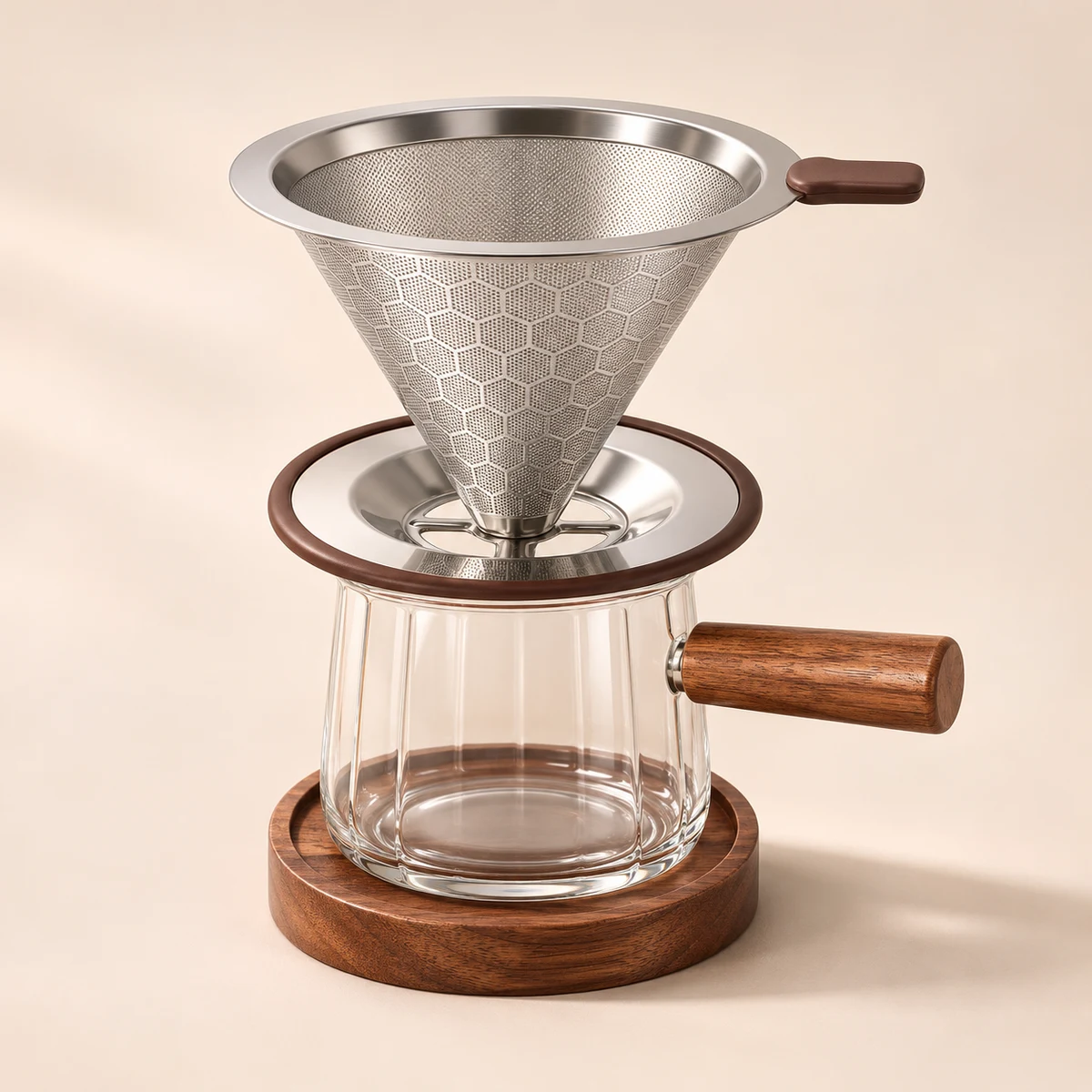
Pour-Over Coffee Dripper
- Metal filter and mesh pattern
- Glass cup and wooden handle
- Product proportions and materials
Generate Alternatives
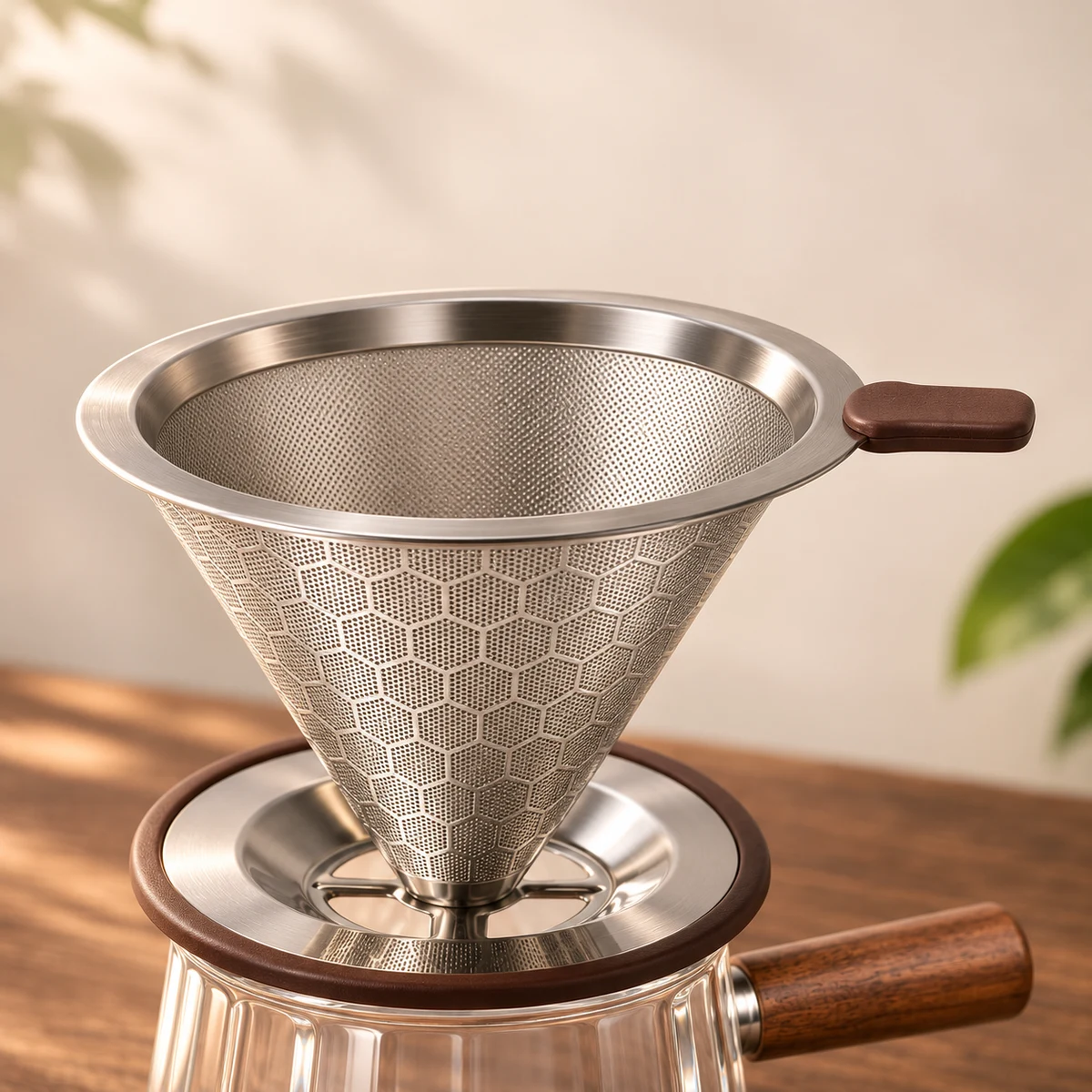
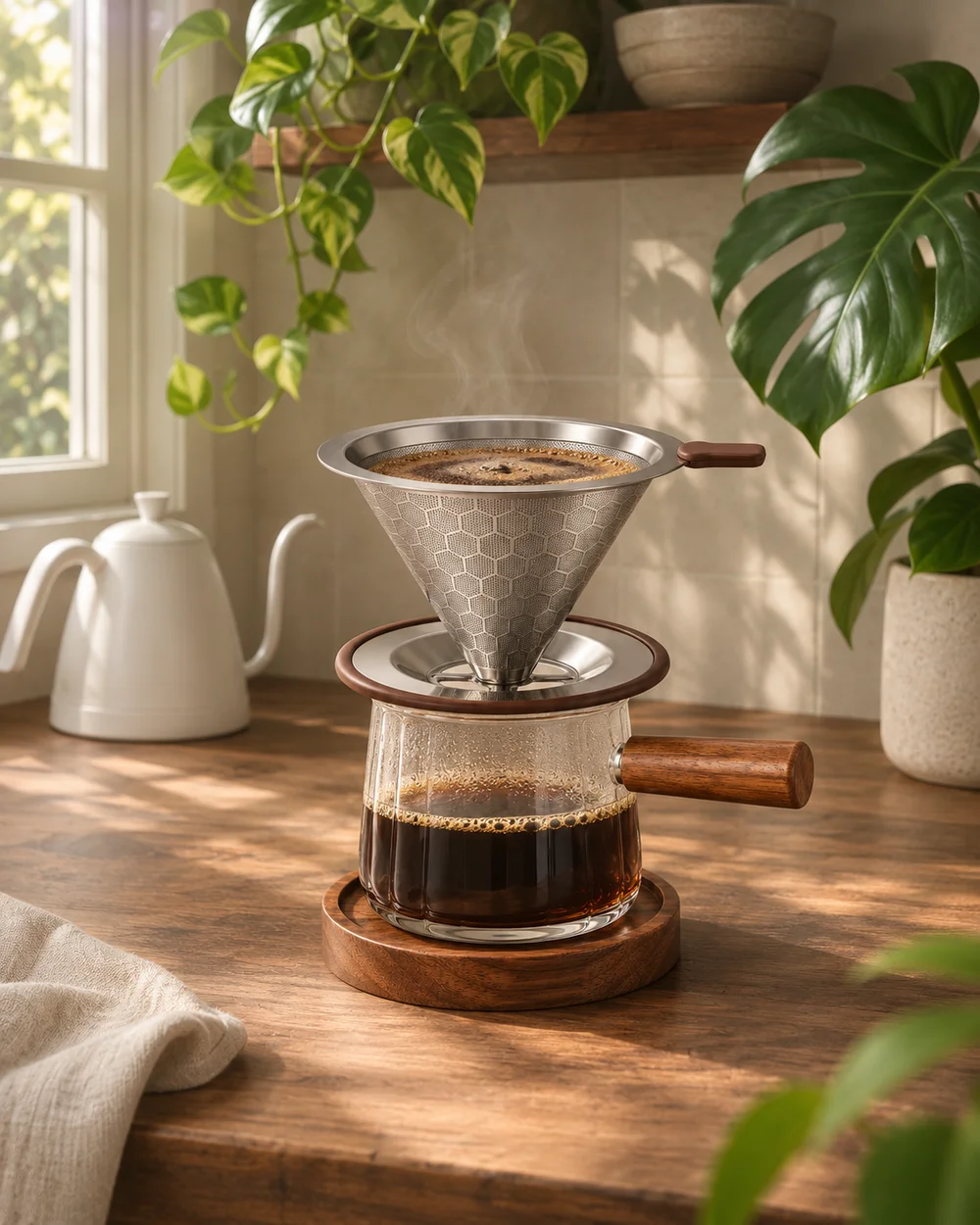
Illustrative ExampleA studio composition, detail crop and kitchen scene show different visual directions without changing the subject of the brief.
Select Distinct Outputs
Illustrative ExampleCheck the filter pattern, glass shape and handle. A pleasing composition still needs a product-fidelity review.
Select By Placement
- Listing Product View
- Prioritize a clear silhouette and visible components.
- Detail Placement
- Use the close-up to inspect mesh and handle construction.
- Lifestyle Placement
- Use scene context only when the product stays recognizable.
How It Works
Set A Direction For Each Image
Supply authorized product images in order. Specify the composition, background, or details to preserve for each.
Create Product Image Variations
Generate variations for each source while keeping recognizable product features intact.
Data Sources & APIs
Required
Similar Image Variations API →Optional
Nano Banana Image Generation API →GPT Image 2.5 Sunburst API →This page runs the generation shown above. Use your agent for the full workflow and additional inputs.
Compare Sources And Variations
Review the ordered source-to-output comparison and flag failures or duplicates before selecting images to use.
Frequently Asked Questions
What Do I Need For AI Image Variations For Products?
Provide source image, variation direction, and count. Define the desired variation directions and count before generating from one source image.
How Do I Keep Variations Consistent With My Product?
Use the same authorized source image and state which features must remain unchanged. Change one direction at a time and reject outputs with altered product details or duplicate compositions.
What Does Product Image Variation Shortlist Include?
Deliver an ordered source-to-variation comparison and a separate failure list with reasons. Save the direction, parameters, task ID, terminal state and result URL for each item. Check that the original returned URL opens directly, and provide the full absolute file path when delivering downloaded images. Mark inaccessible and rejected items explicitly.
Can I Run The Complete Workflow On This Page?
Run Here, where available, executes one selected step only. Your agent coordinates the remaining supported tools and carries intermediate results between them; it asks you for missing business inputs. Use In Your Agent carries your supplied inputs and the business workflow for multi-step work. Generation and other task-based tools require the documented completion flow; a submitted task is not a finished output.
What Does This Workflow Cost?
Creating an account is free. Individual data, processing and generation calls use the current tool pricing and your account access. Review the supporting documentation before running; multi-step workflows can make several chargeable calls. This page does not promise free queries or a fixed total.
What Happens When Evidence Or An Optional Tool Is Missing?
Keep the missing source or failed step visible in the product image variation shortlist. Skip optional enrichment when it is unavailable, but stop any conclusion that depends on missing primary evidence. Remove near duplicates, mark failed outputs, and retain the source image and generation settings for each selected variation.
Start Your Product Image Variations
Explore new compositions from a product image while preserving the details shoppers need to recognize the same item.