
Product Video Maker
With Voiceover
Create a product script and video, review the generated audio, and finish any missing voiceover with your licensed audio and video editor.
What Video Are You Planning?
Add one product image and a short script to generate a video. Play it back with sound and review the narration before using it.
What You Can Do With
Product Video Maker With Voiceover
Draft A Sales Script
Illustrative ExamplePlan the opening, product explanation and closing separately. Keep every spoken claim tied to verified product facts.
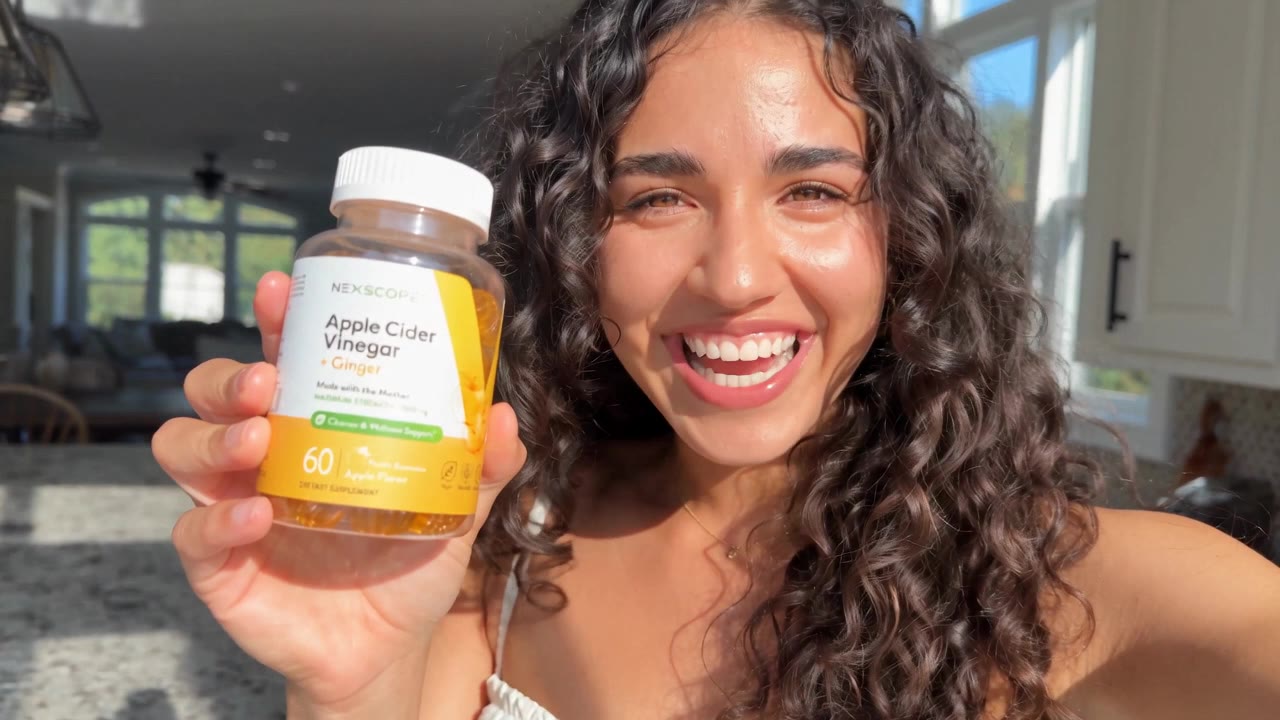
Product Narration Example
- 01 Opening & Product
- 02 Product Explanation
- 03 Closing Message
Create A Product Video
Illustrative ExampleThese frames come from the saved narration example. Compare product visibility and framing as the presentation progresses.
Review Voiceover Assembly
Illustrative ExamplePlay the saved narration example and listen to the audio. Review spoken claims, pacing and product visibility before using your own result.
Product Narration Example
- Spoken claims and product facts
- Voice and picture timing
- Product visibility throughout
How It Works
Add A Product Image And Script
Upload one product image you have permission to use, or paste its URL. Enter the narration exactly as you want it spoken.
Generate Your Video
Choose the aspect ratio, duration, and resolution. Select Run Here to generate one video from your image and script.
Data Sources & APIs
Required
Product Description Generator API →Sales Talking Video API →This page runs the generation shown above. Use your agent for the full workflow and additional inputs.
Play And Review The Video
Play the finished video with sound and check that the narration matches your script. Download the MP4 when you’re happy with it.
Frequently Asked Questions
What Do I Need For Product Video Maker With Voiceover?
Provide product image, selling points, and target language. Start from authorized product images, verified selling points, target language, and video style.
Is A Draft Script The Same As A Finished Voiceover Video?
No. Review the script separately from generated footage. Confirm the selected tool’s audio capabilities and inspect narration, timing and language in the actual output before treating the assembly as complete.
What Does Script & Product Video Include?
Three concepts, selection and script record, final video, audio review, and any user-side voiceover assembly record.
Can I Run The Complete Workflow On This Page?
Run Here, where available, executes one selected step only. Your agent coordinates the remaining supported tools and carries intermediate results between them; it asks you for missing business inputs. Use In Your Agent carries your supplied inputs and the business workflow for multi-step work. Generation and other task-based tools require the documented completion flow; a submitted task is not a finished output.
What Does This Workflow Cost?
Creating an account is free. Individual data, processing and generation calls use the current tool pricing and your account access. Review the supporting documentation before running; multi-step workflows can make several chargeable calls. This page does not promise free queries or a fixed total.
What Happens When Evidence Or An Optional Tool Is Missing?
Keep the missing source or failed step visible in the script & product video. Skip optional enrichment when it is unavailable, but stop any conclusion that depends on missing primary evidence. Review the completed MP4 for audible narration, language, lip timing, product identity, and factual claims; if audio is absent, complete and label the user-side voiceover step.
Start Your Product Sales Videos
Create a product script and video, review the generated audio, and finish any missing voiceover with your licensed audio and video editor.