

How to Connect Telegram and Discord to Nexscope (Step-by-Step)

Nexscope lets you chat with your AI agent through Telegram or Discord—so you can get answers, run tasks, and manage your e-commerce business from anywhere.
This guide walks you through connecting both platforms in under 10 minutes.
Why Connect Telegram or Discord?
By default, you interact with Nexscope through the web interface. But sometimes you want to:
- Chat on mobile — Ask your agent questions while commuting or away from your desk
- Get notifications — Receive alerts and updates directly in your messaging app
- Quick tasks — Run simple queries without opening a browser
- Team collaboration — Add your agent to a Discord server for your team
Once connected, your AI agent responds to your messages just like chatting with a friend—but with all the power of Nexscope behind it.
What You'll Need
- A Nexscope account with an active workspace
- A Telegram account (for Telegram setup)
- A Discord account (for Discord setup)
- About 5-10 minutes
Part 1: Connect Telegram to Nexscope
Step 1: Create a Telegram Bot
First, you need to create your own Telegram bot. Don't worry—it's free and takes 2 minutes.
- Open Telegram and search for @BotFather (the official Telegram bot for creating bots)
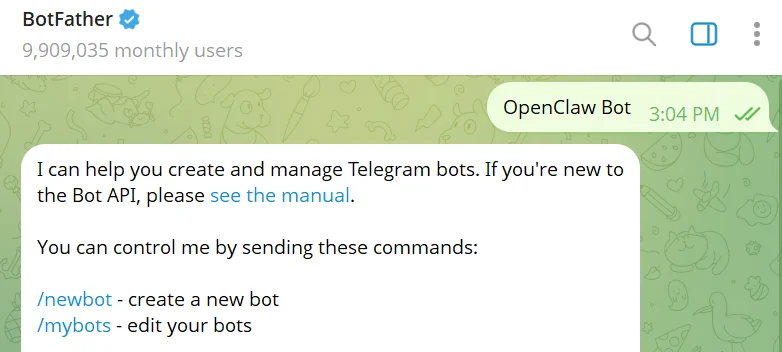
- Start a chat and send
/newbot

- BotFather will ask for a name — enter something like
My Nexscope Agent - Next, enter a username (must end in
bot, e.g.,mynexscope_bot) - BotFather will respond with your API token:
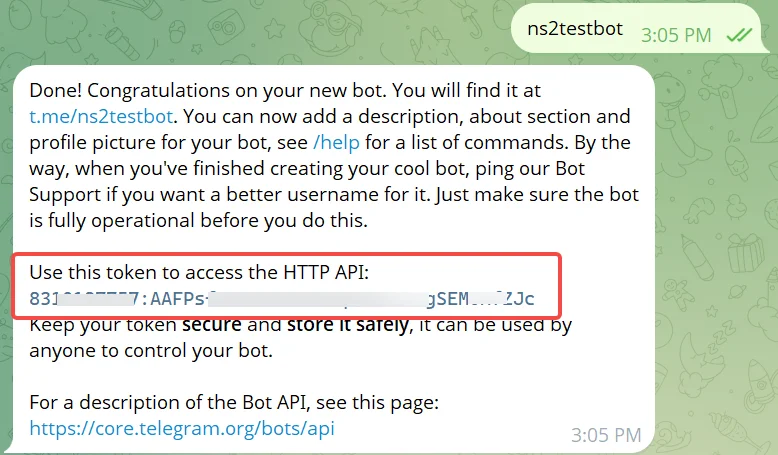
- Copy this token — you'll need it in the next step
Keep your token secret! Anyone with this token can control your bot.
Step 2: Add the Token to Nexscope
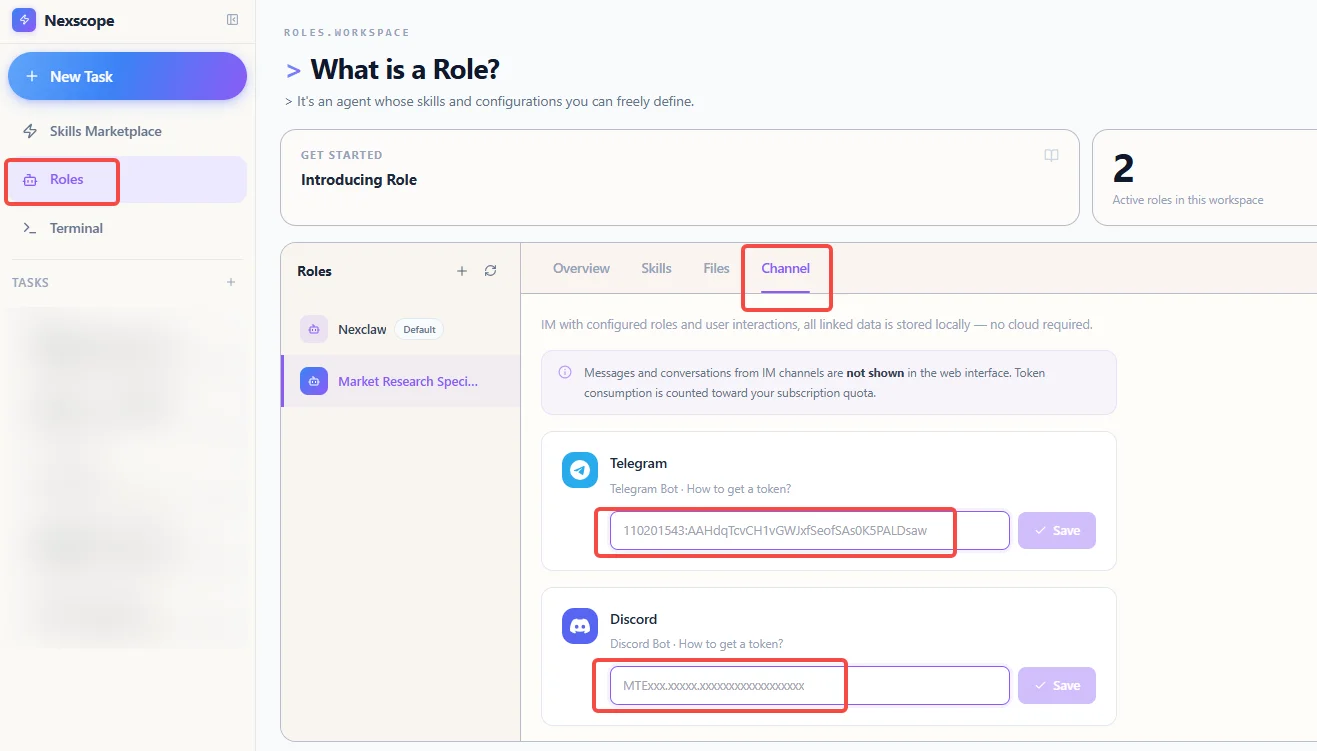
- Log in to Nexscope
- In the left sidebar, click Roles
- Select the Role (agent) you want to connect
- Click the Channel tab
- Find the Telegram section
- Paste your bot token into the input field
- Click Save
Step 3: Start a Chat with Your Bot
- In Telegram, search for your bot's username (the one you created, e.g.,
@mynexscope_bot) - Start a chat and send any message (e.g., "hi")
-
Your bot will respond with a pairing code:
-
You'll see something like: ``` OpenClaw: access not configured. Your Telegram user id: 8XXXXXXX7 Pairing code: XXXXXXXX
Ask the bot owner to approve with: openclaw pairing approve telegram XXXXXXXX ```
- Copy the full command (the line starting with
openclaw pairing approve...)
Step 4: Approve the Pairing in Terminal
- In Nexscope, click Terminal in the left sidebar
- Paste the command you copied:
bash openclaw pairing approve telegram XXXXXXXX - Press Enter
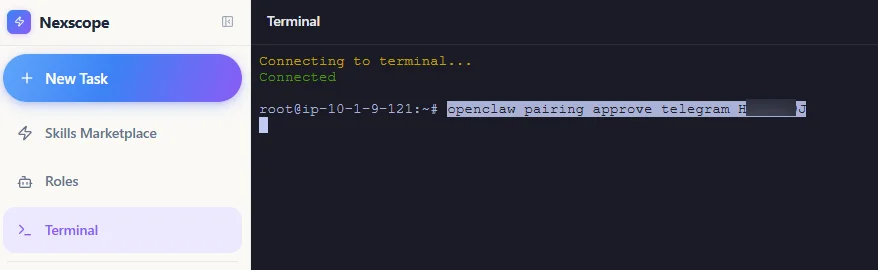
That's it! Go back to Telegram and send a message. Your AI agent will now respond.
Part 2: Connect Discord to Nexscope
Step 1: Create a Discord Application
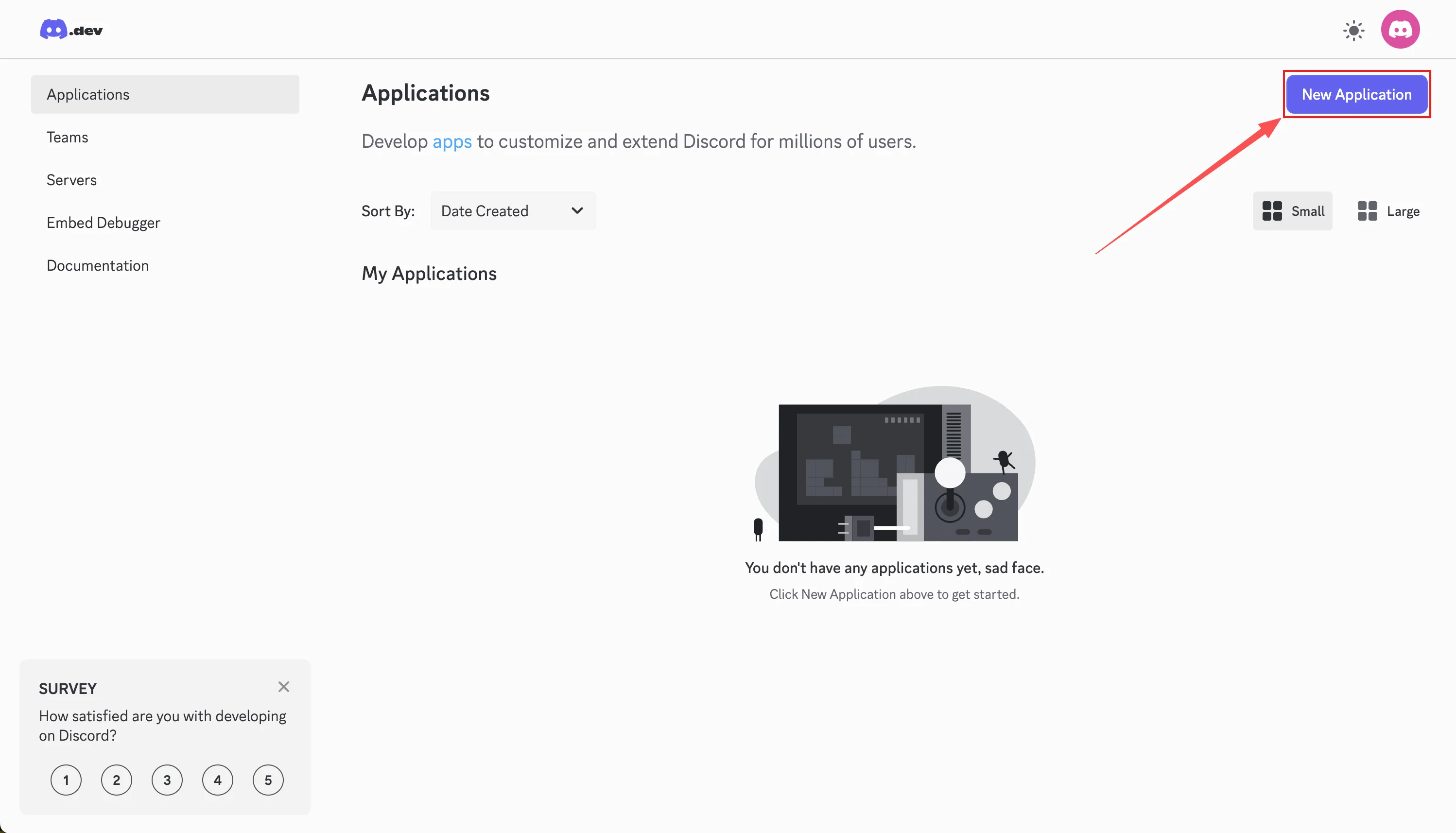
- Go to the Discord Developer Portal and log in
- Click the New Application button in the top right
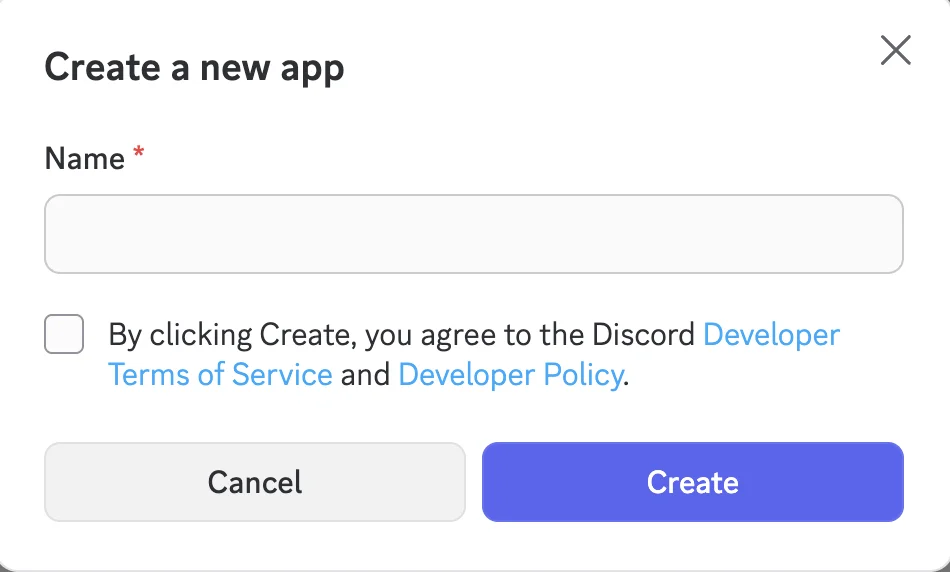
- Enter a name for your bot (e.g., "Nexscope-AI"), agree to the terms, and click Create
Step 2: Get Your Bot Token
- In your Application page, click Bot in the left sidebar
- Click Reset Token to generate a new token
- Copy and save the token — you'll need it for Nexscope
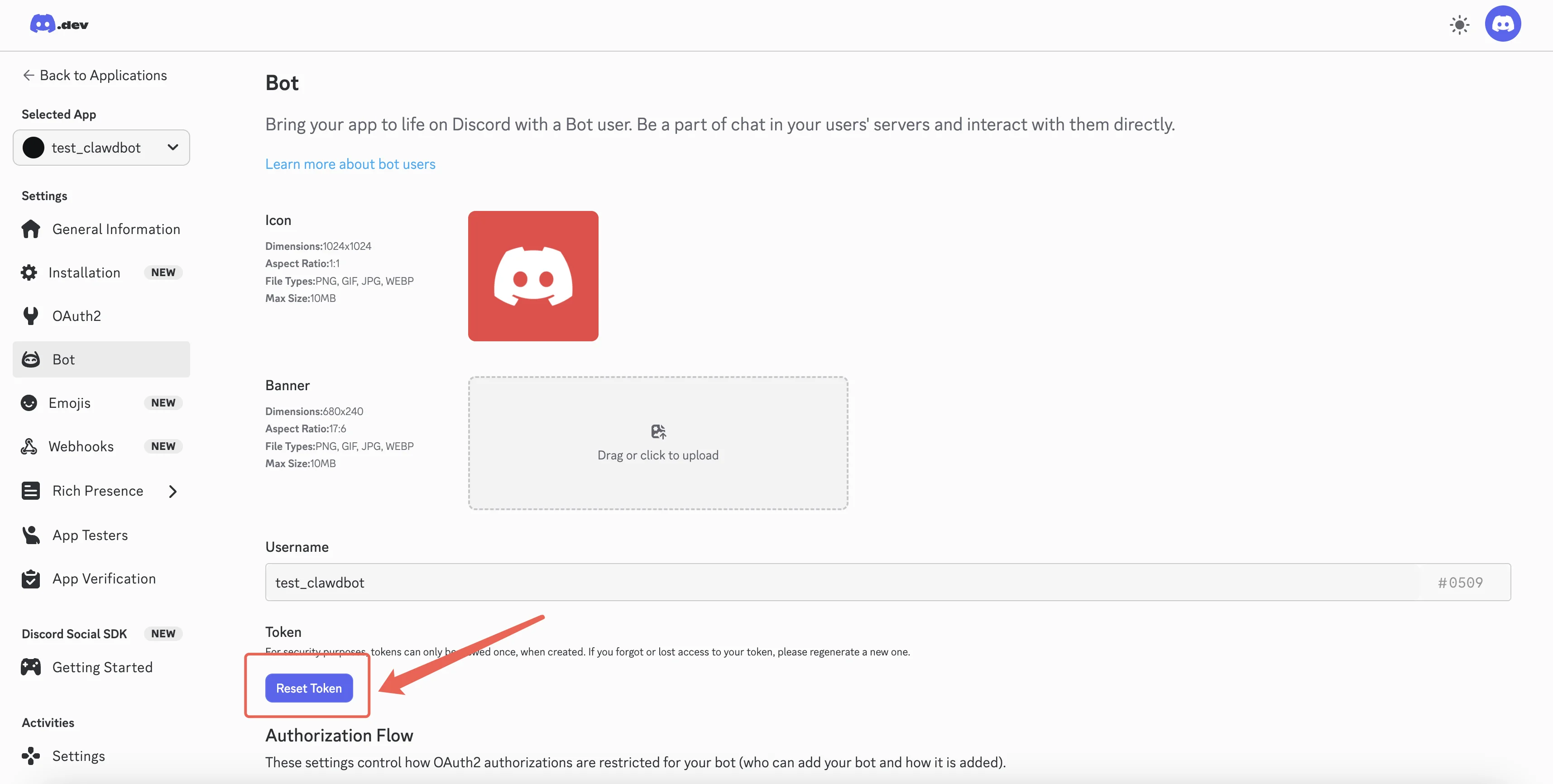
Keep your token secret! Never share it publicly.
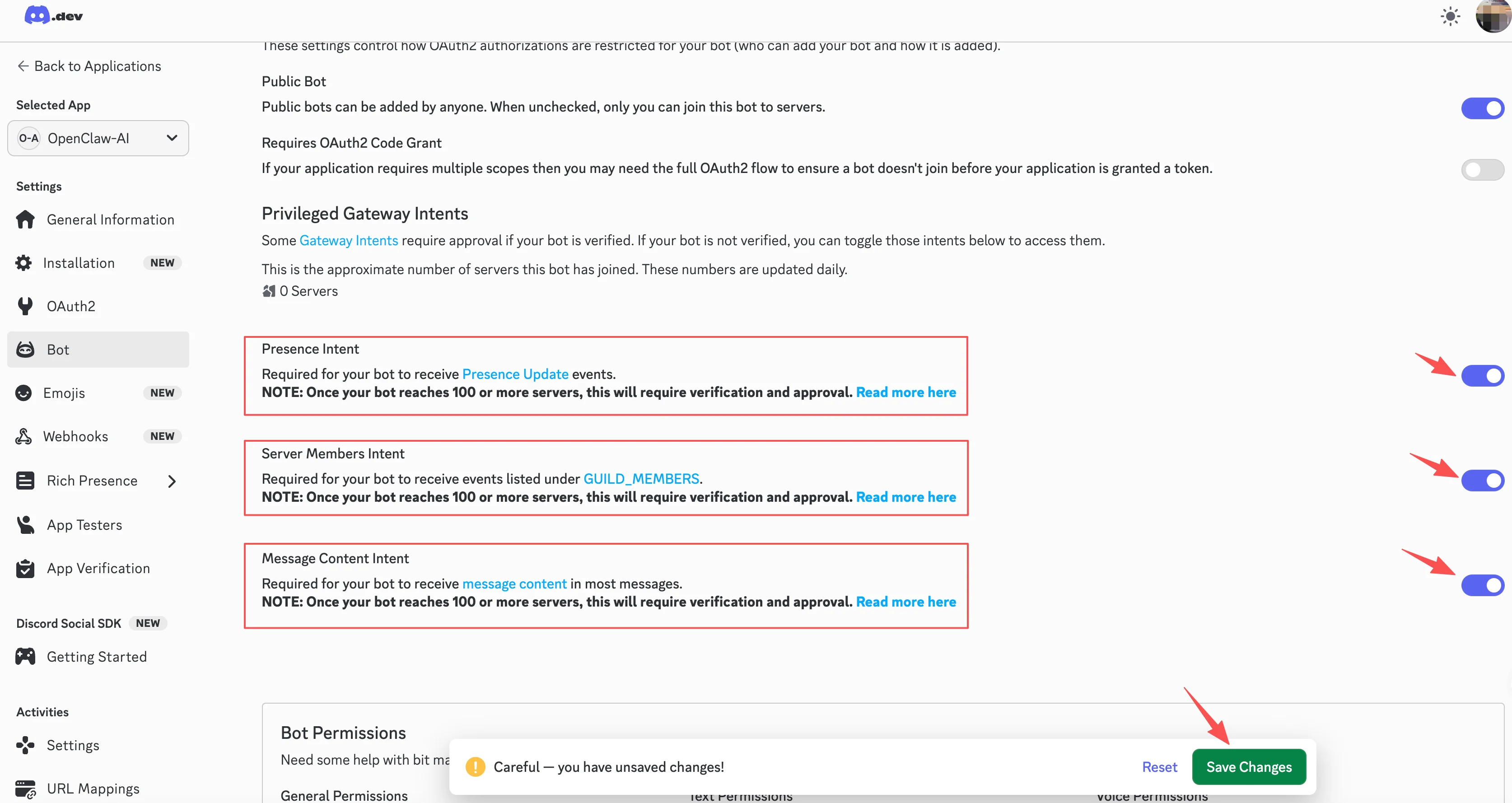
Step 3: Enable Gateway Intents
This step is required — without it, your bot cannot read messages.
- On the Bot page, scroll down to Privileged Gateway Intents
- Enable the following:
- ✅ Message Content Intent (required for reading messages)
- ✅ Server Members Intent (recommended for role allowlists and name/ID matching)
- ✅ Presence Intent (optional, for status updates)
- Click Save Changes
Step 4: Add the Token to Nexscope
- In Nexscope, go to Roles > select your Role > Channel tab
- Find the Discord section
- Paste your bot token into the input field
- Click Save
Step 5: Start a Chat and Pair
- In Discord, go to the server where you added the bot
- Send a message in a channel where the bot can see it (e.g., "hi")
- The bot will respond with a pairing code similar to Telegram
- Copy the approval command
- In Nexscope Terminal, paste and run the command:
bash
   openclaw pairing approve discord XXXXXXXX
Done! Your Discord is now connected to Nexscope.
Troubleshooting
Bot doesn't respond in Telegram
- Make sure you saved the token in Nexscope's Channel settings
- Check that you're messaging the correct bot username
- Try sending
/startfirst, then your message
Bot doesn't respond in Discord
- Verify the bot has permission to read and send messages in the channel
- Make sure Message Content Intent is enabled in the Developer Portal
- Check that the bot is online (green dot) in the server member list
"Invalid token" error
- Double-check you copied the entire token without extra spaces
- For Discord, try resetting the token and using the new one
Pairing code expired
- Pairing codes expire after a few minutes
- Send a new message to your bot to get a fresh code
Start Chatting
Once connected, you can chat with your AI agent from anywhere—on your phone, tablet, or desktop. Ask questions, run market research, analyze competitors, or just brainstorm ideas.
Nexscope is an AI-powered assistant built for e-commerce sellers. It helps you find products, validate demand, analyze competitors, and automate repetitive research tasks—all through natural conversation.
Grow your ecommerce business
AI-powered intelligence for smarter selling decisions
Get Started Free →Frequently Asked Questions
Can I connect both Telegram and Discord at the same time?
Yes! You can connect multiple channels to the same Nexscope Role. Each platform works independently.
Is my conversation data stored on Telegram/Discord servers?
Messages and conversations from IM channels are not shown in the Nexscope web interface. All linked data is stored locally on your Nexscope instance—no cloud required.
Does this count toward my token usage?
Yes, conversations through Telegram and Discord consume tokens from your subscription quota, just like using the web interface.
Can I add the bot to a Discord server for my team?
Yes! After connecting, anyone in the Discord server can interact with your Nexscope agent. You control who has access through Discord's channel permissions.
How do I disconnect a channel?
Remove the token from the Channel settings in Nexscope and click Save. The bot will stop responding to messages.