
10 Best AI UGC Video Generators for Ecommerce in 2026
Table of Contents
Want a video of someone introducing your product without booking a shoot? An AI UGC video generator can help. Upload product photos, choose a virtual presenter, and describe what the person should say or do. Depending on the tool, you can also start with a product link or an existing video.
Nexscope is our first pick for ecommerce sellers. You can make a person talk about your product, turn a product photo into a moving scene, create videos from listing links, or make videos for several products in one batch. Below, we explain what each of the ten tools does, who it suits, and what to check in the finished video.
This is a Nexscope-published guide, with recommendations based on the tools' advertised features and suitability for ecommerce. The order is an editorial choice, not a scored video-quality test.
AI UGC Video Generators at a Glance
| Rank | Tool | Best for | What you start with | What you can make |
|---|---|---|---|---|
| 1 | Nexscope | Sellers making videos for their products | Product photos, a listing link, or a reference video | Presenter videos, product demos, and batches of product videos |
| 2 | Creatify | Turning a listing page into an ad | A product link | Video ads with an AI presenter |
| 3 | Arcads | Trying different people for the same ad | A script and an AI actor | Videos of an actor delivering your message |
| 4 | MakeUGC | Showing a person holding a product | Product images and an AI presenter | Talking videos and product-in-hand scenes |
| 5 | Topview | Building an ad with several scenes | A description, script, link, or reference video | Videos with scenes you can revise in Canvas |
| 6 | HeyGen | Making presenter videos in different languages | A script, avatar, or existing video | Avatar videos and translated videos |
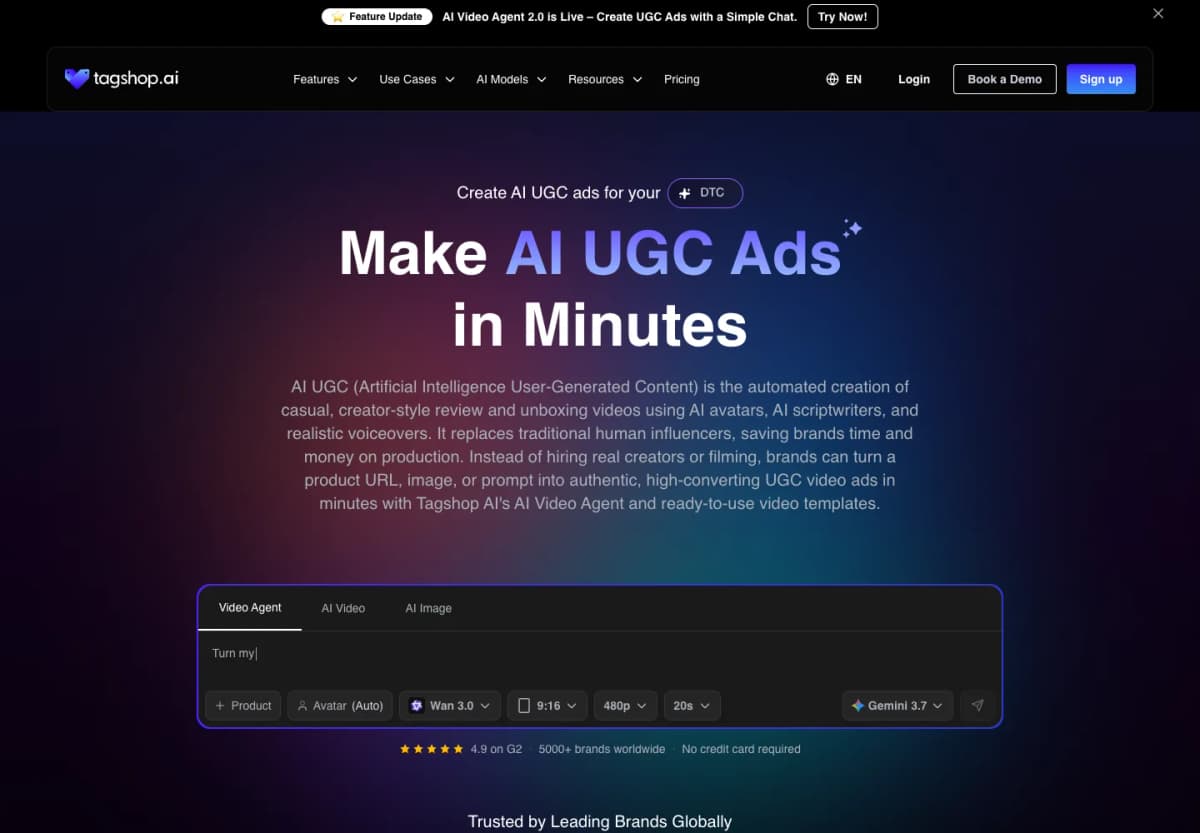
| 7 | Tagshop AI | Writing an ad from product information | A product link or description | Scripts and videos with an AI presenter |
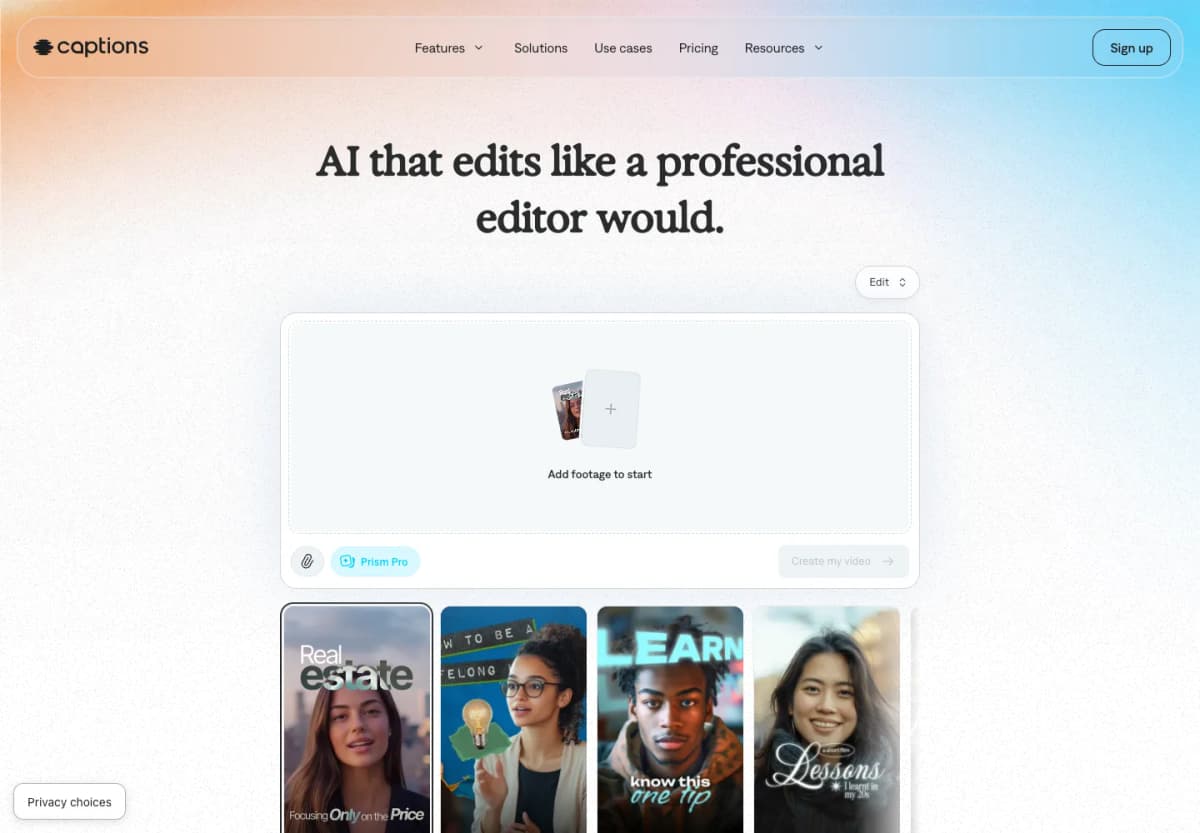
| 8 | Captions | Editing and captioning creator videos | An avatar or existing footage | Edited videos with subtitles and added visuals |
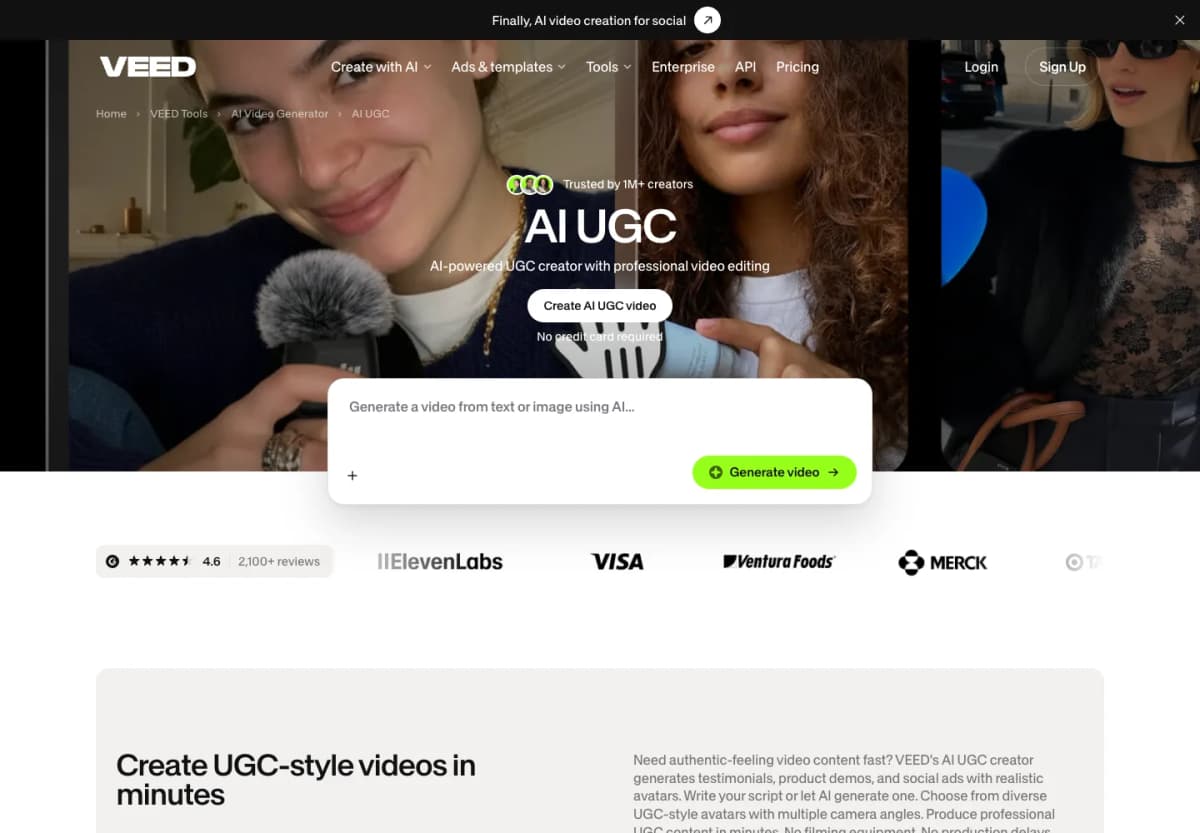
| 9 | VEED | Combining AI clips with your own footage | A prompt, avatar, or uploaded media | Videos finished in a browser editor |
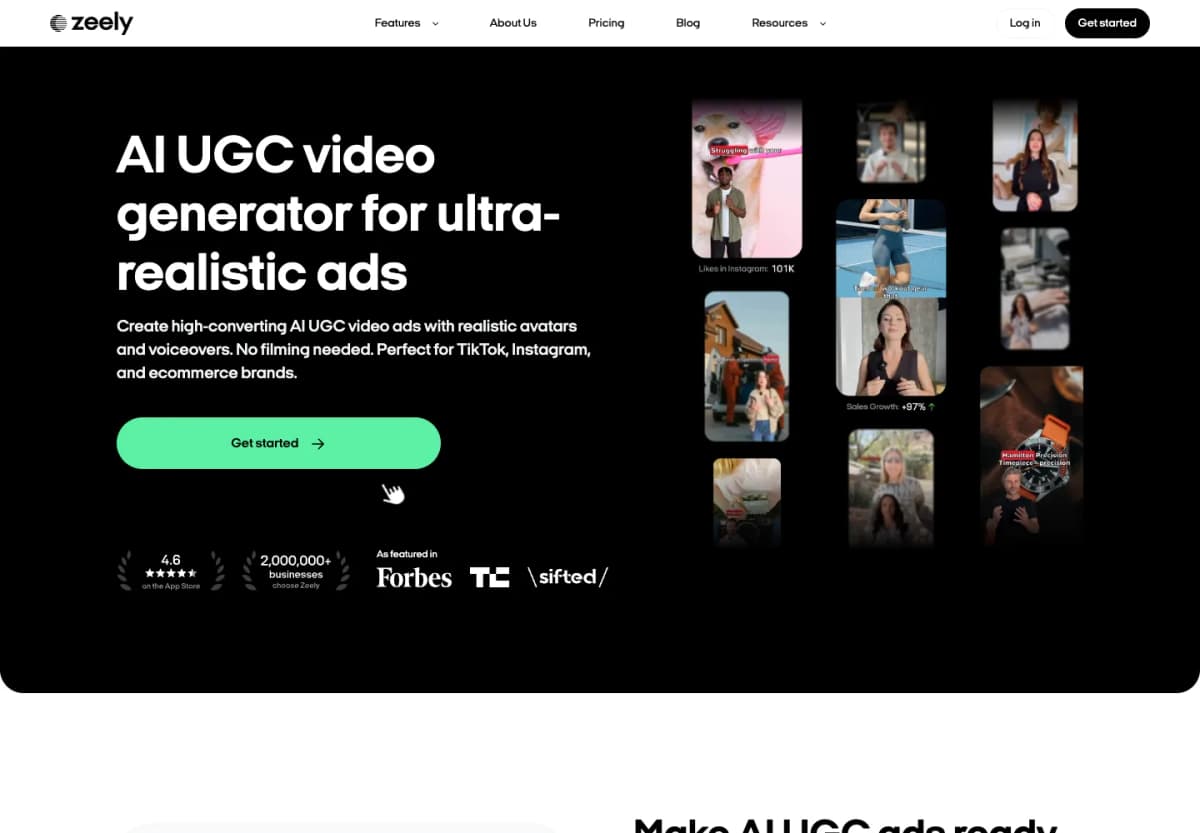
| 10 | Zeely | Making both video and image ads | A product link and images | UGC-style videos and static ads |
What to Look for in an AI UGC Video Generator
AI UGC videos look like social videos made by a creator: someone talks to the camera, shows an item, or explains how it works. The person can be AI-generated. That makes the video a scripted product presentation; it does not make it a review from a real customer.
Check these details in sample videos and with your own product:
- Realistic people: Faces, blinking, expressions, and hands should move naturally.
- Natural speech: Listen for normal pauses and changes in tone; check that the mouth matches the words.
- Consistent products: The color, logo, shape, packaging, and size should match your photos throughout the clip.
- Presenter choice: Choose a person and voice that suit your audience and product.
- Clear instructions: Tell the tool what to say and show, such as opening a bag's front pocket.
- Useful exports: Check video length, resolution, vertical formats, watermarks, and the cost of another attempt.
1. Nexscope
Best for: ecommerce sellers who want to turn their own product photos and listings into videos.
Nexscope turns product photos, listing links, and reference videos into product videos. Make a presenter explain one item, or create videos for a whole collection.
What You Can Make With Nexscope
Choose a tool based on what you already have:
- Avatar Video: Upload product photos, choose a presenter, and describe what they should say and do.
- Image to Video: Turn product photos into moving scenes using a template or your own description.
- URL to Video: Import images and details from a product listing, review the script, and make a video with or without a presenter.
- Video Clone: Use a reference video's scenes and actions to guide a new video featuring your product. See the Video Clone walkthrough.
- Bulk Video: Create separate videos for up to 100 products in one project, then download them together.
Choose Your Presenter and Video Model
Adjust who appears and how the video is generated:
- Avatars: Choose a presenter or upload an avatar image; options vary by tool and video type.
- AI models: Try models such as Seedance 2.5, Wan3.0, MiniMax H3, and Seedance 2.0 in Avatar Video.
- Video settings: Choose the available length, resolution, and aspect ratio for your selected model.
- Credit estimate: Check the displayed cost before generating; it changes with your settings.
Best Fit
- Store owners who already have product photos and want their first video ad.
- Brands that want a presenter to explain a product without arranging a shoot.
- Sellers who want to try different people, opening lines, or scenes for the same item.
- Teams launching several products and needing separate videos for each one.
- Agencies making product videos for multiple stores.
Before you generate: Use clear photos and a short script. Check the finished video for natural speech and accurate product details.
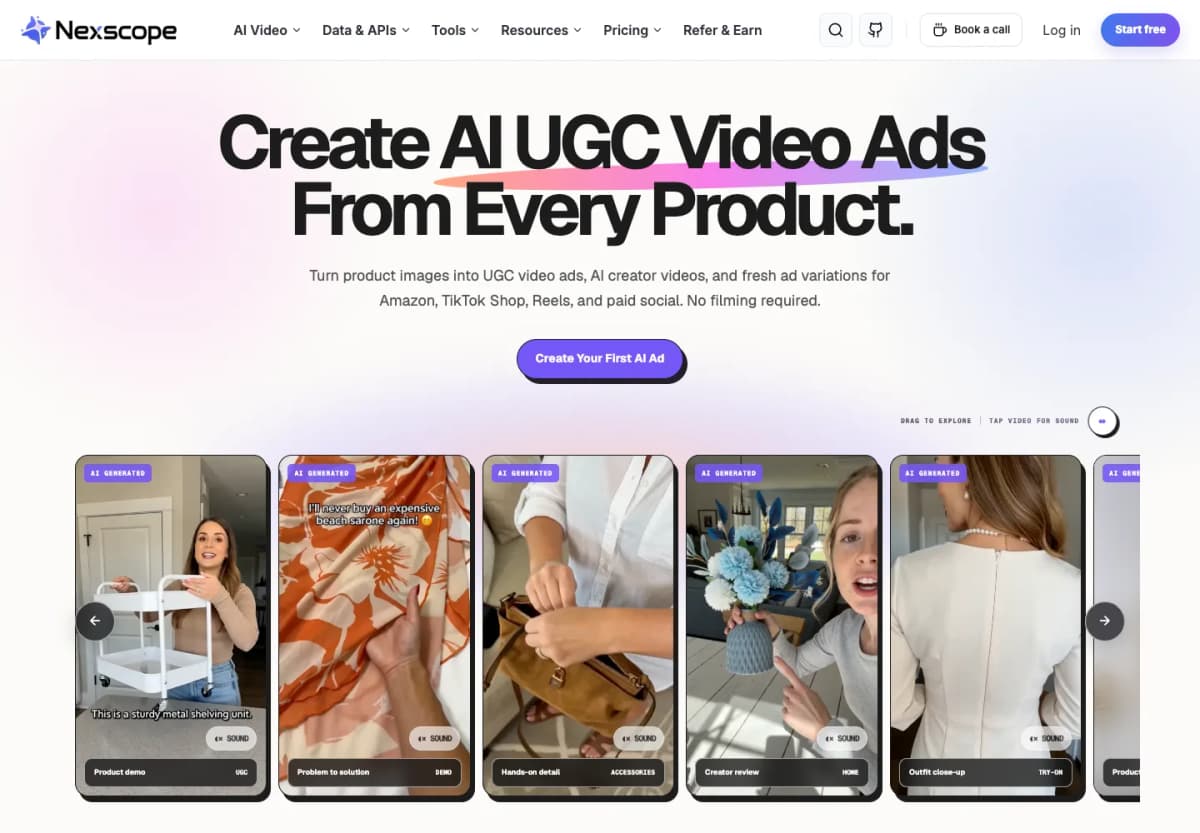
Nexscope's gallery shows examples of people introducing products and demonstrating them on camera.
Make a Video of Someone Introducing Your Product
Upload a product photo, choose a presenter, and tell Nexscope what they should say.
Create Your UGC Video →2. Creatify
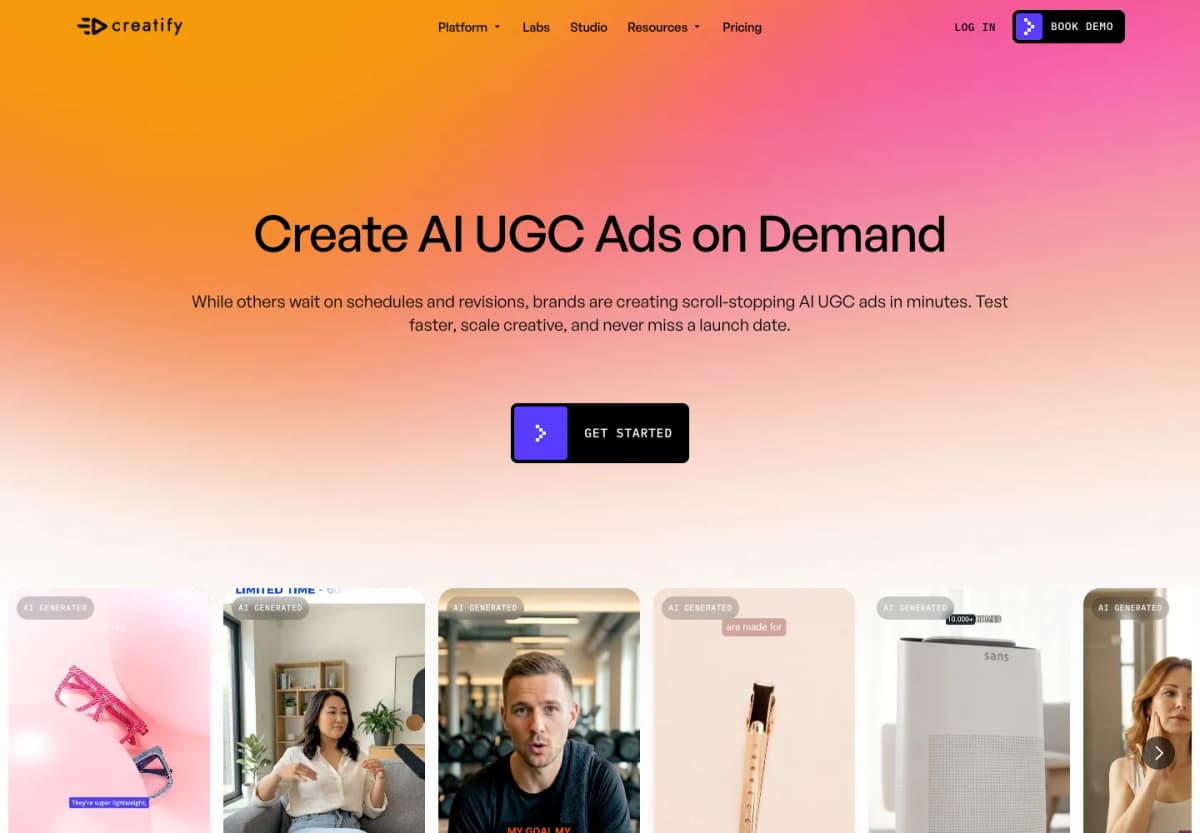
Start with a product page. Creatify turns product links into video ads and offers AI presenters. If your listing already has clear photos and a useful description, you can use that information to start the video instead of preparing everything from scratch.
What You Can Do
- Paste a product URL to start an ad.
- Choose an AI presenter to deliver the message.
- Make different ad versions from the same product information.
Best Fit
- Store owners with complete product listings.
- Teams that want to turn several product pages into ads.
Check before choosing: Check that the script describes the right size, color, package contents, and offer. A video made from a listing is only as accurate as the information it uses.
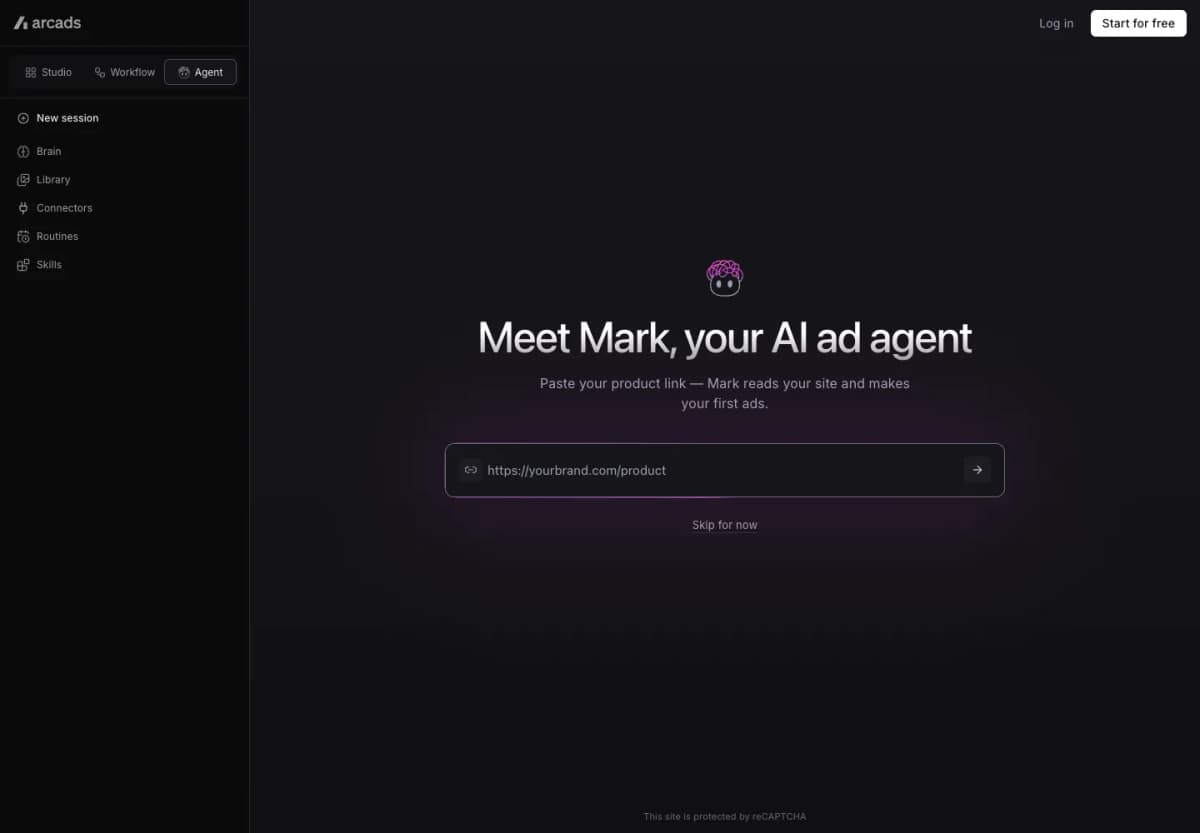
3. Arcads
Choose an AI actor for your ad. Arcads focuses on AI actors for advertising. You choose a presenter for your script, which is useful when the person’s voice and delivery are a big part of the ad. It also offers custom avatars.
What You Can Do
- Try different actors for the same message.
- Choose a presenter to match the tone of your ad.
- Use a custom avatar when you need a particular presenter.
Best Fit
- Advertisers testing different presenters.
- Brands making short ads built around a spoken message.
Check before choosing: Listen to the whole script, including product names. Also check how your product will appear: a convincing talking actor does not automatically give you a detailed product demonstration.
4. MakeUGC
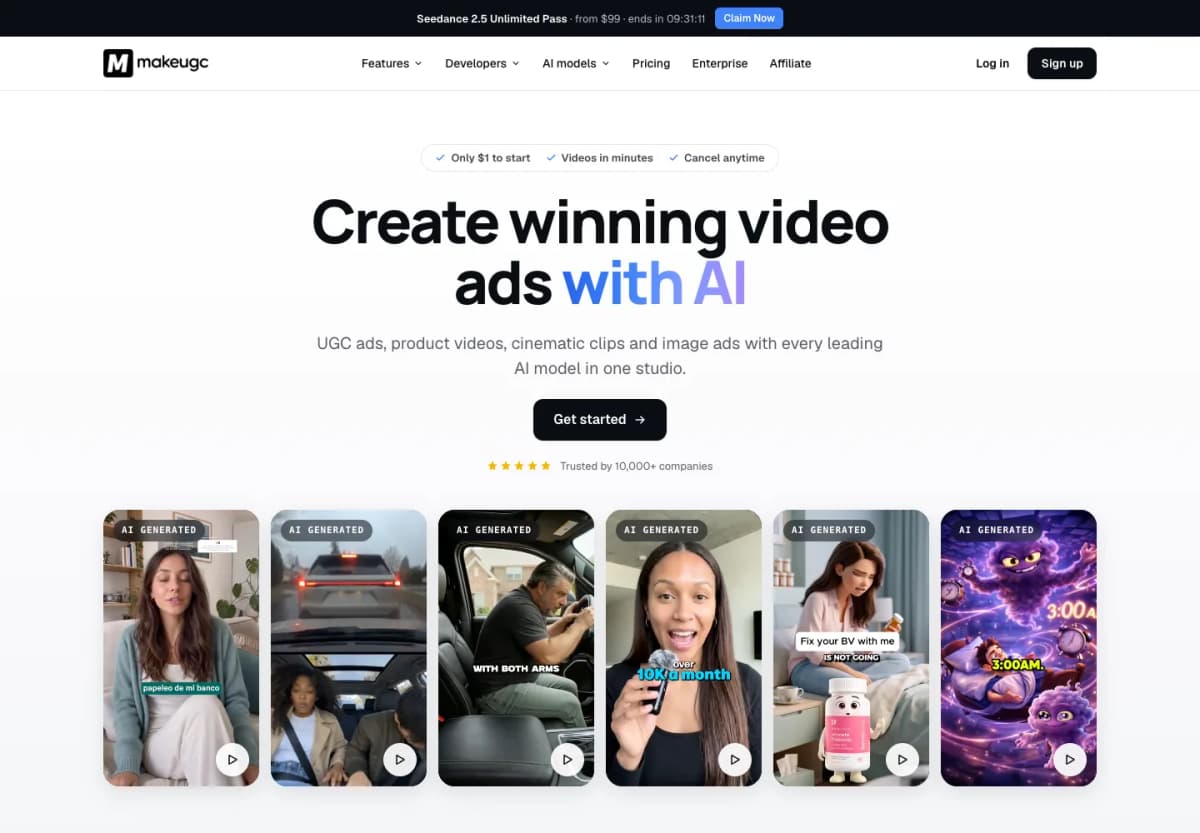
Show someone holding your product. MakeUGC combines talking actors with a Product in Hand feature. It is useful when you want the viewer to see a person holding the item while talking about it. It also includes custom avatars and video editing tools.
What You Can Do
- Create a talking-presenter video.
- Use product images to make a product-in-hand scene.
- Trim the clip and add captions, music, or supporting footage.
Best Fit
- Brands selling small products that can be held on camera.
- Teams making simple introductions and product demonstrations.
Check before choosing: Watch the hands and the item closely. The product should stay the right size, and fingers should not pass through the packaging. Test your actual product, especially if its shape or label is unusual.
5. Topview
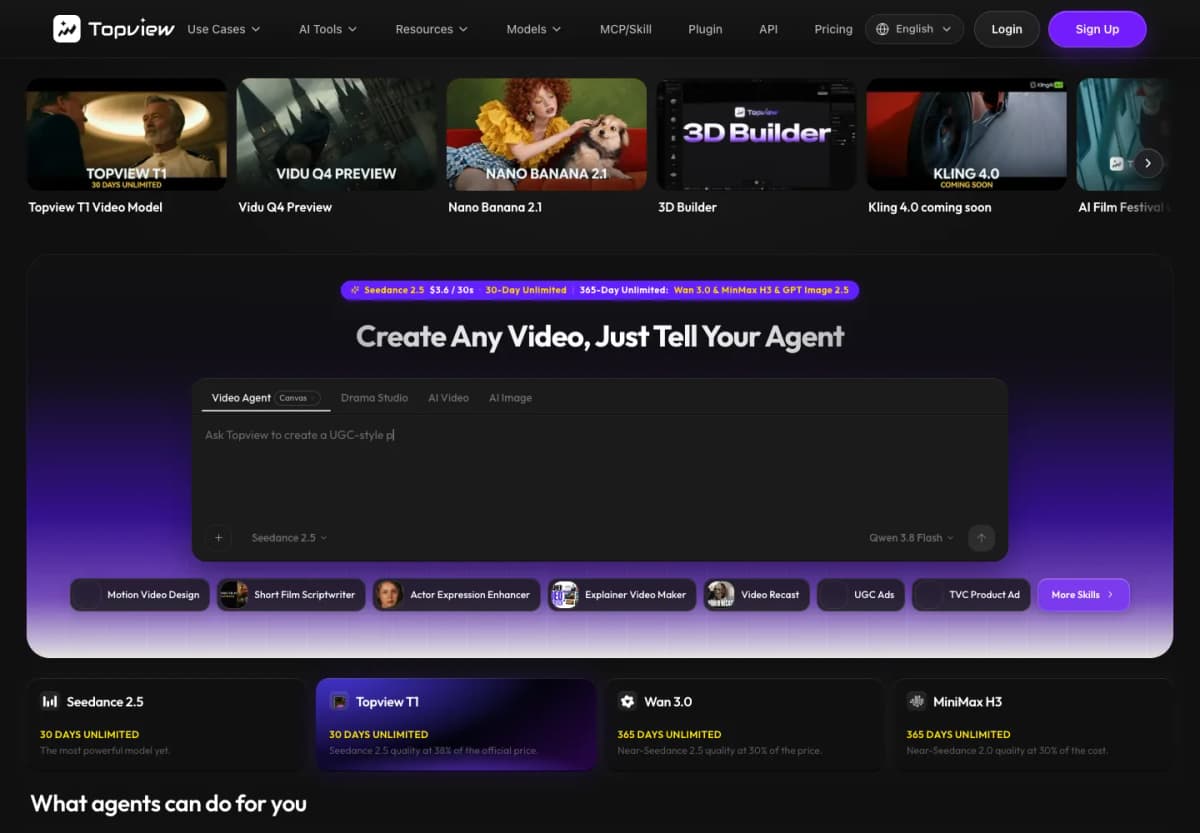
Build an ad with several scenes. Topview can start from a description, script, product link, or reference video. It helps plan the shots and provides Canvas for editing them. This suits an ad that needs more than one person talking to the camera.
What You Can Do
- Start with a description of the video you want.
- Plan a sequence, such as a presenter, product close-up, and final offer.
- Revise shots in Canvas.
Best Fit
- Teams making videos with several shots.
- Marketers who want to change individual scenes.
Check before choosing: Try a common edit before committing: replace the opening shot while keeping the rest of the video. Check which changes you can make in the editor and which require generating again.
6. HeyGen
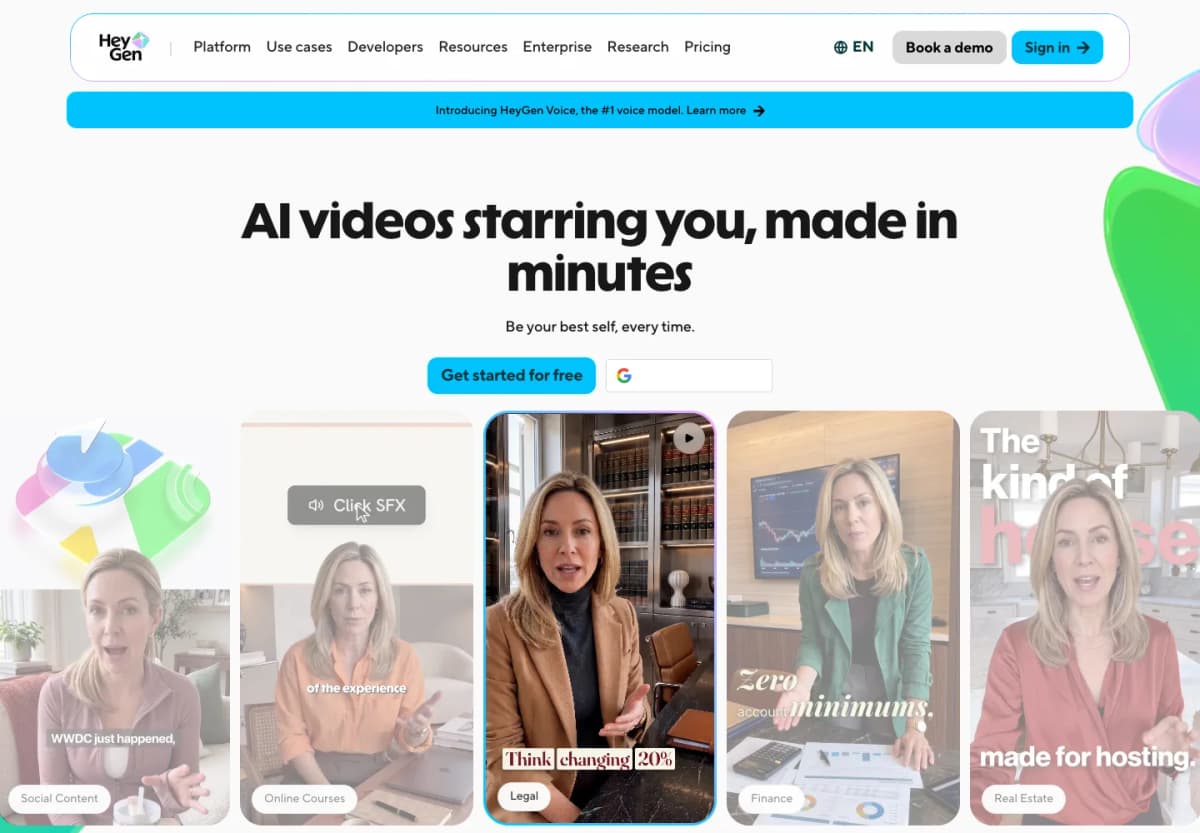
Make presenter videos in different languages. HeyGen offers AI avatars, script-based videos, and video translation. It suits product explanations that need a consistent presenter, including versions for audiences who speak different languages.
What You Can Do
- Create a video from a script and avatar.
- Reuse a presenter across a series of videos.
- Translate videos or create multilingual avatar videos.
Best Fit
- Brands explaining products in several languages.
- Teams making presenter-led tutorials or introductions.
Check before choosing: Have someone fluent in the target language check pronunciation and wording. If the ad needs someone to demonstrate a physical product, check that part separately from the talking-avatar quality.
7. Tagshop AI
Turn product information into a script and video. Tagshop AI brings together product-link inputs, AI script writing, avatars, and product-video tools. You can start with a listing and develop both the spoken message and the visuals.
What You Can Do
- Start from a product URL.
- Draft an ad script and select an AI presenter.
- Use product-video and image-to-video tools for extra shots.
Best Fit
- Sellers who want help writing a first ad script.
- Teams that want product inputs and avatar options in one place.
Check before choosing: Make a complete sample, from product link to finished video. Check that the presenter, editing options, and video quality you need are included in the plan you are considering.
8. Captions
Edit and subtitle your videos. Captions combines digital avatars with AI editing. It is useful when you already have footage, or when a generated presenter clip still needs subtitles, added visuals, and tighter editing.
What You Can Do
- Create a digital avatar or AI twin.
- Add captions and translated subtitles.
- Use AI editing to change scenes and add supporting visuals.
Best Fit
- Creators who already have footage to improve.
- Teams that need subtitles and frequent edits.
Check before choosing: Watch the finished video on a phone. Captions should be readable without covering the product, and quick cuts should not make the demonstration hard to follow.
9. VEED
Put AI clips and your own footage together. VEED offers AI UGC generation alongside a browser video editor. You can use generated material with your product photos or footage, then add text, subtitles, and audio.
What You Can Do
- Generate a creator-style clip.
- Add your own product media in the editor.
- Finish the video with subtitles, text, and audio.
Best Fit
- Teams with existing product footage.
- Marketers who want to generate and edit in a browser.
Check before choosing: Export a complete sample in the size you need. Check the resolution, watermark rules, and AI usage allowance, including the cost of making another version.
10. Zeely
Make video and image ads for the same product. Zeely offers AI UGC videos, static ads, and other advertising tools. It can start with product links and includes AI avatars and script generation. It suits sellers who need more than one type of ad.
What You Can Do
- Make a UGC-style video from product information.
- Use AI avatars and generated ad scripts.
- Create image ads as well as videos.
Best Fit
- Small teams making both video and image ads.
- Sellers who want several ad formats for one promotion.
Check before choosing: Check the video itself before judging the broader advertising tools. Make sure you can correct product details and create another version easily.
How to Choose a Tool for Your Next Product Ad
Try two or three tools with the same product photos and short script. Ask for one clear action, such as opening a bag or showing how a bottle lid works. This makes the results easier to compare.
Watch each clip three ways:
- Watch without sound. Does the person move naturally? Can you see what the product does?
- Listen to the voice. Does it sound conversational? Are the words clear, with natural pauses?
- Compare it with your product photos. Check the color, shape, logo, packaging, and what happens when the person touches it.
Count how many attempts it takes to get a video you would actually use. A cheap first attempt is less useful if it takes several more tries to fix the product or voice.
How to Use Nexscope to Create AI UGC Videos
Start with Nexscope Avatar Video when you want a person to introduce your product. Prepare a clear photo and one thing you want the viewer to learn. The numbered screenshot below shows where to enter each part.
 1
2
3
4
5
1
2
3
4
5
Step 1: Upload Your Product Photos
- Add clear images in Upload images.
- Include close-ups of important details, such as the label, clasp, or lid.
Step 2: Choose Who Appears in the Video
- In Avatar, select a presenter or upload an image you have permission to use.
- Choose someone who suits the product and scene.
Step 3: Describe the Scene and Spoken Message
- In Prompt, describe the setting, action, and spoken line.
- Use AI video prompts for a starting draft, then edit it.
For a bag with a front pocket, a simple starting prompt could be:
Create a casual vertical product video. The presenter sits at a table, holds the uploaded bag, and points to its front pocket. Keep the bag's color, shape, logo, and pocket placement the same as the photos. Use natural gestures and a conversational voice. The presenter says: “Here's a closer look at the front pocket.” End with a close-up of the pocket.
Replace the bag and action with your own product details. Keep the spoken line short.
Step 4: Choose the Model, Length, and Video Size
- Select the model, resolution, and duration in Video settings.
- Choose 9:16 for a vertical TikTok or Reels video.
- Check the credit estimate before generating.
Step 5: Generate and Review the Video
- Click Generate, then open the result in My videos.
- Check the face, hands, voice, and product details.
- Adjust the prompt or presenter to try another version.
- Use Bulk Video when you need videos for multiple products.
Watch Nexscope Product Video Examples
These AI-generated examples come from Nexscope's official gallery. They show different ways to feature a product; they were not generated from the sample prompt above. Press play to inspect the full clip, and turn on sound for the spoken examples.
Conclusion
Choose an AI UGC video generator that makes the kind of video you need. For a spoken ad, focus on the presenter and voice. For a product demo, look closely at the item and the person's movements. If you already have footage, editing tools may matter just as much as generation.
Nexscope is our first pick for sellers who want several ways to make product videos in one place. Start with product photos and an avatar, use a listing link, adapt a reference video, or create videos for several products in a batch. Begin with one product and one short message, then review the result before making more.
Create Your First Product Video
Choose a photo and one thing to show. Make a video, review it, and try another version.
Create Your First UGC Video →Frequently Asked Questions
What is an AI UGC video generator?
It is a tool for making videos that look like creator-made social content. You provide product images, a script, or a description, and the tool creates a video that can include an AI person talking or demonstrating an item. An AI presenter is not a real customer giving a personal review.
Which AI UGC video generator is best for ecommerce?
Nexscope is our first pick in this guide for sellers who want to make videos from product photos, listing links, and reference videos. It also has Bulk Video for multiple products. Choose based on the actual videos you need: a talking presenter, a physical demonstration, several languages, or a clip that needs detailed editing.
Can AI UGC tools make videos from product photos?
Yes. In Nexscope Avatar Video, upload product photos, select or upload an avatar, and describe what should happen. Image to Video also turns photos into video scenes. Check the result against the original photos so the color, logo, shape, and packaging still match.
Can AI-generated UGC replace customer-created videos?
AI can help make scripted product introductions and demonstrations. Real customer videos show someone's actual experience. Use AI for a feature explanation, but do not turn a scripted presenter into a supposed customer with invented results or opinions.
What should you check before paying for an AI UGC tool?
Try it with your own product. Check the person's face and hands, the voice, and whether the item stays accurate. Then check video length, resolution, watermarks, and the cost of another attempt. Choose a plan based on the number of finished videos you need, allowing for revisions.
How can you make AI UGC ads feel more natural?
Write short sentences that someone would actually say. Ask for one simple action, a believable setting, and a conversational voice. Avoid packing several benefits into a few seconds. Watch for normal pauses, matching mouth movements, and natural gestures—and make sure the product does not change appearance.
Sources
- Nexscope. 2026. AI UGC Video Generator for Ecommerce Sellers; AI Avatar Video Generator for Ecommerce Products. nexscope.ai.
- Creatify. 2026. AI UGC Generator: Make UGC Video Ads With AI. creatify.ai.
- Arcads. 2026. Create Winning Ads With AI. arcads.ai.
- MakeUGC. 2026. AI Video Ad Generator; Put Your Product in Their Hands. makeugc.ai.
- Topview. 2026. AI Video Agent for Short Films and Marketing Videos. topview.ai.
- HeyGen. 2026. Create AI Videos With Your Personal Avatar. heygen.com.
- Tagshop AI. 2026. AI UGC Video: Create UGC Ads With Tagshop AI. tagshop.ai.
- Captions. 2026. AI That Edits Like a Professional Editor. captions.ai.
- VEED. 2026. AI UGC: UGC Creator for Video Ads. veed.io.
- Zeely. 2026. AI UGC Video Generator. zeely.ai.