
Generate Product Videos In Bulk
Turn product images into videos for every SKU.
Create up to 100 videos in one batch.
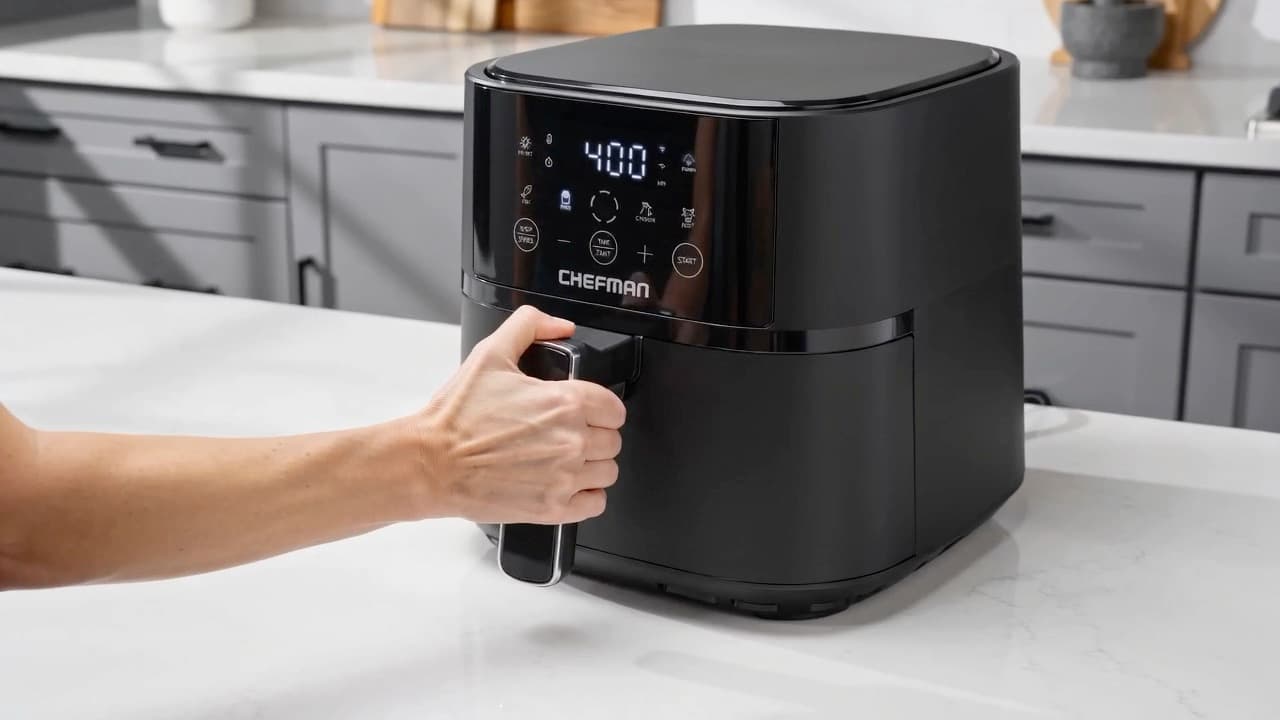
How To Create Product Videos In Bulk
Import your products
Upload images or folders, or add an Amazon product link.
Choose your settings
Review product details and apply a style to all or selected products.
Generate and download
Check credits, generate your batch, and download finished videos.
One Folder
A Task For Every Product
Keep your products in separate subfolders. Upload the parent folder, and each product becomes its own video task.


Built For Growing Product Catalogs
Videos For Your Existing Products
Turn the product photos you already have into videos for your listings, in one batch.
Create your batch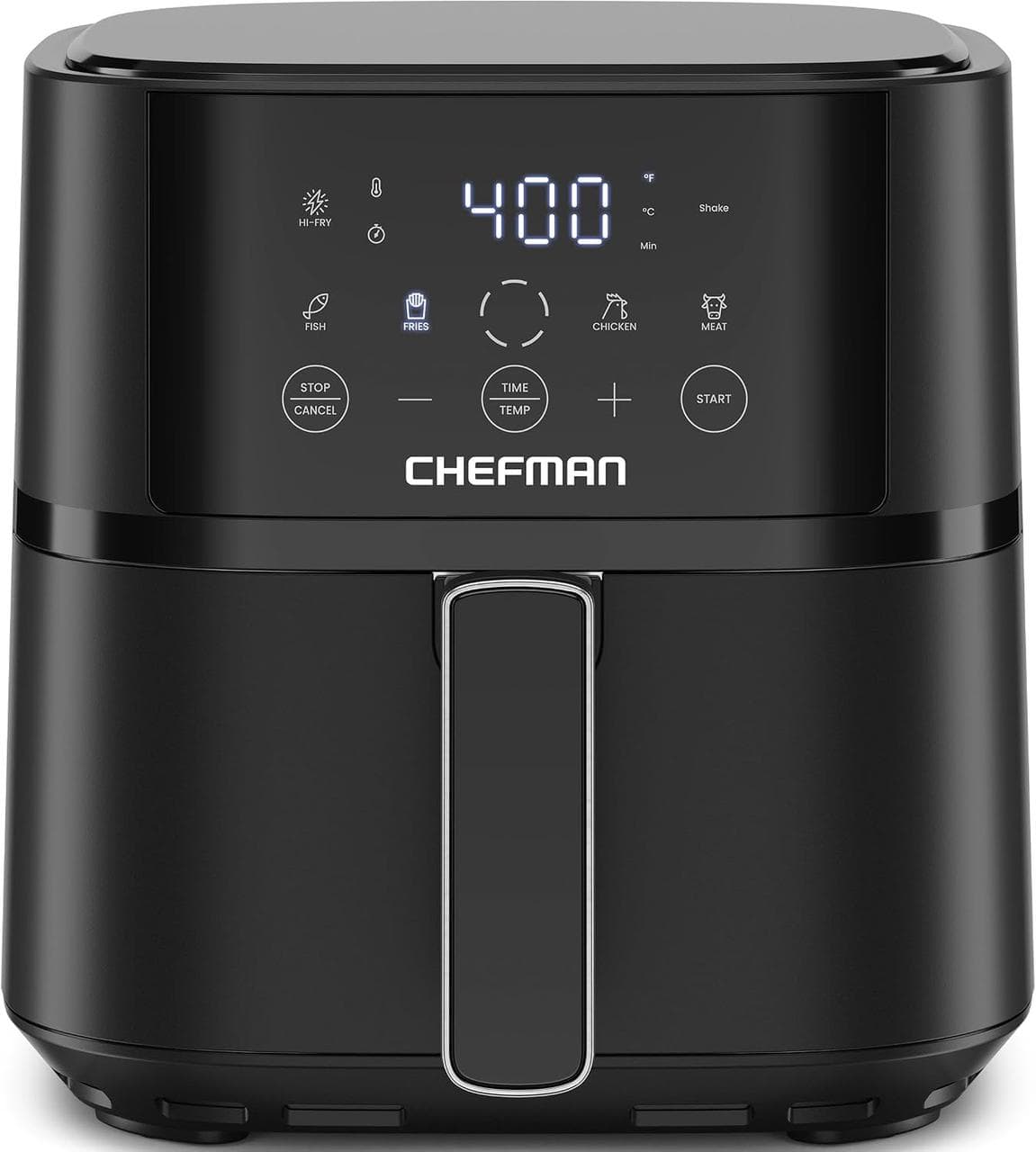
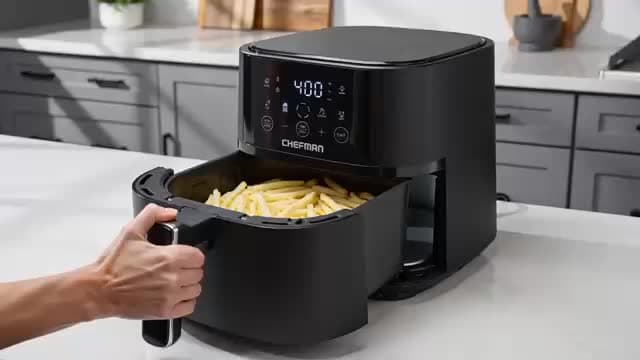 10 sec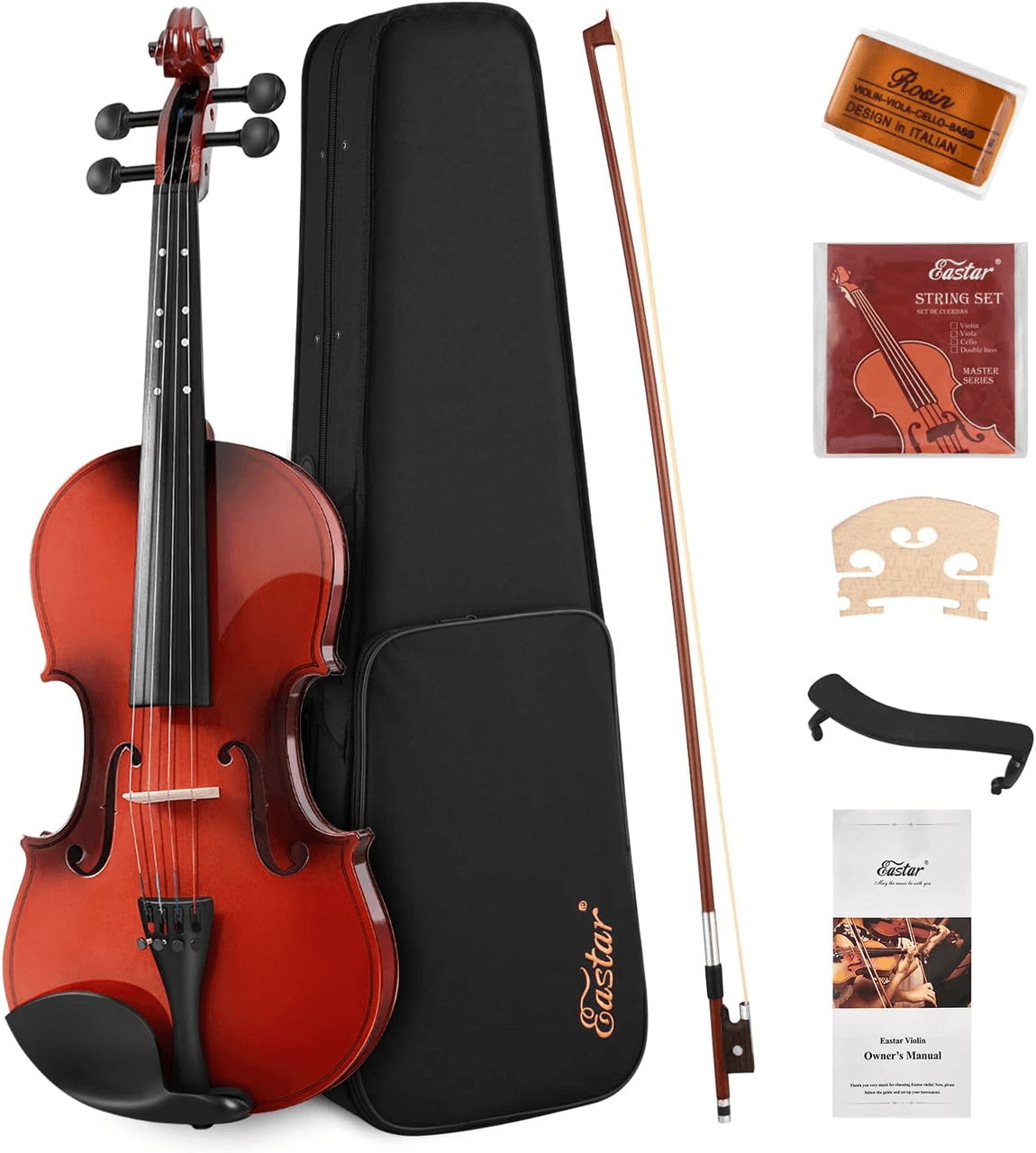
 10 sec
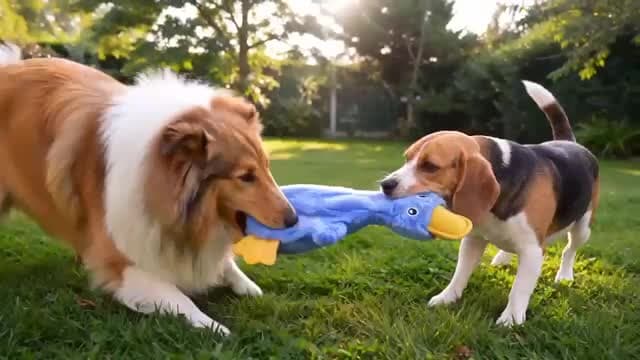 10 sec
100 Product VideosWith MiniMax H3
Final credit cost varies by model, duration, resolution, and selected settings.- Up to 100 videos per project
- 1–9 images per product
- Bulk ZIP download
Frequently Asked Questions
How many product videos can I create?+
Each Bulk Video project supports up to 100 product videos. You can add 1 to 9 product or reference images per product.
Can I import products from Amazon?+
Yes. Paste an Amazon product URL into a video task to fill in the product name and available images.
How do I upload a product folder?+
Select a parent folder with one subfolder per product. Each subfolder creates a video task using its images.
Will every product get the same video?+
No. Each video uses that product's own images and details. You can use the same generation settings across the batch, while each product gets its own video.
How are credits calculated?+
Credits depend on the selected model, generation settings, and number of videos. Review the estimated total shown before you confirm generation.
Can I apply a video style or AI analysis to selected products?+
Yes. Apply a video style or run AI product analysis for selected products or the whole batch. Generation settings, such as model, duration, and resolution, apply to the batch.
Which video models are supported?+
Model options include MiniMax H3 and Seedance 2.0 mini. Check the generation settings for the models currently available to you.
What happens if a video fails?+
Review the error and choose Regenerate to copy the failed task back to Create Task. Make any needed changes, review the credit estimate, and confirm generation again. Your existing completed videos stay unchanged.
Can I download completed videos together?+
Yes. Download all completed videos at once, or save them individually.
Create Your First Batch
Start with your product images. Review the credit estimate before you generate.
Create your batch