

10 Best AI Video Ad Generators for Ecommerce in 2026

Table of Contents
An AI video ad generator can help turn a product photo, script, or existing clip into your next advertising creative. The right choice depends on what needs to appear on screen: the product itself, a presenter explaining it, or a sequence of custom scenes.
Nexscope leads this ecommerce-focused list for its product-photo and reference-video workflows. Creatify suits product-link-based ad creation, Arcads focuses on AI actors, and HeyGen is useful for localized presenter videos. The comparison below matches each tool to a specific production task so you can build a shortlist around the assets you already have.
Best AI Video Ad Generators at a Glance
| Rank | Tool | Best fit | Starting assets | Main consideration |
|---|---|---|---|---|
| 1 | Nexscope | Ecommerce product video workflows | Product photos or a reference video plus product images | Choose the creative workflow and check generation settings |
| 2 | Creatify | Product URL ad creation | Product page, product details, or a script | Check extracted claims and selected assets |
| 3 | Arcads | AI actor ad variations | Script and an actor choice | Match the performance to the product and audience |
| 4 | HeyGen | Presenter video localization | Presenter video or avatar script | Review translated offers and on-screen copy |
| 5 | MakeUGC | UGC-style product presentations | Script, actor, and product assets | Check product appearance during hand interaction |
| 6 | Invideo | Prompt-led video editing | Existing footage and an editing brief | Allow time to review the cut and scene order |
| 7 | Predis.ai | Social ad content workflows | Product information and creative direction | Separate content scheduling from paid campaign setup |
| 8 | AdCreate | Multiple generative ad formats | Creative brief and product assets | Match each generation tool to a specific shot or format |
| 9 | Synthesia | Authorized custom-avatar explainers | Script and a custom avatar | Stock/synthetic avatars are excluded from paid promotion |
| 10 | Runway | Custom generative ad footage | Prompts, images, or video | Plan the offer, text, and final ad assembly |
1. Nexscope
Best for ecommerce teams creating videos from product photos and references.
Nexscope brings product-focused video creation into a workspace with inputs sellers already use: catalog photos, product information, and reference videos. Its creative workflows suit teams preparing product showcases, short social creatives, and new presentations of an existing product.
Product Photos to Video
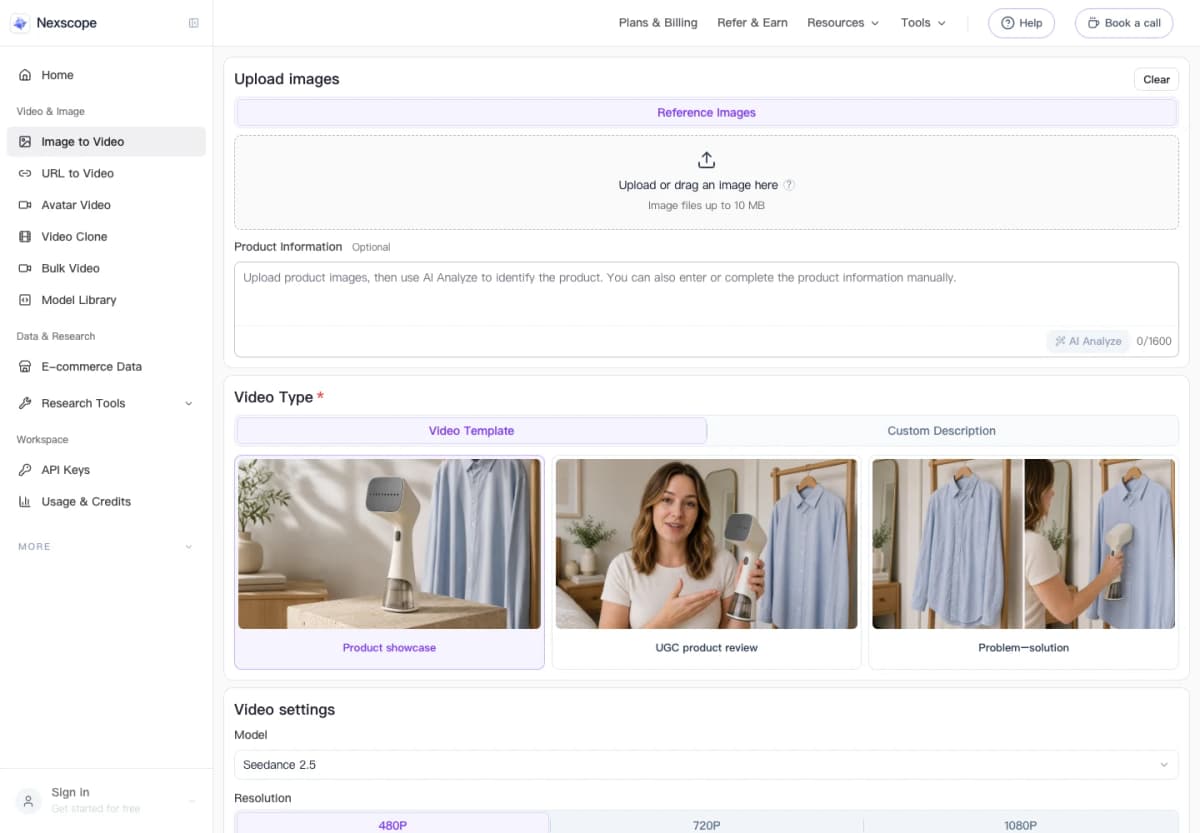
The Image to Video workflow starts with an uploaded image and optional product information. From there, the seller can choose a video template or write a custom description.
Useful capabilities include:
- Product showcase: Start with a visual presentation centered on the item.
- UGC product review: Choose a review-style creative format when a presenter-oriented concept suits the brief.
- Problem–solution: Build the creative around a customer need and the product's relevant benefit.
- Custom description: Specify the intended scene and creative direction.
- Output controls: Select the available model, duration, resolution, and aspect ratio for the intended placement.
For example, a seller launching a desk organizer could begin with a clear product photo and describe an organized workspace scene. A separate variation could introduce the clutter problem first. Keeping the same product and offer makes the difference between those creative approaches easier to evaluate.
Reference-Based Ad Creation
The Video Clone workflow accepts an uploaded reference or a public TikTok video link, alongside product images and a prompt. Use a reference you own or have permission to adapt.
A practical workflow is:
- Choose a reference with a useful scene structure or presentation style.
- Add clear images of the product being advertised.
- Describe which visual ideas to retain and what should change.
- Set the output format and generate the video.
- Review the product, scene transitions, and message before adding the creative to a campaign.
This is particularly relevant when the team already has a creative direction and wants to apply it to another product or presentation.
Who Should Choose Nexscope
Choose Nexscope when:
- Product photography is available, but fresh video footage is limited.
- The next campaign needs product-led creatives rather than only talking-head content.
- The team wants to explore both image-based and reference-based video workflows.
- The brief requires a specific product, use case, and social-video format.
Plan for: A final review of product shape, packaging, text, and any demonstrated behavior. Creative/video workflows use subscriptions; Data API credits are a separate billing category.
Create Your Next Product Video
Start with a product image and shape a video for your next ecommerce campaign.
Create Your First Product Video →2. Creatify
Best for turning product pages into an ad creation starting point.
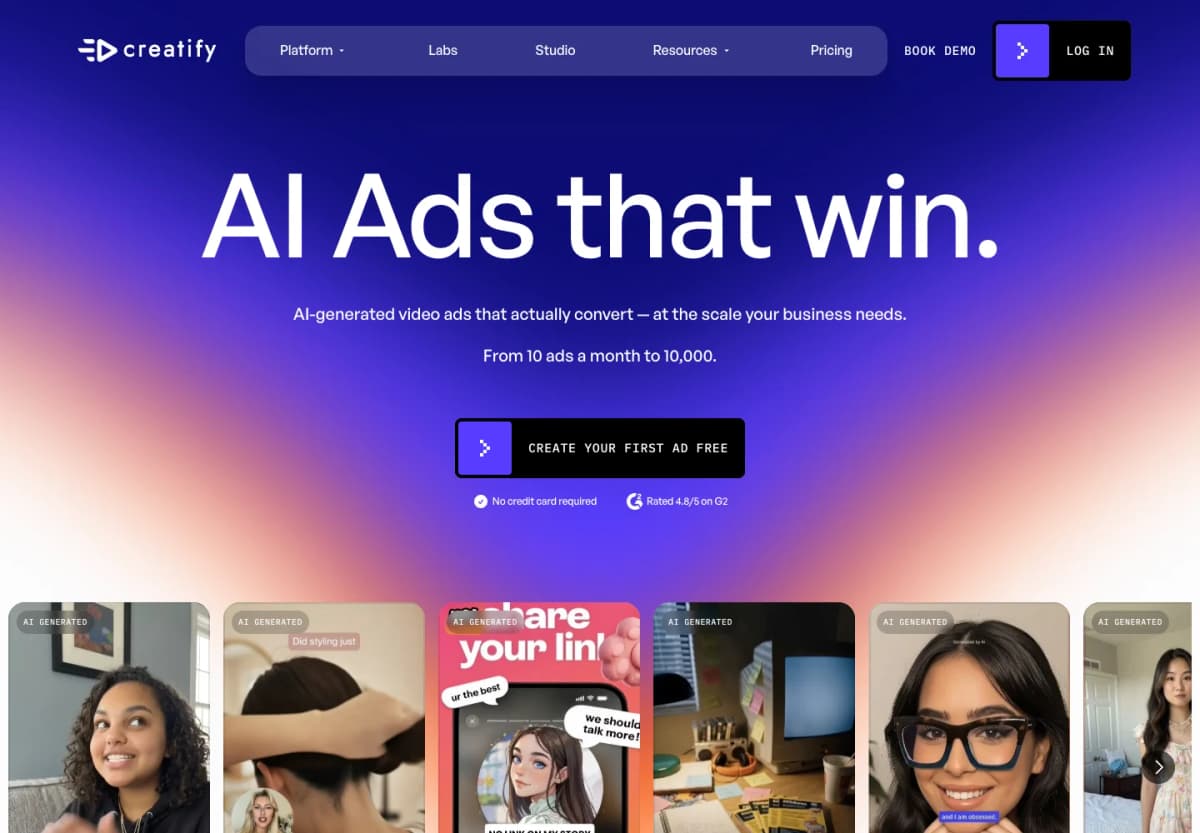
Creatify combines URL-to-video creation with AI avatars and other advertising tools. It is a useful shortlist option when the product page already contains the images, benefits, and positioning needed for a first creative draft.
Useful capabilities include:
- URL to Video: Start the creation process with an existing product link.
- AI avatars: Add a presenter-led approach to a product message.
- Ad Clone: Explore reference-based ad creation within its advertising toolkit.
- Ad workflows: Work across product, social, UGC-style, and cinematic creative categories.
Choose it for: A catalog with usable product pages and a team that wants to move quickly from product information to ad concepts.
Plan for: Reviewing extracted product information. A page can contain multiple variants, bundled items, or a temporary offer; the resulting ad needs to match the exact item and promotion being advertised.
3. Arcads
Best for producing AI actor variations from an advertising script.
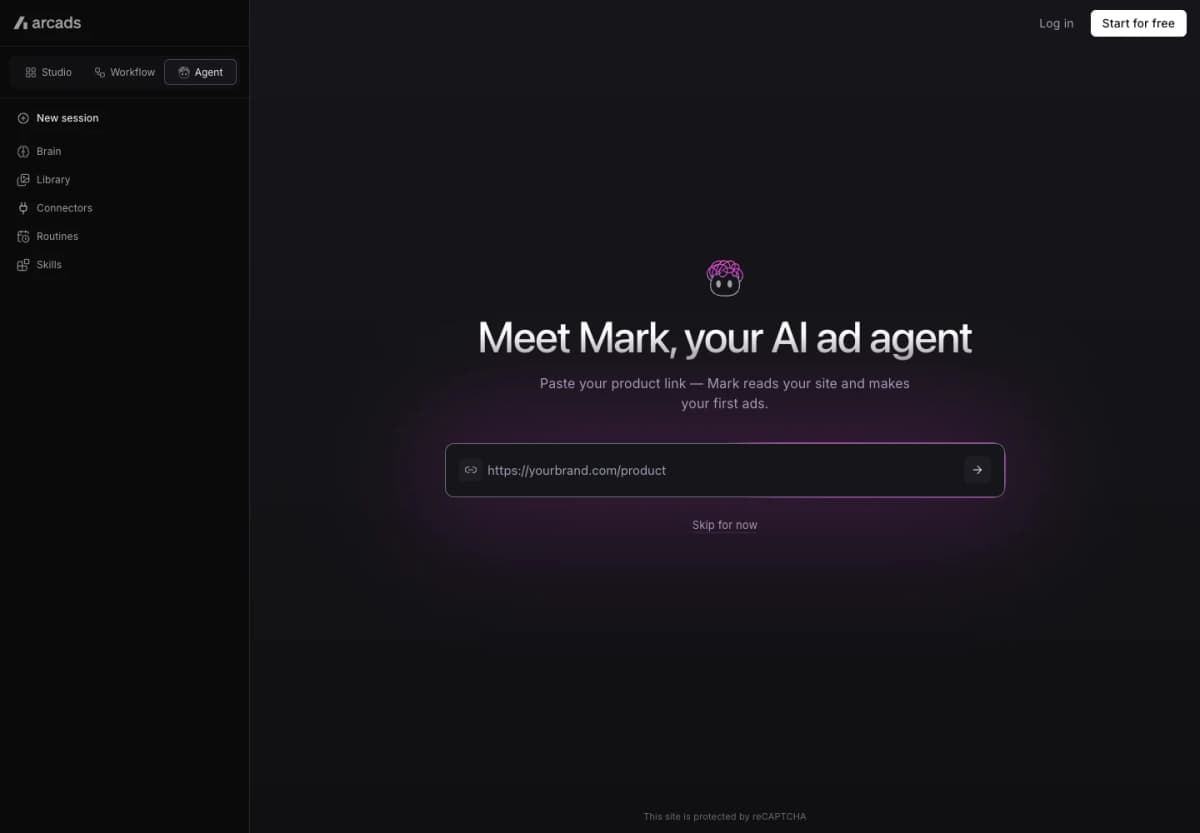
Arcads focuses on AI actors and avatar-driven advertising. It fits campaigns where the opening line, delivery, or presenter is the main creative variable.
Useful capabilities include:
- AI actor library: Select a presenter for the concept.
- Custom avatars: Create a distinct presenter identity.
- Voice and actor tools: Explore different presentations of a message.
- Supporting creative tools: Work with captions, translation, product showcases, and video extension.
Choose it for: A performance marketing team with approved scripts that needs several presenter-led versions.
Plan for: Reviewing the actor's delivery against the script. A calm product explanation and an energetic problem–solution hook need different performances. Keep the offer consistent while changing one creative variable at a time.
4. HeyGen
Best for localizing presenter-led video across markets.
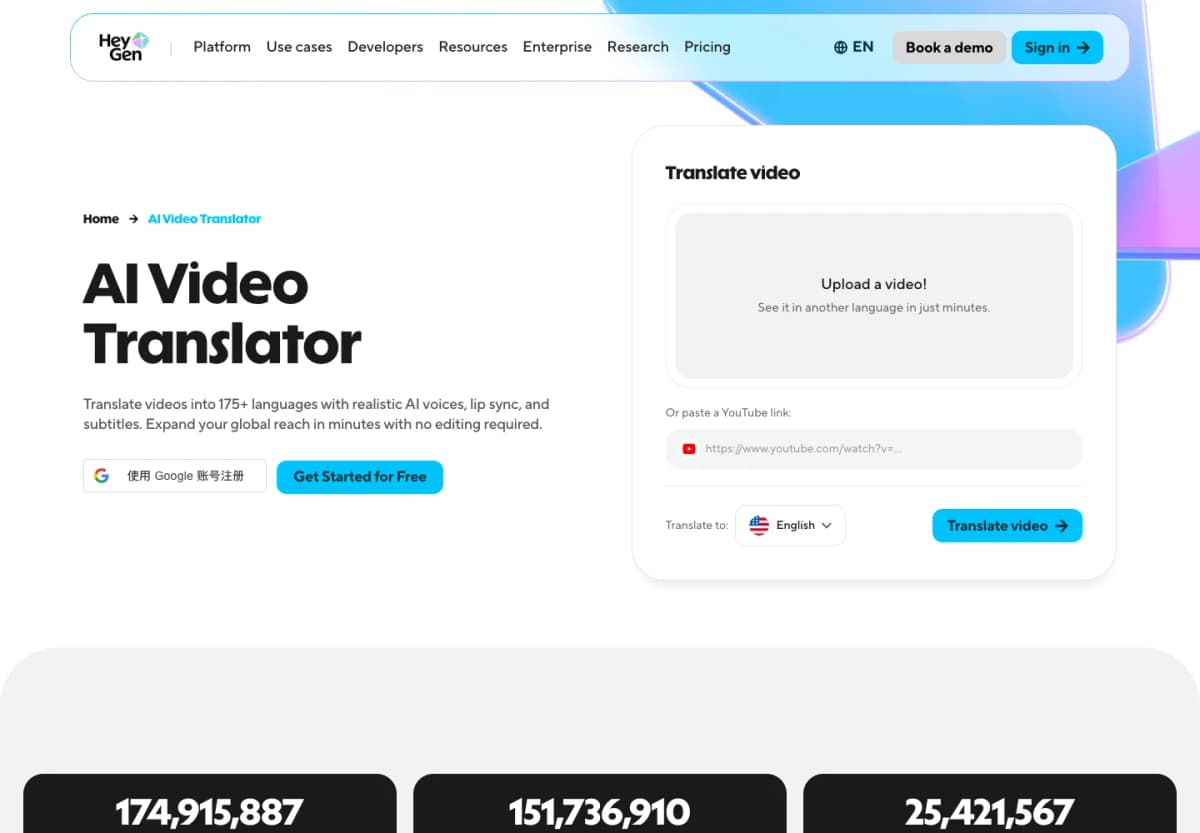
HeyGen combines avatar video creation with video translation. It is especially relevant when a presenter-led creative needs additional language versions while retaining a consistent spokesperson.
Useful capabilities include:
- Avatar videos: Create presenter content from a script.
- Video translation: Adapt an existing spoken video into another language.
- Lip sync: Align the translated speech with the presenter's mouth movements.
- Subtitles: Support viewers who watch without sound.
Choose it for: A brand with a useful presenter video that needs localized versions for other audiences.
Plan for: Localizing more than the narration. Currency, delivery promises, product availability, and promotional text should match the target market. Have a fluent reviewer check the final message and subtitle timing before export.
5. MakeUGC
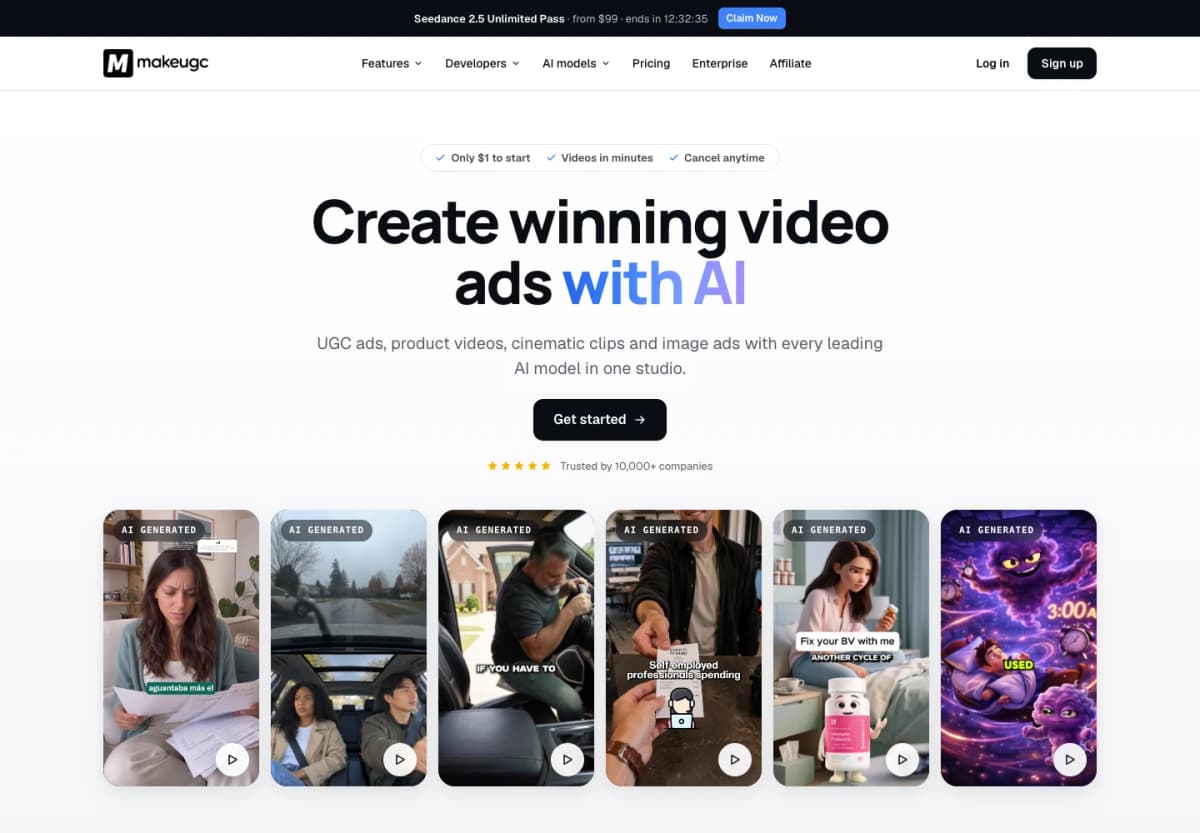
Best for UGC-style presentations that include a product.
MakeUGC combines talking actors with product-in-hand generation and supporting video tools. It suits creative concepts in which a presenter explains or visually introduces the item.
Useful capabilities include:
- Talking actors: Turn a script into presenter-led content.
- Product in Hand: Generate scenes that place the product with an actor.
- Custom avatars: Create a reusable presenter.
- Editing tools: Add captions and music, and trim the resulting video.
- Batch mode: Prepare multiple variations within the production workflow.
Choose it for: A brand testing presenter-led product introductions, demonstrations, or benefit-focused scripts.
Plan for: Inspecting hands, labels, product size, and how the object moves. Present a generated spokesperson as part of the ad creative; use real customer evidence when making testimonial claims.
6. Invideo
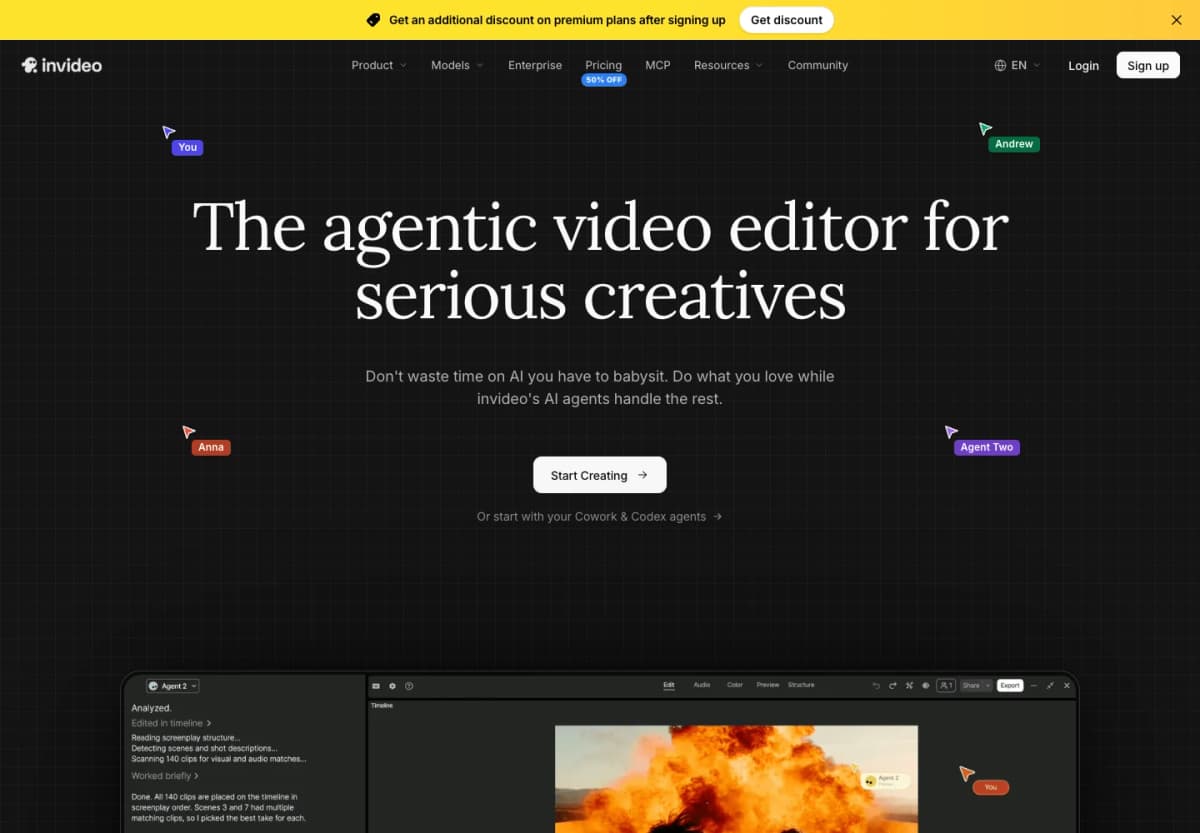
Best for turning footage and an editing brief into an ad cut.
Invideo's current editor emphasizes a workflow built around uploading footage, describing an edit, reviewing the cut, and exporting. It belongs on the shortlist when the team already has clips but needs help assembling them into a coherent video.
Useful capabilities include:
- Footage-based production: Bring existing material into the editor.
- Prompt-led editing: Describe the desired changes in natural language.
- Cut review: Refine the sequence before export.
Choose it for: A store with demonstrations, unboxing footage, or creator clips that need new cuts for a campaign.
Plan for: Providing a specific brief. “Make a product ad” leaves many decisions open. A stronger instruction identifies the opening shot, key benefit, supporting footage, offer, desired length, and final call to action.
7. Predis.ai
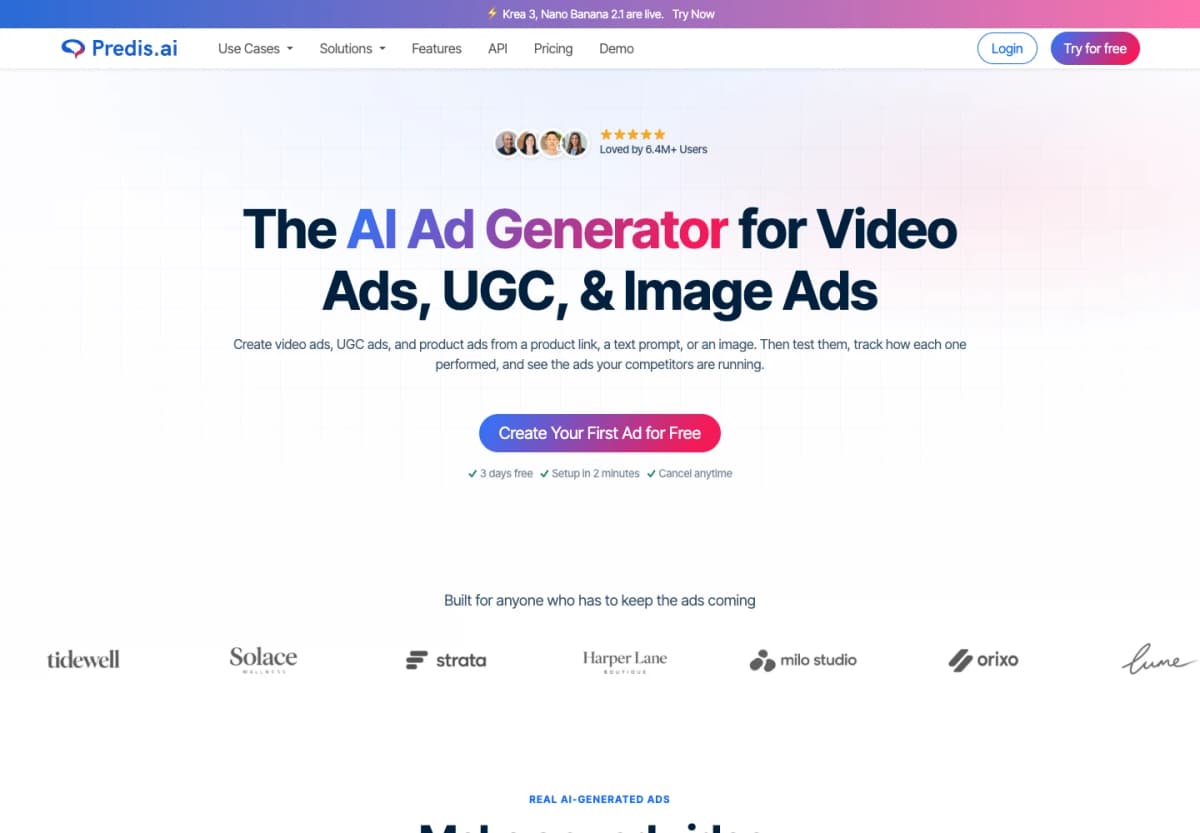
Best for coordinating video ads with a broader social content workflow.
Predis.ai combines ad and social creative generation with publishing and scheduling features. It is relevant for smaller teams that produce several content formats around the same products.
Useful capabilities include:
- Ecommerce product videos: Build social creative around store products.
- Multiple content formats: Produce videos, image creatives, and social posts.
- Voiceover tools: Add spoken messaging to a creative.
- Scheduling and approvals: Organize content preparation and publication.
Choose it for: A social team managing product posts, short videos, and campaign creative from a shared content plan.
Plan for: Reviewing each output for its placement. A product announcement, an organic Reel, and a paid acquisition ad may use the same assets but need different openings and calls to action. Content scheduling also remains separate from setting a paid campaign's audience and budget.
8. AdCreate
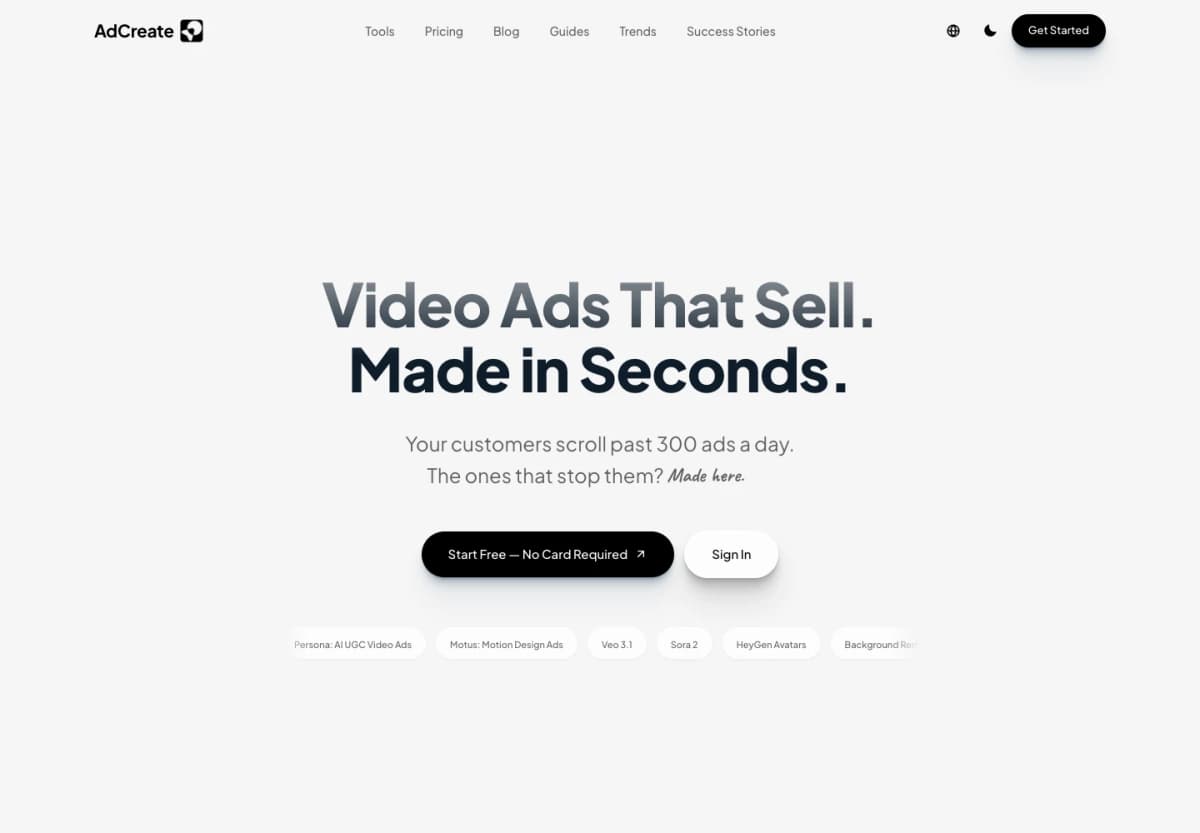
Best for exploring several generative ad formats in one toolkit.
AdCreate offers UGC-style advertising, motion design, generative video, and supporting creative tools. It is an option for marketers whose production needs span more than one visual style.
Useful capabilities include:
- Persona: Create UGC-style video ads.
- Motus: Work on motion-design advertising.
- Generative video options: Explore different approaches to shot creation.
- Supporting tools: Use captions, lip sync, music generation, and background removal.
Choose it for: A creative team comparing presenter-led, animated, and generated-video concepts for the same campaign.
Plan for: Defining a consistent visual brief. Several models and tools can produce very different looks. Specify product appearance, colors, typography, and the final message so separate assets can work together in one ad.
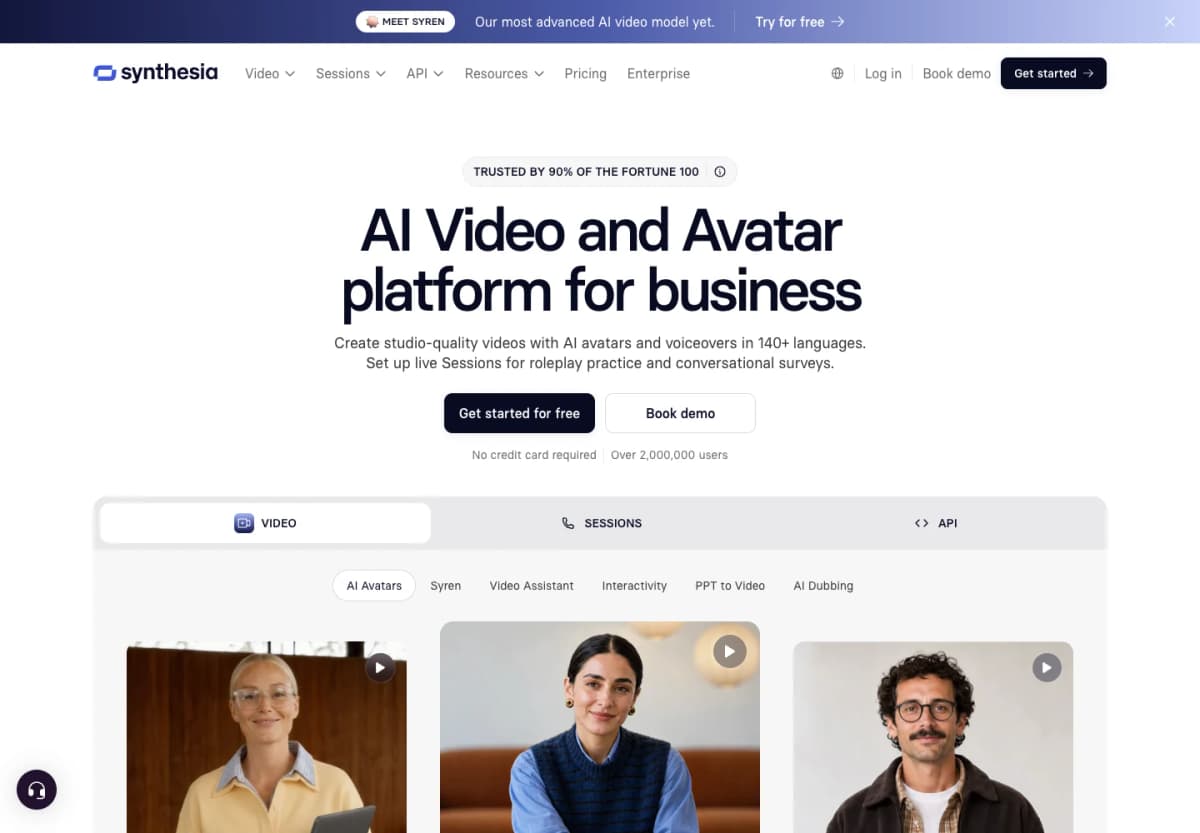
9. Synthesia
Best for structured explainers using an authorized custom avatar.
Synthesia supports script-based avatar videos, translation, dubbing, and screen recording. It can suit a business that wants a consistent presenter for clearly structured product explanations.
Useful capabilities include:
- Avatar presentation: Deliver an approved script on camera.
- Translation and dubbing: Adapt a video for additional audiences.
- Screen recording: Add a software or website demonstration.
- Custom avatars: Use a presenter whose likeness has been authorized for the intended purpose.
Choose it for: Custom-avatar product explainers, particularly when the message benefits from a consistent spokesperson and a structured presentation.
Paid advertising condition: Synthesia prohibits paid promotion using its stock/synthetic avatars and voices. Custom-avatar use instead depends on the agreement with the person represented and the platform's content policies. Establish the appropriate avatar rights before choosing this workflow for paid ads.
10. Runway
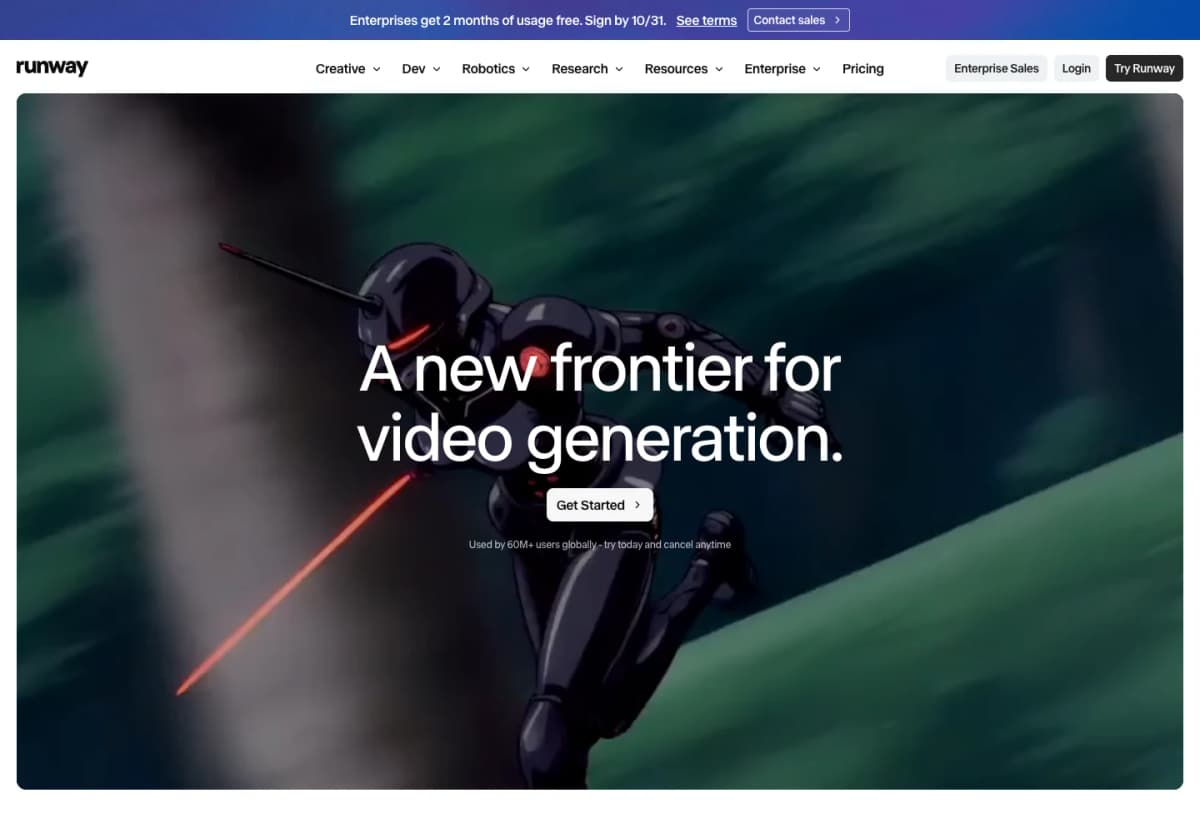
Best for creating custom footage for a distinctive ad concept.
Runway offers image and video generation alongside video editing tools. It fits creative teams that want to design individual shots, visual transitions, or generated scenes around a more specific concept.
Useful capabilities include:
- Image and video generation: Build visual assets from creative inputs.
- Video editing: Modify footage within the creative toolkit.
- Multiple generation options: Choose an approach suited to the shot.
- Multi-shot creation: Develop sequences beyond a single isolated visual.
Choose it for: A team with an art direction, an ad storyboard, and time to refine the visual output.
Plan for: The complete advertisement. A compelling shot still needs an understandable product benefit, legible offer, and clear next action. Decide which elements will be generated and which will be added during final assembly.
How to Choose an AI Video Ad Generator
Start With Your Assets
Shortlist tools according to what is ready today:
- Product photos: Start with Nexscope's image-based workflow.
- A detailed product page: Consider Creatify's URL-to-video workflow.
- An approved script: Compare actor and avatar tools such as Arcads or MakeUGC.
- A presenter video: Consider HeyGen for localization.
- Existing footage: Consider Invideo for editing or Runway for additional generated scenes.
This reduces setup work and makes the first evaluation relevant to the next campaign.
Match the Ad Format
Choose the format before generating a batch:
- Product showcase: Make the item and its distinguishing details easy to see.
- Presenter-led explanation: Use a concise script with one main benefit.
- Problem–solution ad: Show a recognizable situation and a credible product response.
- Custom visual concept: Plan the shots, transitions, and offer before generation.
For a vertical social placement, check framing, readable captions, and the position of essential text. Keep important information away from interface overlays.
Compare Usable Output Costs
A monthly subscription alone does not tell you what a finished creative will cost. Compare the plan against a small, realistic production brief.
Check:
- Credits or minutes consumed at the intended settings.
- Resolution, length, and export limitations.
- Watermark removal and included commercial use.
- The likely need for regeneration or additional editing.
- Whether the quoted price requires annual billing.
For example, if a production exercise costs $30 and delivers six usable variations, the generation cost is $5 per usable variation. Add editing and review time when comparing the full workflow.
Review Product Accuracy
Give each shortlisted tool the same product, message, and target format. Then review:
- Product identity: Shape, color, logo, packaging, and included accessories.
- Message accuracy: Benefits, prices, offers, and availability.
- Visual quality: Hands, movement, text, and scene consistency.
- Editing effort: Changes needed before the creative is ready to run.
- Placement fit: Aspect ratio, captions, audio, and call to action.
Once creatives are approved, compare their campaign results using consistent measurement. Keep the creative production decision separate from conclusions about advertising performance.
How to Create Video Ads With Nexscope
Nexscope is the top pick in this list for ecommerce creative workflows. Start by choosing the generator that matches your assets, then prepare the product information, creative direction, and output settings. The walkthrough below uses Image to Video for a single-product ad.
Choose Your Video Generator
The five video workflows appear together in the left sidebar. Each provides a different starting point for ad creation:
| Marker | Video generator | Start with | Use it for |
|---|---|---|---|
| A | Image to Video | Product photos and a template or description | Product showcases, lifestyle scenes, and short product-led ads |
| B | URL to Video | A supported product listing | Importing product details and images, then shaping an editable ad script |
| C | Avatar Video | Product images, an avatar, and a prompt | Presenter-led product introductions and UGC-style creative |
| D | Video Clone | An authorized reference video and product images | Ad variations inspired by an existing presentation or scene structure |
| E | Bulk Video | Multiple product images or product folders | Preparing videos across a catalog with shared generation settings |
For one product and a ready catalog image, choose Image to Video. For several SKUs, Bulk Video lets you organize separate product tasks and review the batch before generation.
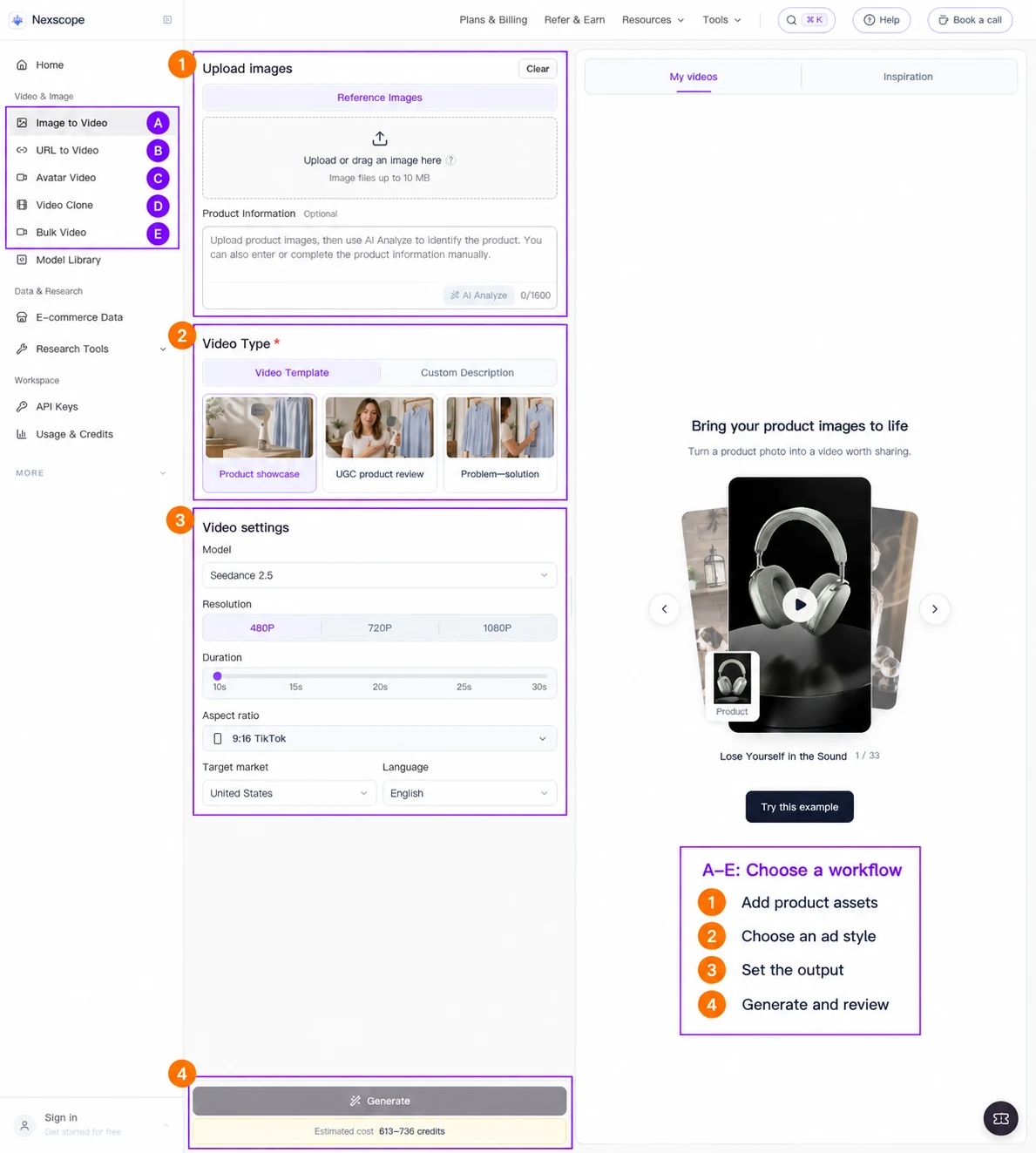
The sidebar markers identify the five workflows. The numbered markers follow the Image to Video steps below. Select the image to enlarge it.
1. Add Your Product Assets
Upload a clear product image, then complete the product information needed for the ad.
- Use a photo that clearly shows the item's shape, color, and distinguishing details.
- Add the product name and the benefit the creative should communicate.
- Check any automatically analyzed information against the actual product.
- Keep the brief focused on one product and one main message.
For a seasonal hoodie, the useful details might be the green fabric, gingerbread decoration, and front pocket design. Those details give the video a clear visual subject.
2. Choose an Ad Style
Select a video template or switch to Custom Description for a more specific direction.
- Product showcase: Put the item and its details at the center of the creative.
- UGC product review: Use a conversational, creator-style presentation.
- Problem–solution: Connect a recognizable need with a relevant product benefit.
- Custom Description: Describe the opening, scene, movement, and ending you want.
A starting brief for the hoodie could be:
Create a vertical seasonal product video featuring the green hoodie in the reference image. Open with a close-up of the gingerbread decoration, then show a person wearing the hoodie outdoors in an autumn setting. Keep the garment color and front design consistent. Finish with a clear view of the product.
3. Set the Output
Match the video settings to the intended placement before generating.
- Model: Choose from the models available in the selected workflow.
- Aspect ratio: Use a vertical format for a vertical social placement.
- Duration: Leave enough time to communicate the main message clearly.
- Resolution: Select the output quality needed for the campaign.
- Market and language: Set these where the workflow provides them.
Review the displayed credit estimate after choosing the settings. Changing the model, resolution, or duration can change the cost.
4. Generate and Review
Once the inputs are ready, click Generate. Review the completed video in My videos before using it in a campaign.
Check these details first:
- Product: Does the shape, color, decoration, and packaging match?
- Presentation: Is the product easy to recognize in the opening?
- Copy: Are captions, claims, and any offer accurate and readable?
- Finish: Is the final shot suitable for the intended call to action?
Refine the brief when needed. For the next variation, change one element, such as the opening scene or main benefit, while keeping the product and offer consistent.
Example: A Seasonal Hoodie Ad
This existing Nexscope gallery example pairs a green hoodie product image with a short vertical video. The video moves through a discovery moment, a close-up of the decorated front, and an outdoor wearing scene.

Ideas to take from this example:
- Show the distinguishing detail: Give the decorated front a close-up.
- Add a wearing scene: Help the viewer see how the garment looks on a person.
- Keep the seasonal context visible: Match the scene and styling to the creative concept.
Source: Nexscope product creative gallery.
Conclusion
Nexscope is the first choice in this list for ecommerce teams working from product photos and reference videos. Its image-based templates and Video Clone workflow provide practical starting points for product-focused creative.
Choose Creatify when the product page is the main input, Arcads or MakeUGC for actor-led concepts, and HeyGen for localization. Invideo and Runway suit teams that need more editing or custom footage.
Start with one product, one message, and one intended placement. Build a small set of variations, review them, and use the strongest candidates in the next campaign.
Create Your Next Product Video
Start with a product image and shape a video for your next ecommerce campaign.
Create Your First Product Video →Frequently Asked Questions
What is an AI video ad generator?
An AI video ad generator uses inputs such as product photos, scripts, URLs, or existing clips to create advertising video assets. Some tools focus on presenters, while others generate product scenes or help assemble footage. The most useful choice supports the type of ad your team needs to make.
Which AI video ad generator is best for ecommerce?
Nexscope is the leading recommendation here for product-photo and reference-video workflows. Creatify fits product URL creation, while Arcads and MakeUGC suit actor-led concepts. Select the tool based on the available inputs, intended format, and amount of editing the team can handle.
Can AI turn product photos into video ads?
Yes. Nexscope's Image to Video workflow accepts product images, optional product information, and either a video template or custom description. After generation, review the item's appearance and any visible text. Add or refine the offer and call to action as needed for the campaign.
How do AI UGC ads differ from product videos?
AI UGC-style ads usually imitate a conversational, presenter-led format. Product videos put more emphasis on the item's appearance, details, or use. Either format can introduce a product, but a generated actor should not be presented as a real customer describing an experience they did not have.
Is there a free AI video ad generator?
Some platforms provide free access or trial offers, but the included credits, export settings, and watermarks differ. Check whether the trial can produce a usable export at the intended settings. Nexscope's Creative/video workflows use subscriptions, separate from its Data API credit model.
What should you check before running an AI-generated ad?
Check product accuracy, claims, music and likeness permissions, export quality, and placement requirements. Avatar permissions can affect tool selection: Synthesia's stock/synthetic avatars and voices cannot be used in paid promotion. Use the appropriate licensed assets and review the final creative before launch.
Sources
- Nexscope. 2026. AI Image to Video Generator for Ecommerce; AI Video Clone Generator for Ecommerce. nexscope.ai.
- Creatify. 2026. The AI Ad Generator. creatify.ai.
- Arcads. 2026. Create Winning Ads with AI. arcads.ai.
- HeyGen. 2026. AI Video Translator. heygen.com.
- MakeUGC. 2026. AI Video Ad Generator, UGC Ads, Product Videos and AI Video. makeugc.ai.
- Invideo. 2026. The Agentic Video Editor for Serious Creatives. invideo.io.
- Predis.ai. 2026. AI Ad Generator. predis.ai.
- AdCreate. 2026. Video Ads That Sell. adcreate.com.
- Synthesia. 2026. AI Video Platform for Business; Synthesia Video Licensing. synthesia.io; help.synthesia.io.
- Runway. 2026. AI Image and Video Generator. runway.com.