
10 Best URL to Video Makers for Product Ads and Content

Table of Contents
A URL to video maker turns the content already sitting on a webpage into the starting point for a video. For a store, that might mean product images and selling points becoming an ad. For a publisher, it might mean a long article becoming a narrated social clip. The useful part is getting past the blank script and the search for assets, while keeping control of the message.
The right tool depends on what the link contains and what the finished video needs to do. A product launch needs clear visuals and a focused offer. A blog summary needs a sensible narrative. A presenter-led explanation needs a voice and delivery that suit the audience. The ten options below cover those different jobs, with Nexscope first for ecommerce product-link workflows. Compare the source pages they accept, the editing choices they provide, and the conditions attached to exports before choosing a subscription.
Best URL to Video Makers at a Glance
Start with the job in the second column. The most useful comparison is how each workflow handles the source material and the revisions needed before export.
| Tool | Best fit | Starting content | Useful editing focus | Access and cost considerations |
|---|---|---|---|---|
| 1. Nexscope | Ecommerce product-link ads | Supported product listings | Imported facts, selling angle, script, presenter and format | Creative workflow subscription; generation consumes credits |
| 2. Creatify | Product-focused video advertising | Product URL or manually added assets | Product information and ad creative | Free credit allowance; paid plans remove watermarks |
| 3. Pippit | Commerce marketing content | Product links and uploaded media | Page assets and marketing video edits | Free daily credits; paid upgrades include watermark removal |
| 4. Topview | Creative briefs from product links | Product or landing-page URL | Audience, hook, visual style and Canvas iterations | Credit-based plans; annual and monthly billing differ |
| 5. InVideo AI | Videos revised through text instructions | URLs, including product links | Scenes, narration and prompt-based revisions | Credits cover AI processing and generation |
| 6. HeyGen | Presenter-led and localized videos | Product pages, blogs and webpages | Scripts, avatars, voice and language | Free plan; paid plans expand credits and output options |
| 7. Predis.ai | Product content for social channels | Product URL, photo or connected store | Brand styling and publishing workflow | Credit-based plans; automated posting depends on tier |
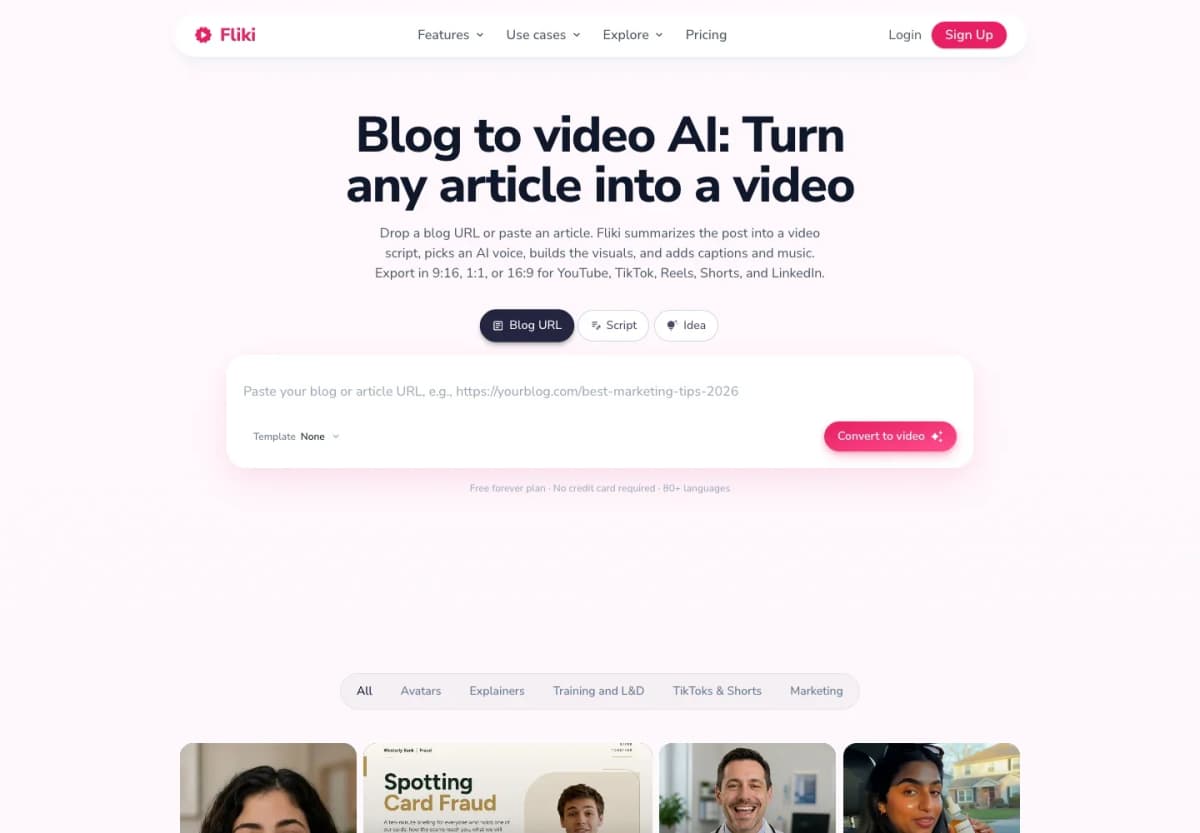
| 8. Fliki | Narrated article summaries | Blog URL or pasted article | Scene script, voice and media | Free plan; paid tiers add export and commercial-use features |
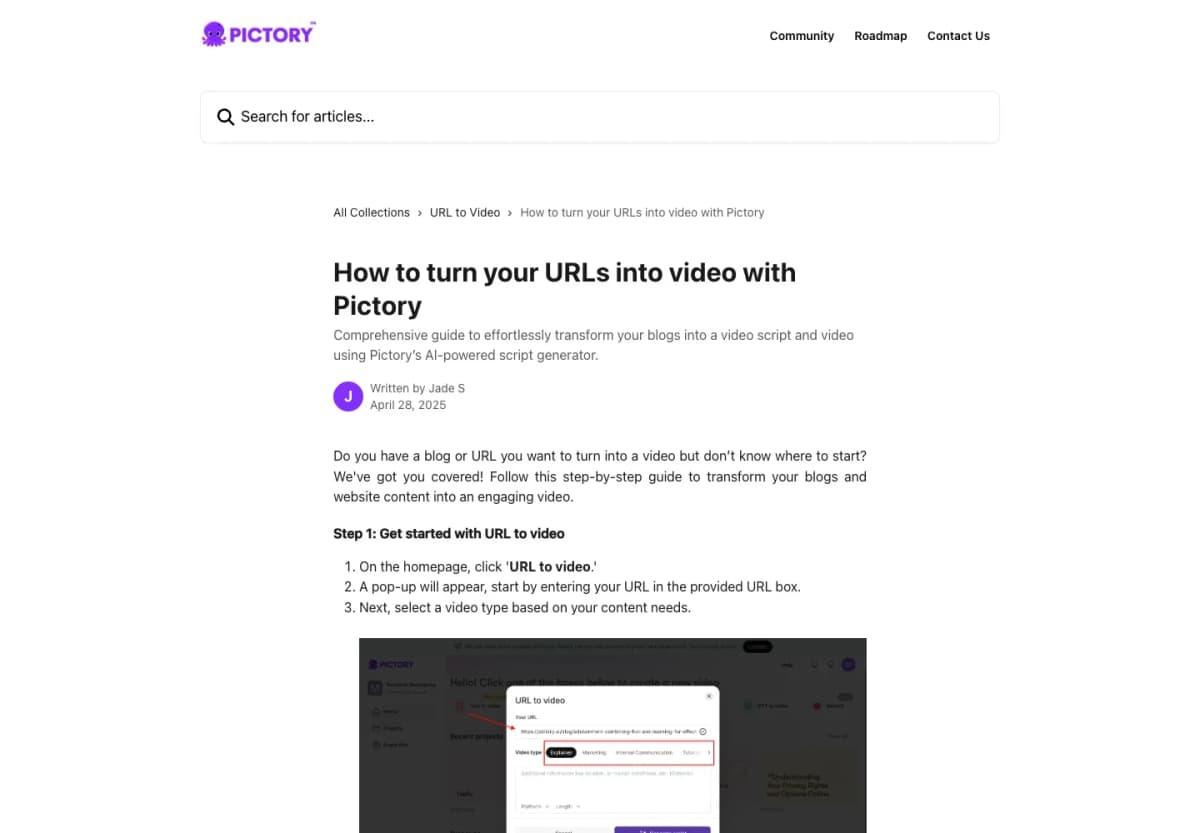
| 9. Pictory | Repurposing existing web content | Homepage, product page or article | Goal, tone, duration and script | Trial available; video minutes and AI credits are distinct allowances |
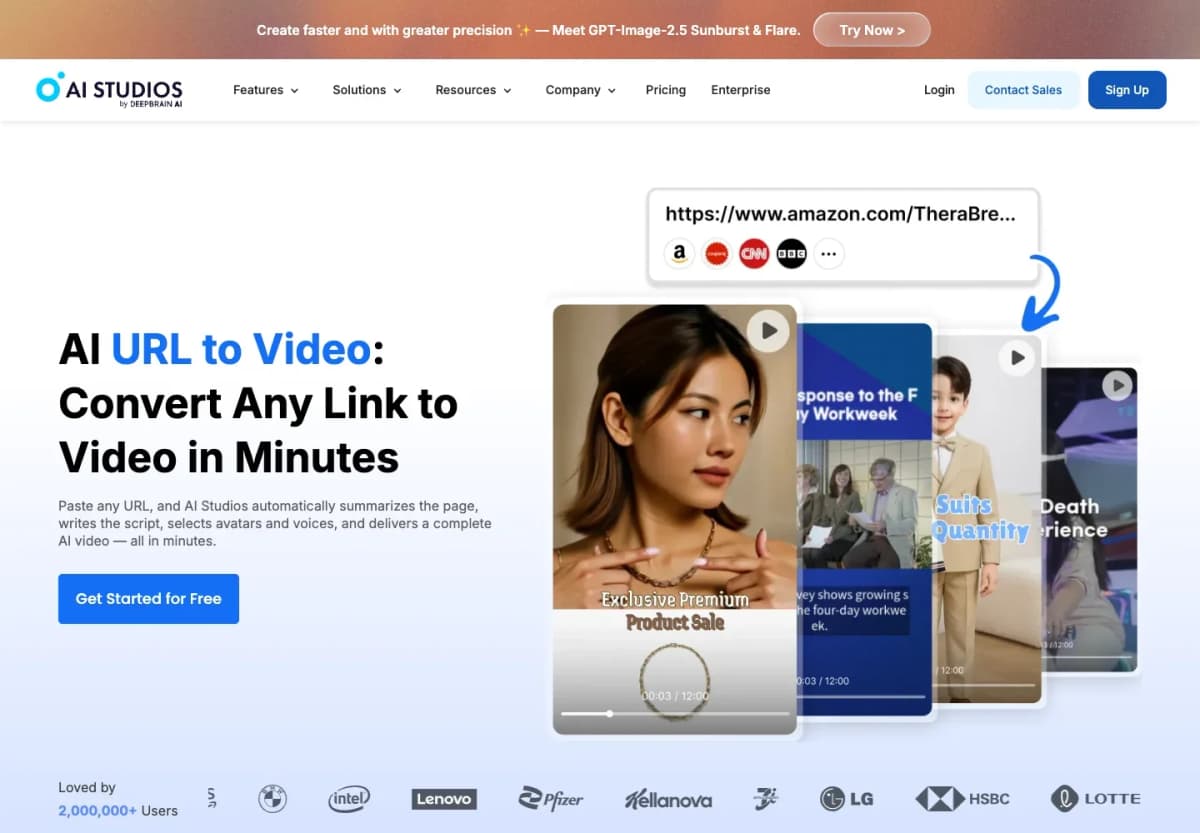
| 10. AI Studios | Avatar-led webpage explainers | Articles, product pages and websites | Template, avatar, language and scenes | Free plan with limits; paid plans expand capabilities |
The 10 Best URL to Video Makers
1. Nexscope — Ecommerce Product Ads
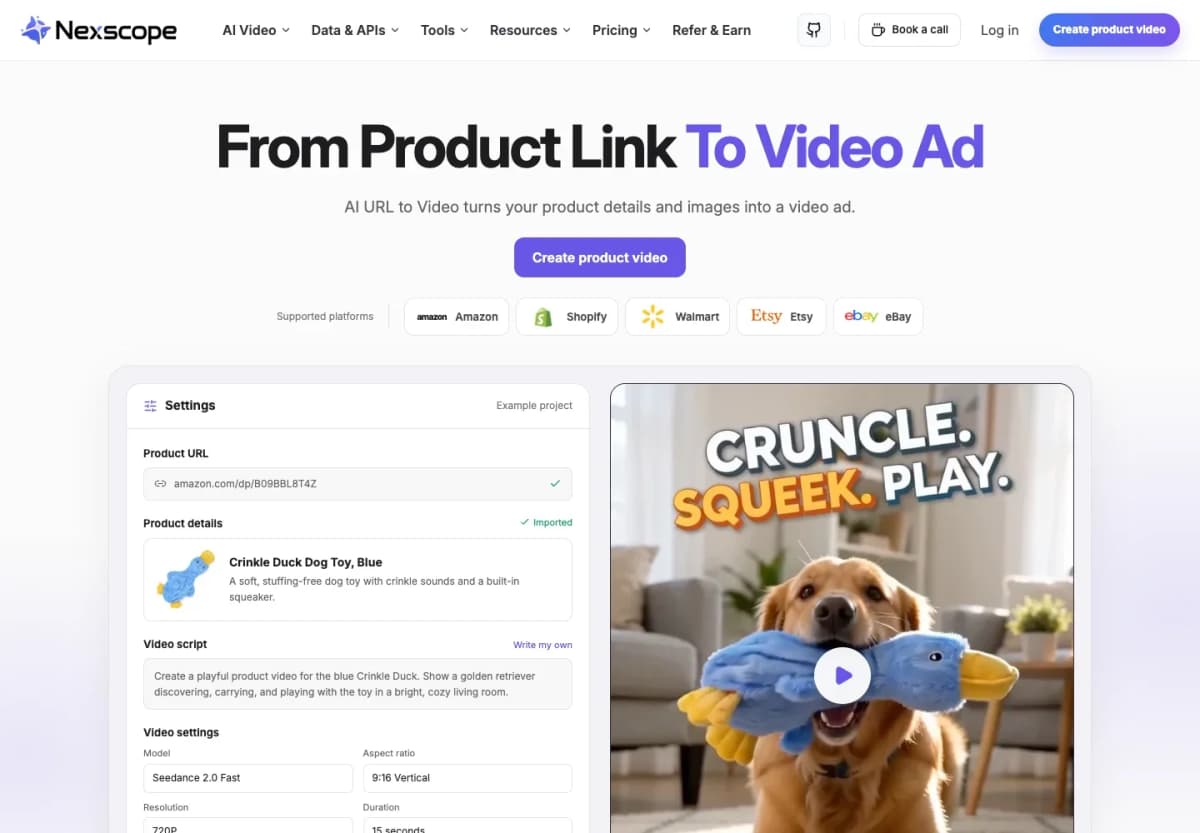
Nexscope is the first pick here for sellers who want to turn an existing listing into a product video while retaining control over the facts and script. Its URL to Video workflow supports individual product pages from Amazon, Shopify, Walmart, Etsy and eBay.
The process begins by importing the title, description, selling points and available images. Those inputs remain editable. A seller can then choose a selling angle, generate and revise a script, or write the script directly.
What makes it useful:
- An existing listing becomes the brief. Product information and images enter the same preparation workflow.
- The message stays editable. Revise the script or add a promotion before generation.
- A presenter is optional. Choose from 60 AI avatars, upload an avatar, or create a product-only video.
- Settings follow the placement. Choose language, aspect ratio and duration for the intended output.
Consider a dog-toy listing. An introduction could lead with the toy's appearance and materials. A second script could focus on a playtime scene. A promotional version could open with an actual offer. Each direction needs its own hook, while the product description and selected images remain the shared starting point.
That is a useful way to plan variations: change the communication goal deliberately, then review each version against the same item. For a simple product, one clear benefit may carry the entire clip. A crowded script can leave too little screen time for the product itself.
Access: Nexscope's Creative and video workflows use subscriptions and generation credits. Check the selected model and settings in the workspace when planning a run.
Turn Your Product Link Into a Video Ad
Import your product details, shape the script, and create a video for your next campaign.
Create Your Product Video →2. Creatify — Product Video Advertising
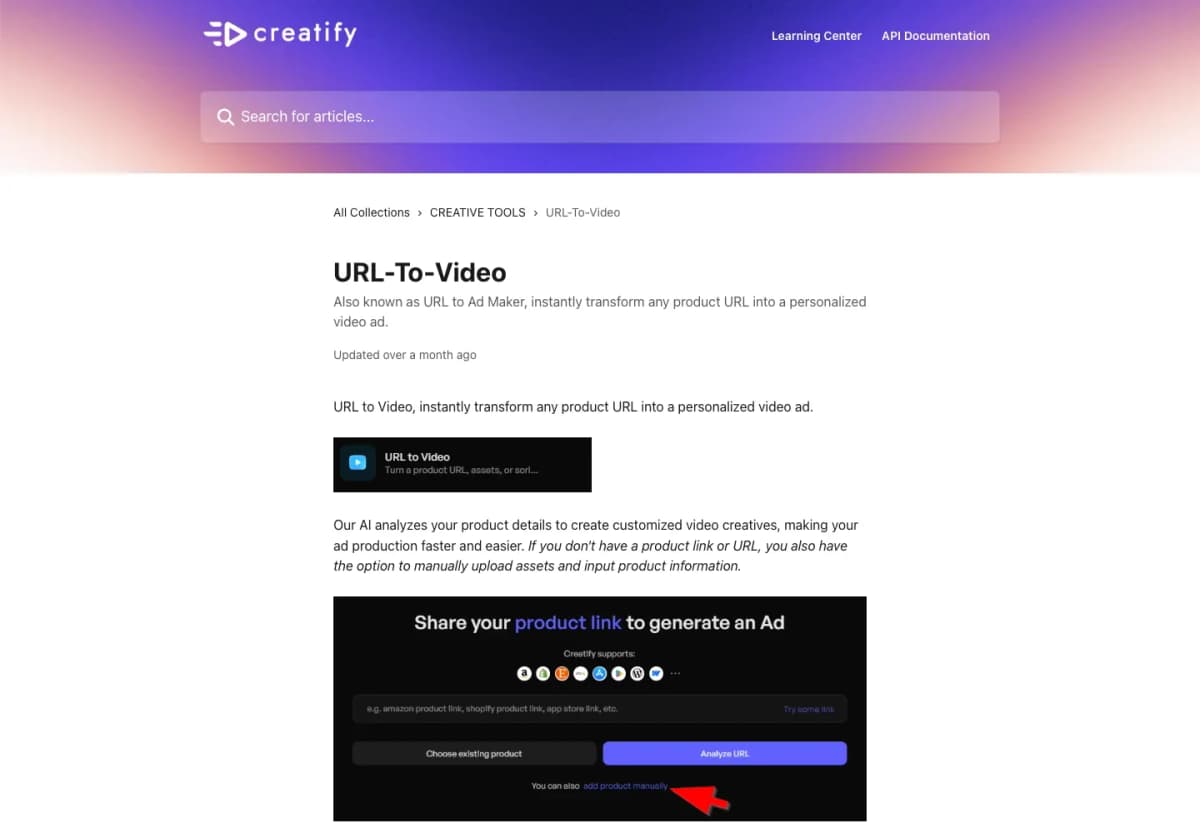
Creatify's URL-to-Video feature, also called URL to Ad Maker, analyzes a product link and uses the information to create video advertising. It also accepts manually uploaded assets and product information when a link is unavailable.
Useful features:
- Product URL analysis as the starting point for ad creation.
- A manual-input alternative for products without a usable public listing.
- Paid plans that include watermark removal and access to creation tools.
Its appeal is a focused advertising task: a product goes in, and the creative work centers on presenting that product. For a team choosing among ad concepts, prepare the audience and offer before importing the link. Those decisions make it easier to judge whether the resulting script says the right thing.
Access: Creatify offers a free credit allowance and paid Starter, Pro and Enterprise options. A watermark-free deliverable is a paid-plan consideration.
3. Pippit — Commerce Marketing Content
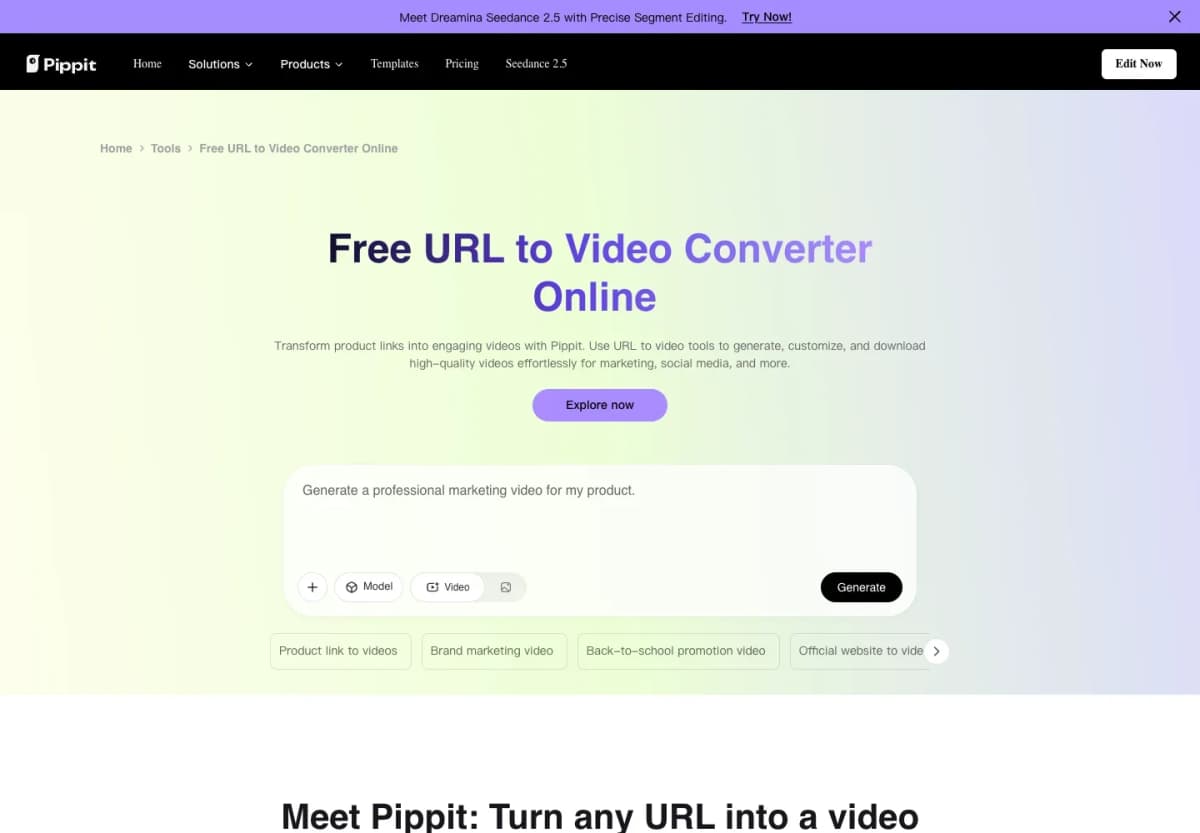
Pippit supports URL-based video creation within a broader commerce content workflow. Its link-import path brings webpage content into the creation process, and its product-video materials describe extracting product details, images and descriptions.
Useful features:
- Link-based content import alongside uploaded media.
- Video editing tools for refining marketing assets.
- A wider creative environment for teams making recurring product content.
Pippit is a relevant option when video belongs to an ongoing store-content schedule. A launch might need a vertical social clip, a revised offer, and additional visual assets over time. Assess how comfortably the editing workflow fits that routine, particularly when several people work on the same product campaign.
Access: The free plan includes daily credits. Paid upgrades add capabilities such as watermark removal and access to advanced models. Compare the displayed billing period and credit allowance together; an annual total is a different commitment from a monthly subscription.
4. Topview — Creative Direction From Links
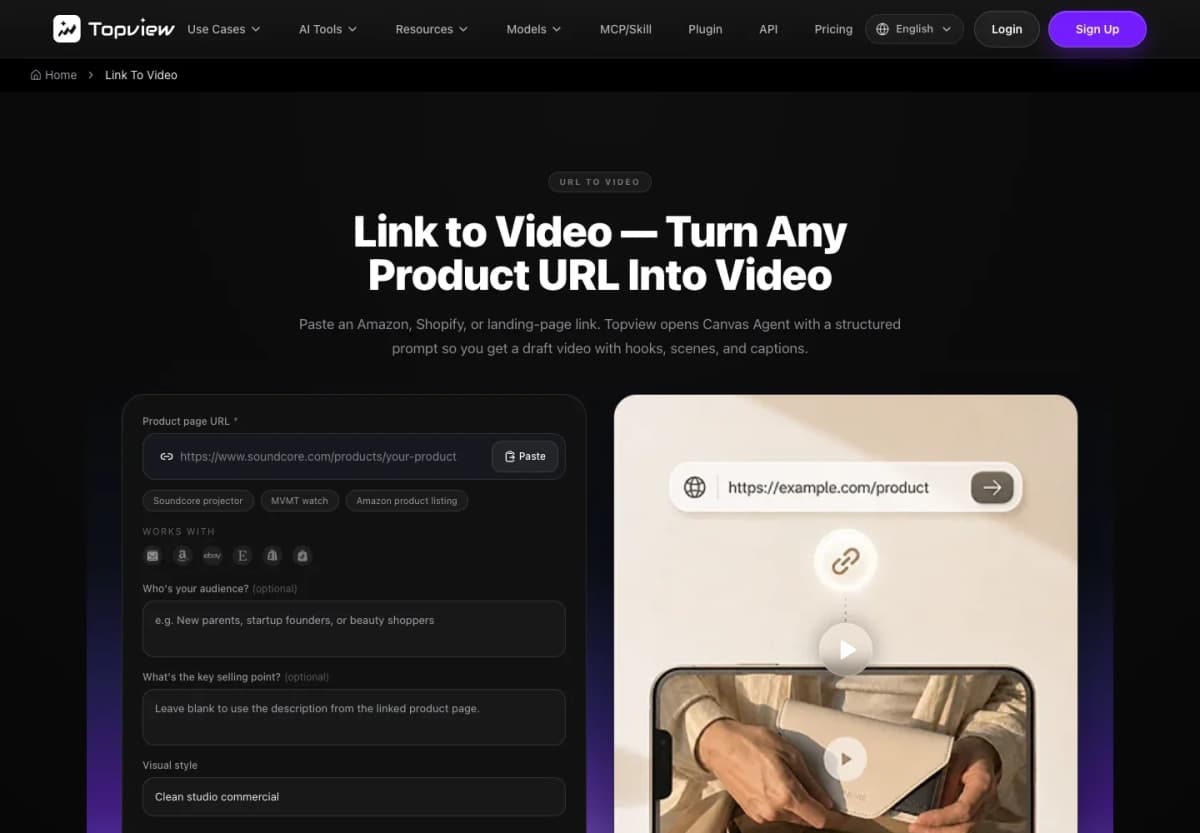
Topview's Link to Video workflow accepts product and landing-page URLs, then opens Canvas Agent with a prepared creative prompt. Optional inputs include the audience, key selling point and visual style.
Useful features:
- Product context extracted from the linked page.
- Audience and style cues supplied before creation.
- Hooks, scenes and captions developed within an editable Canvas workflow.
- Different hooks, offers and calls to action from the same product brief.
The distinction is the creative brief. A useful input goes beyond the item name: specify who the video addresses and which buying problem it should explain. For example, a travel accessory can be presented around packing convenience or daily commuting. The product stays the same, but the opening scene and message should change.
Access: Topview sells credit-based subscriptions with different billing and allocation rules. Its annual plans are paid upfront; credit delivery can be monthly or upfront depending on the plan.
5. InVideo AI — Text-Directed Revisions
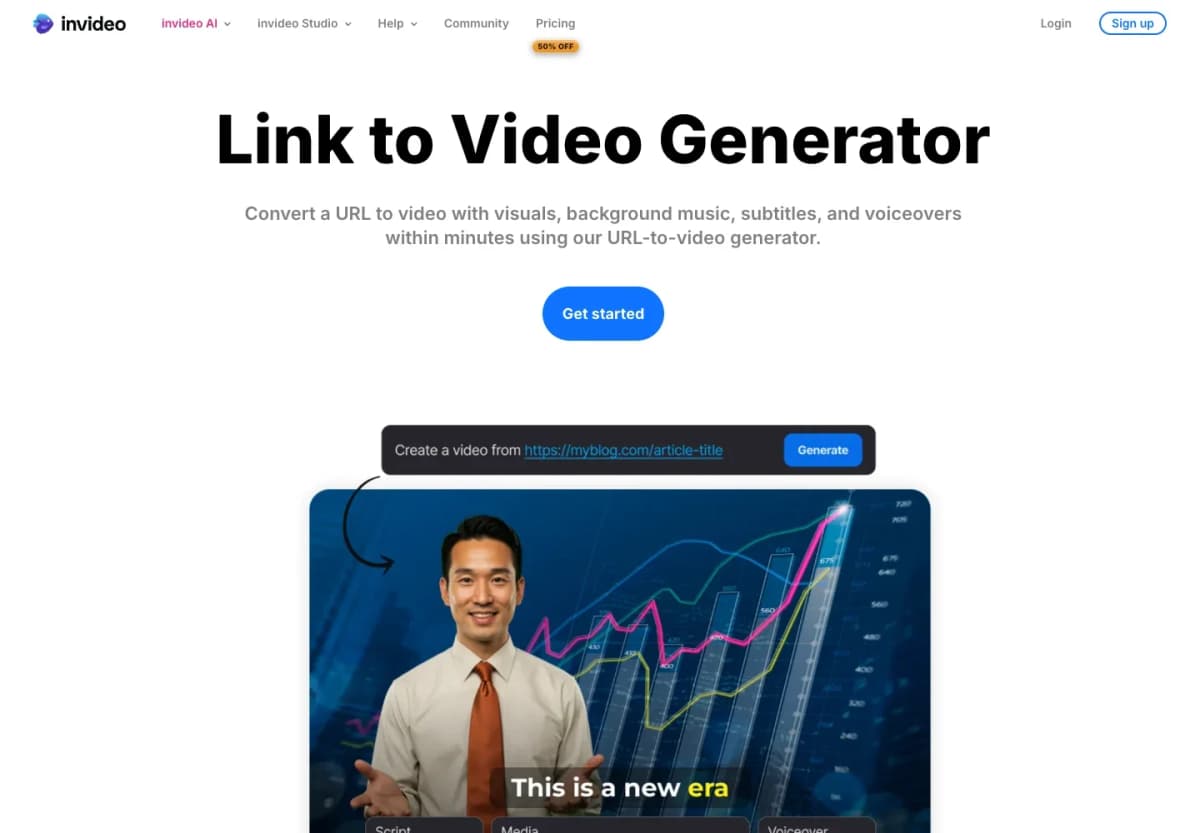
InVideo AI's Link to Video generator combines URL input with visuals, music, subtitles and voiceovers. Its product-link workflow also covers UGC-style videos for ecommerce.
Useful features:
- Settings for video length, destination platform and voiceover.
- A text-based editing box for subsequent changes.
- Instructions such as changing an accent, removing a scene or adding an introduction.
This approach suits a marketer who can describe an edit more easily than perform it on a timeline. Keep revision requests specific: “remove the second scene” is easier to assess than “make it more engaging.” After a change, review the transition into the next scene as well as the edited scene itself.
Access: InVideo uses credits for AI work, including processing and image, video, voice and music generation. Model choice and the work performed affect consumption, so account for revisions when estimating a project's cost.
6. HeyGen — Presenter-Led Web Videos
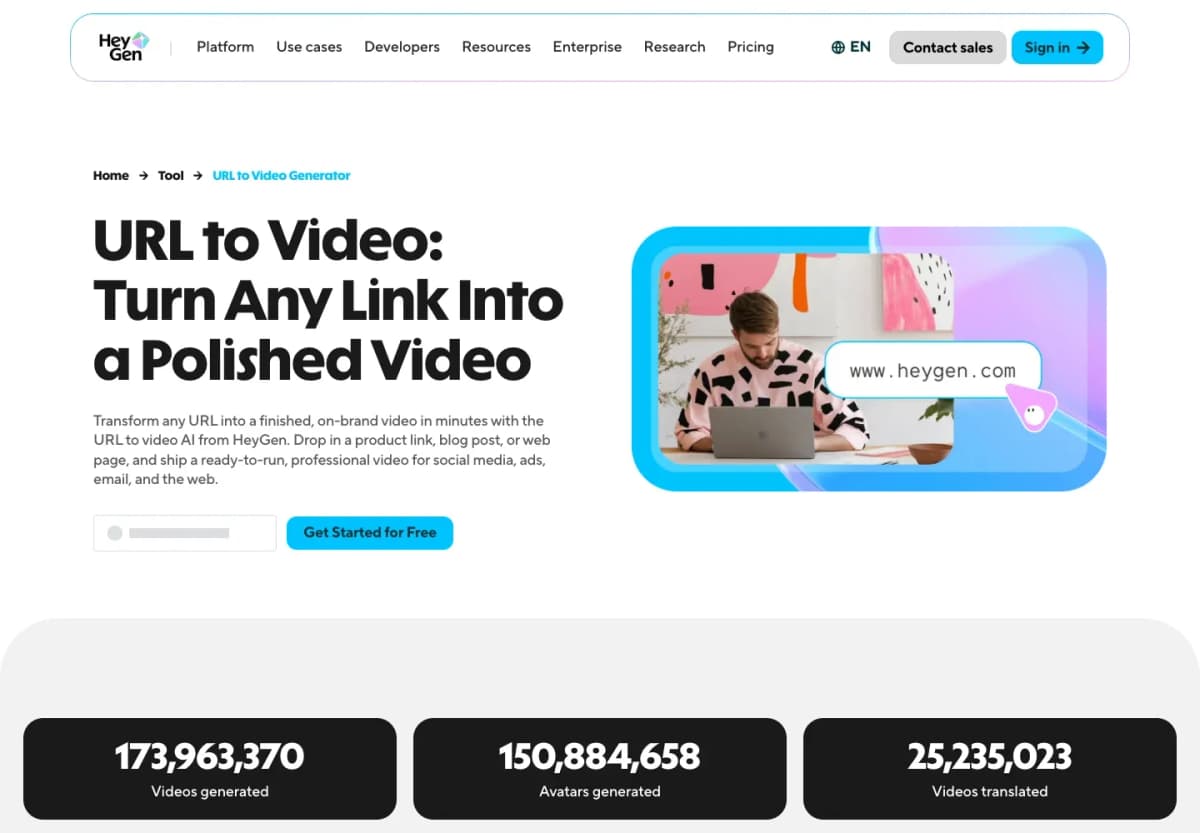
HeyGen turns product pages, blog posts and other webpages into scripts and scene-based videos. Its URL workflow combines editable copy with AI presenters, narration, subtitles and language options.
Useful features:
- A script-review stage for adjusting hooks and calls to action.
- Avatar-led delivery for explanations and product introductions.
- Localization tools for adapting a video to different audiences.
- Editing of scenes, voice, captions and visuals.
HeyGen is worth considering when the presenter carries much of the message. A software overview, a service explanation or a narrated product introduction can benefit from consistent delivery. Decide which information belongs in speech and which belongs on screen; making both repeat every sentence can slow the video down.
Access: HeyGen has a free plan with limited monthly video creation. Paid plans expand credits and features such as export quality, watermark removal and localization. Choose the plan around the required output and language capabilities.
7. Predis.ai — Product Videos for Social
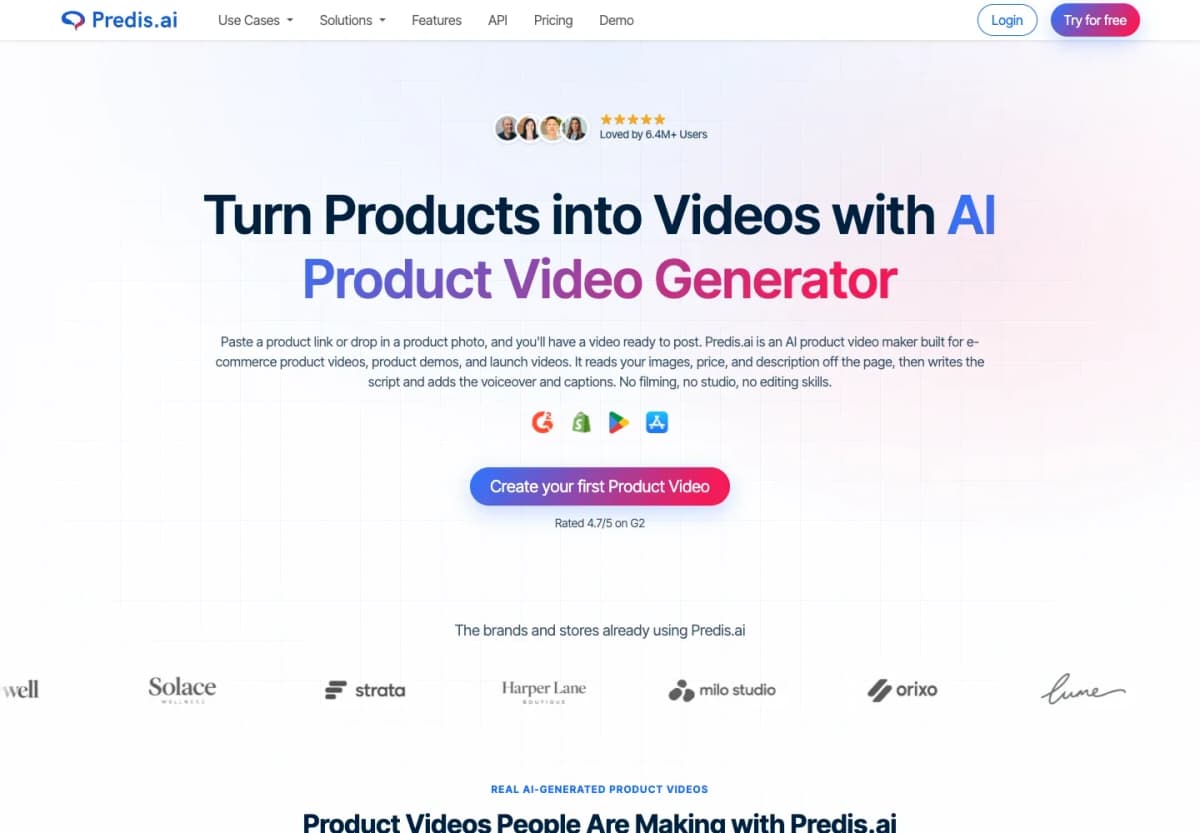
Predis.ai creates product videos from a link, photo or connected store. Its workflow reads listing information, writes a script and adds voiceover, music and captions. Branding controls and publishing options connect production with the social-content schedule.
Useful features:
- Product URL input and ecommerce store connections.
- Template, font, color and music adjustments.
- Options to publish, schedule or export, depending on the plan.
This makes Predis.ai relevant when the finished video is one part of a recurring social campaign. Before choosing it, map the practical requirements: number of brands, connected channels, who approves posts, and whether manual publishing is sufficient. Those details affect the plan more directly than the number of templates.
Access: Plans combine credits with brand and channel allowances. Automated posting varies by tier; the Core plan does not include auto posting. Match the subscription to the publishing workflow as well as the video-generation workload.
8. Fliki — Narrated Blog Summaries
Fliki's Blog to Video workflow takes a URL or pasted article, extracts the key points and rewrites them as a scene-by-scene script. Voices, visuals, captions and music complete the video workflow.
Useful features:
- Article summarization before video assembly.
- Voice and language choices for narration.
- Stock and AI media that can be replaced or adjusted.
- Vertical, square and landscape output options.
Fliki fits a content team that wants a video version of an existing article. The editorial task is choosing what survives the shorter format. Lead with the article's most useful answer, retain the explanation needed to understand it, and remove side topics. A short video can introduce one idea clearly without reproducing every heading.
Access: Fliki offers a free plan and paid tiers. Free exports have resolution and watermark limits; paid options add capabilities including commercial-use rights. Check those conditions before preparing paid promotional content.
9. Pictory — Website Content Repurposing
Pictory's URL-to-Video workflow accepts webpages such as homepages, product pages and blog posts. It first builds a script around the selected format, goal, tone and length, which can be edited before video creation.
Useful features:
- Web content converted into a structured script.
- Controls for purpose, tone and duration.
- Script revision and regeneration.
- A path from the script into a full video.
Pictory is a practical candidate when a team already has useful written material. Choosing the goal first makes the adaptation more focused: an educational article might become a short explainer, while a landing page might become an introduction to a service. Preserve the facts that make the source useful rather than filling every scene with a new selling point.
Access: Pictory provides a trial and paid subscriptions. Its pricing separates video-minute allowances from generative AI credits; having enough editing minutes does not necessarily cover the same amount of generated footage.
10. AI Studios — Avatar-Led Explainers
AI Studios converts webpage content into a script, scenes and AI-avatar narration. Its URL-to-Video workflow covers articles, ecommerce pages and company websites, with choices for language, duration, visual sources, templates and presenters.
Useful features:
- URL analysis followed by an editable video draft.
- Template and avatar selection.
- Web, uploaded, generated or stock visual sources.
- Language choices for narrated explanations.
AI Studios is a relevant choice for teams turning written explanations into presented videos. An onboarding page or service overview usually needs a clear order: what the viewer needs to know, what action follows, and where to find the relevant detail. A presenter can carry that sequence while selected visuals illustrate each point.
Access: A free plan supports limited creation. Paid Personal, Team and Enterprise options expand capabilities, with video length, model access and collaboration among the plan considerations.
How to Choose a URL to Video Maker
Start With the Source Page
A product page contains images and commercial details. A blog contains an argument or explanation. A company homepage often spreads its message across several sections. Match the tool's input workflow to that structure.
For a listing, examine which images and product details enter the draft. For an article, examine whether the summary keeps the main idea and its context. This first check tells more about suitability than the appearance of the landing page.
Match the Video to the Campaign
Choose the destination and communication goal before choosing a presenter or visual style. A product introduction needs to establish the item quickly. A demonstration needs an understandable sequence. A promotional ad needs a clear offer and next action.
An avatar can carry spoken explanation; a product-only approach can devote more screen space to the item. For a project that starts from approved footage and a reference style, video recreation is a separate workflow worth distinguishing from importing a product page.
Keep Useful Editing Controls
Look for control at the point where the creative decision happens. Can the imported text be corrected before scripting? Can a hook be rewritten without replacing the whole message? Can a distracting image or scene be changed?
Use one representative project to assess the editing process. Give it a real brief, make a deliberate revision, and inspect the resulting export. Record what required manual intervention so the team knows what the recurring work will involve.
Compare a Usable Export's Cost
Subscription price is only part of the calculation. Include the required duration, model, resolution, voice or avatar features, and expected revisions. Review watermark and commercial-use conditions alongside those costs.
If the project needs several variations, budget for the variations themselves. A credit balance is an input allowance, not a fixed number of acceptable ads. Compare monthly billing with the full upfront charge of an annual plan rather than treating their displayed monthly figures as equivalent purchases.
How to Turn a Product URL Into a Video Ad With Nexscope
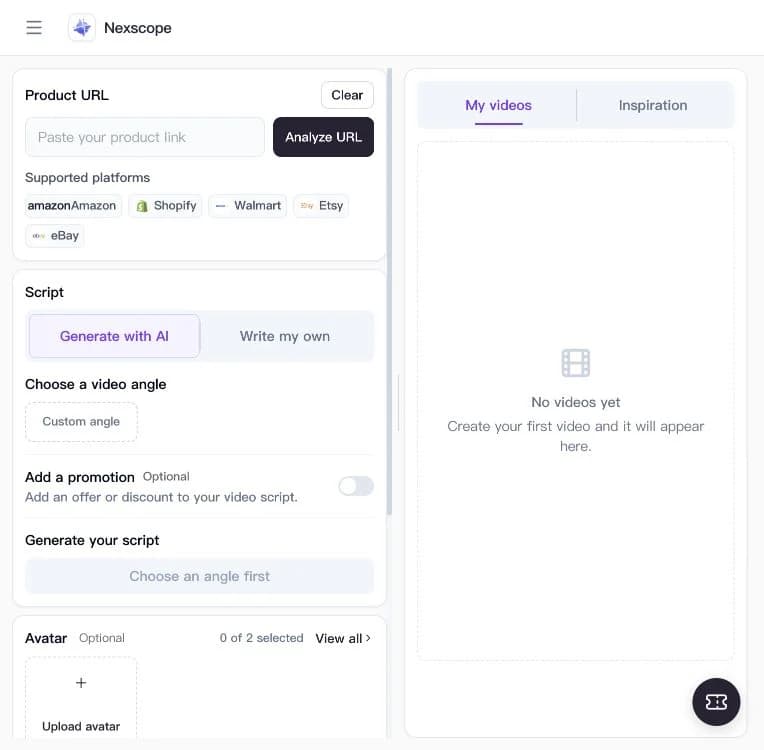
Start in the Nexscope URL to Video workspace. You need to register or log in to use this tool. In the left sidebar, select URL to Video under Video & Image.
1. Paste Your Product Link
In Product URL, paste the individual listing into Paste your product link, then click Analyze URL. The interface lists Amazon, Shopify, Walmart, Etsy and eBay as supported platforms. Use the exact item and variant you want to advertise.
Review the imported product information and images before moving on. Check that the description, color, packaging and included accessories match the listing you intend to promote.
1
2
3
NEXSCOPE · URL TO VIDEO
Start with your product link
1
Paste a product URL
Use the individual listing you want to advertise, not a store homepage.
2
Click Analyze URL
Import the product information, then check that it matches your item.
3
Choose a script mode
Use Generate with AI for an angle-led script, or Write my own for prepared copy.
2. Choose Your Script Mode
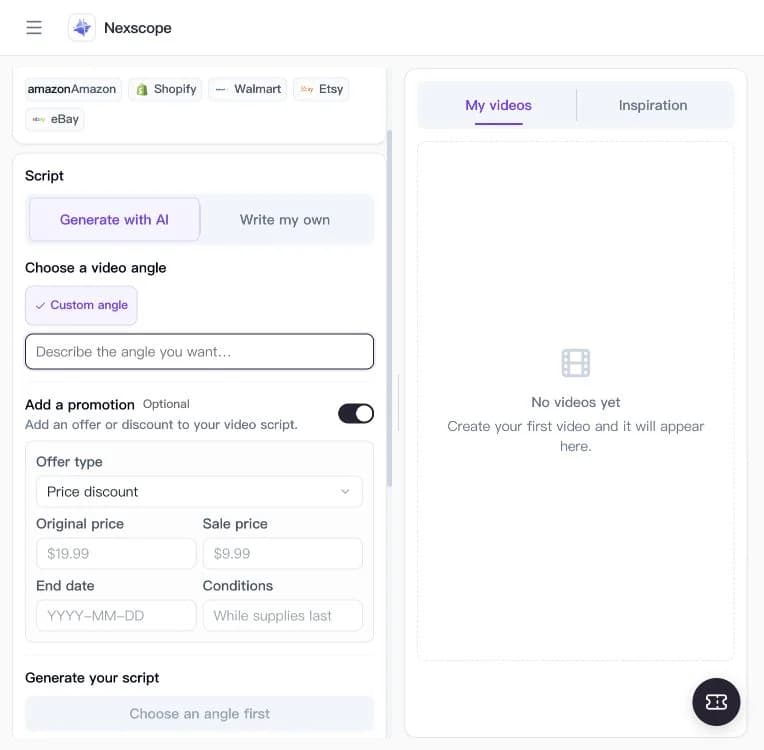
In Script, choose Generate with AI to develop a script from a selling angle, or Write my own if you already have approved copy. For your own script, keep the sequence focused: hook → product benefit → supporting detail → next action.
For example, a dog-toy ad might focus on a playtime scene. Use only product claims supported by the listing, whichever script mode you choose.
3. Set the Angle and Optional Promotion
For the AI route, go to Choose a video angle. Use Custom angle to supply the direction you want the script to follow. Before an angle is selected, the Generate your script area displays Choose an angle first.
If the ad includes an offer, enable Add a promotion and provide the actual discount or promotion. This field is optional. Once the required inputs are ready, generate the script and review its wording before proceeding.
1
2
3
NEXSCOPE · URL TO VIDEO
Tell Nexscope what to say
1
Describe the angle
In Custom angle, explain the focus. Example: Show how this toy fits into a daily playtime routine.
2
Add a real offer — optional
Choose Offer type. For Price discount, enter Original price, Sale price, End date and Conditions.
3
Generate your script
Complete the required inputs first. Review product claims and wording before moving on.
4. Choose an Optional Avatar
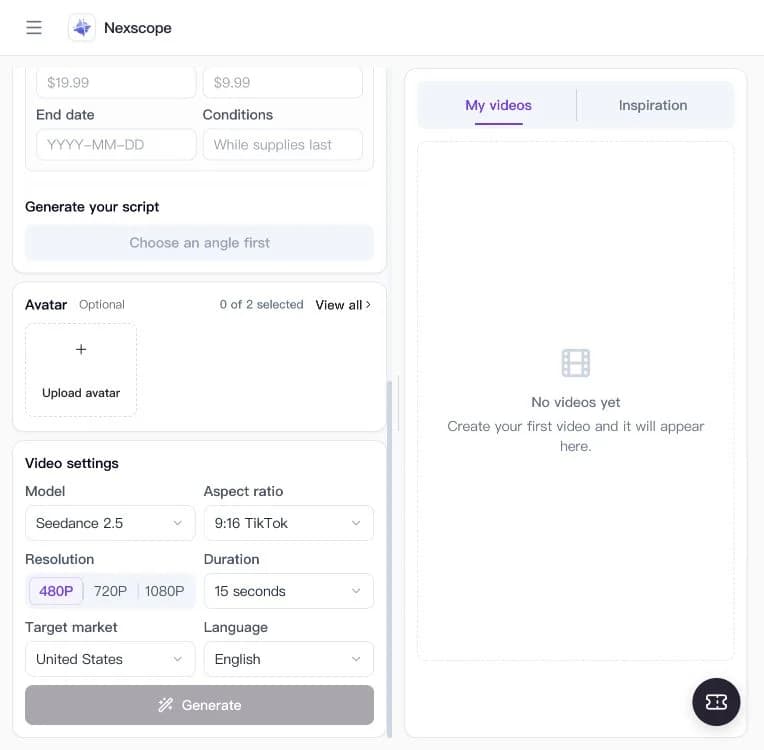
The Avatar section is marked Optional. Select a presenter if one suits the message, use View all to browse the choices, or select Upload avatar to provide your own. The selection counter shows how many avatars are selected.
For a product-focused ad, you can leave the avatar unselected. Decide whether the viewer needs a presenter to explain the benefit or more screen time to see the item itself.
5. Finish the Setup and Review Your Video
In Video settings, choose Model, Aspect ratio, Resolution and Duration. Then set Target market and Language for your audience. Review the available options and credit requirement before clicking Generate. Keep the script, product visuals and intended placement consistent.
1
2
3
4
NEXSCOPE · URL TO VIDEO
Choose how the video is made
1
Avatar is optional
Browse with View all or use Upload avatar. Leave it unselected for a product-only video.
2
Set the video format
Choose Model, Aspect ratio, Resolution and Duration for your intended placement.
3
Set market and language
Choose the Target market and the language your audience uses.
4
Generate when ready
Review your inputs and credit requirement. Sign in to create your video.
Use My videos to find your video, then review the finished result before using it in a campaign. Check that the product looks right, the spoken claims match the listing, and any promotion is accurate. If the message feels rushed, shorten the script for the next version.
Example: A Product Link Turned Into a Video
This example from Nexscope’s URL to Video landing page shows a blue crinkle duck dog toy in a playtime scene with a golden retriever. It illustrates how a product listing and a focused script can become a vertical product video.
Conclusion: Choose the Right Tool for Your Next Video
A useful URL to video maker connects source content with the kind of video a team actually needs. Product campaigns benefit from clear listing inputs and editable selling points. Article repurposing depends on a good summary and sensible scene order. Presenter-led content depends on delivery and language control.
For ecommerce teams starting with a listing, Nexscope brings product details, images, scripts and presentation choices into one workflow. Start with one item and one clear message, then develop further variations around different campaign goals.
Your Next Product Video Starts With a Link
Bring an existing listing into Nexscope and turn its product details into a focused video brief.
Create Your First Product Video →Frequently Asked Questions
What is a URL to video maker?
A URL to video maker uses the content of a webpage to prepare a video. Depending on the tool, it extracts text and images, drafts a script, organizes scenes and adds narration or a presenter. Common inputs include product listings, blog posts and business webpages.
Can an Amazon or Shopify link become a video?
Yes. Nexscope supports Amazon and Shopify product pages, along with Walmart, Etsy and eBay. Import an individual listing and review the selected images and description before building the script. Choose the product variant that matches the planned campaign.
Can the script be edited after import?
Many of these tools provide script editing before generation. Nexscope allows an AI-generated script to be revised or regenerated, and also supports a manually written script. Finalizing the message at that stage helps keep the video focused.
Is an AI avatar required?
No. A presenter is one creative option. Nexscope also supports product-only videos. Choose an avatar when spoken explanation benefits the message; choose a product-focused treatment when the item and its visual details should carry the clip.
Are there free URL to video makers?
Several tools in this comparison offer a free plan, trial or credit allowance. Their conditions differ: some limit monthly creation, resolution, watermarks or commercial use. Check the conditions for the intended export rather than assuming free access includes every production feature.
How does URL-to-video differ from image-to-video?
URL-to-video begins with a webpage and uses its content to build the brief or script. Image-to-video begins with a supplied image and instructions for the scene or motion. Use image-to-video when the visual asset is ready; choose a product-link workflow when the listing should supply the starting information.
Sources
- Nexscope. 2026. AI URL to Video Generator for Product Ads; How to Make a Product Video from a Listing URL. nexscope.ai; learn.nexscope.ai.
- Creatify. 2026. URL-To-Video; Pricing Plans. help.creatify.ai; creatify.ai.
- Pippit. 2026. URL to Video Converter; Pricing and Plans. pippit.ai.
- Topview. 2026. Link to Video; Pricing. topview.ai.
- InVideo. 2026. Link to Video Generator; Plans and Credits. invideo.io; help.invideo.io.
- HeyGen. 2026. URL to Video; Video Pricing for Creators and Marketers. heygen.com.
- Predis.ai. 2026. AI Product Video Maker; Pricing. predis.ai.
- Fliki. 2026. Blog to Video; Pricing. fliki.ai.
- Pictory. 2026. URL to Video; Pricing. pictory.ai.
- AI Studios. 2026. URL to Video; Pricing; How to Convert URLs and Links into Video. aistudios.com; help.aistudios.com.