

Create a Viral-Style Product Video With Nexscope Video Clone

Nexscope Video Clone turns an authorized reference video and clear product images into a new ecommerce video. It is useful when a brand likes the pacing, camera movement, or scene order of a short-form video but needs an original version built around its own product.
The workflow is simple. Add a TikTok link or upload a reference video, provide a product image, generate an editable prompt, and choose the final video settings. This tutorial follows the exact process shown in the demo and explains what to check before publishing the result.
Only use reference videos that the brand owns, licenses, or has permission to adapt. A useful format can inspire a new creative structure, but third-party faces, voices, music, logos, claims, and distinctive scenes may require separate permission.
What to Prepare
Before opening Video Clone, prepare these two inputs:
- An authorized reference video with a clear hook, pacing, scene order, or product demonstration.
- A clean product image that shows the real package, color, shape, label, and important details.
A simple front-facing image may be enough for a basic test. For a product with several sides or important details, use multiple consistent images when the interface allows it. Conflicting images can make the generated product less accurate.
Step 1: Add the Reference Video
Open the Nexscope Video Clone workspace. The reference section gives two starting options:
- Paste a public TikTok link.
- Upload a reference video file.
For a TikTok link, paste the URL into the field and click Analyze video. Nexscope reads the reference and prepares it for the next part of the workflow.
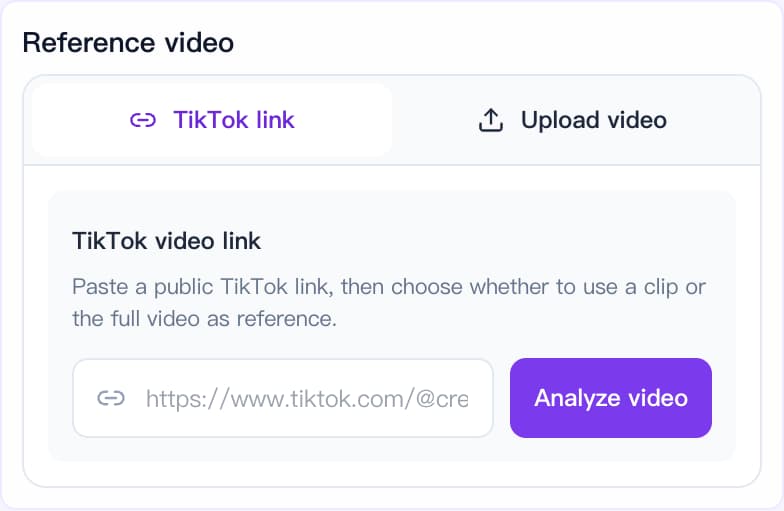
Choose the reference for its reusable structure. A strong reference may have an immediate hook, a clear product reveal, a useful demonstration, or a memorable final reaction. The goal is to create an original product-led version, not to copy another creator's identity or protected expression.
Step 2: Upload the Product Image
Add the product image under Product & Reference Images. The demo uses a clear image of a pink hair-mask container, which gives the model a visible source for the product's color, packaging, and label.
Use images that are:
- Sharp and well lit
- Free from heavy filters
- Consistent in color and packaging
- Large enough to show the product clearly
- Approved for commercial use
The uploaded product image is the visual source of truth. If the label, lid, shape, or color is wrong in the input, the generated video may repeat the mistake.
Step 3: Generate and Review the Prompt
Click Generate Prompt after the reference video and product image are ready. Video Clone analyzes the shots, actions, pacing, and camera language, then turns that breakdown into an editable prompt.
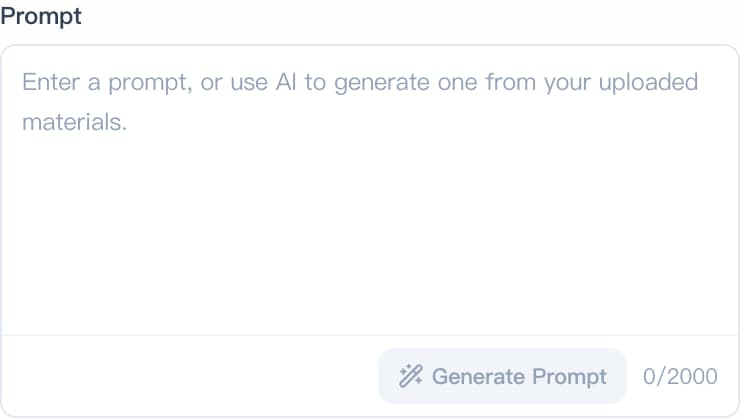
Read the prompt before generating. Check that it:
- Describes the correct product
- Keeps only the useful structure of the reference
- Uses accurate product features and approved claims
- Avoids third-party names, logos, music, or personal identity
- Matches the intended audience and channel
The generated prompt saves setup time, but it should still be treated as a draft. Edit any line that could create a false product result or reproduce something the brand does not have permission to use.
Step 4: Choose Settings and Generate
Select the model, resolution, duration, and aspect ratio. The demo uses Seedance 2.5 and a vertical 9:16 TikTok format. The current interface also includes 480P, 720P, and 1080P resolution choices, plus automatic or fixed duration options supported by the selected model.
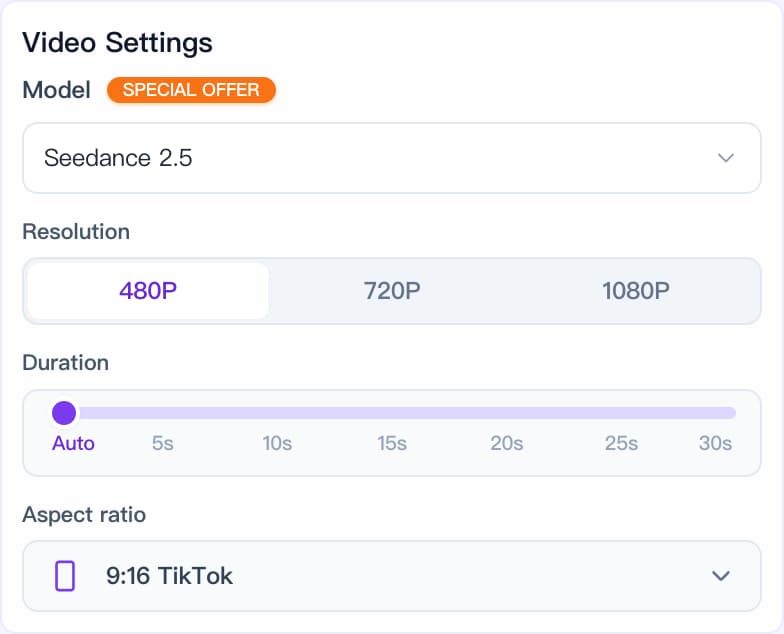
For a first test, keep the setup close to the reference:
- Use 9:16 for TikTok, Reels, and YouTube Shorts.
- Use Auto duration when the source pacing should guide the output.
- Choose a higher resolution for a final asset after the concept works.
- Change one major creative variable at a time when testing several versions.
Click Generate when the settings are ready. Generation time can vary by model, video length, and current processing demand. The result appears in the preview area when processing finishes.
Review the Generated Video
The comparison below shows how the demo replaces the original featured item with the uploaded hair-mask product while preserving the fast vertical product-demo format.
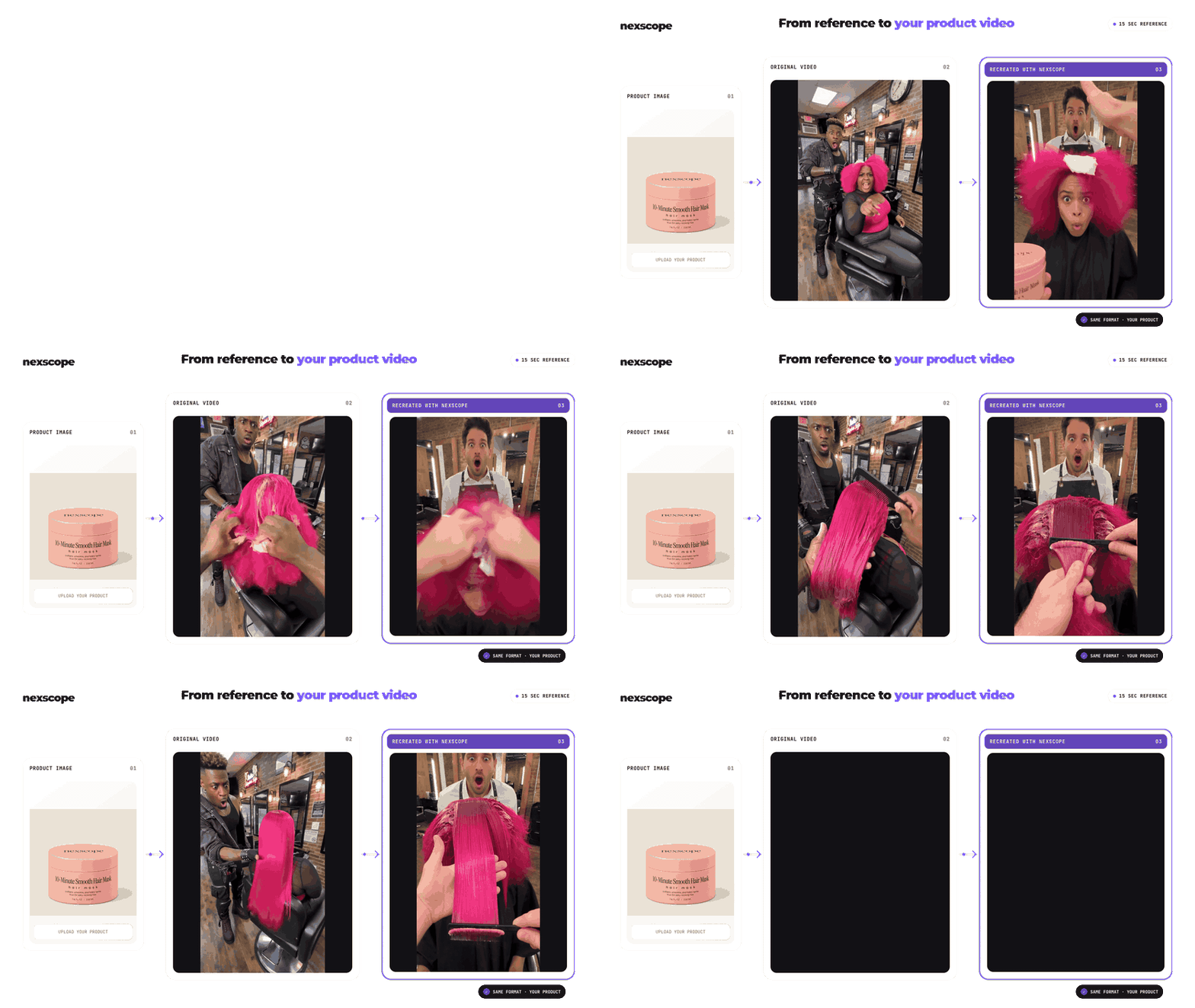
Treat every generated video as a production draft until it passes review. Watch the full clip and check:
- Product shape, color, package, label, and included parts
- Hands, faces, object contact, and body movement
- Spoken words, captions, and visible product claims
- Music, logos, people, and other third-party material
- AI-generated-content disclosure requirements
- Aspect ratio, captions, and safe zones for the target platform
Small packaging text and fast hand movements deserve extra attention. If one part is inaccurate, revise the prompt or source images and generate a new version rather than publishing a misleading clip.
Simple Testing Tips
One video is a starting point. A small controlled test makes it easier to learn what viewers respond to.
- Test the hook by changing only the opening action or first line.
- Test product timing by showing the product earlier in one version.
- Test the demonstration by changing how the key feature appears.
- Test the CTA by comparing one short next step with another.
Keep the product, offer, audience, and other major conditions stable. When several variables change at once, it becomes difficult to explain why one version performed better.
Common Mistakes
- Using an unauthorized reference: A public video is still protected content. Confirm usage rights before adapting it.
- Uploading a weak product image: Blurry or inconsistent references increase visual errors.
- Skipping prompt review: An automatic prompt may include details that need correction.
- Copying protected elements: Replace third-party identity, music, logos, claims, and distinctive creative expression.
- Publishing without quality control: Generated visuals can change packaging, text, hands, motion, or product behavior.
- Expecting guaranteed performance: Video Clone speeds up production, but results still depend on the idea, product fit, distribution, and testing.
Conclusion
Nexscope Video Clone reduces a product-video workflow to four clear steps: add an authorized reference, upload the product image, generate and review the prompt, then choose the settings and generate.
The strongest results start with accurate product assets and a reference chosen for structure. A final human review protects product accuracy, usage rights, and platform compliance before the video reaches customers.
Create Viral-Style Product Videos
Bring an authorized reference and a clear product image, then create a new ecommerce video ready for review and testing.
Try Nexscope Video Clone →
Frequently Asked Questions
What is Nexscope Video Clone?
Nexscope Video Clone is an ecommerce video workflow that uses a reference video and product images to create a new product-led video. It can reuse useful elements such as pacing, scene order, camera rhythm, and demonstration structure. The output still needs review for product accuracy, rights, claims, AI disclosure, and channel requirements before publication.
Can a TikTok link be used as the reference?
Yes. The current Video Clone interface accepts a public TikTok link and includes an Analyze video action. A reference can also be uploaded as a video file. The brand must own, license, or have permission to adapt the source. Public availability does not grant permission to copy a creator's face, voice, music, script, logos, or distinctive creative work.
What product image works best?
Use a sharp, well-lit image that clearly shows the real product shape, color, packaging, label, and important details. A front-facing image can support a simple test, while several consistent views may improve clarity for more complex products. Avoid blurry files, heavy filters, conflicting package versions, and images that the brand cannot use commercially.
Does Video Clone write the prompt automatically?
Yes. After the reference and product image are added, Generate Prompt analyzes the shots, actions, pacing, and camera language and produces an editable prompt. The user should review it before generation. Product claims, third-party elements, and any scene that could misrepresent the real item should be corrected or removed.
Which aspect ratio should be selected?
Use 9:16 for TikTok, Instagram Reels, and YouTube Shorts. Other placements may need a different format. The product, face, captions, and CTA should stay inside each platform's safe area. Review the exported video on a phone before publishing because interface overlays can cover content near the top, bottom, or right edge.
Sources
- Nexscope. (2026). AI Video Clone Generator for Ecommerce. Retrieved from nexscope.ai
- TikTok for Business. (2023). Creative Guidance. Retrieved from ads.tiktok.com
- TikTok Support. (2026). About AI-Generated Content. Retrieved from support.tiktok.com