
Scheduled Tasks Is Now Available in Nexscope

Table of Contents
Scheduled Tasks is now available in Nexscope. Choose your APIs, save your inputs, and set a schedule to collect ecommerce data automatically.
Collect product data daily or gather keyword data weekly without starting the same requests manually. Enable email delivery to receive results after each run, review past runs in Execution history, or send results to your own system through a webhook.
What Is Nexscope Scheduled Tasks?
Nexscope Scheduled Tasks is a feature that runs saved API requests at times you choose. Each task brings together your selected APIs, their inputs, a run schedule, and result delivery settings.
For recurring research, you can configure the requests once and let them run on schedule. Results remain available in Execution history, with optional email or webhook delivery to fit the way you work.
Run Recurring Data Requests Automatically
Regular research often starts with the same requests: checking a set of products, collecting keyword data, or refreshing market information before a weekly review.
Scheduled Tasks lets you save those requests and run them on a recurring schedule. For example:
- Daily product research: Collect product data each morning so it is ready for your review.
- Weekly keyword research: Gather keyword data on a chosen day to support your planning routine.
- Recurring data delivery: Send API results to your system for use in existing reports and workflows.
You choose the APIs, inputs, and timing. Nexscope runs the saved requests according to your schedule.
Choose Your APIs and Schedule
Each task supports up to 10 APIs. Find the APIs you need through Category search or API search, then enter the inputs for each one using Form or JSON.
Choose a schedule that fits your work:
- Once for a single scheduled run.
- Every N hours for recurring collection throughout the day.
- Daily for a regular data refresh.
- Weekly for recurring research and reporting.
- Monthly for longer review cycles.
You can also add more than one run time to a task.
Schedules use your browser’s time zone, shown during setup. Check the local time before saving, especially when coordinating with teammates in other regions.
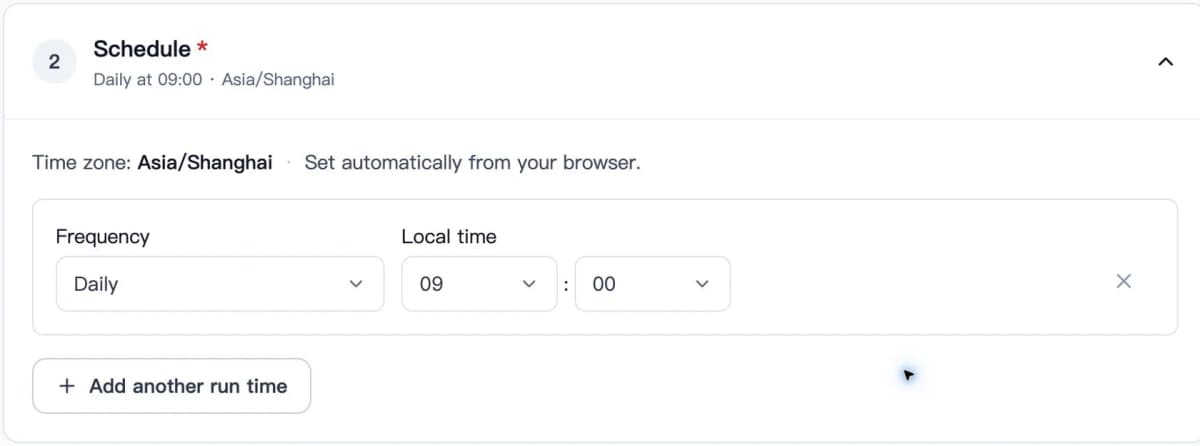
Example schedule from the Nexscope Setup guide: daily at 09:00 in Asia/Shanghai.
Get Results by Email or Webhook
Choose how you want to receive the data when a task runs. Results are saved on the platform, and you can also enable automatic delivery.
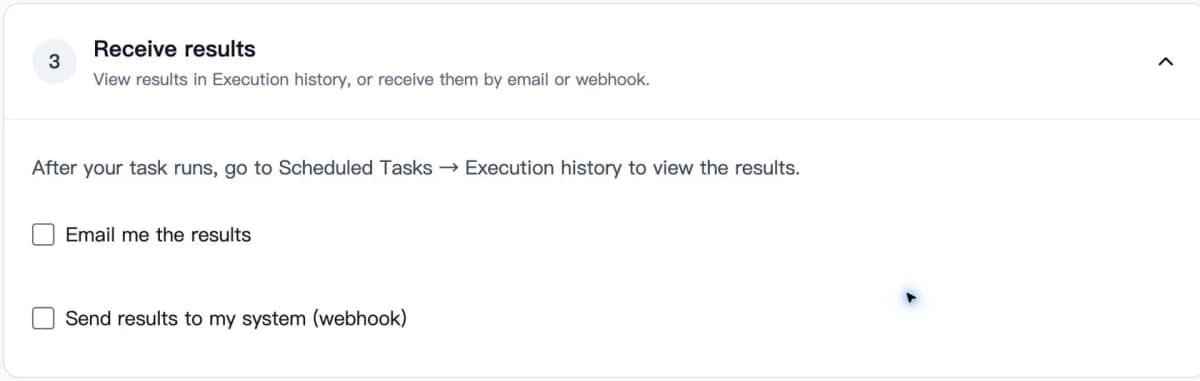
Result delivery options in the Nexscope Setup guide.
Email Delivery
Select Email me the results and enter the destination to receive results automatically. This is useful when you want the latest data in your inbox before a daily check or weekly review.
You can send all API results together or receive each result separately, and choose whether to include failed runs.
Webhook Delivery
Select Send results to my system (webhook) to deliver results to your own application or workflow.
The destination must be a public HTTPS endpoint that accepts JSON. Webhook settings include technical requirements and an example payload to help you configure the receiving system.
Email and webhook delivery include API inputs and results, so choose destinations appropriate for that data.
Execution History
Results are also saved under Scheduled Tasks → Execution history for up to 90 days.
Search by task name or ID, or filter by scheduled time. Select View result to inspect API results, any failure reason, and delivery status.
Create Your First Scheduled Task
Start with a request you already repeat regularly.
- Open Scheduled Tasks and select New task.
- Give the task a recognizable name.
- Choose your APIs and save their inputs.
- Set the schedule and your preferred result delivery.
- Review the settings and select Save task.
The Setup guide walks through each step with screenshots.
An active eligible subscription is required to use Scheduled Tasks. API runs consume Data Credits. Keep sufficient credits available for your scheduled requests.
Choose a daily or weekly research routine, save the requests, and have the results delivered when you need them.
Set Up Your First Scheduled Task
Choose your APIs, save your inputs, and schedule recurring data collection.
Create Your First Scheduled Task →Frequently Asked Questions
Does the Subscription Cover API Usage?
Scheduled Tasks requires an active eligible subscription. API usage consumes Data Credits, so you also need sufficient credits for the requests your tasks run.
What Happens if I Run Out of Data Credits?
Calls with insufficient credits are skipped. After you add credits, calls can run at the next scheduled time.
Can I Pause or Edit a Task?
Yes. In the Tasks tab, select Edit to change a task and save your updates. Use the task’s three-dot menu to select Pause task or Resume task.
Where Can I Find Previous Results?
Open Scheduled Tasks → Execution history. Results are kept for up to 90 days, including API results, failure reasons, and delivery status.
Can I Change the Schedule’s Time Zone?
The time zone comes from your browser and cannot be changed in the task settings. Review the displayed time zone when setting your run times.
Sources
- Nexscope. 2026. Scheduled Tasks Guide. nexscope.ai.
- Nexscope. 2026. Scheduled Tasks. nexscope.ai.