

Shopify’s Grok Integration Lets You Manage Your Store Through Chat

Table of Contents
Shopify’s Grok integration lets merchants ask questions about their business and complete supported store tasks from a conversation. Once connected, Grok can work with product information, inventory and store analytics, with access determined by the permissions you approve.
For a small team, that changes how routine work starts. A question about last month’s sales can begin in chat. A product update can start with a specific instruction. Checking an order no longer has to begin by navigating to its record in the admin.
The connector works in both Grok and Grok Bot, but the two products have different setup paths and ways of displaying results. They also operate within defined limits: some information is read-only, and several important business actions remain in Shopify admin.
The useful place to start is a task you already understand. Check a familiar report, inspect an existing product, then try a narrowly defined update. That gives you a clear way to judge whether the integration helps your daily work.
What Is the Shopify Connector for Grok?
The Shopify connector gives Grok access to an authorized Shopify store so it can retrieve information and perform supported actions. You can connect an existing store or use the connector to generate storefront previews and claim one as a new store.
A preview still needs work before launch. Product details, shipping, payments, policies and domain settings need to be checked and completed in Shopify.
For existing merchants, the immediate value is conversational store management. You can ask about products, look up orders, organize collections and review sales without composing an API request yourself. The Shopify AI Toolkit serves a related development use case; the Grok connector provides a direct setup route for merchants using Grok.
Grok and Grok Bot
Choose the product you intend to use before connecting the store.
| Detail | Grok | Grok Bot |
|---|---|---|
| Connection entry point | Grok’s connectors page | Connect apps inside Grok Bot |
| Shopify connection | Install and authorize for Grok | Connect Shopify separately in Grok Bot |
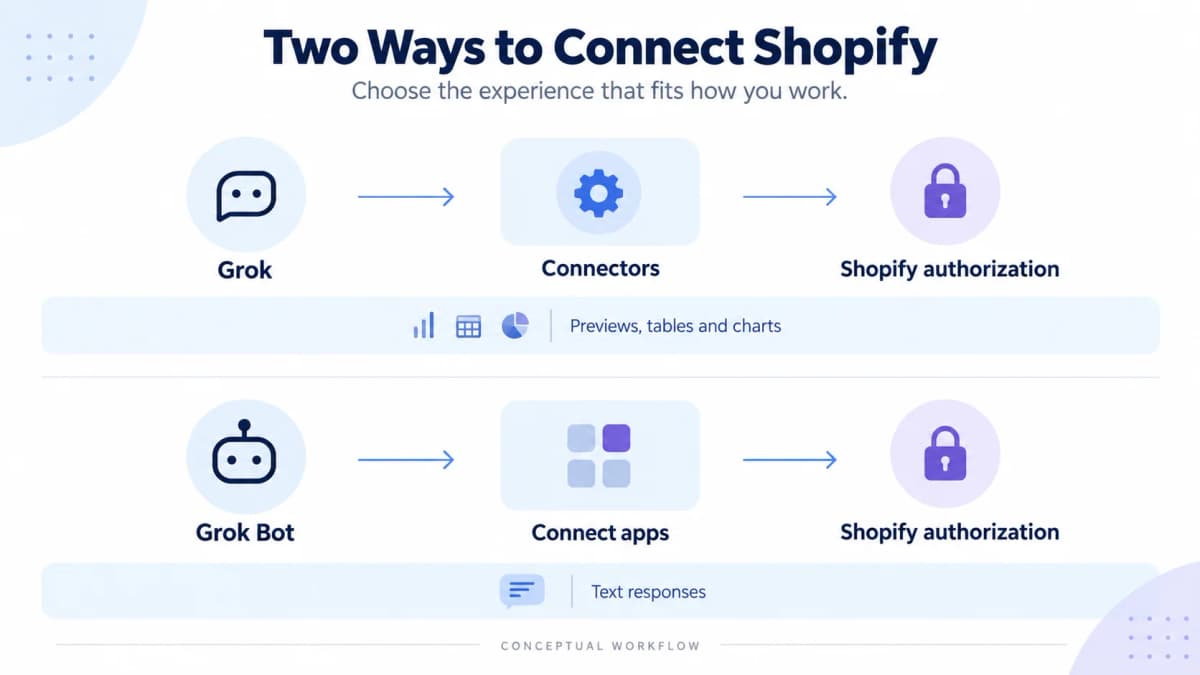
| Connector output | Can display storefront previews, tables and charts | Returns store data as text |
| Practical starting task | Ask a sales question and inspect the result | Request a concise order or inventory summary |
Connecting Shopify in Grok does not automatically install the connector in Grok Bot. A bot’s ability to work with other apps also does not expand the actions that Shopify allows through this connector.
How Do You Connect Grok to Shopify?
Start inside Grok or Grok Bot, select Shopify, and complete the authorization in Shopify admin. The official connector is installed from the AI tool rather than the Shopify App Store.
1. Select the Shopify Connection
For Grok, open the connectors page and add Shopify. For Grok Bot, open Connect apps and search for Shopify.
On Grok Business and Enterprise, a team administrator must first provision a connector for the team before members can connect their accounts. If Shopify is unavailable in a managed workspace, check with the administrator before changing your store setup.
2. Review the Requested Access
Sign in to Shopify when redirected and review the requested access. Reading data and changing it require different permissions, and the connected user’s own permissions also limit what the tool can do.
For a first trial, choose a task that only needs information, such as reading a product or reviewing a sales total. Do not approve broader access than you are comfortable granting.
3. Confirm the Connected Store
Begin with a simple request:
Using the Shopify connector, tell me which store is connected.
Then inspect a known record:
Using Shopify, find the product named “Linen Travel Pouch” and show its current title and variant prices. Make no changes.
These are illustrative prompts, not results from a tested merchant account. Substitute your own product name and compare the response with Shopify admin.
Name Shopify explicitly so Grok knows to use the connector. If it returns general instructions instead of store information, check whether the connector is enabled for the conversation.
What Can Grok Do in Your Shopify Store?
Grok can help maintain your catalog, inspect orders, answer analytics questions and manage supported inventory and collection actions. Start with a clearly named object and one request at a time.
Product Updates
Use a two-part conversation to review wording before changing a listing:
Read the Shopify product “Linen Travel Pouch.” Suggest a shorter description using only its existing material, dimensions and care details. Do not save changes.
After reviewing the suggestion:
Update only that product’s description with the approved text below. Keep its title, prices, variants, images and status unchanged.
The connector supports creating products and editing fields such as descriptions, images, variant prices and SKUs. Your instructions should identify both the intended change and the fields that matter to preserve. Review the saved product afterward.
For merchandising, it can also create manual collections or smart collections based on rules. A request to group named products is easier to inspect than a broad instruction to reorganize the entire catalog.
Order Checks
Ask for a small, defined set of orders:
Using Shopify, show the 10 most recent orders with their payment and fulfillment status.
Then ask about a specific order if you need its line items or tracking details. The connector’s order lookup supports up to 50 orders at a time.
This is useful for triage: identify the order that needs attention, then handle any required cancellation, refund or other order change in Shopify admin.
Inventory Adjustments
Check the item and location before requesting a stock change:
Check inventory for every variant of “Linen Travel Pouch” across my Shopify locations.
After reconciling the physical count:
Set the available quantity for the natural-color variant at the Main Warehouse location to 24. Use correction as the reason.
The number in this example is hypothetical. Use a verified count from your own operation. The connector reads the current quantity before updating it and stops the update if that quantity has changed in the meantime.
Checking stock can inform a replenishment decision. It does not establish supplier lead times, purchase costs or a complete reorder plan.
Sales Analysis
Keep analytics questions focused:
Using Shopify analytics, show sales by product for September 2026.
Follow up with one comparison:
Compare the same sales metric with August 2026. State the date ranges and currency used.
Grok can return analytics as tables or charts, while Grok Bot’s connector responses are text. Before acting on a comparison, check that the periods and metric definitions match the report you use in Shopify.
A declining sales total identifies a change worth investigating. It does not, by itself, explain whether demand, traffic, pricing or availability caused it.
What Can’t Grok Manage for You?
The connector leaves several consequential tasks in Shopify admin, even when write access is approved. Use the following boundaries when deciding which work to assign.
| Task | Current connector boundary |
|---|---|
| Refunds and order changes | Cannot issue refunds, cancel or capture orders, mark orders paid, or process returns |
| Payment and business settings | Cannot change settings such as plans, payments, taxes or domains |
| Live theme changes | Can edit an unpublished theme, but cannot edit the live theme, publish a theme or delete one |
| Customer records | Can look up customers; customer-record edits remain in Shopify admin |
| Discounts | Can create percentage-off codes; cannot edit existing codes or create fixed-amount discounts |
| Large batches | Changes can stop partway; some actions have item limits |
For example, product status updates support batches of up to 50 products. A request that mentions hundreds of items should not be treated as completed just because some items changed.
The integration also does not replace Sidekick or Shopify admin. It adds another interface for supported work. For a theme project, let the tool work on an unpublished copy, inspect it, and handle publication in Shopify.
If a routine task fails, narrow the request to one product, one period or one action. After switching to a different store, start a fresh conversation to avoid carrying the previous connection into the next task.
When Do You Need Data Beyond Your Own Store?
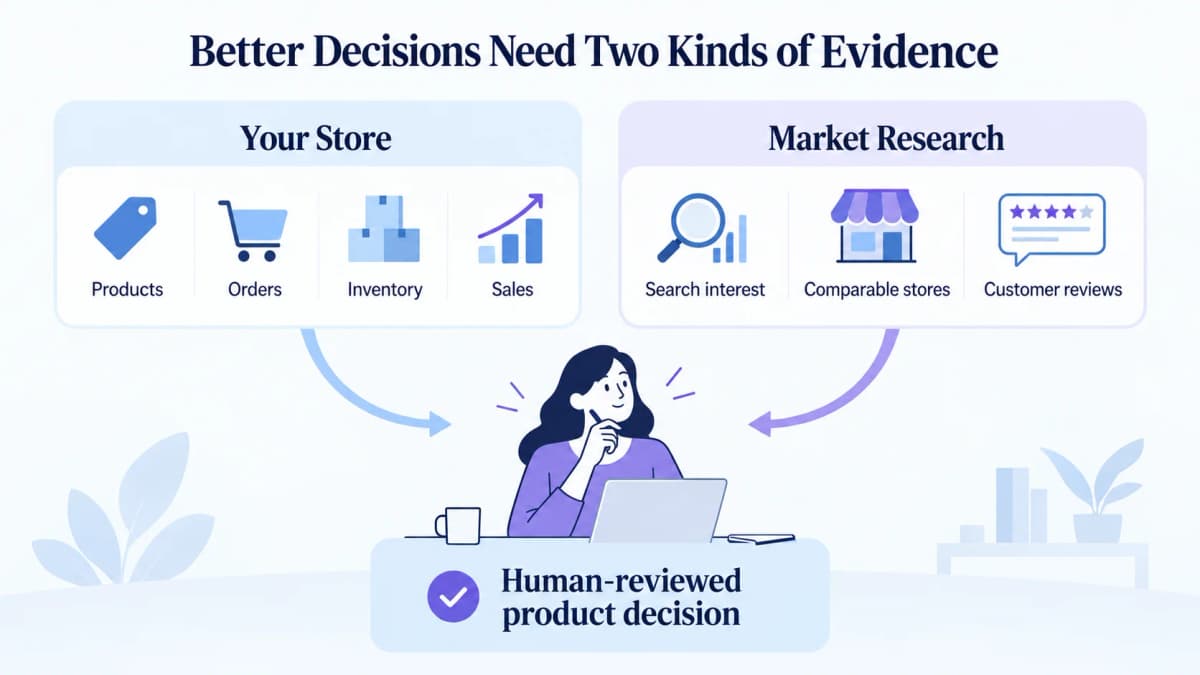
Your store records explain what happened inside your business. Decisions about new products, positioning and expansion also need evidence about the market outside it.
Suppose a pouch sells well in September. Before expanding the range, check whether interest in the category is seasonal and whether comparable stores are competing on features you do not offer. Those questions need different inputs from an order report.
Compare search interest over time for a relevant keyword and target region before interpreting a short sales increase as lasting market demand. Google Trends values are normalized interest signals, not unit sales or absolute search volume.
Keep the two kinds of evidence separate in your analysis: the connected store supplies your operational records; external research supplies market context. A third-party estimate should never appear in a report as a competitor’s verified revenue.
Conclusion
Shopify’s Grok integration provides a practical starting point for conversational store management. Begin with a familiar read-only task, then test a specific catalog or inventory update that you can verify. Use the connector where its supported actions match the job, and keep Shopify admin available for the work it cannot complete.
Add Market Context With Nexscope
When the next decision concerns what to stock or how to position it, Nexscope supplies structured ecommerce data for your own application or compatible agent through REST API or MCP.
Alongside the search-interest check above, two useful research tasks are:
- Build a relevant store shortlist. Use Shopify Store Query with a store-name or domain keyword, country and catalog-size filters to identify stores for comparison. Check each result’s available fields and freshness before drawing conclusions.
- Identify product issues to investigate. Retrieve Amazon product reviews for a relevant ASIN and examine recurring complaints about comparable products. Use those observations to guide research; they are not reviews of your own Shopify product.
These are separate research workflows that you connect to your own tools. Adding Shopify to Grok does not automatically connect Nexscope.
Nexscope Data APIs use pay-as-you-go Data Credits without a Data API subscription. New users receive 1,000 trial credits valid for three days, with no credit card required.
Bring Market Evidence Into Your Next Store Decision
Start with a focused research question, then connect the relevant ecommerce data to your own workflow.
Start Your Nexscope Data Trial →Frequently Asked Questions
Is the Shopify connector for Grok free?
Shopify does not charge an extra fee for the connector. Standard Shopify plan charges still apply, and any Grok subscription costs are paid separately to its provider. Check the access available in your Grok account before planning a workflow around it.
Do Grok and Grok Bot share a Shopify connection?
They require separate setup. Add Shopify through Grok’s connectors page for Grok, or through Connect apps in Grok Bot. The connector also presents results differently: Grok supports visual outputs such as tables and charts, while Grok Bot returns text.
Can Grok change Shopify products and inventory?
Yes, supported product and inventory changes are available within the access you authorize and the connected user’s permissions. Name the product, variant or location precisely, and verify the resulting value in Shopify admin after the update.
Can Grok run a Shopify store without supervision?
The connector supports a defined set of tasks, with other actions reserved for Shopify admin. It cannot complete operations such as refunds, payment-setting changes or theme publication. Merchants still need to review generated content, resolve incomplete work and make business decisions.
How do you disconnect Grok from Shopify?
Uninstall the integration from Shopify admin to revoke its store access. To reduce a previously approved access level, uninstall it and reconnect with the intended permissions. Disabling a connector for one conversation should not be treated as revoking the underlying authorization.
Sources
- Shopify. 2026. Shopify Connector for Grok. help.shopify.com.
- Shopify. 2026. Authorizing AI Tool Access to Your Store. help.shopify.com.
- SpaceXSI. 2026. Connector Management. docs.x.ai.
- Nexscope. 2026. Google Trends By Keywords API. nexscope.ai.
- Nexscope. 2026. Shopify Store Query API; Amazon Reviews List API. nexscope.ai.