Upload Photos
Choose up to 50 photos, then sign in to continue with your batch.

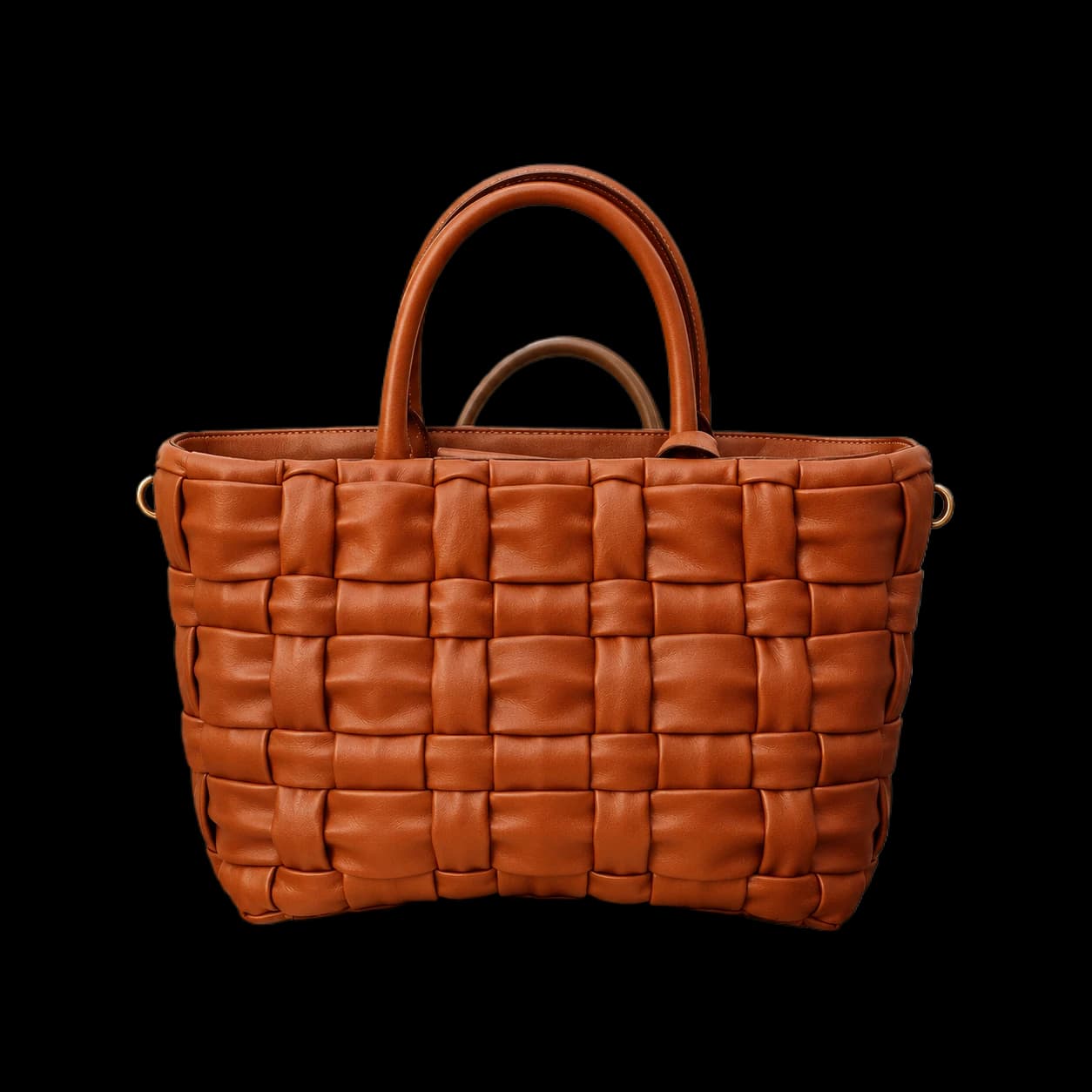
Remove backgrounds from up to 50 photos per batch with our online AI background remover. Download transparent PNGs for product listings, store banners, and ads.


Drop one photo or a whole batch here
JPG, PNG or WEBP · Up to 10 MB each
Up to 50 images · 385–8192px per side · Maximum aspect ratio 5:1
Up to 50 photos. One batch.Remove backgrounds across your product collection without uploading each image separately.
Start Batch Removal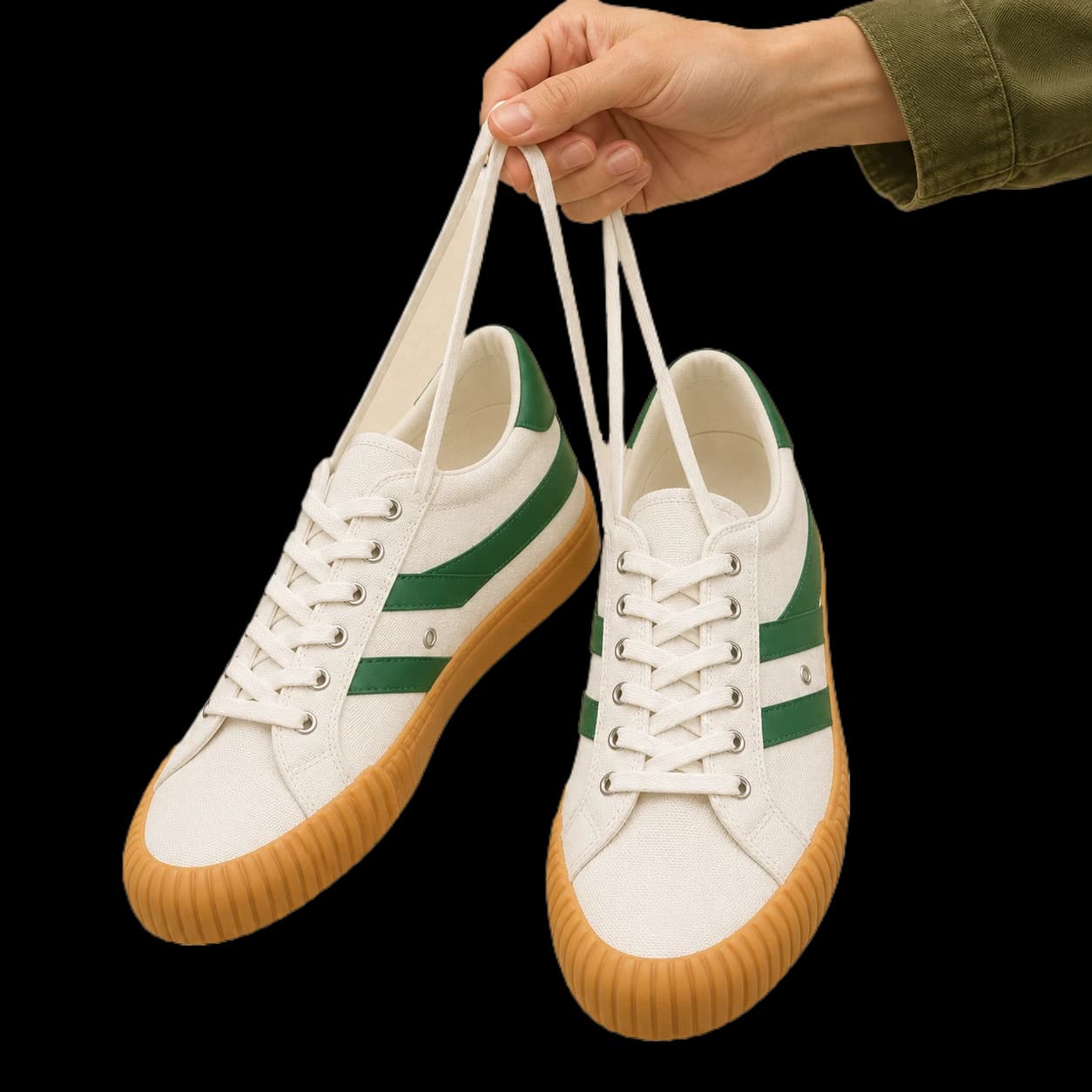
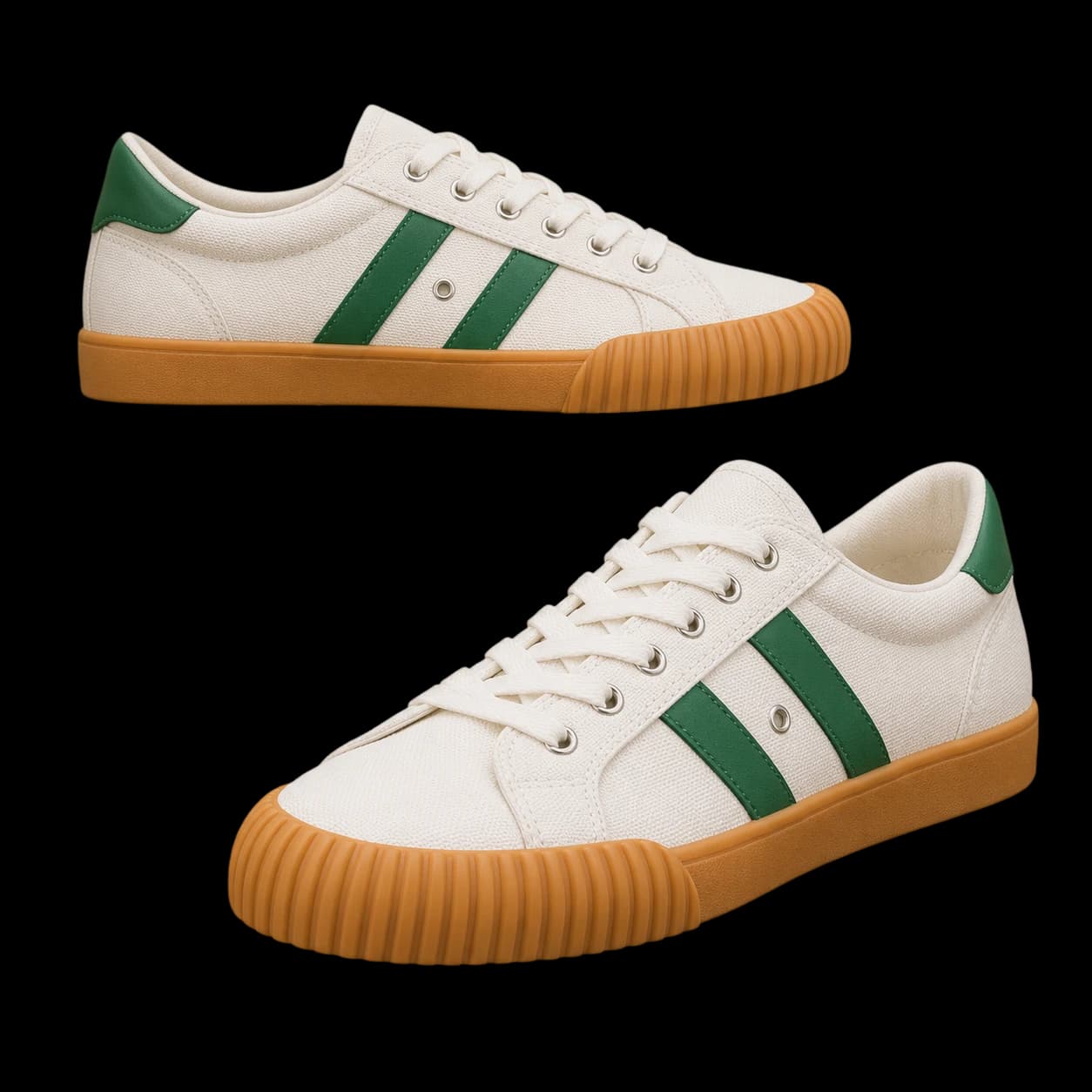
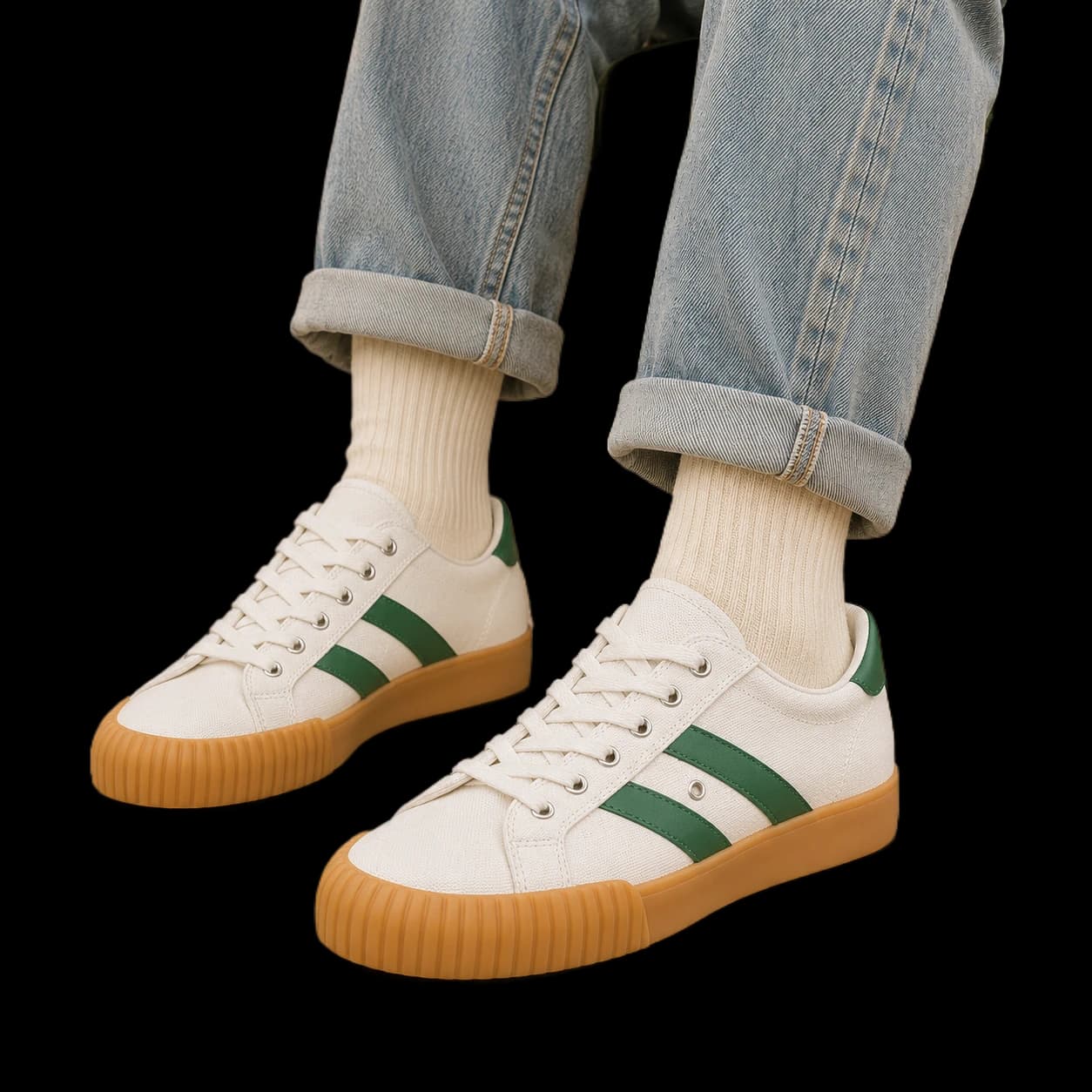
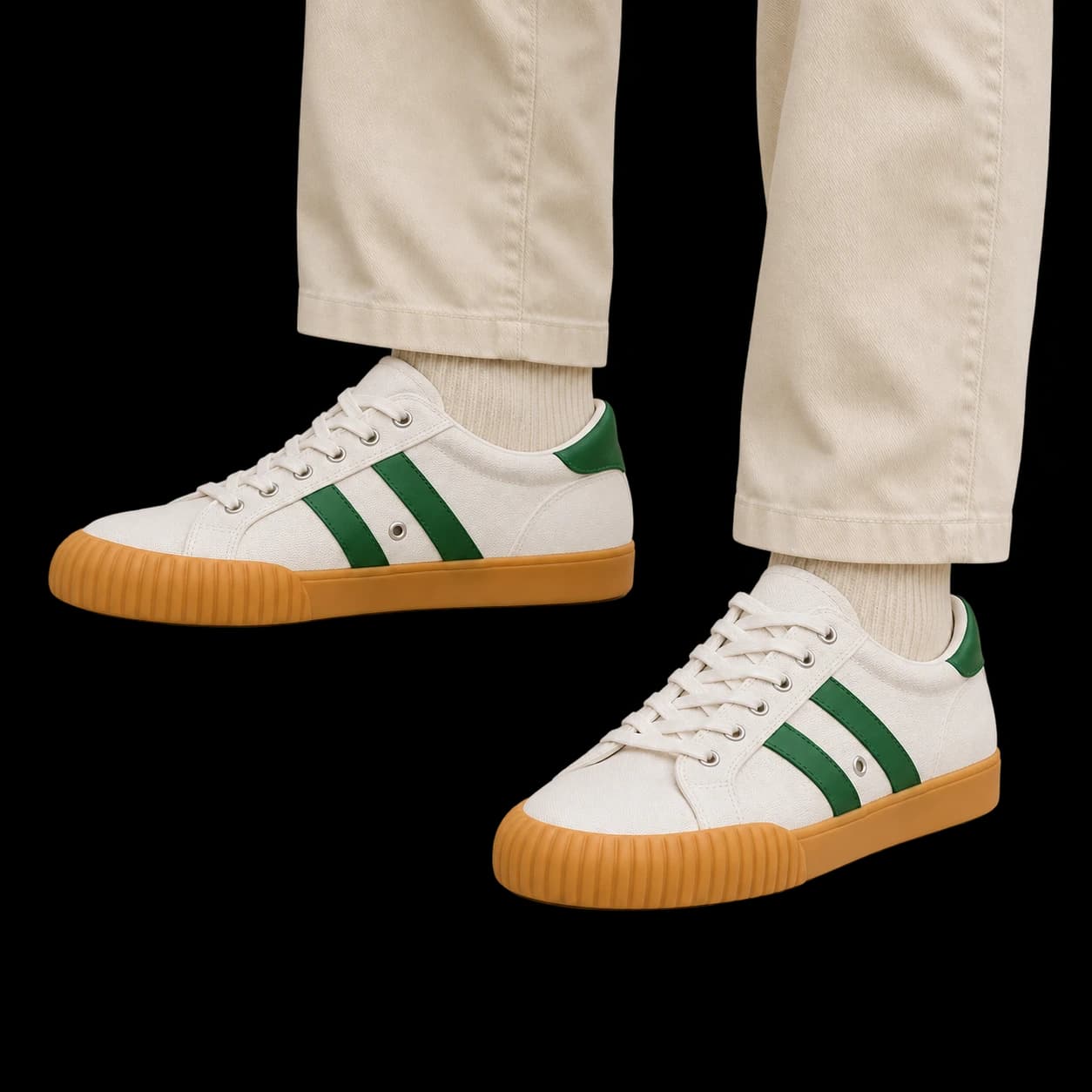
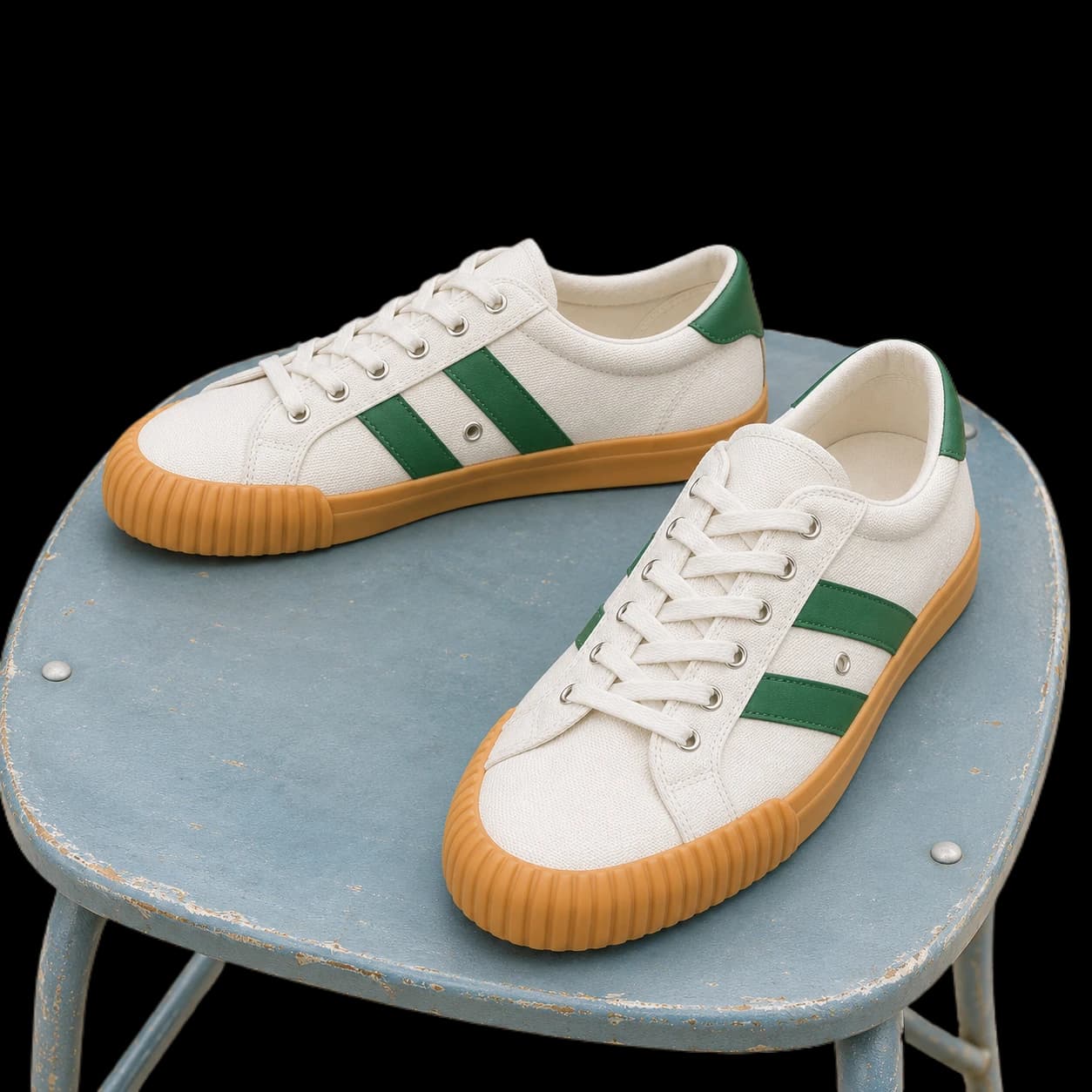
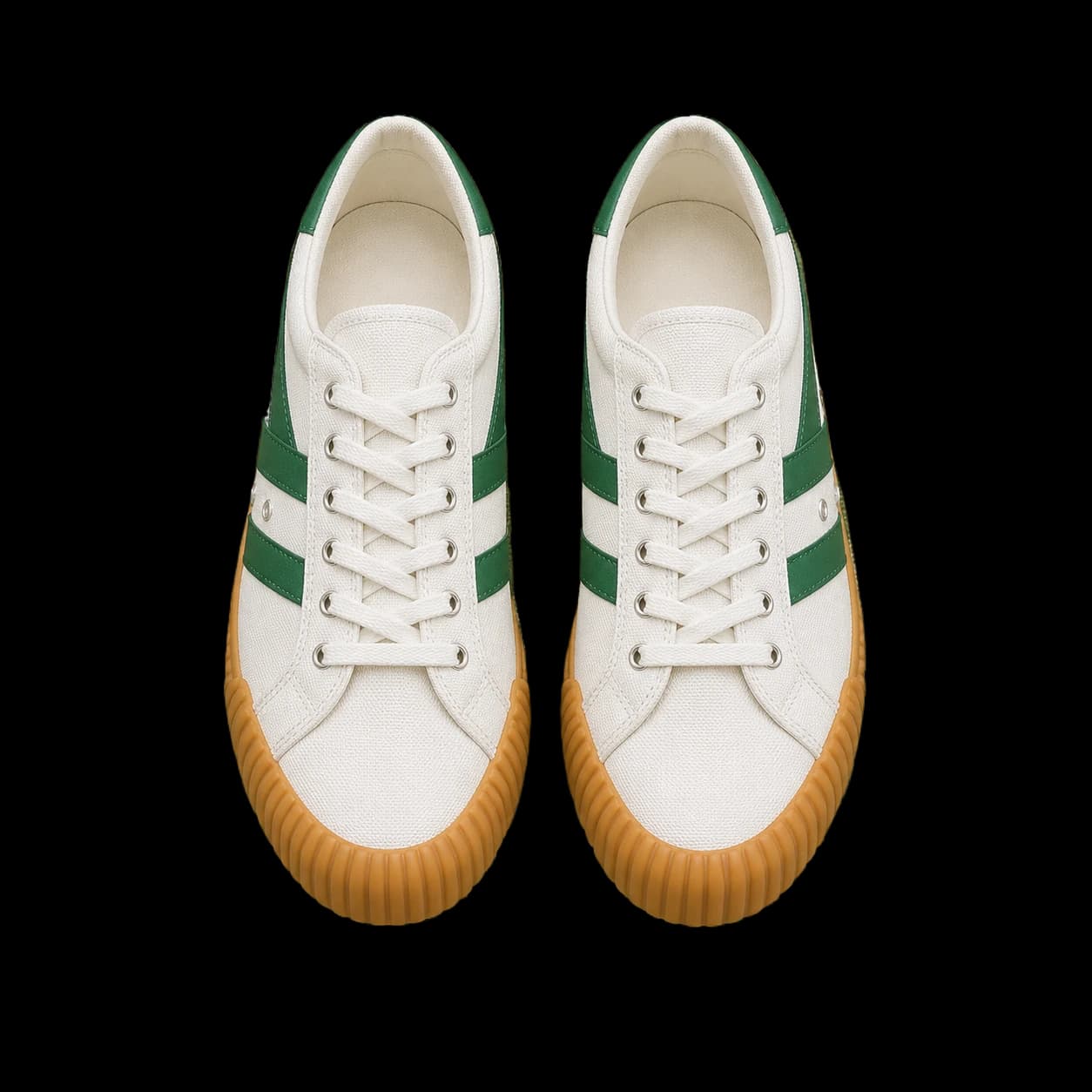
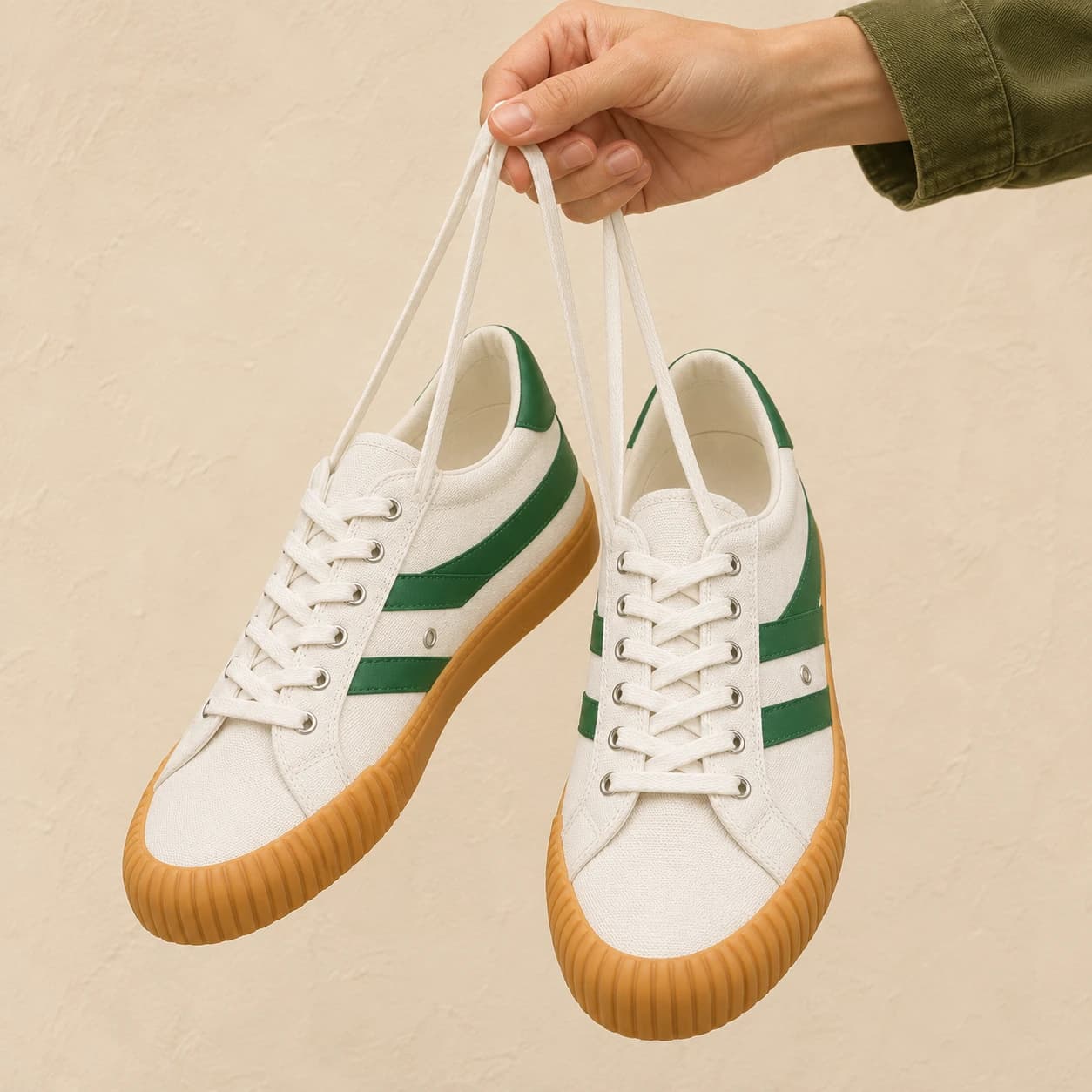
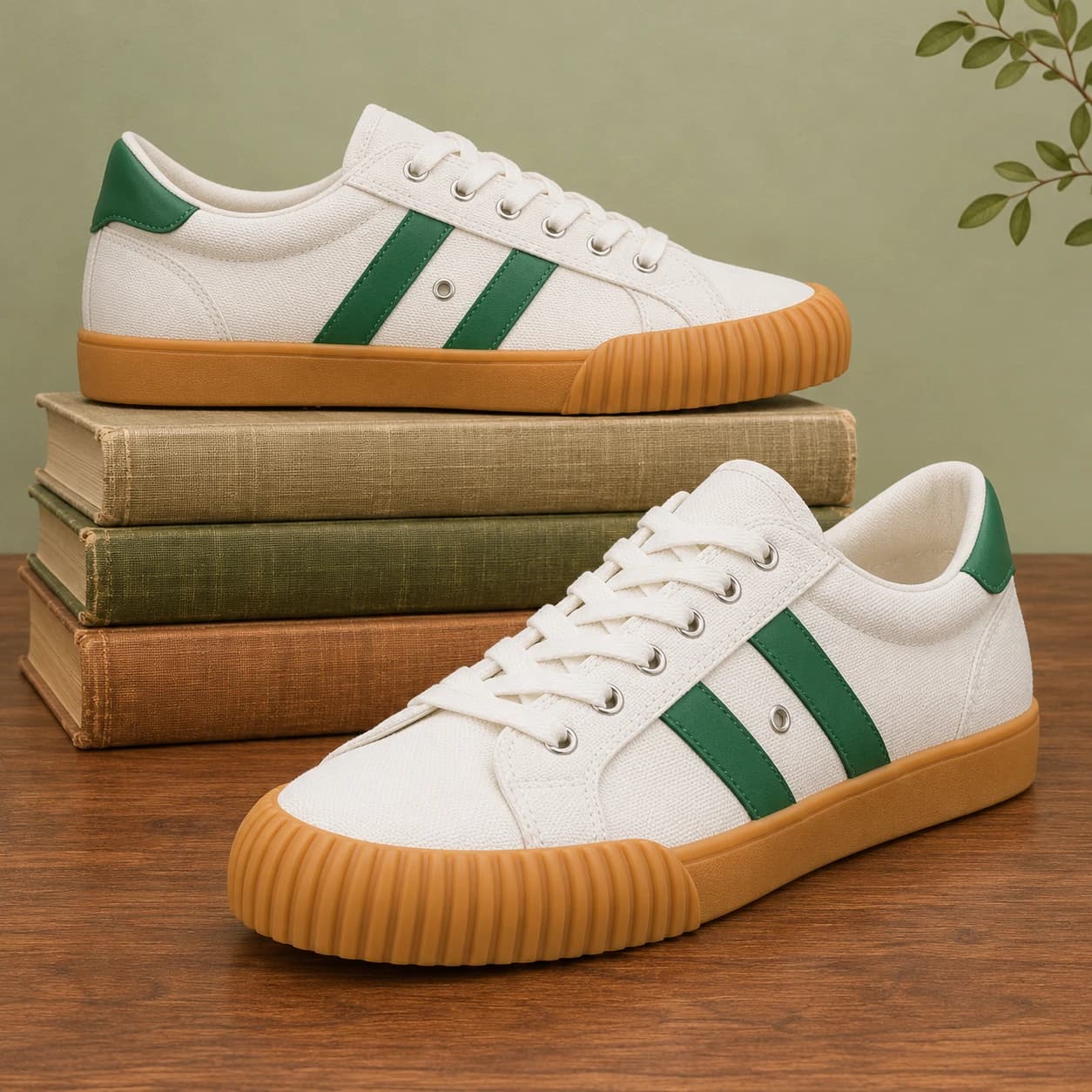
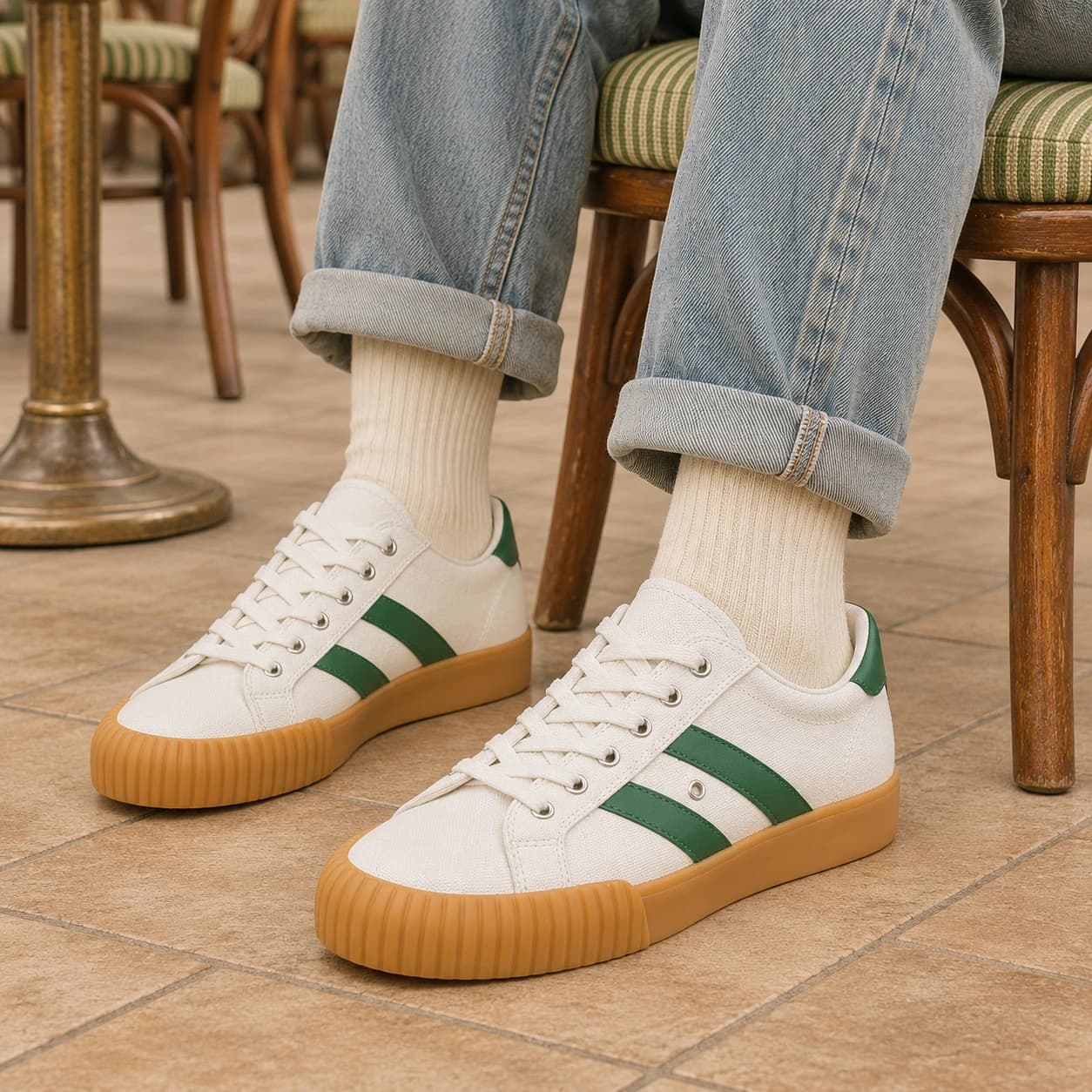
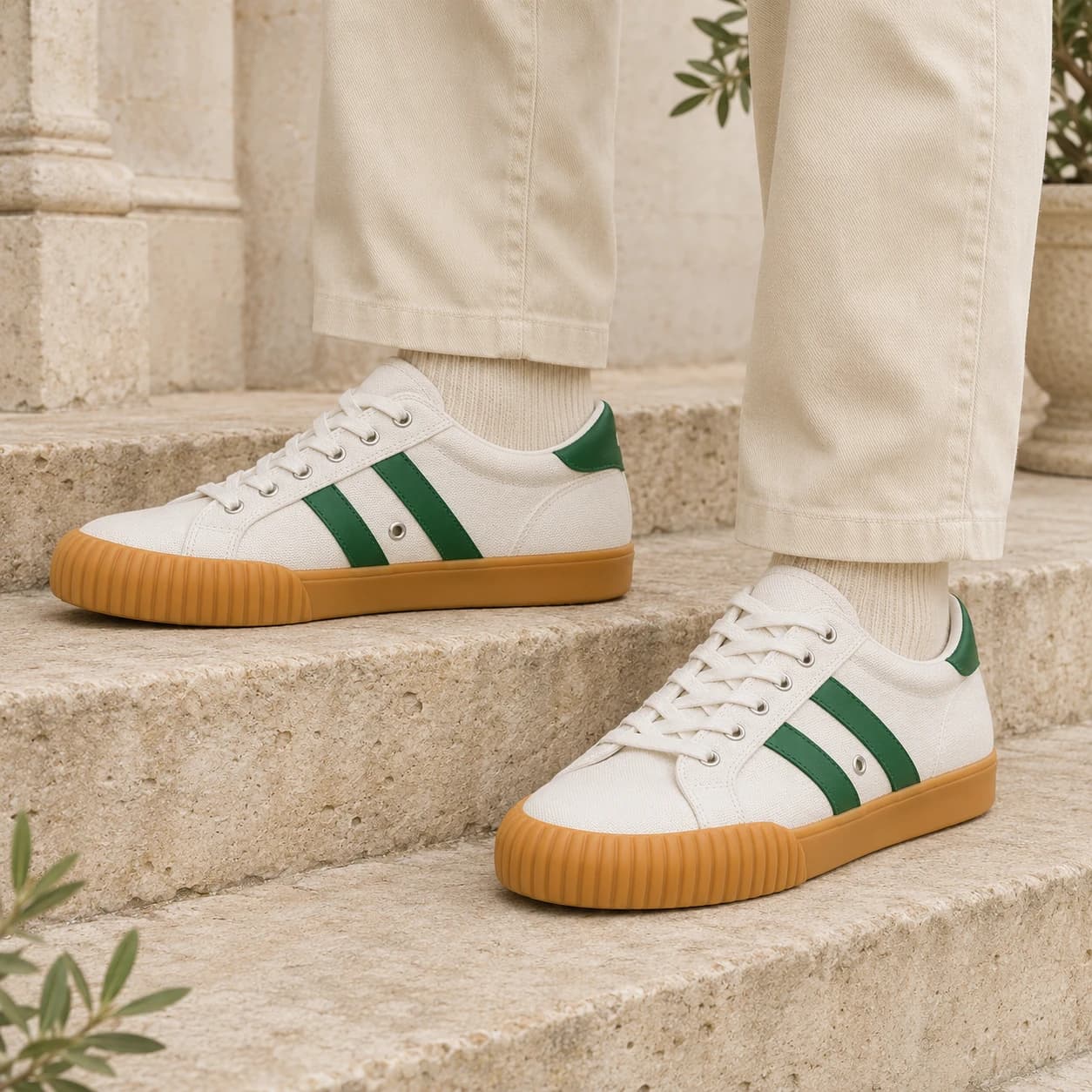
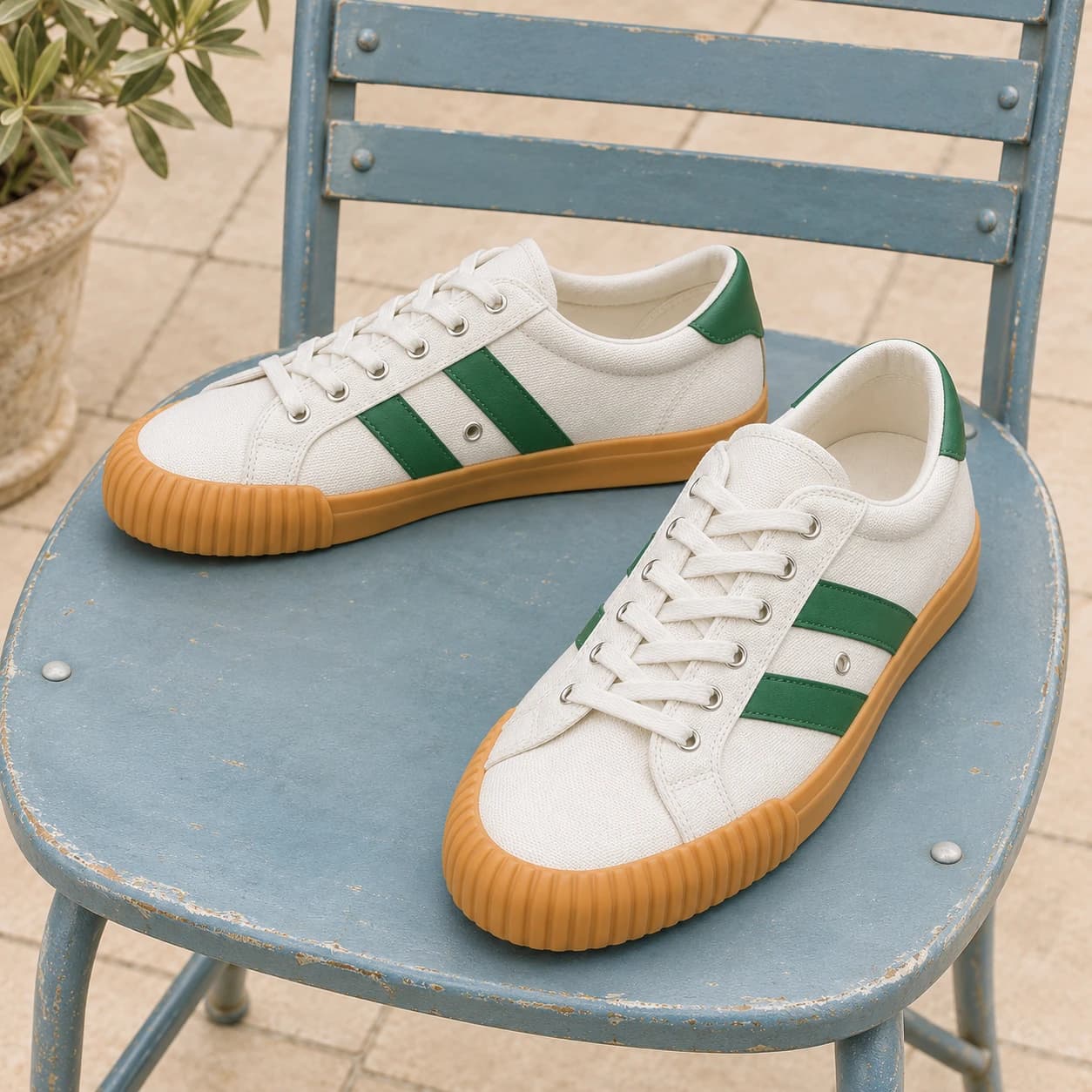
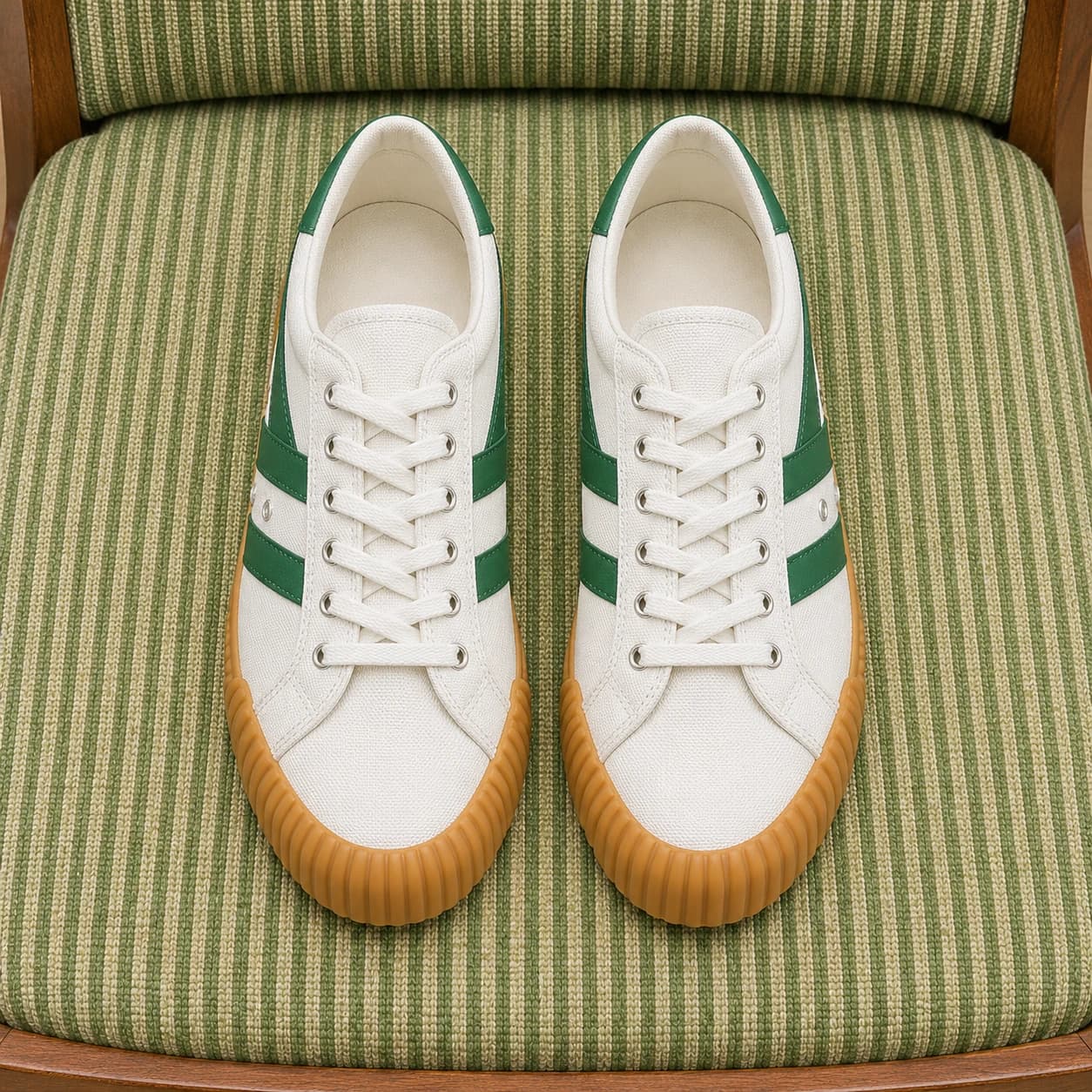
Choose up to 50 photos, then sign in to continue with your batch.
Choose a mode, review the credit estimate, and process your photos together.
Review your cutouts and download them as transparent PNGs.
After background removal, turn your product photos into white-background images, listing image sets, and photos for every color you sell.
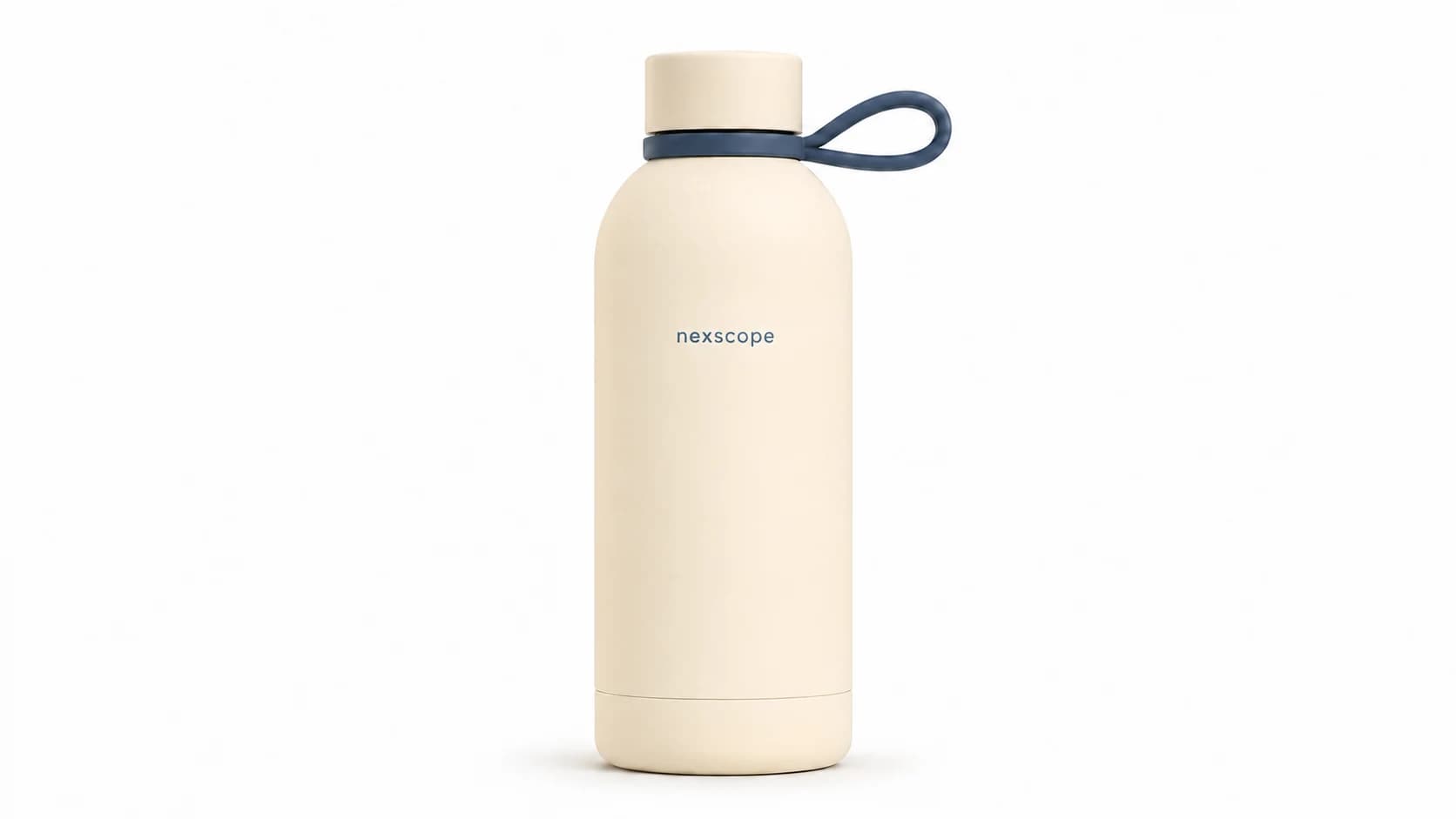
Use Product Image Sets to create white-background product photos for your store. Choose your image settings in the tool to build a consistent look across your catalog.
Open Product Image Sets
Need more than a single product photo? Create white-background images, lifestyle scenes, and feature highlights from one photo to help shoppers see what your product offers.
Create Listing Images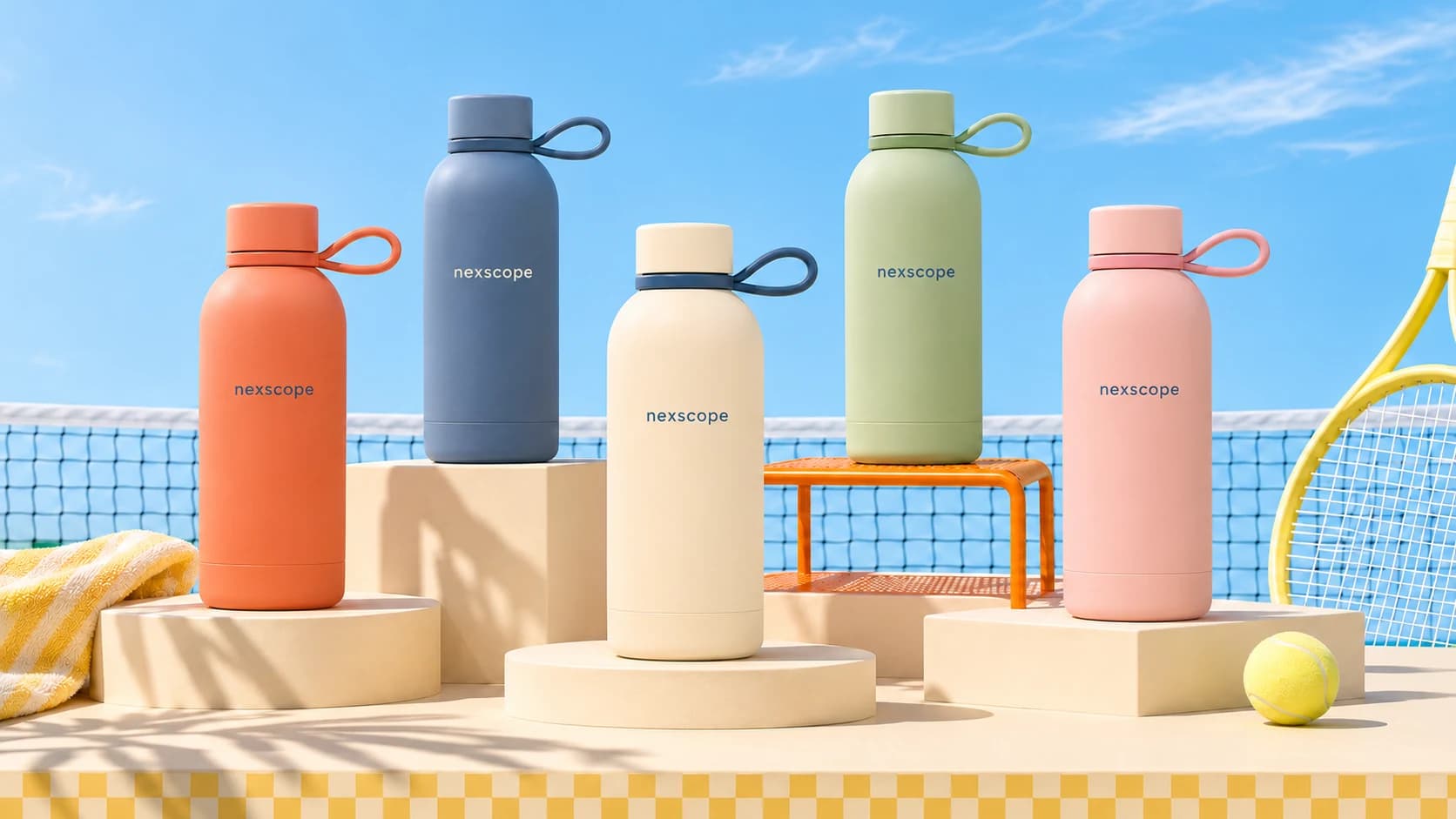
Create photos for the color variants you sell without reshooting the same setup for each one. Keep the look consistent across your listing and check that each image matches the actual product color.
Create Color Variant ImagesUpload up to 50 images together for batch background removal. All images in a batch use the same removal mode, so group similar subjects together, such as products or portraits.
Yes. New users receive 1,000 free credits when they sign up, which can be used for background removal. Each task uses credits; review the estimate before processing. Once your free credits are used, further processing requires additional credits.
Use Product mode to remove the background, then download the result as a transparent PNG. You can place it on store banners, product pages, or ads. JPG does not preserve transparency.
Select your photos on this page, then continue and sign in when prompted. In the workspace, choose a mode for your subject, review the credit estimate, and start processing. Check the results and download them as transparent PNGs.
Yes. Remove the background from a JPG or PNG image and download the result as a transparent PNG. WEBP uploads are also supported. Converting a file to PNG alone does not remove its background.
Yes. Use Product mode to remove the white background and download a transparent PNG. Check the edges of white or light-colored products carefully, as they can blend into the backdrop.
No. A transparent PNG has no background, while a white-background image has a solid white backdrop. To create white-background product photos, use Product Image Sets with your product photo.
Choose from General, Portrait, Product, Clothing, Hair, and Headshot modes. Use a clear photo and check fine hair, transparent materials, and small details in the result.
Upload JPG, PNG or WEBP files up to 10 MB each, with 385–8192 pixels per side and an aspect ratio up to 5:1. Each batch supports up to 50 images. Headshot mode accepts a maximum of 4096 pixels per side.
Yes. Use your cutouts in product listings, catalogs, and ads. Check that the result accurately represents your product and meets the image requirements of the marketplace where you publish.
Start with a photo. Leave the background behind.
Upload Photos