

How GPT-6 and Seedance 2.5 Work Together to Create Videos
GPT-6 Astra has given creators plenty to get excited about: stronger reasoning, more capable computer use, and the ability to carry complex tasks through professional software. Pairing GPT-6 and Seedance 2.5 brings those improvements into a particularly compelling setting: planning a scene, directing its shots, and turning the resulting references into video. OpenAI highlights Astra's progress in computer use and professional work, including creative work with tools such as Blender.
The combination has a clear division of labor. GPT-6 handles the brief, shot planning, and tool coordination. Blender makes scene layouts and camera choices visible before production. Seedance 2.5 generates the video clips, which then need editing and review. For creators ready to try the generation stage, Nexscope offers Seedance 2.5 from as low as $0.1 per second. The workflow below explains what each stage contributes, how references move between tools, and how the same approach applies to a short product video.
Why Combine These Models?
A finished sequence involves several different decisions. Someone must determine what happens, choose how to show it, prepare the visual inputs, generate usable footage, and assemble the result. Separating those responsibilities makes problems easier to identify and correct.
GPT-6 Planning and Tool Use
GPT-6 Astra can help translate a broad request into smaller production tasks. In a configured environment, that may include operating software, writing scene-building code, inspecting previews, and revising a plan. The available tools determine which actions it can actually perform.
This extends the same planning-and-execution pattern used in GPT-6 ecommerce workflows. For video, the relevant inputs are creative requirements, reference assets, and shot constraints. A useful plan specifies what must remain consistent and what should change between shots.
Seedance Video Generation
Seedance 2.5 supplies the video-generation capability. ByteDance describes reference control, white-model control, and editing among its features. These capabilities make planned visual inputs relevant to the generation process.
Model capabilities and platform controls are separate. ByteDance describes generation up to 30 seconds at the model level. Nexscope's current public image-to-video page offers 5-, 10-, and 15-second settings. Build the workflow around the inputs and options available in the interface being used.
| Component | Main responsibility | Useful output |
|---|---|---|
| GPT-6 Astra | Interpret the brief and coordinate tasks | Shot list and production instructions |
| Blender | Establish space, framing, and movement | Previews and reference views |
| Image tools, when needed | Refine the appearance of references | Approved visual references |
| Seedance 2.5 | Generate moving footage | Video clips |
| Video editor | Assemble, trim, and finish | Reviewed final sequence |
From Brief to Finished Video
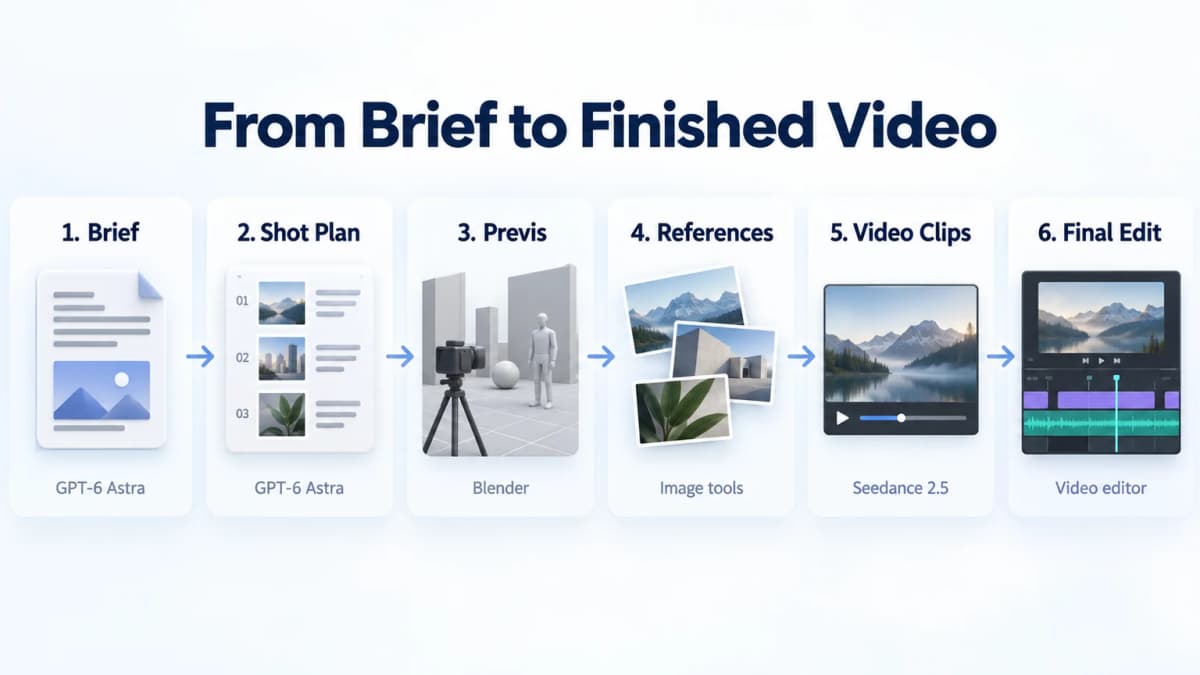
Conceptual workflow. The connections represent production handoffs, not a preconfigured one-click integration.
Define the Brief and Shots
Start with an outcome that can be reviewed. A useful brief specifies the subject, audience, intended feeling, total duration, format, and essential moments. Include approved references and any details that must not change.
For an animated action scene, the shot list should establish who is present, where they stand, which direction they move, and how the encounter ends. For a product video, it should identify the first impression, the detail worth showing, and the final product view.
Ask Astra to make each shot serve a distinct purpose. A practical shot record contains an identifier, duration, framing, action, camera movement, and reference requirement. Resolve an unclear story beat here, while the cost of changing it is still a few lines of planning.
Build and Review the Previs
Previsualization, often shortened to previs, is a rough representation of the planned sequence. A blockout uses simple shapes to establish space. A previs adds enough timing and camera information to assess how the scene will play.
In Blender, a wall can begin as a box and a character as a simple stand-in. The goal is to check the relationship between subjects, scenery, and cameras. Blender's camera controls define framing and perspective before any detailed visual treatment is added.
Review the movement through the scene. Does the subject remain visible? Does a cut preserve the intended direction of travel? Is the close-up possible from the chosen position? Where Astra has suitable tool access, it can help build and revise this setup. Simple product shots may need only a sketch or reference image.
Prepare Consistent Reference Frames
Export useful views from the approved setup. Keep the same subject design, scene arrangement, and lighting intention across the reference set. If an image tool adds materials or styling, check that it preserves the decisions already made.
For example, a doorway should stay on the same wall, a character's jacket should retain its color, and a product cap should retain its shape. A beautiful reference that changes those details creates a new continuity problem.
Attach each reference to its shot identifier and describe what it controls: appearance, framing, setting, or movement. This gives the generation stage an organized set of inputs. A rendered reference image communicates visual information; it does not automatically transfer an editable 3D scene or its coordinates.
Generate the Video Clips
Give Seedance the supported references and a focused description of the shot. Specify the subject, action, camera behavior, pace, and details to preserve. Keep requests compatible with the chosen duration.
In Nexscope, the public Seedance 2.5 generator accepts images and a written prompt. Upload the relevant references, choose the available output settings, and generate a first clip. Review that result before producing a large set of variations.
For a custom automated workflow, follow the documented inputs and task-status process in the generation API reference. Connecting Astra to that process requires an integration in the user's own environment. Manual transfer of references and prompts remains a workable starting point.
Edit and Check Continuity
Arrange the clips in the planned order, trim their beginnings and endings, and watch the full sequence. The useful part of a clip may be shorter than its generated duration. Leave room in the plan for that adjustment.
Compare adjoining shots for subject appearance, direction, composition, and lighting. Check dialogue and sound timing where applicable. A technically clean shot may still need to be replaced if its action interrupts the story.
Finish with captions, music, color adjustments, and the required export settings. These can be separate operations in a video editor such as DaVinci Resolve. Astra may assist where access is configured, but the final review should judge the actual sequence against the brief.
A Real Example: From Blender Previs to a Finished Ad
To put this workflow into practice, we created “The Tiny Hair Studio,” a 30-second English-language hair-mask ad. GPT-6 helped script a six-shot Blender previs to explore the characters, camera positions, and timing. We then used the same creative brief to generate the finished ad through Nexscope’s Seedance 2.5 API, supplying the model portrait and product image as references. Watch the rough 3D plan on the left alongside the finished ad on the right.
Control Before Generation
Character and Scene Continuity
Planning makes continuity easier to inspect. A shared scene establishes where important objects belong, while a consistent reference set provides a visual target for each shot. The same facts can then guide both generation and review.
Consider two characters approaching each other along a street. A wide shot establishes their positions. A closer shot should preserve their direction of travel and relationship to nearby buildings. Without a shared plan, each attractive image can suggest a slightly different location.
The practical inference is that clear references reduce ambiguity and make deviations easier to catch. They do not prove that every generated frame will preserve the planned geometry. A reference-guided video model still produces footage that needs inspection.
Decisions That Still Need Review
Creative direction also includes choices that a spatial plan cannot settle. An action may be readable but poorly paced. A camera move may be smooth but distract from the subject. A color treatment may match a reference while weakening the mood of the scene.
The same production structure can support animation, stylized footage, or a localized version of an authorized video. Each application changes what the team must review. Animation may emphasize character performance; product content needs accurate appearance; localization needs suitable language and cultural details.
For teams developing video editing services with GPT-6, these review decisions belong in the scope of delivery. Keep approved references, identify the accepted takes, and record which corrections remain. A generated clip and a client-ready edit are different milestones.
A Product Video Example
A Three-Shot Product Sequence
An ecommerce team can apply the same approach to a 15-second skincare product video. The example below uses an unbranded bottle, a stone plinth, and a neutral studio setting. It is a proposed exercise, not a reported production test.
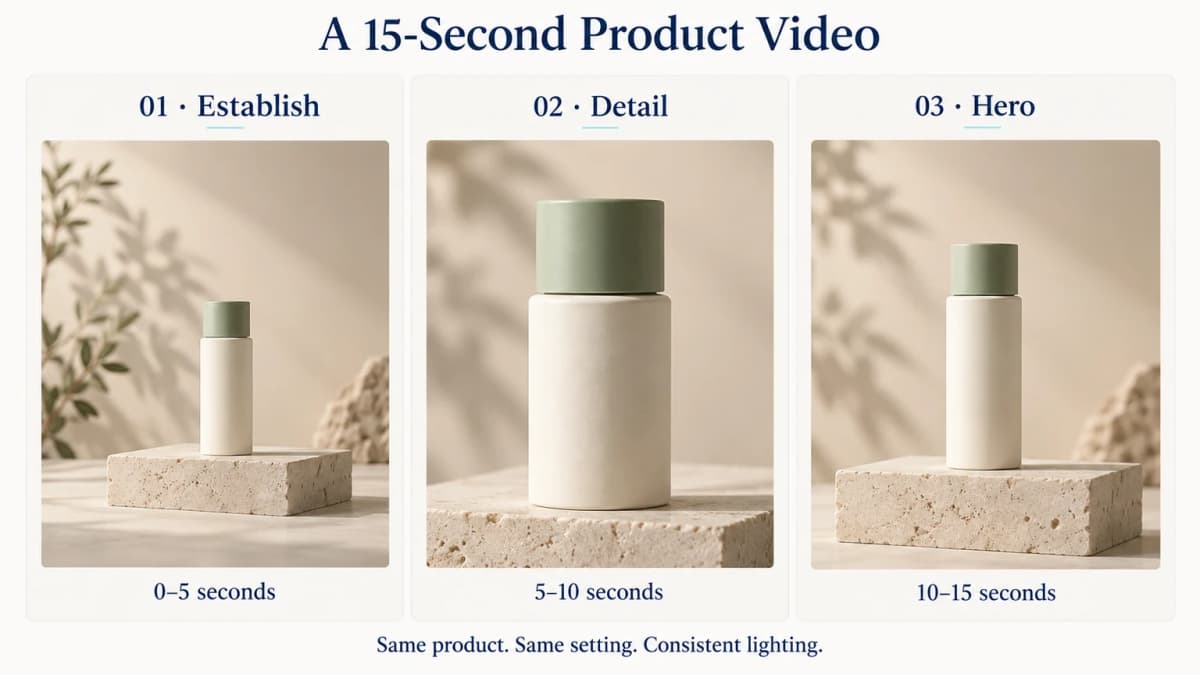
Illustrative storyboard, not generated Seedance footage. Use actual product references when creating a commercial version.
| Shot | Time in the edit | Visual direction | Review point |
|---|---|---|---|
| Establish | 0–5 seconds | Gentle push toward the bottle and plinth | Recognizable product and clear setting |
| Detail | 5–10 seconds | Closer view of the cap and bottle finish | Stable proportions and accurate surface details |
| Hero | 10–15 seconds | Centered product view with space for an overlay | Clean composition and consistent lighting |
This is a manageable entry point into Seedance 2.5 ecommerce video workflows. Each shot has one visual purpose. The shared setting provides continuity without requiring a complex action sequence.
From Shot Plan to Prompt
First, ask Astra to produce a concrete plan from the approved product references:
Plan a 15-second vertical product video using the attached
approved bottle references. Use three shots: an establishing
view, a product-detail view, and a final hero view.

Keep the bottle shape, cap, color, and setting consistent.
Use a pale stone plinth, a warm neutral background, and soft
light from the upper left. Keep the bottle upright and still.

For each shot, provide its duration, framing, camera movement,
required reference image, and a separate video-generation prompt.
Describe the first and last frame so the cuts can be reviewed.
Do not invent product benefits or add packaging text.
Review the plan and prepare a reference image for each shot. For the opening clip, a Seedance prompt could read:
Create a 5-second vertical product shot from the supplied image.
A slow, gentle camera push approaches the upright bottle on the
pale stone plinth. Keep the bottle stationary. Preserve its
shape, cap, proportions, color, and surface finish.

Use soft light from the upper left and the existing warm neutral
background. Keep the full bottle visible throughout. Maintain
the scene arrangement. No added text, new props, or scene cuts.
Generate and review the opening before moving on. For the detail shot, change the framing instruction and reference. For the final shot, preserve enough open space for a caption added during editing. Do not rely on generated packaging text when exact lettering matters.
Generation Cost at the Starting Rate
Nexscope lists Seedance 2.5 video generation from $0.10 per second. At that starting rate, the arithmetic is straightforward:
| Generated duration | Calculation | Starting-rate example |
|---|---|---|
| 5 seconds | 5 × $0.10 | $0.50 |
| 10 seconds | 10 × $0.10 | $1.00 |
| 15 seconds | 15 × $0.10 | $1.50 |
Three five-second clips therefore total $1.50 at the starting rate. These examples are not quotes for every configuration. Check the selected settings and available estimate before generating; Nexscope states that the final charge is based on the completed generation.
Track generated footage separately from final runtime. Two generated takes for each of the three shots would total 30 seconds, or $3.00 at the same illustrative rate, even if the edit uses only 15 seconds. Astra usage, reference-image creation, applicable subscription costs, and editing are separate from this generation calculation.
Common Workflow Mistakes
- Overloading a short shot. A five-second clip has limited room for a product reveal, a location change, several actions, and a closing message. Give the shot one clear purpose.
- Changing references between shots. A different cap, costume, or room layout can undermine continuity. Approve a shared visual baseline before generating the sequence.
- Skipping the rough preview. If an action depends on spatial relationships, inspect the framing and movement before investing in detailed references and footage.
- Treating model features as interface features. Verify which inputs, durations, and editing controls the selected Nexscope route supports. A general model announcement does not define every platform's current options.
- Checking clips only in isolation. Review the cut between shots, including motion direction, sound, and pacing. Keep the strongest sequence, rather than simply the most attractive individual frames.
- Budgeting only for the finished runtime. Include alternate takes and retries. A low starting generation rate makes experimentation accessible, but the entire production process has additional costs.
Conclusion
GPT-6 and Seedance 2.5 fit together through a practical division of work: plan the sequence, establish its visual references, generate the shots, and review the edit. Blender adds value when scene layout and camera movement need to be checked in advance. Simpler projects can begin with approved images and a clear shot list.
The useful change is earlier decision-making. Resolve the subject, action, framing, and continuity requirements before generation, then use those same requirements to judge the footage.
Create With Nexscope
Turn an approved reference image and shot description into a first clip with Nexscope. Seedance 2.5 starts as low as $0.1 per second, making a short, focused test a practical next step. Check the result, refine the direction, and build the remaining sequence from the shots that work.
Create Your First Seedance 2.5 Clip
Bring an approved image and a clear shot idea to Nexscope, with video generation from $0.1 per second.
Create a Video With Seedance 2.5 →Frequently Asked Questions
How do GPT-6 and Seedance 2.5 work together?
GPT-6 Astra helps interpret the creative brief, plan shots, and coordinate the tools available in its environment. Seedance 2.5 generates video from supported prompts and references. Blender can provide a rough scene and camera preview between planning and generation. The footage then moves into an editor for assembly and review. The connections can be manual or implemented through a custom tool integration.
Does GPT-6 generate the final video itself?
In this workflow, Seedance 2.5 performs the video generation. Astra handles planning and may operate connected tools to prepare assets or assist with editing. Describing a project as made with GPT-6 does not identify every model involved in producing it. Track the planning model, image tools, video model, and editor separately to understand the process and its costs.
Is Blender required for this workflow?
Blender is optional. It is useful when a sequence depends on spatial layout, character movement, or camera positions that should remain related across shots. A simple product push-in can often start from a strong reference image and a focused motion prompt. Use 3D previsualization when it helps resolve a real production question, and keep the scene as simple as that question allows.
Does previs guarantee consistent characters and scenes?
No. Previsualization makes intended positions, camera views, and movement easier to define and review. Consistent references give the generation stage clearer visual guidance. Generated footage can still change a subject's appearance or alter the scene. Compare each clip with its references and neighboring shots, then regenerate or edit the parts that fail the continuity requirements.
How much does Seedance 2.5 cost on Nexscope?
Seedance 2.5 video generation on Nexscope starts as low as $0.1 per second. At that rate, five generated seconds equal $0.50 and fifteen equal $1.50. Actual charges depend on the selected generation settings and completed generation. These figures describe video-generation usage, not the full production cost, and exclude Astra usage, other tools, and any applicable subscription costs.
Does Nexscope include the complete automated workflow?
The Nexscope route described here provides Seedance 2.5 generation through its supported web interface or API. A complete Astra-to-Blender-to-video-editor workflow requires separate tool access and coordination. Creators can begin by moving approved images and prompts between tools manually. Teams that need automation should implement and test the handoffs, task-status checks, file handling, and review steps in their own environment.
Sources
- OpenAI. (2026). GPT-6 Astra: A new generation of intelligence. Retrieved from openai.com
- ByteDance Seed. (2026). Seedance 2.5. Retrieved from seed.bytedance.com
- Blender Foundation. (n.d.). Cameras — Blender Manual. Retrieved from docs.blender.org