

How to Connect Nexscope to Claude and Build a Claude Sheet

Table of Contents
An Amazon product comparison is easier to work with when each product has its own row and each metric has a clear column. You can compare prices, identify gaps in the data, and keep a shortlist ready for your next research session.
Connect Nexscope to Claude through MCP, ask Claude to retrieve product data, and have it write the results into Claude Sheets. Nexscope supplies the ecommerce data; Claude organizes it into a sheet you can continue working with.
This tutorial follows an Amazon product research example: request up to 50 products, bring the returned information into a sheet, and use follow-up prompts to narrow the list. You will also set the reporting period explicitly, so the sheet’s title and its numbers describe the same research question.
What You Will Build
The result is an editable product comparison with identifiers, commercial metrics, and research notes in one place. The demonstration shows Claude loading Nexscope’s Amazon Broad Product Search tool, opening a sheet, and filling it with product rows.
For a useful first version, organize the sheet into three parts:
- Research context: marketplace, search scope, reporting period, source, and retrieval date.
- Product data: one row per returned product, with the ASIN preserved for later checks.
- Your decisions: a shortlist flag, an owner, and the next question to investigate.
Keep the decision columns separate from the retrieved values. That makes it easier to update the data without losing the reasoning behind a candidate selection.
Before You Start
Have a Nexscope account with sufficient credits for the selected data tools and a Claude account with access to Sheets. Tool charges vary, so review the selected capability before running a larger query.
Claude Sheets is currently in beta on paid plans, including Pro, Max, Ultra, Team, and Enterprise. Organization settings can affect access. If you use a managed Claude workspace, your administrator may also need to make the Nexscope connector available.
Use Claude on the web or desktop for this tutorial. The workflow creates a native Claude Sheet; you can export a file later if you want to continue elsewhere.
Connect Nexscope to Claude
Add the Connector
Open the Nexscope Claude connection guide and select Claude with the MCP connection method.
In Claude:
- Open Customize → Connectors.
- Choose Add custom connector. Depending on your layout, open + Add first.
- Enter Nexscope as the connector name.
- Paste the server URL below.
- Click Continue, review the detected authentication settings, and finish adding and connecting the service.
https://api.nexscope.ai/mcp
Complete the sign-in or authorization flow Claude presents for Nexscope. Then enable the connector in the conversation where you want to do the research.
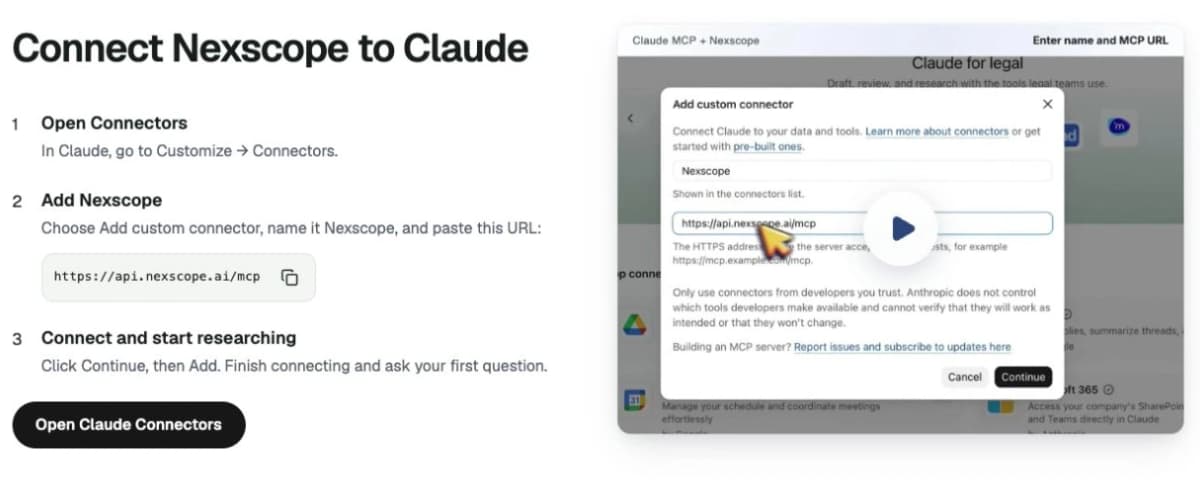
The Claude tab of Nexscope’s connection guide.
Check the Connection
Start with a small request before building a larger sheet:
Use Nexscope to find 10 Amazon US products matching “insulated lunch bag.” Show the returned product titles, ASINs, prices, and the data period where available.
Check that the conversation shows a Nexscope tool call and returned product records. A general answer about lunch bags does not establish that the connector has retrieved data.
If the tool does not run, check whether Nexscope is enabled for this conversation, whether its connection is complete, and whether the response asks for a missing input. Resolve that issue before expanding the query.
Query Amazon Products and Create the Sheet
Define the Research Scope
“Top products” needs a definition. For this example, use Amazon US, up to 50 returned products, and descending estimated unit sales for the latest available 30-day period. For a more focused buying decision, add a product keyword or category.
The Amazon Broad Product Search tool supports a recent 30-day snapshot or a specified month, plus filters and sorting. Ask Claude to check the selected tool’s inputs and label the output with the actual period used.
Decide these items before sending the request:
| Decision | Example for this tutorial |
|---|---|
| Marketplace | Amazon US |
| Scope | Broad product search, or a named category |
| Number of rows | Up to 50 returned products |
| Ranking metric | Estimated units sold, descending |
| Reporting period | Latest available 30-day period |
| Destination | An editable Claude Sheet |
A narrow category often makes the result easier to interpret. Comparing lunch bags with other lunch bags gives you a clearer next step than comparing unrelated products across an entire marketplace.
Use a Structured Prompt
Copy this prompt into your connected Claude conversation:
Use Nexscope to find up to 50 Amazon US products ranked by estimated units sold over the latest available 30-day period. Check the tool’s supported scope and reporting period first. If that period or ranking is unavailable, explain the available options before proceeding.

Create an editable Claude Sheet from the returned results. Include:
- Rank within the returned results
- Product title, brand, ASIN, and product URL
- Price and currency
- Estimated units sold and estimated revenue
- Rating and rating/review count, using the source’s actual definition
- BSR with its category
- Unit sales growth with its comparison period
- Subcategory

Include a field only when it is returned or can be clearly derived from the returned data. Leave missing values blank and explain them in a notes column. Keep numbers numeric, apply currency and percentage formatting, and preserve ASINs as text.

Add the source, actual reporting period, search filters, and retrieval date at the top. Name the sheet to match that scope. Do not label a 30-day result as a quarterly ranking.
The column list gives Claude a target structure. The missing-data instruction lets it produce a usable sheet even when some products have fewer fields than others.
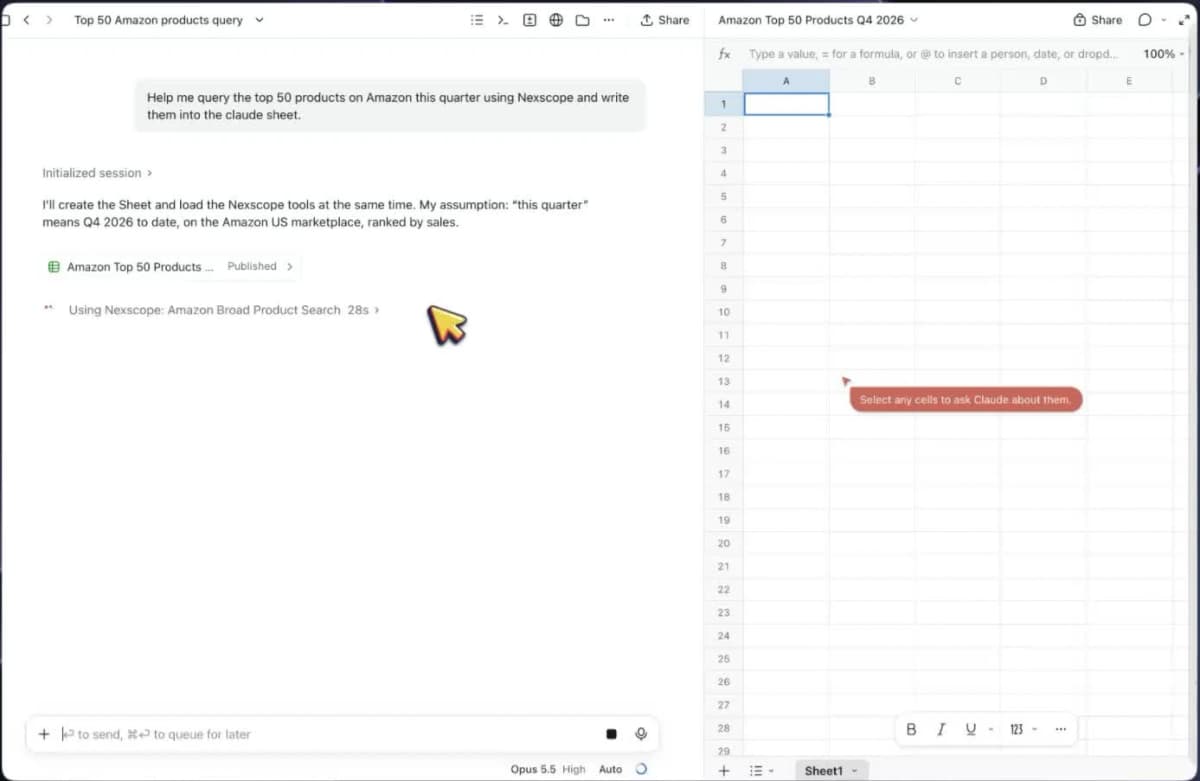
Frame from the demonstration: Claude calls Nexscope while the new sheet is open.
Inspect the Result
Open the sheet and compare a few rows with the tool output. Check a record near the top, one in the middle, and any row that looks unusual.
Use this review checklist:
- Identity: the ASIN and product title refer to the same listing.
- Row count: the number of populated product rows matches the number of records returned.
- Units: prices retain their currency; counts and percentages have the right formats.
- Time: the title, reporting period, and sales columns agree.
- Definitions: rating count and written review count are labeled according to the source.
- Rank: a position in your search results is distinct from a product’s category BSR.
In the demonstration, the sheet name refers to Q4 while its data note refers to the last 30 days. For your own sheet, use a title such as Amazon US Product Research — Last 30 Days, followed by the retrieval date. A quarter-to-date question requires data covering that period.
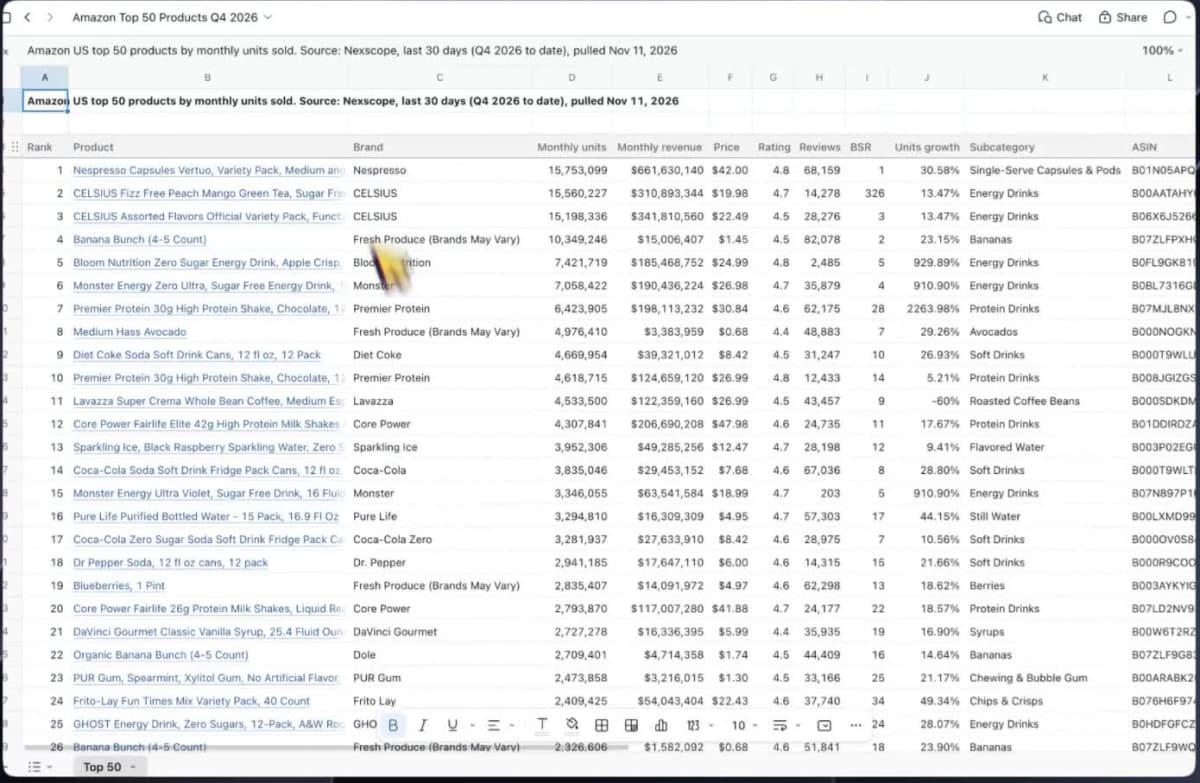
Frame from the demonstration showing the populated product sheet. Match your own sheet title to the period returned.
Work With the Data in Claude Sheets
Build a Shortlist
Turn the table into a research queue. Choose criteria that match your intended product and leave room for a manual review.
For example:
Using only the existing product rows, add a “Review next” column. Flag products priced from $20 to $50 with a rating of at least 4.0. Add a brief reason for each flag. If either input is missing, mark the decision “Needs data.” Keep all original rows and values.
These thresholds are an example, not a universal product selection rule. Change them to reflect your target price point and the questions you need to answer. A candidate still needs checks such as sourcing cost, product differentiation, and listing quality.
A useful final column is Next research question. One row might need a closer look at complaints; another might need a supplier comparison. That turns a large list into specific follow-up work.
Add Formulas and Charts
Claude Sheets supports formulas and charts. Ask for a small comparison that answers a real question:
Create a Summary tab. Show the number of products with a known price, their average price, and the number flagged “Review next.” Use formulas linked to the product rows, exclude missing prices, and label the scope as this returned sample. Keep the source data unchanged.
Review the ranges used in the formulas. Headers, blank rows, and totals should not become product records. If you later add rows, check that the summary includes them.
For a visual comparison, ask for a bar chart of estimated units for ten shortlisted products, using shortened titles for readability and retaining ASINs in the table. Keep the chart’s period consistent with its source columns.
Refresh or Export
To update the research, ask Claude to run the same Nexscope query again and write a new dated snapshot. Keeping a new tab for each run makes changes easier to inspect.
Repeat the original Nexscope query with the same marketplace, filters, and sorting. Write the new results into a new tab labeled with today’s retrieval date. Preserve the previous tab and record any change in the returned reporting period. Match products by ASIN when comparing the two snapshots.
Claude Sheets does not itself maintain a live connection that continuously pulls app data. A refresh in this workflow means another Nexscope query followed by a sheet update.
Export to XLSX or CSV when you need to hand the results to someone working in another tool. Recheck formatting and formulas in the destination file.
Common Mistakes to Avoid
Requesting a ranking without defining it. Specify whether you want sales, revenue, ratings, or another metric. Add the marketplace and relevant category.
Mixing reporting periods. A monthly snapshot, a rolling 30-day window, and quarter-to-date results answer different questions. Keep the actual source period visible.
Filling gaps with zero. A missing sales value means the record lacks that information. It should not silently become a measured zero in your averages or shortlist logic.
Mixing returned values with your calculations. Put formulas and editorial judgments in clearly labeled columns. Retain the original values for comparison.
Losing product identity during updates. Use ASINs to match records rather than titles alone. Titles can be shortened or changed, while two similar names may represent different listings.
Conclusion
Start with a defined marketplace and reporting period, retrieve a manageable set of products, and ask Claude to build an editable sheet. Then add the decisions you need: which candidates deserve attention, what is missing, and what to investigate next.
Nexscope ecommerce data connects to Claude through MCP and supports custom integrations through REST APIs. Your spreadsheet workflow can expand beyond the first product comparison.
Key Features
- Amazon product research for comparing products by sales, price, and ratings.
- Amazon keyword expansion for building a related search-term list.
- Amazon competitor lookup for comparing competing products.
- Amazon customer reviews for investigating feedback on a shortlisted ASIN.
- 1688 product sourcing for finding wholesale products to investigate.
Choose the capability that answers your next question, then bring its returned data into your research sheet.
Build Your Next Ecommerce Research Sheet
Connect Nexscope to Claude, retrieve ecommerce data, and turn the results into an editable sheet.
Connect Nexscope to Claude →Frequently Asked Questions
What is Claude Sheets?
Claude Sheets is an editable spreadsheet inside Claude. You can ask Claude to build a sheet, then work with its cells and formulas. It is suited to a product shortlist or comparison you want to develop through conversation.
How do I connect Nexscope to Claude?
Add Nexscope as a custom connector under Customize → Connectors, using https://api.nexscope.ai/mcp. Complete the connection flow and enable Nexscope for your research conversation. Then send a specific request and check that a Nexscope tool is used.
Can Claude write Nexscope results into a sheet?
Yes. The demonstrated workflow retrieves Amazon product records with Nexscope and writes them into Claude Sheets. State the destination explicitly in your prompt, along with the columns you want. Review the populated sheet against the returned records.
Can I request a quarterly Amazon product ranking?
You can ask for one, but the result needs data that covers the requested quarter and a clear ranking metric. If the selected query returns only a monthly or rolling 30-day period, keep that label. Do not rename it as a quarterly result.
Does the sheet refresh automatically?
This workflow uses an explicit query and write step. To refresh it, ask Claude to retrieve a new Nexscope result and update the sheet. Save the retrieval date and keep the previous snapshot if you want to compare changes.
Can I export the sheet to Excel?
Yes. Export the sheet as an XLSX file to continue in Excel, or use CSV for a simpler data handoff. After export, check the columns and number formats before using the file in another report.
Sources
- Anthropic. (2026). Get started with Claude Sheets. Retrieved from support.claude.com
- Anthropic. (2026). Get started with custom connectors using remote MCP. Retrieved from support.claude.com
- Nexscope. (2026). Amazon Broad Product Search API. Retrieved from nexscope.ai