
10 Best Product Photo to Video Ad Generator Tools
Table of Contents
Product photo to video ad generator tools help ecommerce teams turn existing product images into moving product shots, presenter videos, and short promotional ads. A clear packshot can become the starting point for a launch video, a feature close-up, or a new social ad concept without arranging another shoot.
The best fit depends on the finished asset you need. Some tools build a sequence with narration and captions. Others specialize in a presenter holding the product or in generating a particular camera move. The practical question is how much of your ad each workflow completes, from the opening hook to the closing offer.
This guide compares ten options by their product-photo workflow, editing controls, and suitable use cases. Nexscope is the first option for sellers starting with product images and choosing among product showcases, UGC-style content, and problem–solution videos. Other tools suit different production needs, including multilingual presenters, editable timelines, and detailed shot direction.
Best Product Photo to Video Ad Generator Tools at a Glance
Use the workflow column to narrow the list before comparing plans. A product shot and a complete advertisement may start with the same image but require different amounts of scripting, audio work, and editing.
| Tool | Main workflow | Best fit | Pricing |
|---|---|---|---|
| 1. Nexscope | Image to Video: photo animation and templates. URL to Video: listing import and editable scripts. AI UGC / Avatar Video: multilingual presenter-led product ads. Video Clone: reference-led ad variations. Bulk Video: up to 100 product videos per project. |
Ecommerce sellers creating individual ads, UGC-style creative, and videos across a product catalog | $9.50/month (billed annually) |
| 2. Creatify | Product ads, AI actors, and ad revisions | Teams developing several advertising concepts | Standard: $10/month, billed annually |
| 3. Pippit | Script, image sequence, voiceover, and captions | Social teams combining product assets | Free plan; paid subscription prices vary by region |
| 4. Topview | Product-in-hand presenter video | Presenter-led product demonstrations | Plus: $36/month, billed annually ($432/year) |
| 5. Photoroom | Guided video plan and generated ad | Sellers wanting an assisted photo-to-ad process | Max: $20.99/month, billed annually; includes video tools |
| 6. Invideo AI | Generated first cut plus timeline editing | Teams combining generation with hands-on editing | Starter: $10/seat/month, billed annually |
| 7. HeyGen | Product placement and localized presenter videos | Multilingual spokesperson campaigns | Free plan; Creator: $29/month, billed monthly |
| 8. AdCreative.ai | Generated video backgrounds and ad templates | Product-focused creative variations | Starter: $39/month, billed monthly |
| 9. Runway | Product Shot Video Builder | Directed product shots and campaign footage | Free plan; Standard: $12/month, billed annually |
| 10. Adobe Firefly | Image animation followed by video editing | Teams directing shots within an Adobe workflow | Firefly Standard: $9.99/month |
Prices checked November 16, 2026. Dollar amounts are in USD. Annual prices shown per month are billed upfront for the year. Nexscope’s $9.50/month rate is a first-year offer for eligible new annual subscribers ($114 upfront); renewal is $228/year. Prices, promotions, taxes, and included generation credits may vary; check the selected plan before subscribing.
10 Best Product Photo to Video Ad Generator Tools
1. Nexscope
Nexscope combines five relevant workflows for ecommerce video production: Image to Video, URL to Video, AI UGC / Avatar Video, Video Clone, and Bulk Video. Sellers can animate product photos, build an ad from a listing, introduce a product with an AI presenter, adapt a reference ad, or create videos across a catalog. Image to Video and URL to Video both offer controls for model, aspect ratio, resolution, duration, target market, and language.
Image to Video
Nexscope Image to Video suits sellers who already have the photos and want to direct how the product appears on screen.
- Photo inputs and product context: Upload reference images and add optional product information.
- Three creative templates: Choose Product Showcase, UGC Product Review, or Problem–Solution to match the campaign's message.
- Custom scene direction: Describe the setting and movement, such as a close-up that highlights a bottle's finish or a scene showing everyday use.
- Model-dependent image controls: First and last frame options are available where supported by the selected model.
- Generation review: Check the estimated credit cost, generate, and preview the result before downloading.
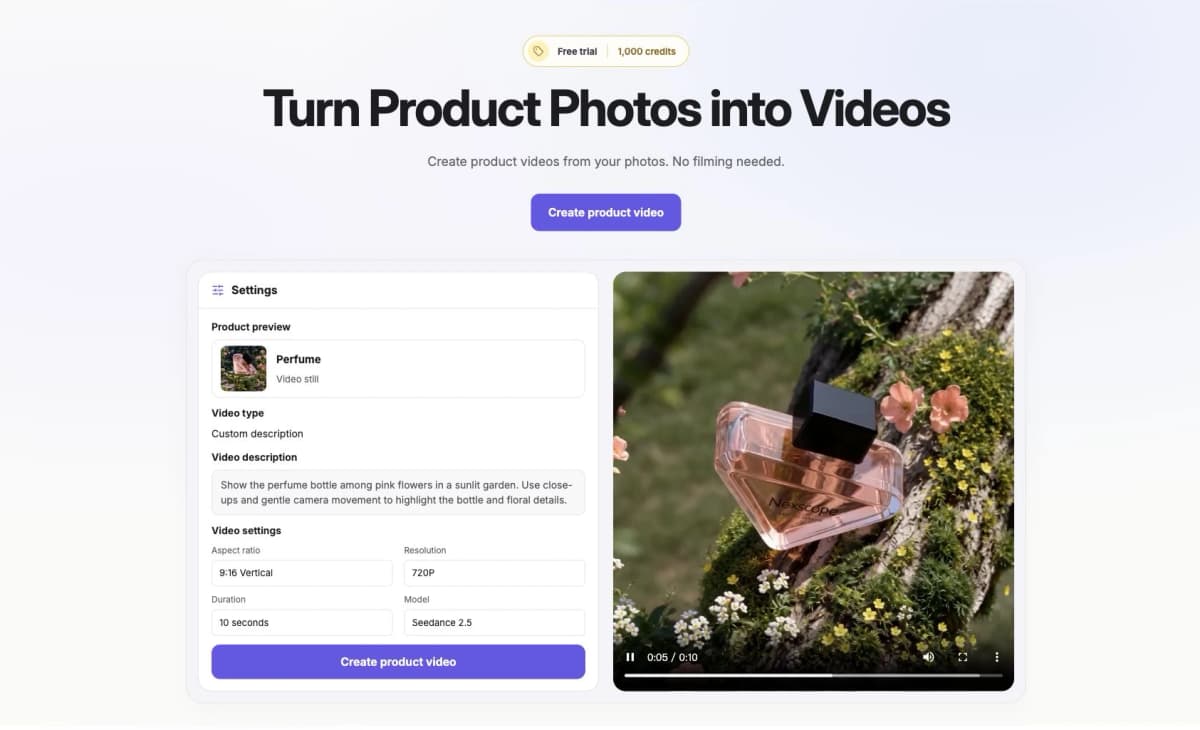
Image to Video: official landing-page demonstration.
URL to Video
Nexscope URL to Video starts with an individual product listing on Amazon, Shopify, Walmart, Etsy, or eBay. It helps sellers reuse listing assets when preparing a new ad.
- Product information import: Bring in the title, description, selling points, and available images; adjust the text and select images before generation.
- AI-assisted or custom scripts: Choose a selling angle, then edit or regenerate the suggested script, or write your own.
- Promotion inputs: Add a discount, coupon code, or seasonal offer to shape the script around the campaign.
- Optional presenters: Choose from 60 AI avatars, upload your own avatar, or create a product-only video.
- Audience and placement settings: Set the language, target market, format, and generation settings for the intended placement.
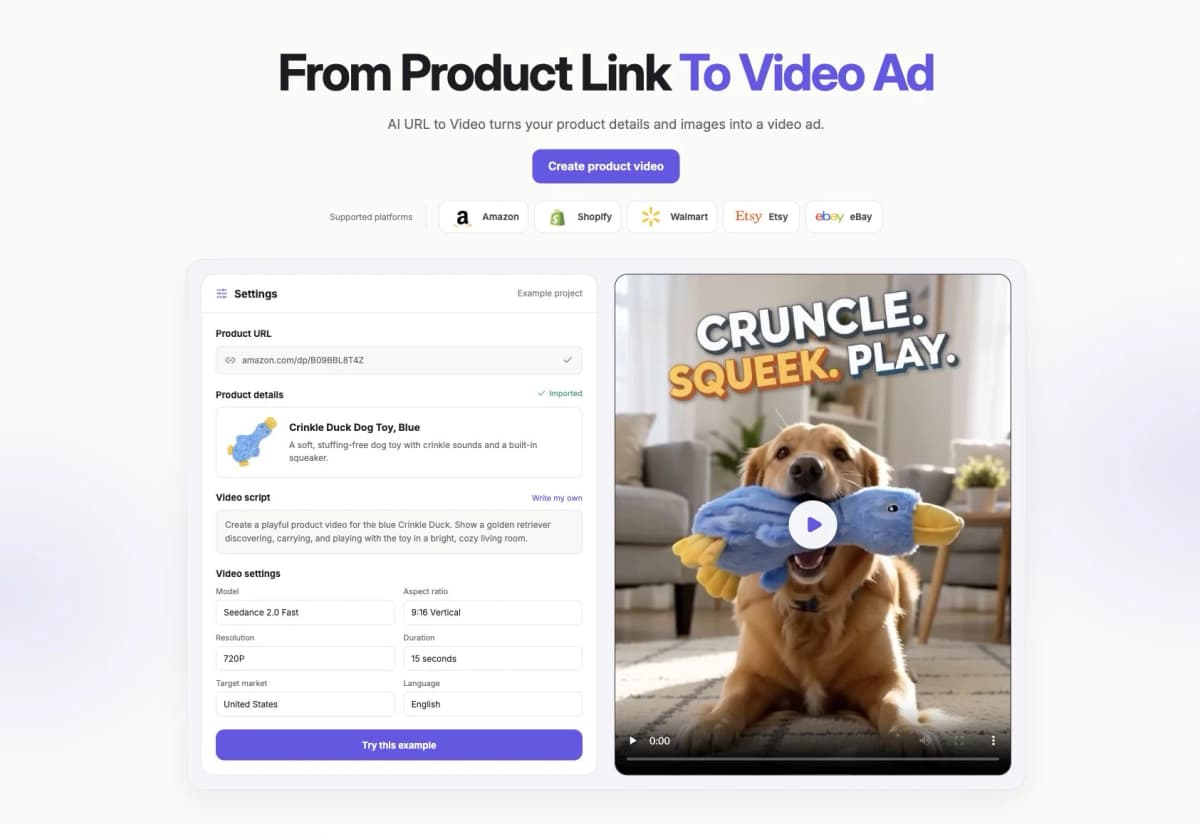
URL to Video: official landing-page demonstration.
AI UGC / Avatar Video
Nexscope AI UGC Video Generator helps turn product assets into creator-style advertising without filming a presenter.
- Presenter-led product stories: Use AI creators to introduce a product, explain its benefits, or show how it fits into a routine.
- Multilingual video creation: Create AI presenter-led product ads in different languages for international audiences. Adapt the script and selling message to each target market.
- Hooks and captions: Build the opening around a shopper's need and add captions for viewers watching without sound.
- Social ad variations: Reuse product assets for creative aimed at TikTok Shop, Instagram Reels, YouTube Shorts, and Facebook Reels.
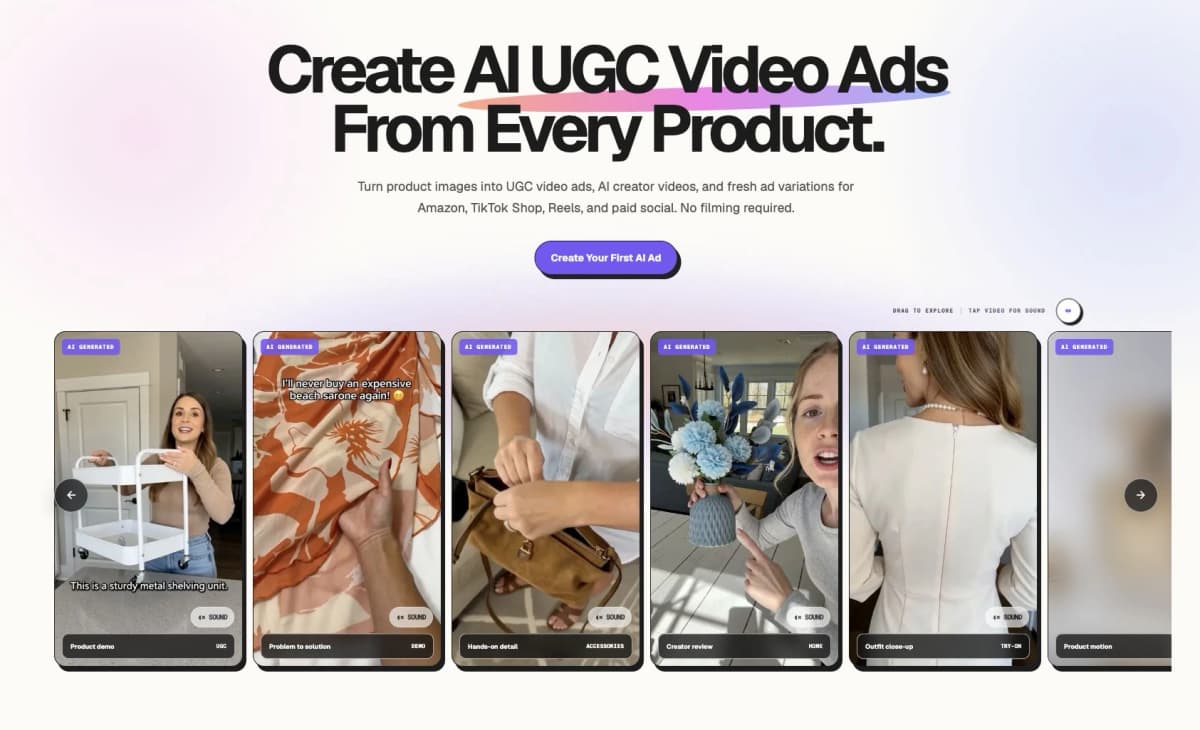
AI UGC / Avatar Video: official landing-page demonstration.
Video Clone
Nexscope Video Clone combines a reference ad with your product photos to guide a new video's scenes, pacing, and style.
- Reference-guided direction: Start with creative you own or have permission to use.
- Product-specific adaptation: Describe which scenes, actions, or details to keep or change for your product.
- New creative angles: Try another reference or scene description to explore variations, then review the generated result before use.
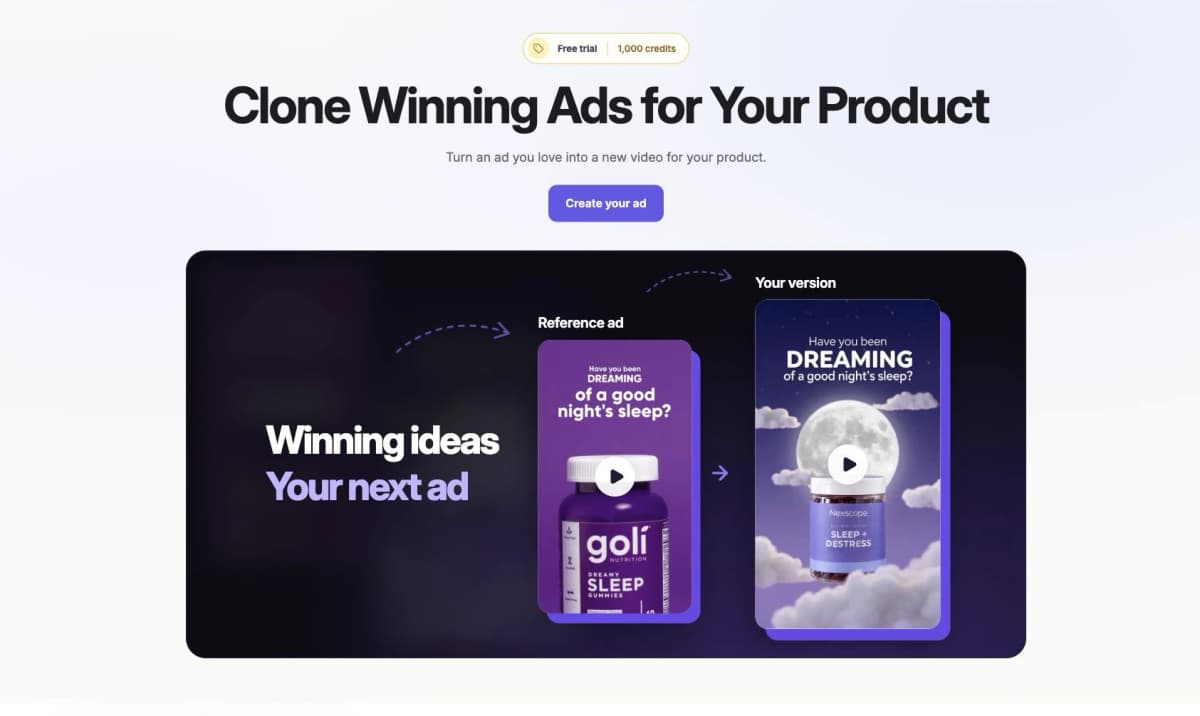
Video Clone: official landing-page demonstration.
Bulk Video
Nexscope Bulk Video Generator supports catalog-wide production with up to 100 product videos per project and 1–9 images per product.
- Flexible imports: Upload images or a parent folder with one subfolder per product. An Amazon product URL can fill a task with the product name and available images.
- Batch preparation: Apply a video style or AI product analysis to selected products or the full batch. Each task uses its own product images and details.
- Shared generation settings: Choose the batch's model, duration, and resolution, and check the estimated total credit cost before generation.
- Download and retry: Download completed videos together as a ZIP or individually. Failed tasks can be prepared for regeneration without changing completed videos.
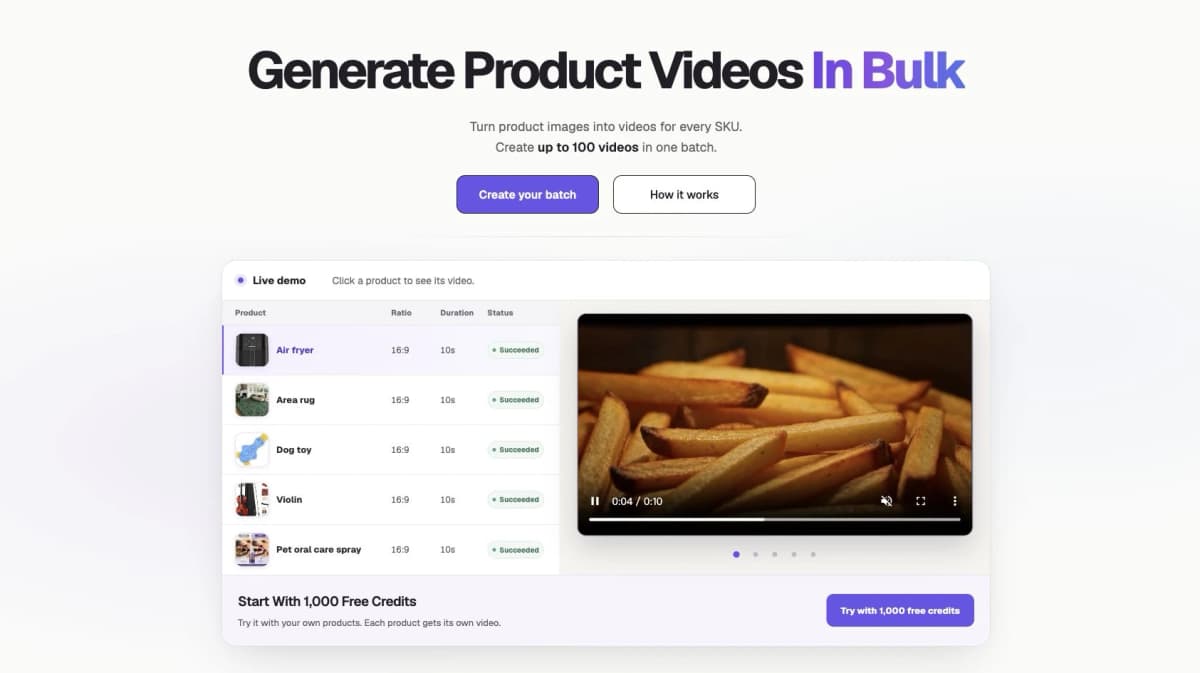
Bulk Video: official landing-page demonstration.
Best Fit
- Sellers creating product showcases or scene-led creative from their own photos.
- Teams turning existing listings into demonstrations, presenter-led ads, and promotional videos.
- Brands and agencies producing UGC-style variations, adapting approved ad concepts, or creating videos for multiple SKUs.
Plan and Workflow Notes
- Free trial: Start with 1,000 credits for three days. No credit card required.
- One subscription, all five video workflows: Use Image to Video, URL to Video, AI UGC / Avatar Video, Video Clone, and Bulk Video with a shared credit balance.
Create a Video From Your Product Photos
Choose a product showcase, UGC-style concept, or problem–solution format and set your creative direction.
Create Your Product Video →2. Creatify
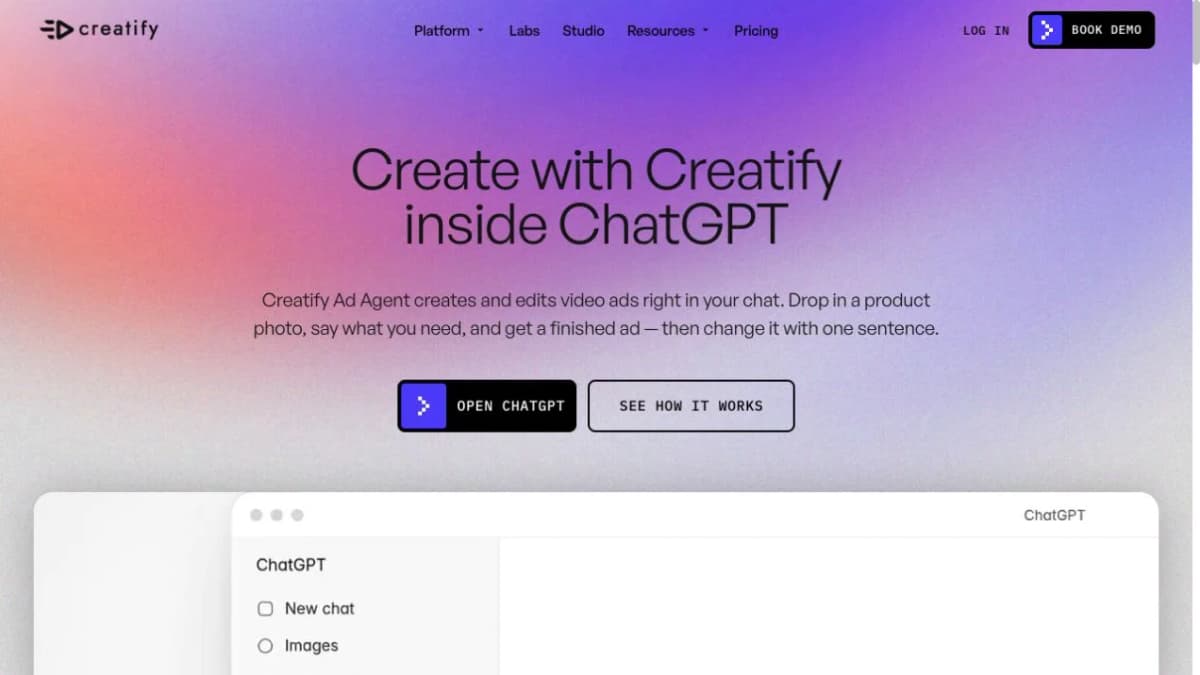
Creatify combines product-focused advertising workflows with AI actors and ad variations. Its Ad Agent can start from a product photo and a brief, then revise elements such as music and the closing call to action through text instructions. URL to Video offers a separate route for products that already have a listing page.
This makes it a useful candidate when the job involves developing several ads around one product, rather than deciding on only a camera movement.
Key Features
- Photo-based ad creation and a separate product-URL workflow.
- AI actors for presenter-led creative.
- Text-based revisions to elements such as music and the CTA.
- Vertical, square, and widescreen ad formats in the Ad Agent workflow.
Best Fit
- Advertisers comparing different hooks, presenters, and creative directions for one offer.
Plan and Workflow Notes
- Credit allowances and access to particular models vary across subscriptions.
- Confirm the intended workflow is included, then compare versions using the same offer and audience.
3. Pippit
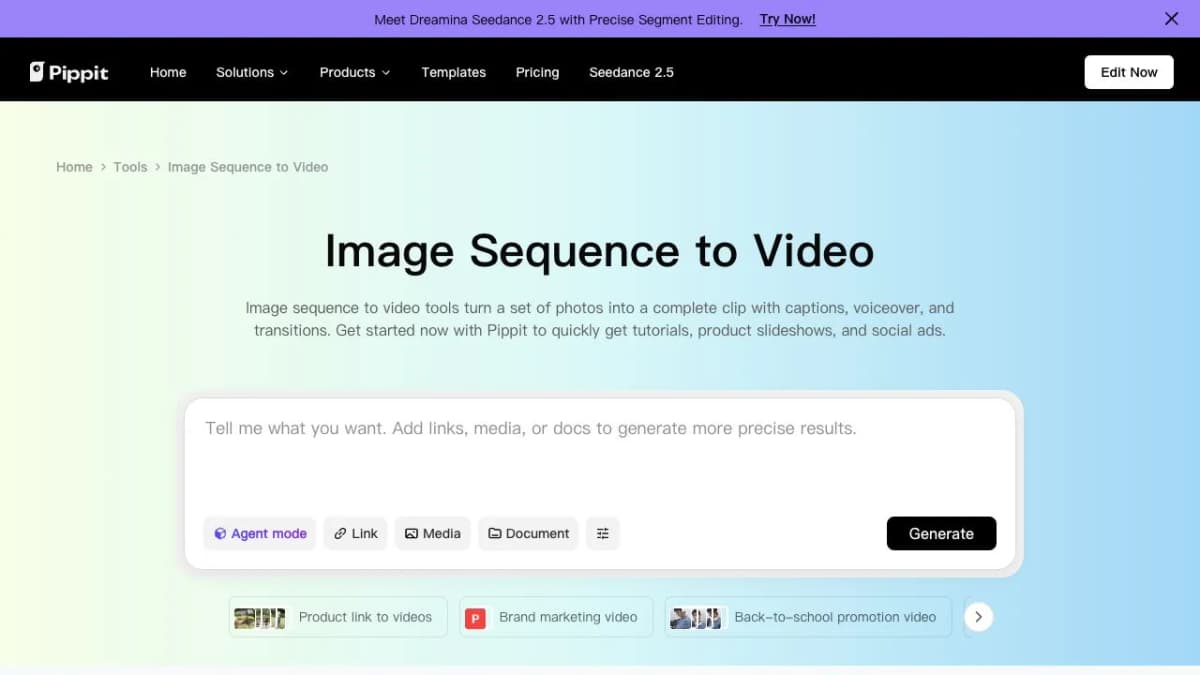
Pippit is useful when the source material includes several product photos that need to become a coherent social video. Its image-sequence workflow combines images with a script, voiceover, captions, and transitions, then provides editing options before export.
A seller could start with a front view, a detail photo, and a lifestyle image, assigning each a different role in the ad. This approach is particularly relevant when the existing photography already tells most of the product story.
Key Features
- Image sequences can be assembled into narrated videos.
- Avatar, voice, language, length, and aspect-ratio choices.
- Text overlays, transitions, and timing adjustments.
- Further editing and export settings after generation.
Best Fit
- Social teams turning a small collection of product assets into promotional videos.
Plan and Workflow Notes
- Free daily credits provide an entry point; paid plans expand available usage and features.
- Distinguish the image-sequence workflow from individual image-to-video model generation when estimating production time.
4. Topview
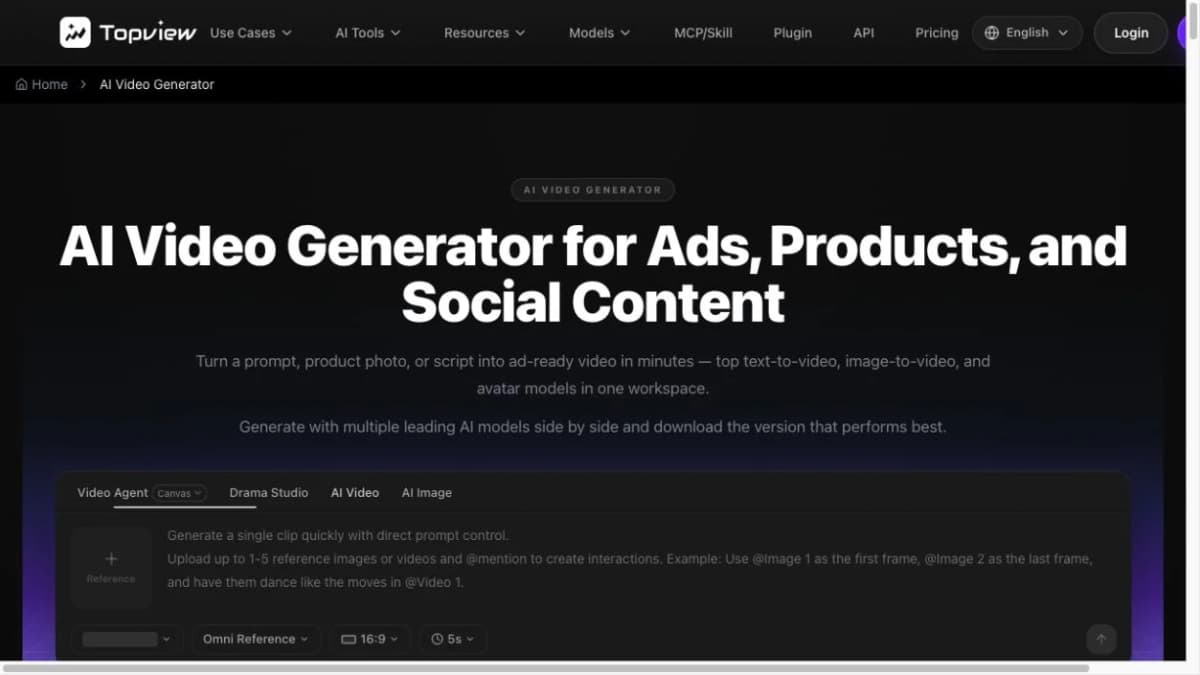
Topview's Product Avatar workflow combines a product image with an on-screen presenter. The documented process starts with choosing an avatar and uploading the product, then creating the talking video with a script and voice.
The placement stage matters for product demonstrations. It lets the team consider how the item appears beside or in the hands of the presenter before evaluating the delivery of the sales message.
Key Features
- Product Avatar combines product imagery and a presenter.
- Manual placement controls include product size and position.
- Script and voice options support the talking-video stage.
- Additional image-to-video tools cover product motion and scene creation.
Best Fit
- Brands developing presenter-led product introductions and product-in-hand ad concepts.
Plan and Workflow Notes
- Paid plans use credits, and generation mode affects consumption.
- Inspect the product's scale, contact with hands, and appearance throughout the clip.
5. Photoroom
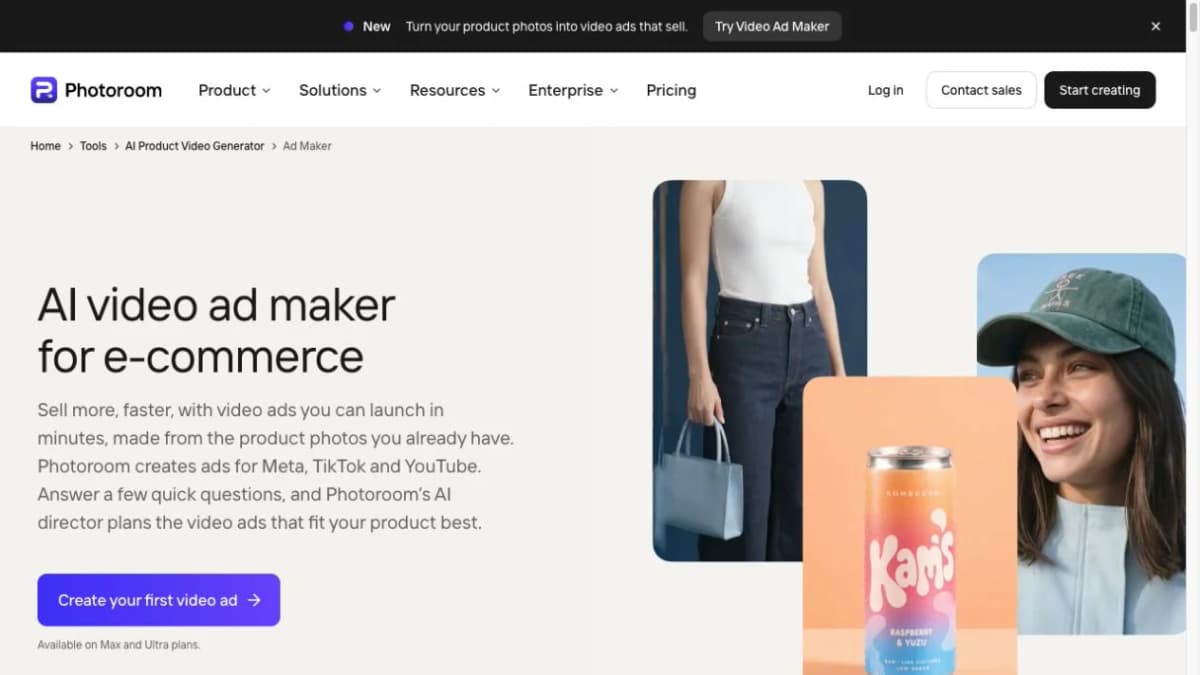
Photoroom's Video Ad Maker guides sellers from product photos through creative choices and a video plan. The workflow asks about the intended format, style, sound, and language, and allows review of the plan before generation.
It is distinct from Product Animator, which focuses on short, silent product videos. Video Ad Maker adds a broader advertising process with options such as characters, music, and voiceover.
Key Features
- Product photos provide the starting references for an ad.
- Guided choices cover creative angle, style, format, and audio.
- The video plan and generated voiceover script can be reviewed before production.
- Product-led and creator-led styles support different advertising concepts.
Best Fit
- Sellers who want help planning an ad from photos before generating it.
Plan and Workflow Notes
- Video Ad Maker is offered on Max and Ultra plans.
- Check the generation's displayed credit cost and use additional product angles where they improve the brief.
6. Invideo AI
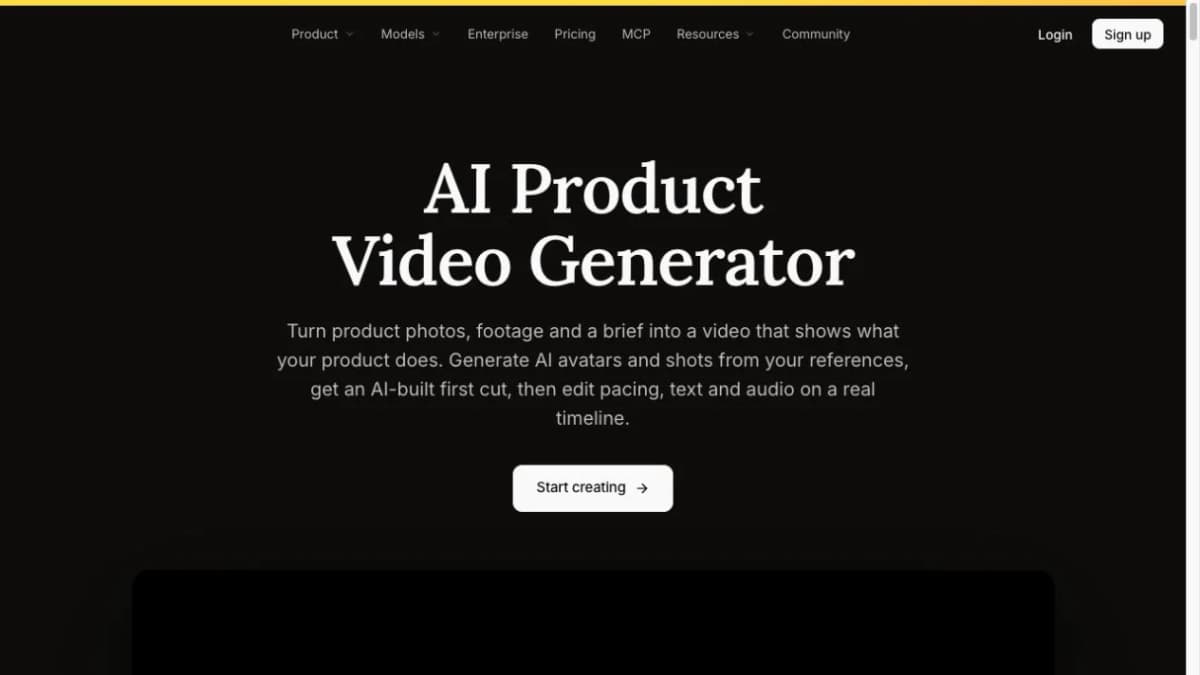
Invideo AI combines product-photo generation with an editable video timeline. Upload reference images or existing footage, describe the audience and selling points, and develop a first cut that can be trimmed, reordered, and refined.
This is useful when a finished ad needs both generated scenes and precise editorial choices. A product reveal may need a shorter opening, a longer detail shot, or a clearer closing card after the first version is assembled.
Key Features
- Product reference images and existing footage can inform a video brief.
- Generated shots and avatars can form part of the first cut.
- Timeline controls support pacing and scene order.
- Titles, captions, voice, and music can be adjusted in the edit.
Best Fit
- Teams that want to generate material and retain control over the final sequence.
Plan and Workflow Notes
- Plans use per-seat credit allowances, with access to models varying by tier.
- Include editing time in the comparison, especially when an ad mixes generated scenes with recorded demonstrations.
7. HeyGen
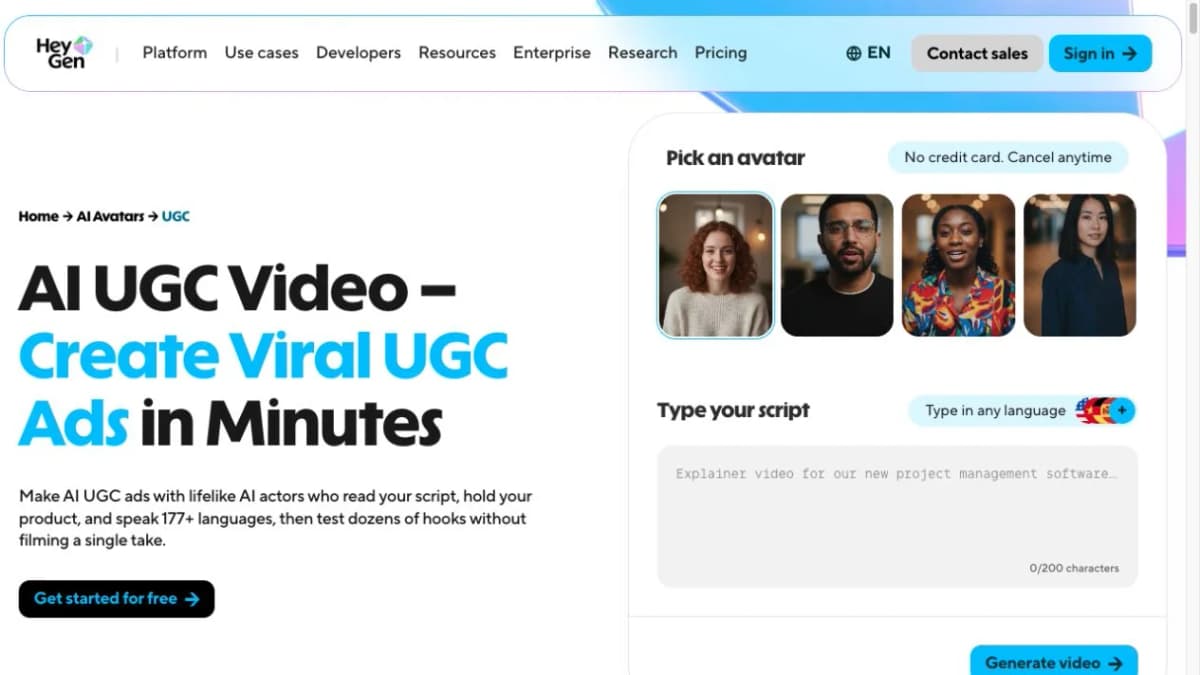
HeyGen suits product ads built around a speaking presenter. Its Product Placement workflow accepts a product photo and creates versions of an avatar holding or presenting the item. Script, voice, and localization tools help adapt the message for different audiences.
The strongest reason to shortlist it is a presenter-led campaign that needs consistent delivery across several languages. Evaluate the actual product interaction alongside pronunciation and lip sync.
Key Features
- Product Placement uses an uploaded product photo with an avatar.
- Scripted presenters support product introductions and demonstrations.
- Voice and translation features support localized versions.
- Avatar, scene, and delivery choices support creative variations.
Best Fit
- Brands creating multilingual spokesperson videos and product-in-hand ads.
Plan and Workflow Notes
- The Free plan provides three watermarked videos per month, up to one minute each.
- Paid plans expand credits, resolution, and feature access; Creator includes removal of HeyGen branding.
- Write AI presenter scripts as advertising copy rather than invented personal customer experiences.
8. AdCreative.ai
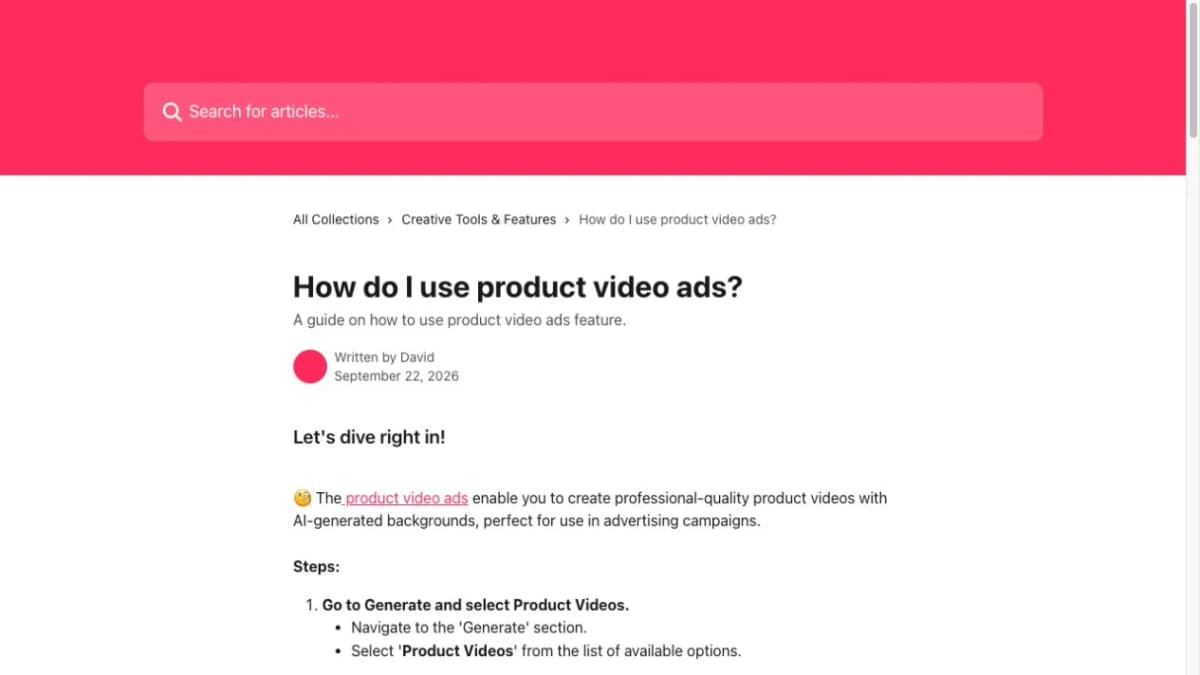
AdCreative.ai's Product Videos workflow starts with a product photo and an editable product description. Users can choose an AI-driven background or supply their own prompt, then develop ad templates around the generated product video.
This approach fits a creative process centered on the product and its surroundings. It is useful for exploring different visual settings while retaining a consistent offer and ad message.
Key Features
- Product-photo upload with an editable generated description.
- Background removal in the preparation stage.
- AI-driven and custom-prompt creation modes.
- Conversion into ad templates with manually entered or assisted ad text.
Best Fit
- Teams creating product-focused background and layout variations for advertising.
Plan and Workflow Notes
- Confirm Product Videos access and the relevant download allowance in the selected package.
- Include the final text and layout review in the workflow; a generated background alone does not complete the sales message.
9. Runway
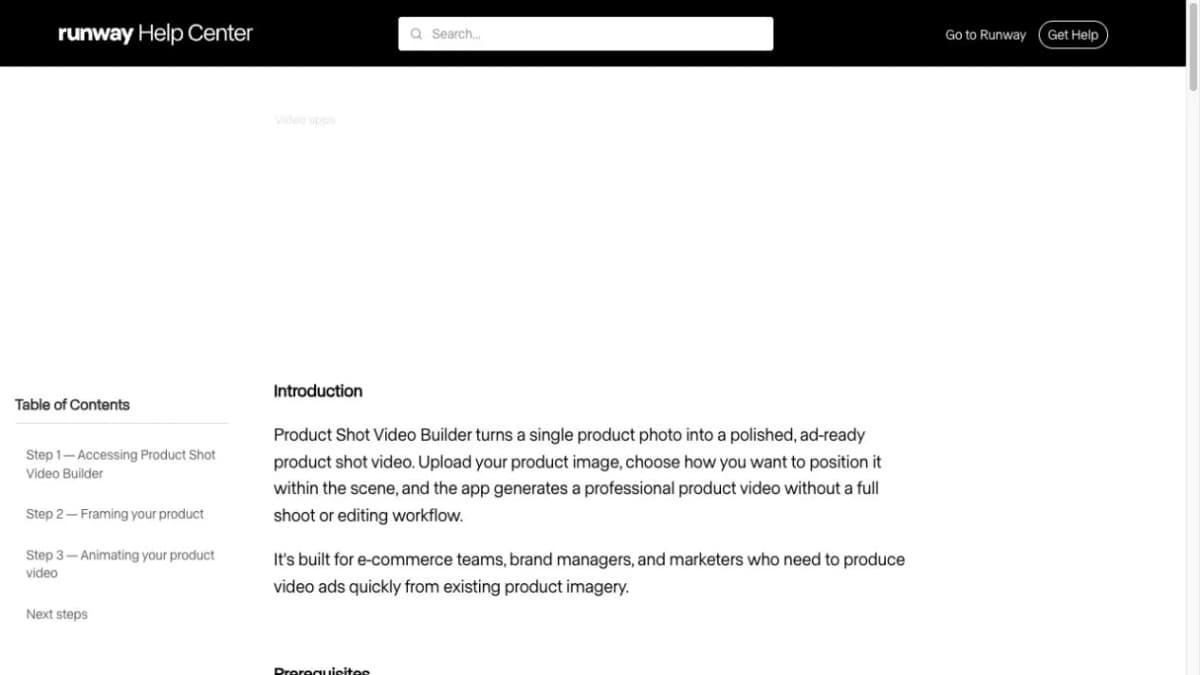
Runway's Product Shot Video Builder provides a dedicated route from a product photo to a generated shot. The process first frames the product within a scene, then animates it with optional motion direction.
This makes Runway relevant when the brief calls for deliberate shot construction, such as a controlled reveal or a slow close-up. The resulting footage can become a hero shot in a larger ad sequence.
Key Features
- Product Shot Video Builder accepts a clean product image.
- Scene framing precedes the animation stage.
- Optional motion instructions guide the camera or scene.
- Audio and resolution controls support output choices within the tool.
Best Fit
- Creative teams developing specific product shots for a campaign.
Plan and Workflow Notes
- The Free plan includes 125 one-time credits for exploring selected tools.
- Paid subscriptions provide recurring credits and broader model access.
- Budget separately for the final ad assembly if the brief requires several shots, captions, and a closing offer.
10. Adobe Firefly
Adobe Firefly turns an uploaded image and a prompt into video, with controls for framing and motion. The Firefly Video workflow can use first and last images as endpoints, and generated clips can move into a video editor for refinement.
It fits teams that want to direct product animation and then continue shaping the ad within an Adobe production workflow. A product photo might supply the opening frame for a reveal, while a second image defines the closing composition.
Key Features
- Image-to-video generation from an uploaded visual and prompt.
- First- and last-frame guidance in supported workflows.
- Camera-motion choices when using a first frame without an end frame.
- Further editing in Firefly's video editor or Premiere.
Best Fit
- Creative teams building product shots and finishing them in an Adobe editing workflow.
Plan and Workflow Notes
- Generative-credit consumption depends on the model and output settings.
- Adding an end frame changes which motion controls are available in the Firefly Video workflow.
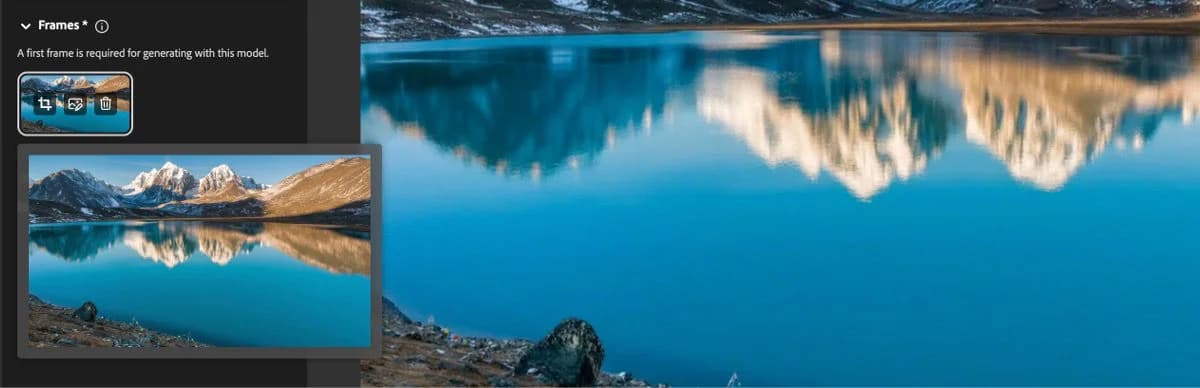
Image: Adobe Help Center, “Generate videos using images.”
How to Choose the Right Tool
1. Check Product Accuracy
- Identify critical details: Labels, colors, packaging, shapes, and button placement should remain recognizable.
- Use the same test brief: Compare tools with identical product images and creative instructions.
- Review the whole clip: Check the opening, middle, and final frames, especially during rotations or hand interactions.
2. Match the Tool to Your Ad Format
- Product showcase: Prioritize reference-image handling, camera direction, and product detail.
- UGC or presenter-led ad: Look for convincing product placement, natural delivery, and suitable language options.
- Complete promotional ad: Check whether the workflow covers your hook, demonstration, narration, captions, and offer.
- Detailed storytelling: Choose editable scenes or a timeline when you need control over the sequence.
3. Compare Cost per Usable Video
- Count usable results: Include retries and finishing work when comparing production costs.
- Check billing terms: Distinguish monthly billing, annual equivalents, and introductory offers.
- Review plan limits: Compare credits, export limits, and premium model access alongside the headline price.
- Budget for editing: As a planning example, $40 in allocated software costs for eight approved ads equals $5 per usable ad, before editing labor.
How to Turn a Product Photo Into a Video Ad
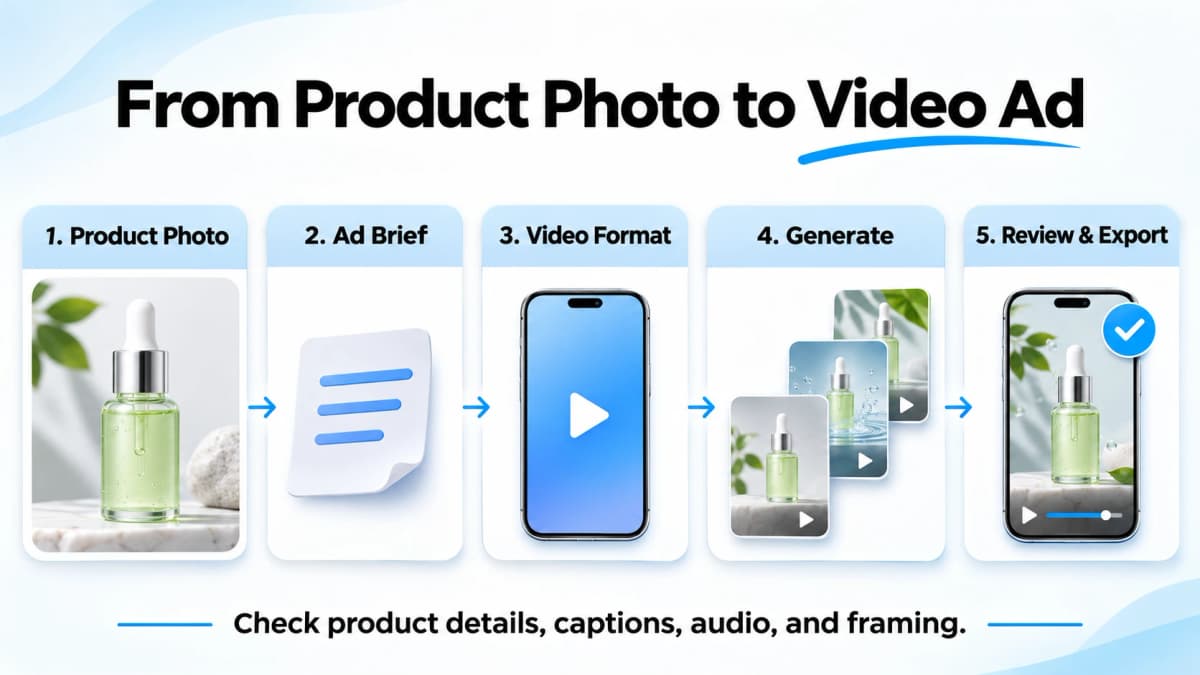
1. Choose a Clear Product Photo
Use a sharp image with accurate color, visible edges, and readable packaging. Add other views when the planned scene exposes sides that the main image does not show. Remove unrelated objects from the brief so the generator can focus on the product.
2. Define the Hook and Offer
Choose one message for the first version. For a skincare bottle, a practical brief could emphasize how the package fits into a daily routine. Use verified product facts, and specify the closing action, such as exploring the range or viewing product details.
3. Select a Video Format
The same photograph can support different concepts:
- Product showcase: A slow push-in highlights the bottle, cap, and finish.
- Problem–solution: A short routine scene introduces the product's intended use.
- Presenter-led ad: An on-screen speaker introduces one verified feature and the next action.
Select the aspect ratio for the intended placement before framing important text or product details.
4. Generate and Refine
Give the tool a concise brief that separates product facts from creative direction. For example: “Use the supplied bottle as the product reference. Place it on a clean bathroom counter in soft morning light. Use a slow forward camera move. Leave space above the bottle for a short headline.”
Review the first output, then change one important element at a time. Keeping the product, offer, and audience fixed makes differences in the hook or scene easier to evaluate.
5. Review and Export
Watch the complete video with sound and then without it. Check label spelling, proportions, hands, captions, pronunciation, and whether the offer remains readable on a phone. Confirm that the crop retains the product and CTA in the intended placement.
Export the approved version and save its source images, brief, and generation settings. These materials make future variations easier to reproduce and review.
How to Create a Video Ad with Nexscope
Nexscope brings product assets, script development, and video settings into one workflow. If your product already has a listing, URL to Video reduces the manual work of gathering images, copying product details, and drafting an ad from scratch. The walkthrough below uses a built-in product example to show the process.
1. Start with Your Product Link or Photos
- Have a listing? Open Nexscope URL to Video, paste an individual product URL, and select Analyze URL. Supported sources include Amazon, Shopify, Walmart, Etsy, and eBay.
- Review the imported assets: Check the product name and description, then select the images that best show the product. Adjust any missing or inaccurate information before continuing.
- Only have photos? Open Nexscope Image to Video, upload your images, and choose Product Showcase, UGC Product Review, Problem–Solution, or Custom Description. The AI script steps below apply to URL to Video.
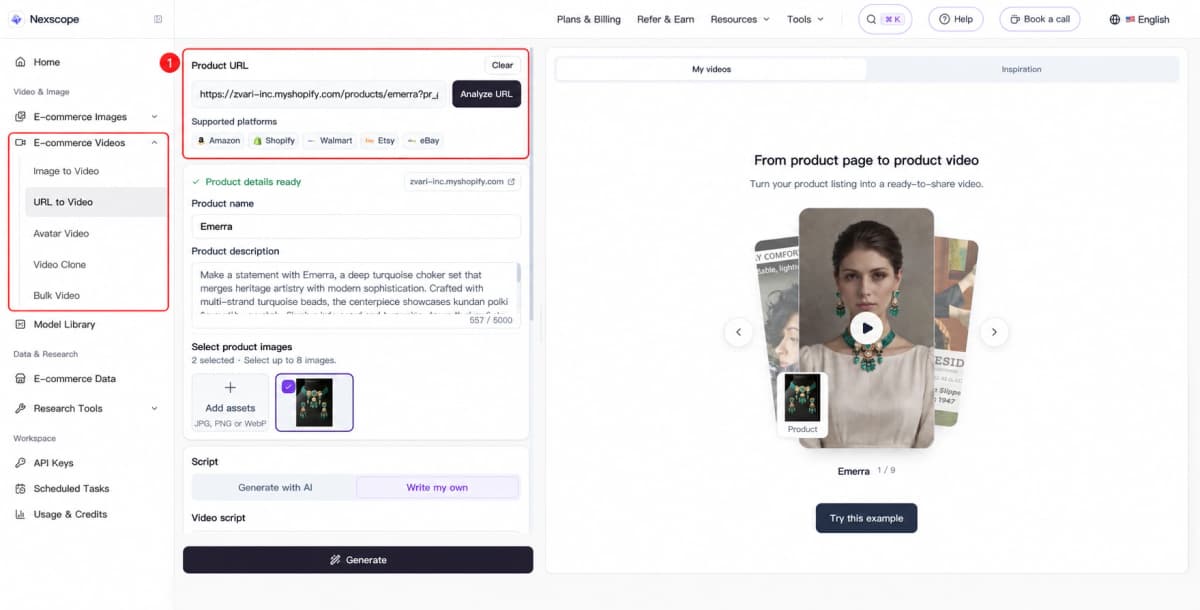
Step 1: Import product information and images. The outlined sidebar shows all five video workflows; the right panel shows an inspiration example.
2. Generate and Choose an AI Script
- Select Generate with AI, then choose a suggested video angle or describe your own.
- Add a promotion if the ad needs to feature an offer or discount.
- Click Generate AI script. Nexscope presents three script concepts based on the product, angle, and video settings.
- Compare the concepts and open Preview full prompt to inspect the detail. Regenerate an option if needed, then select Use this script. You can also use Write my own for a custom script.
For the jewelry example below, the generated choices include a close-up introduction, a transformation concept, and a faster edit highlighting the materials. This gives the seller concrete creative directions to choose from without starting with a blank script.
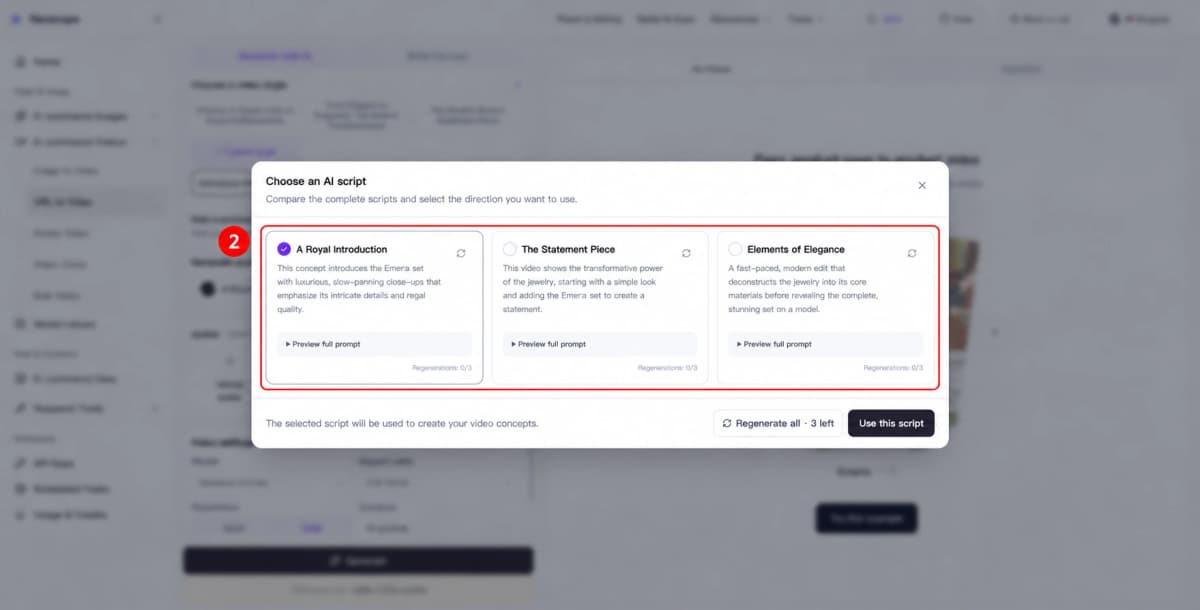
Step 2: Compare the three AI script concepts and select one to use.
3. Choose a Presenter and Set the Video Format
- Presenter: Select an avatar, upload your own, or keep the video product-only.
- Placement: Choose an aspect ratio, resolution, and duration suited to the campaign.
- Audience: Set the target market and language, and check that the script fits the intended audience.
- Generation: Select a model and review the estimated credit cost before clicking Generate.
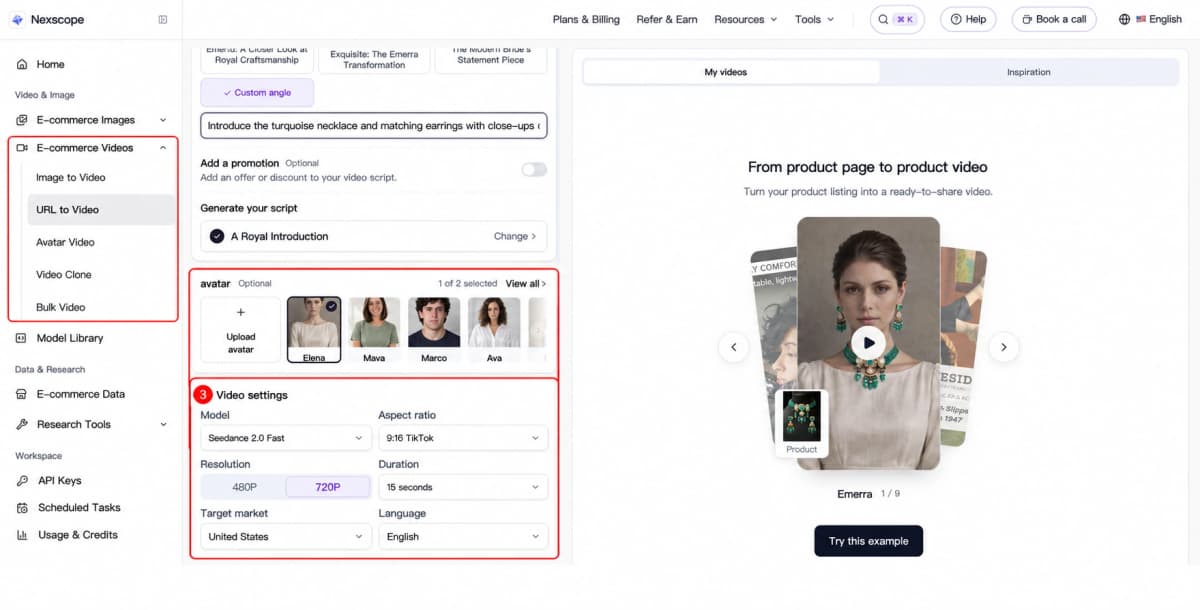
Step 3: Choose a presenter and configure the model, format, target market, and language. The sidebar remains visible; the right panel shows an inspiration example.
4. Review the Result and Build Your Next Variation
- Preview the completed video and check the product details, spoken claims, and any promotional information.
- Download the approved result for your intended placement.
- For another concept, revisit the angle or script and generate a new version. For multiple products, use Bulk Video to organize production across your catalog.
Nexscope Video Examples
Explore three existing Nexscope examples: a product showcase, a presenter-led demonstration, and a product-in-use ad.
Product Showcase
A skincare ad combines product close-ups, an application scene, and a clear call to action.
UGC Product Demo
A presenter introduces a storage cart while demonstrating its features.
Product-in-Use Ad
A dog-toy video combines everyday use, feature close-ups, and on-screen text.
Conclusion
The right product photo to video ad generator is the one that completes the work your campaign needs. Presenter campaigns call for convincing product placement and speech. Shot-focused creative calls for motion control. More complex advertisements benefit from an editable sequence and clear audio tools.
Nexscope helps ecommerce teams turn product photos and listings into video ads, create multilingual presenter-led content, and produce videos across their product catalog.
Key Features
- Image to Video: Build product showcases and other video concepts from photos.
- URL to Video: Import listing assets, develop a script, and choose an optional presenter.
- AI UGC / Avatar Video: Create multilingual presenter-led product stories with hooks and captions for social placements.
- Video Clone: Start from an authorized reference video and adapt the creative for a product.
- Bulk Video: Create up to 100 product videos per project with folder imports, batch settings, and ZIP downloads.
Start in the video workspace, select a suitable format, and review the credit estimate before generation. Keep the first brief focused so the result is easy to assess and refine.
Turn Your Product Link Into a Video Ad
Import your listing, shape the script around your selling angle, and create your next product video.
Create a Video From Your Product URL →Frequently Asked Questions
What is a product photo to video ad generator?
A product photo to video ad generator uses existing product imagery to create moving promotional content. Depending on the workflow, it may animate a product shot, place the product with an AI presenter, or assemble scenes with narration and captions. Choose based on the finished advertisement you need and the editing work you want to retain.
Can one product photo become a complete video ad?
Yes, some workflows can build an ad from a single photo plus product information and creative instructions. A photo alone does not establish the offer, audience, or claims. Supply those details explicitly. Additional product angles are useful when the scene needs to show areas that are hidden in the original image, such as the back of a package.
Which tools support AI presenters with product photos?
Topview and HeyGen provide product-placement workflows that combine product imagery with an avatar. Creatify, Photoroom, and other tools in this list also offer presenter or creator-led advertising formats. Compare how the product is introduced, held, and shown during speech. A suitable avatar should support a clear product explanation as well as an appropriate brand tone.
How can you keep product details consistent in AI videos?
Use clear reference images and concise instructions that identify the details to preserve. Keep the initial motion simple, then inspect packaging, labels, colors, and proportions throughout the output. Add reference views when needed. If a generated scene changes a critical feature, regenerate it or use an original product still for that part of the final edit.
Are free plans enough to create product video ads?
Free plans and trials can help evaluate an input workflow and sample output, but allowances differ. Check watermarks, available models, export settings, and whether the credits renew. A free test may be enough for initial selection, while ongoing production requires budgeting for retries, multiple formats, localization, and the number of approved ads needed each month.
What should you compare besides the subscription price?
Compare product accuracy, reference-image support, editing controls, presenter quality, audio, and the effort required to finish an ad. Record credit usage and editing time for the same brief across shortlisted tools. Also distinguish monthly billing from annual equivalents and introductory discounts. The useful comparison is the cost and work required per approved asset in your intended format.
Sources
- Topview. (2026). Topview Official Guide: AI Avatar. Retrieved from topview.ai
- Photoroom. (2026). How to use Video Ad Maker. Retrieved from help.photoroom.com
- HeyGen. (2026). AI UGC Video Generator. Retrieved from heygen.com
- Runway. (2026). Product Shot Video Builder. Retrieved from help.runwayml.com
- Adobe. (2026). Generate videos using images. Retrieved from helpx.adobe.com