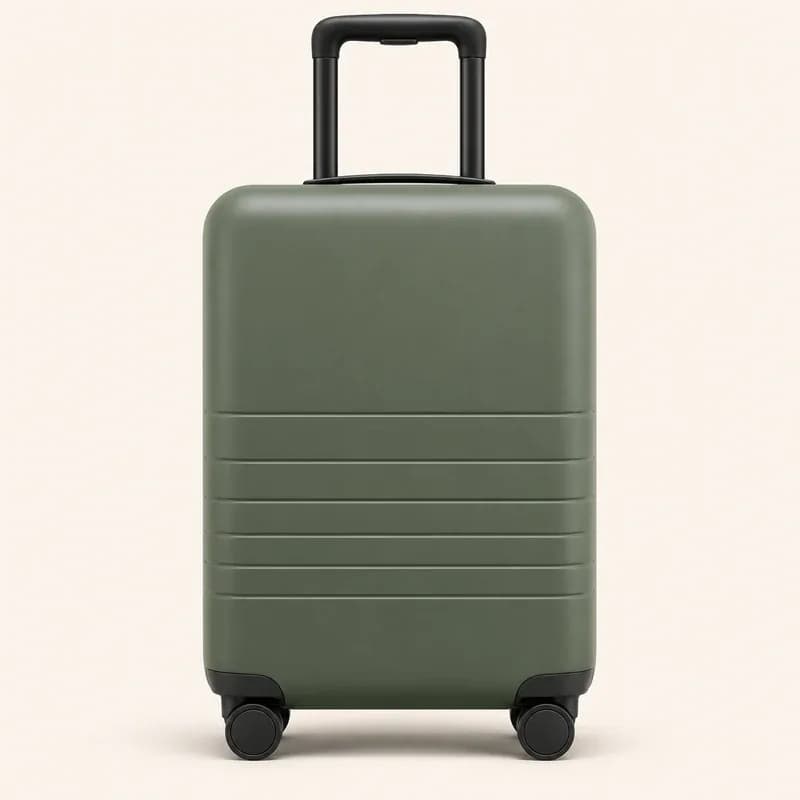
 Reference color
Use a Reference Image
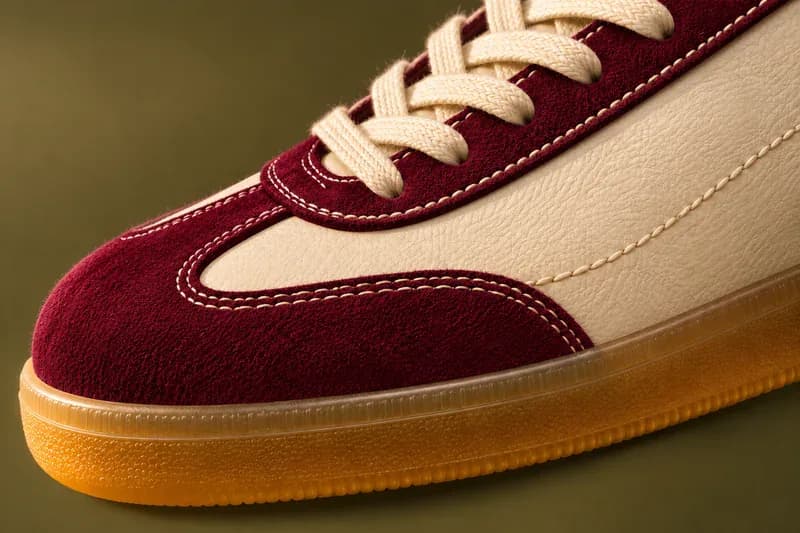
Use a product image as a reference for your target color.

Change the color of an image with AI. Recolor products and clothes online to create color variants for your listings.
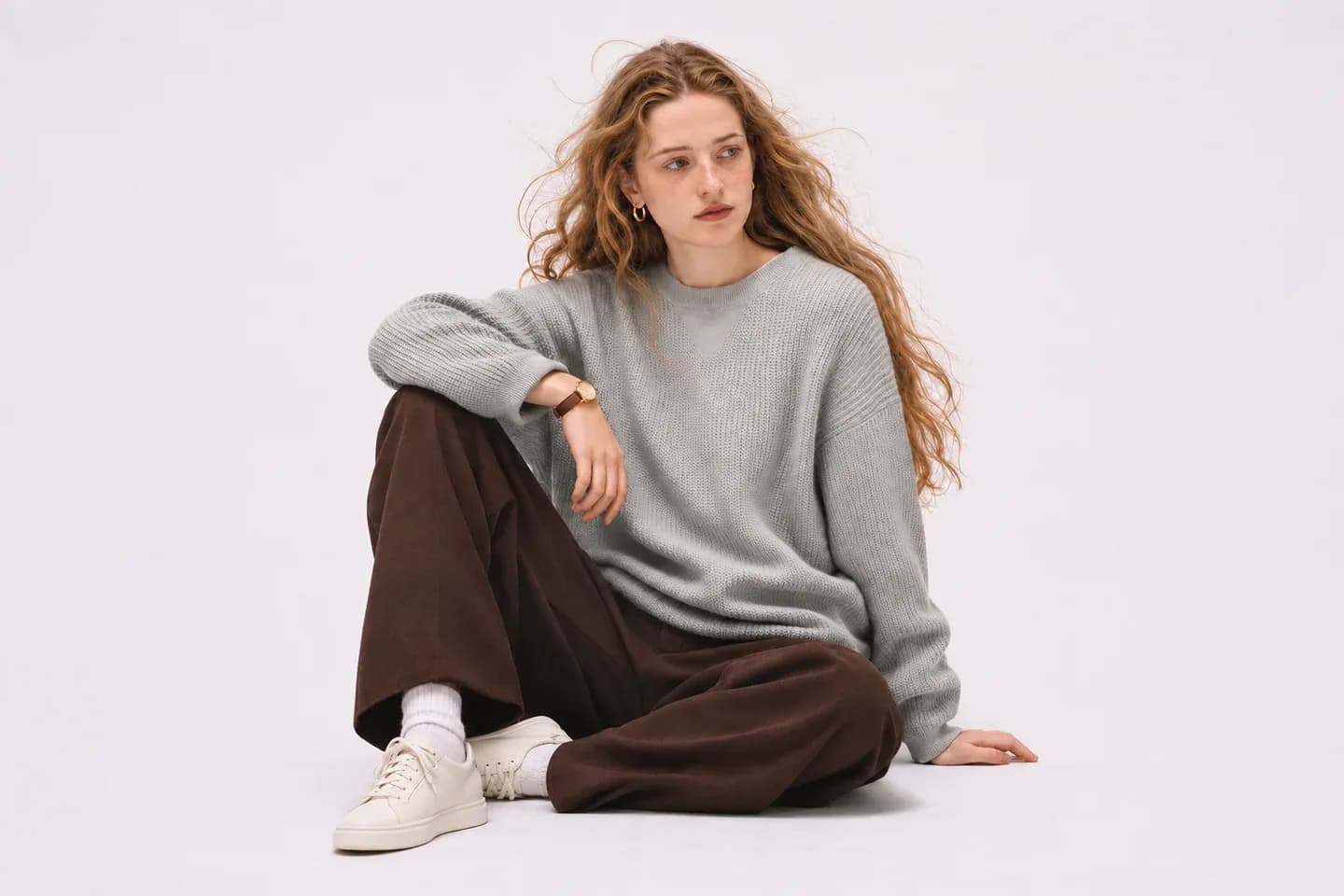
Drop a product photo here to start recoloring
JPG, PNG or WEBP · Up to 10 MBOne photo · 384–4096px per side · Maximum aspect ratio 5:1
Change product colors, recolor specific parts, or edit multiple photos at once.
Turn a single product photo into a range of color options. Recolor shirts, sweaters, bags or shoes for your listings without photographing every color separately.
Recolor Your Product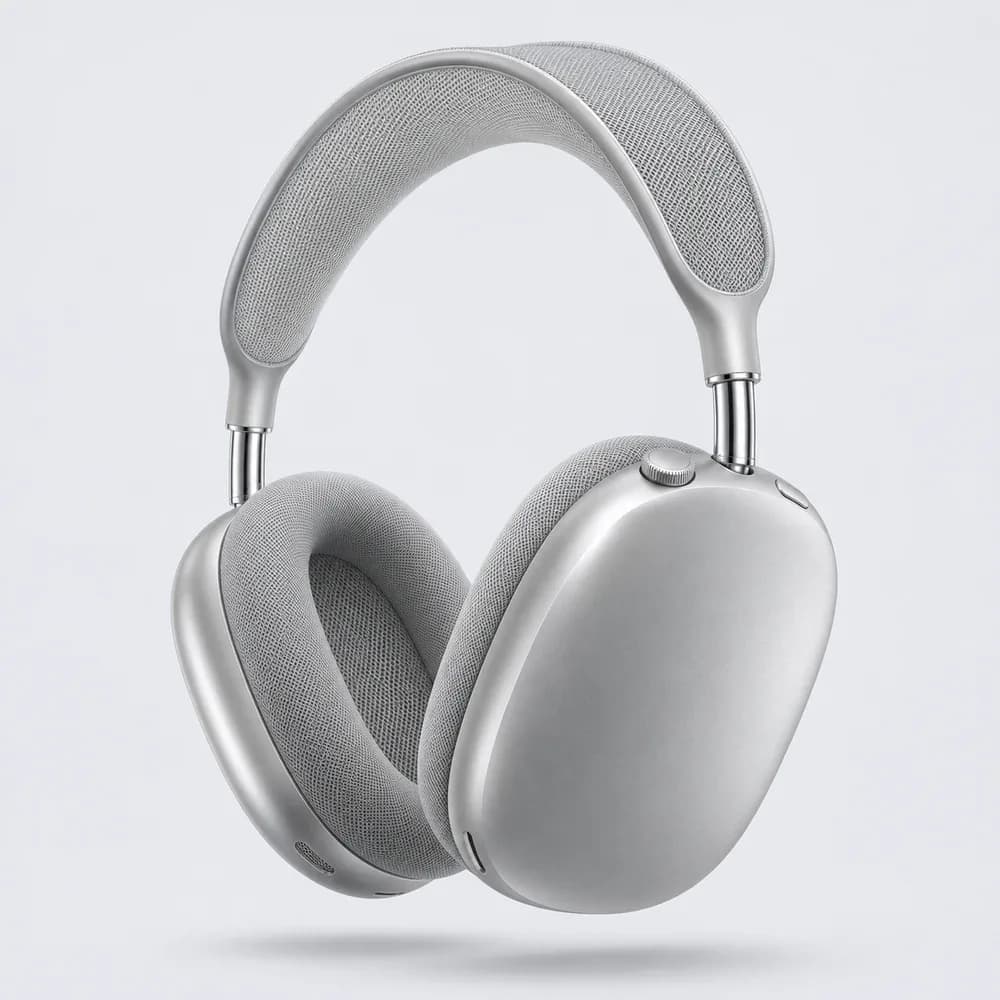
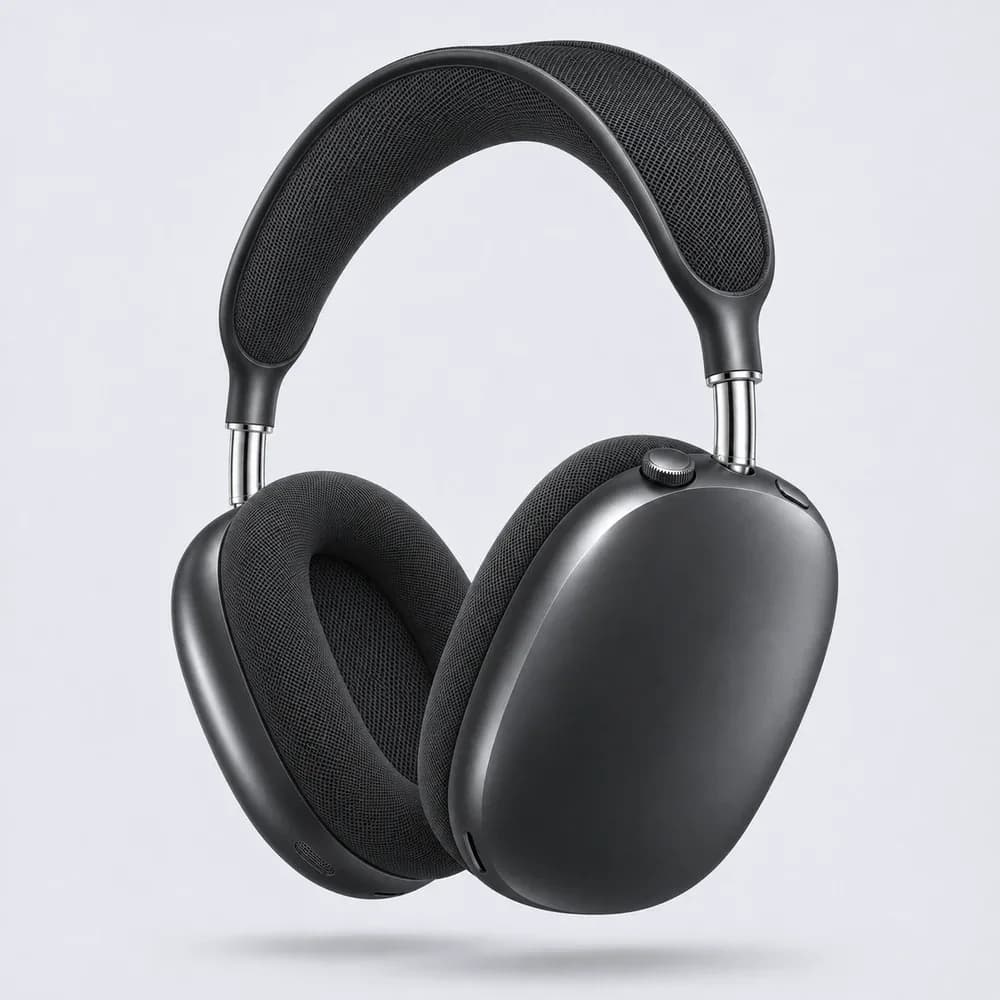
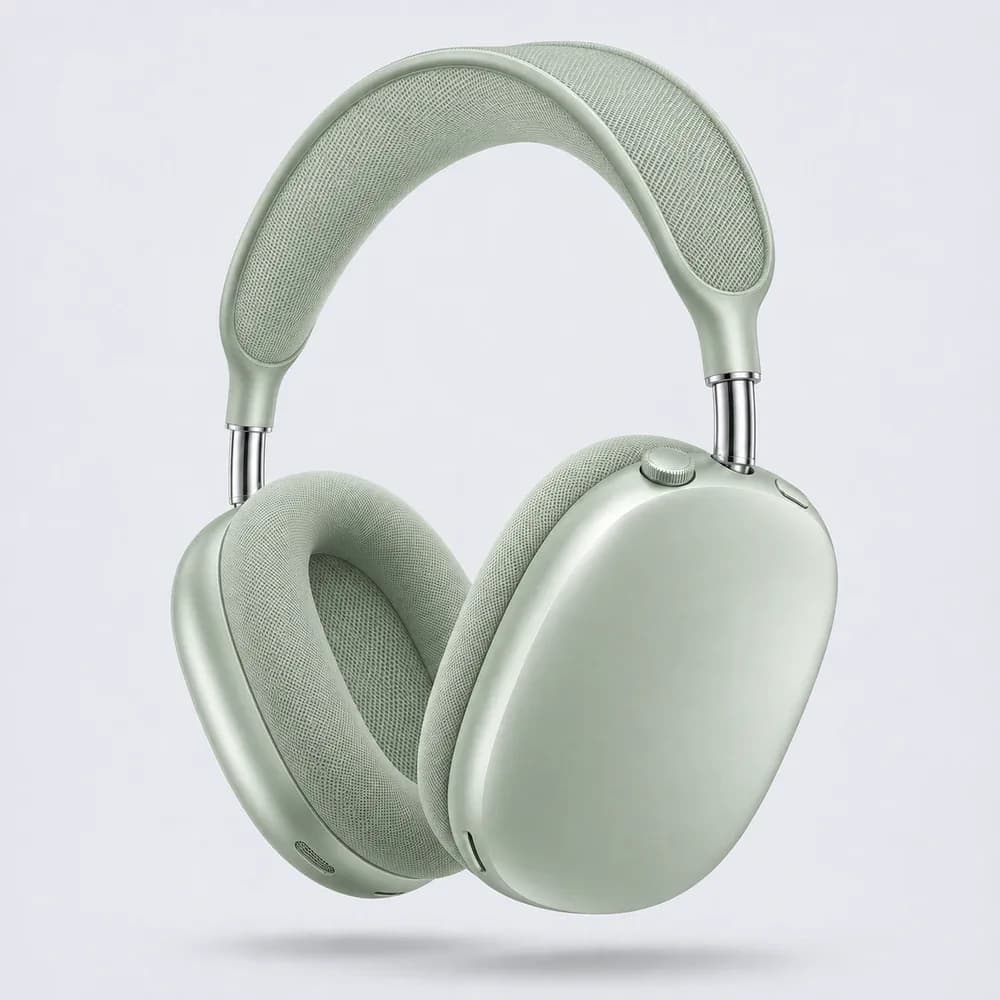
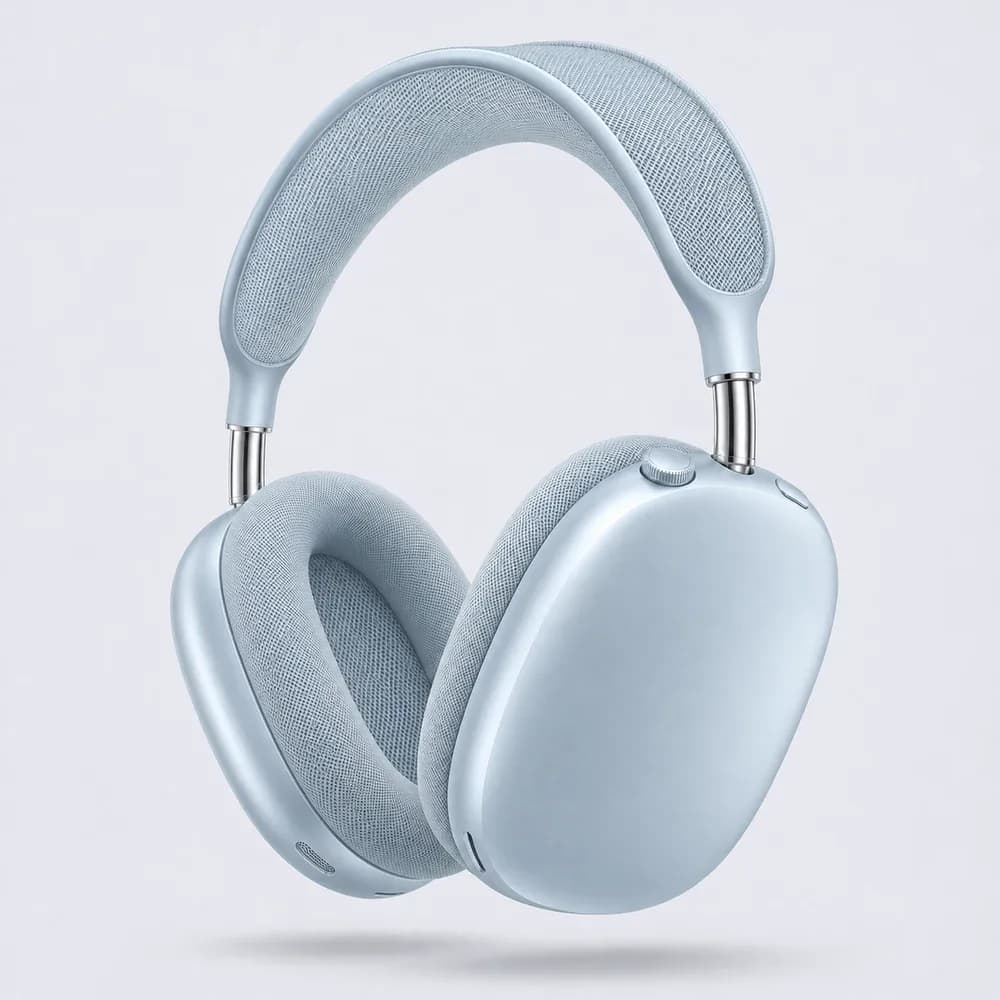
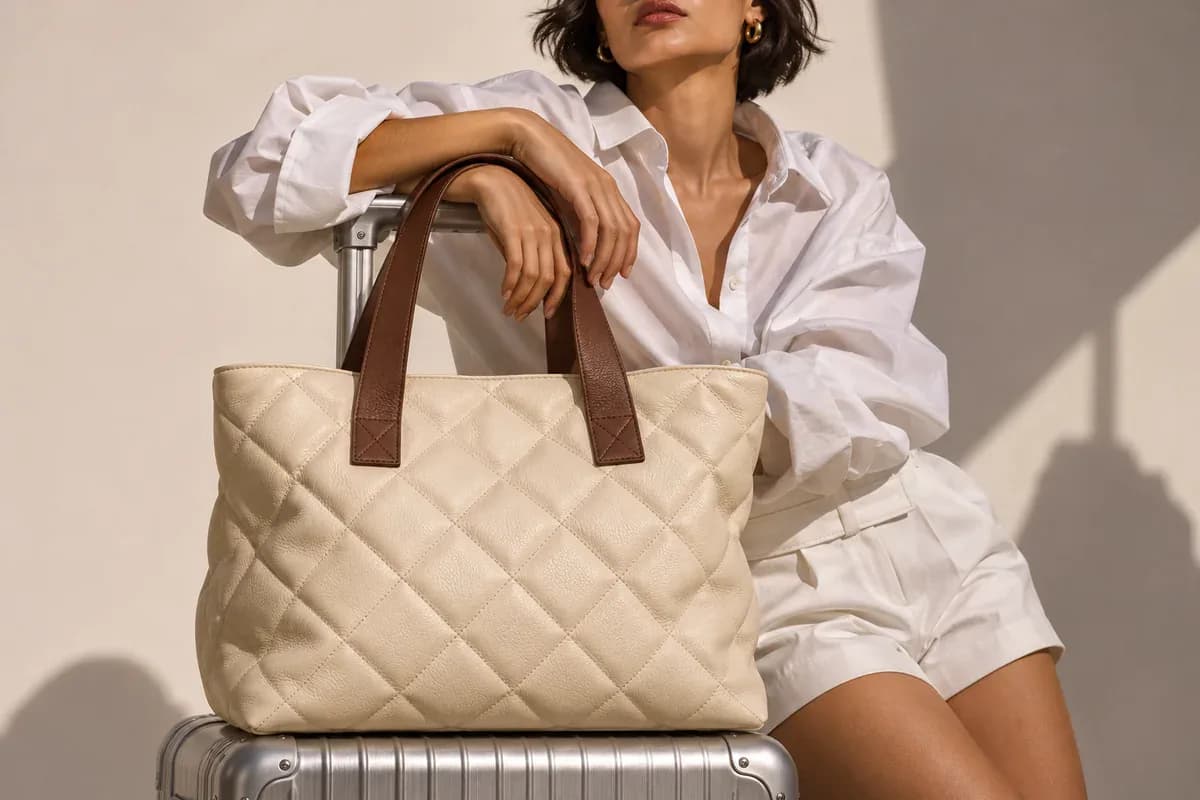
Change the color of one object or a specific part in your photo. Tell the AI which area to recolor and what color to use. For example, “Change only the bag handles to blue.” Try it with handles, straps, shoe uppers, or other product details.
Recolor a Specific PartUse a reference image, a color card, or the color picker.
Reference colorUse a product image as a reference for your target color.
Set your target colors using color cards.
Choose a color visually, enter a HEX, RGB or HSB value, or use the eyedropper.
Batch recolor up to 12 product images with the same target color. Describe the part to recolor once for the whole batch.
Recolor a Photo Set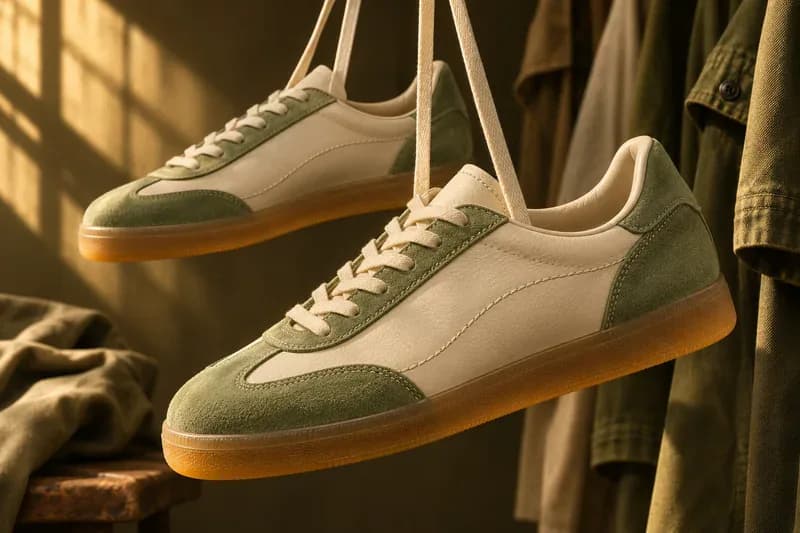
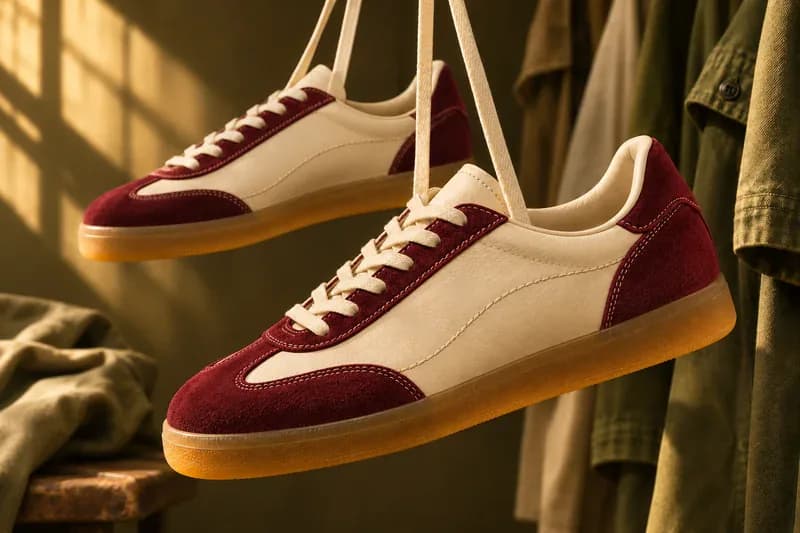
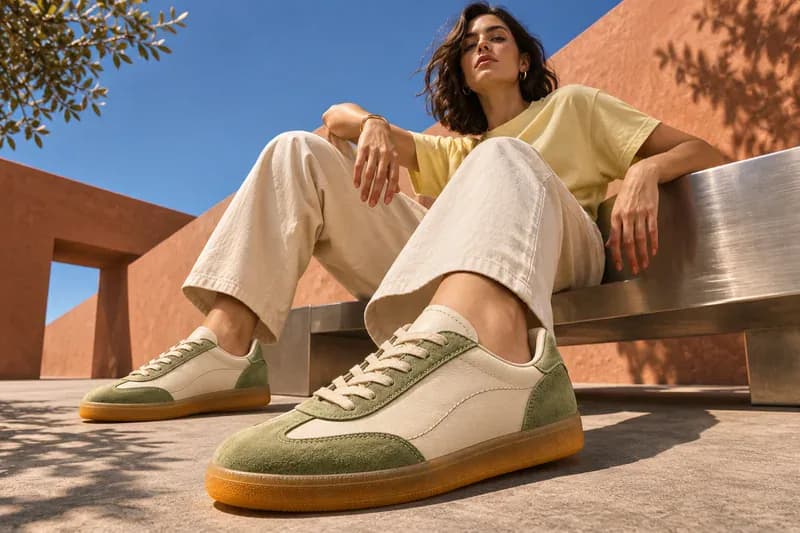
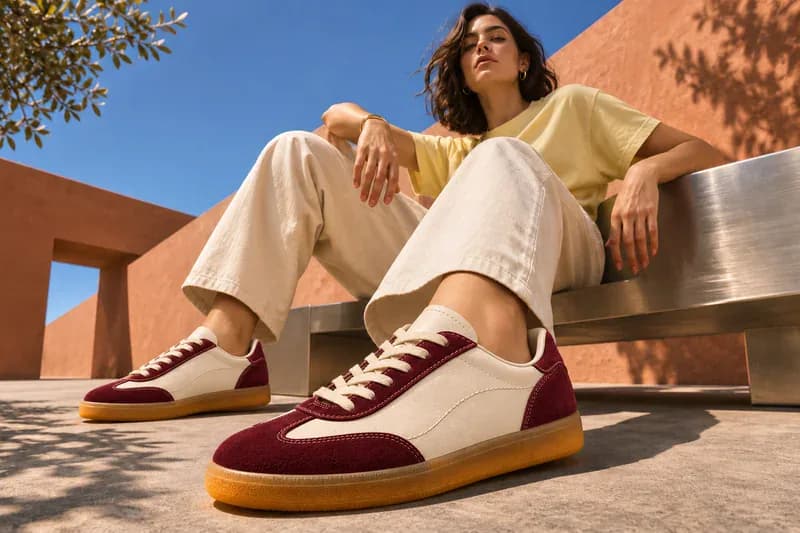
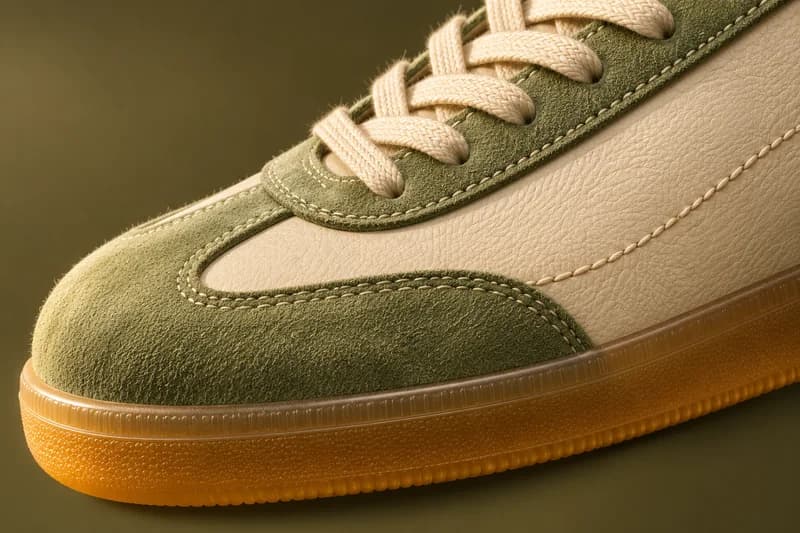
Same target color across every view
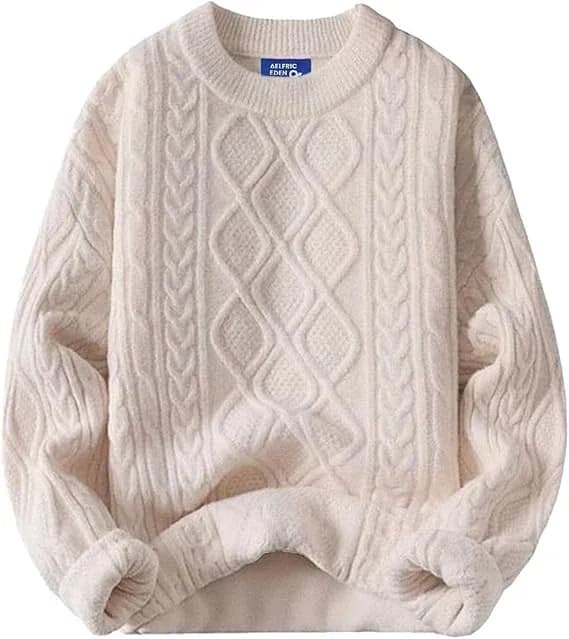
Start with a clear product photo. For multiple images or a folder, choose batch mode in the workspace.
Whole sweater
Add reference images or choose target colors. Describe the part of your product you want to change.
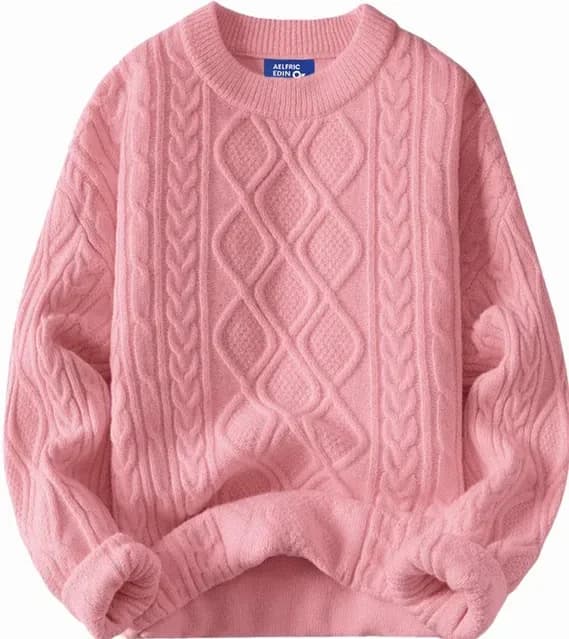
Check the Credits estimate and generate. Review the colors and product details, then download your results.
Open Color Changer and upload a product photo. Choose your target colors using reference images, color cards or the color picker. Describe the part to recolor, check the Credits estimate and generate your images.
Yes. You can change a shirt color online or recolor another garment, such as a sweater. Upload the photo, choose your target colors and describe the garment to change. Review the fabric details and color before using the result in a listing.
Upload your photo and describe the object or part in the Part to recolor field, such as a bottle, bag strap or shoe upper. Choose your target colors and generate. Review the selected area and surrounding details, since AI may also change other parts of the image.
Yes. Switch to Batch image set recolor to upload up to 12 images or choose a folder. Choose your colors and describe the part to recolor for the batch.
You can enter a HEX, RGB or HSB color, choose colors visually, or provide reference images. AI results may differ from your selected color. Compare each result with your actual product before publishing.
Upload your PNG or JPG, choose a target color and describe the product or part to recolor. The image color changer also supports WEBP. Upload product photos up to 10 MB each, with dimensions from 384 to 4096 pixels and an aspect ratio no greater than 5:1.
Yes. Recolor a product image online by describing the part to change and choosing a new color. You do not need to install Photoshop or manually paint a selection. This AI tool edits the described area rather than replacing every pixel with a matching color, so review the result before downloading.
Yes. Choose Colors from product images in the workspace and upload a reference photo showing your target color. Then describe the part to recolor in your source image. Lighting and materials can affect the result, so check it against the actual product.
AI recoloring can also affect texture, lighting or other details. Review the generated images before using them in a listing, and only show colors that accurately represent the product you sell.
Start with a photo you already have.
Start Recoloring