
How to Use Facebook Ad Library Search for Competitor Research

Table of Contents
Facebook Ad Library Search lets you find public ads by product keyword or advertiser. Use a keyword to see how different brands sell a product like yours. Use an advertiser search to see how one brand varies its message across ads. Together, those searches can give you a shortlist of ideas for your next campaign.
Say you sell portable espresso makers in the US. You could lead your next video with coffee at a campsite, a close-up of an espresso shot, or a quick cleaning demo. Each opening makes a different promise. The ad library gives you a way to see which promises advertisers are making and how they show the product in action.
Start with a small sample. This guide walks through a search you can repeat, what to save from each ad, and how to turn one observation into a creative test. If you do this every week, you can hand the same research brief to an AI agent connected to Nexscope.
How to Search the Facebook Ad Library
Search by Keyword to Explore a Category
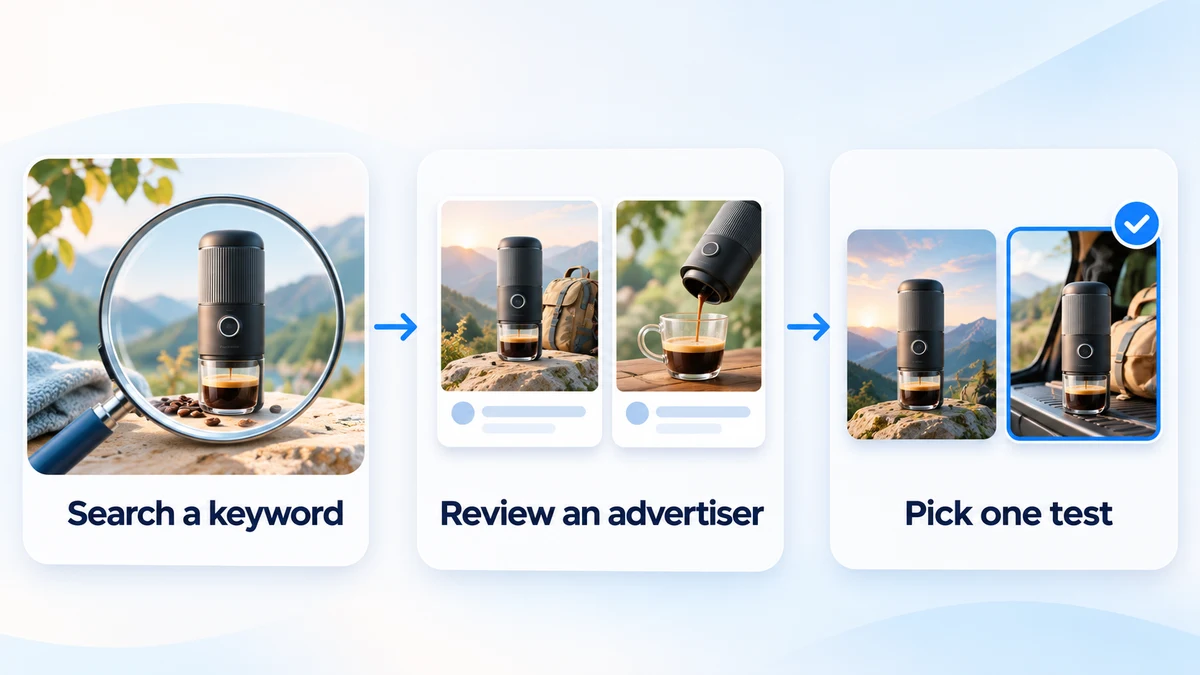
Open the Meta Ad Library. Select your target country, choose All ads, and enter a broad product term such as portable espresso maker. Open a few results and note which Facebook Pages ran the ads.
If the search brings back accessories or unrelated coffee products, try a more specific phrase such as travel espresso maker. You can also search a phrase tied to a use case, such as camping espresso maker, when you want to see how advertisers frame outdoor use. These are example queries you can try with your own product.
Search by Advertiser to See How One Brand Varies Its Ads
Choose a relevant ad from your keyword search and note the Page that ran it. Enter the Page name in the library and select the advertiser from the suggestions. Keep the same country so you can compare the advertiser's ads with the examples you just collected.
Look for the same product pitched in different ways. One ad might show the product fitting into a backpack. Another might show the espresso it makes. If the ads feature different models or bundles, record that before grouping them together.
Narrow the Results to the Creative You Need
For a video brief, use the media type filter where available and compare videos with videos. For research in a multilingual market, use the language filter if the results mix languages. If the filtered list is thin, relax one filter at a time. That way you can tell which setting narrowed the results.
What to Save from Each Ad
Start with three to five relevant ads. Copy the original links before writing your notes, so someone else on your team can review the same examples.
| Record | What to look for |
|---|---|
| Advertiser and original ad link | The Page that ran the ad and a link to the example. |
| Opening hook | The first visible headline, shot, or spoken line you can verify. |
| Main selling point | The benefit the ad leads with, such as portability or easy cleanup. |
| Proof | What backs up the claim, such as a product demo, comparison, or customer quote. |
| Offer and call to action | Any visible deal and the action the ad asks shoppers to take. |
| Format | Image, video, carousel, or another visible format. |
Write down what the ad shows. For example, “opens with the product coming out of a backpack” gives your creative team something specific to work with. “Looks like a winning ad” tells them very little. If you see the same hook across multiple ads, flag it as a pattern worth testing. Use your own campaign data to judge whether it works for you.
Turn Your Observations into a Creative Test
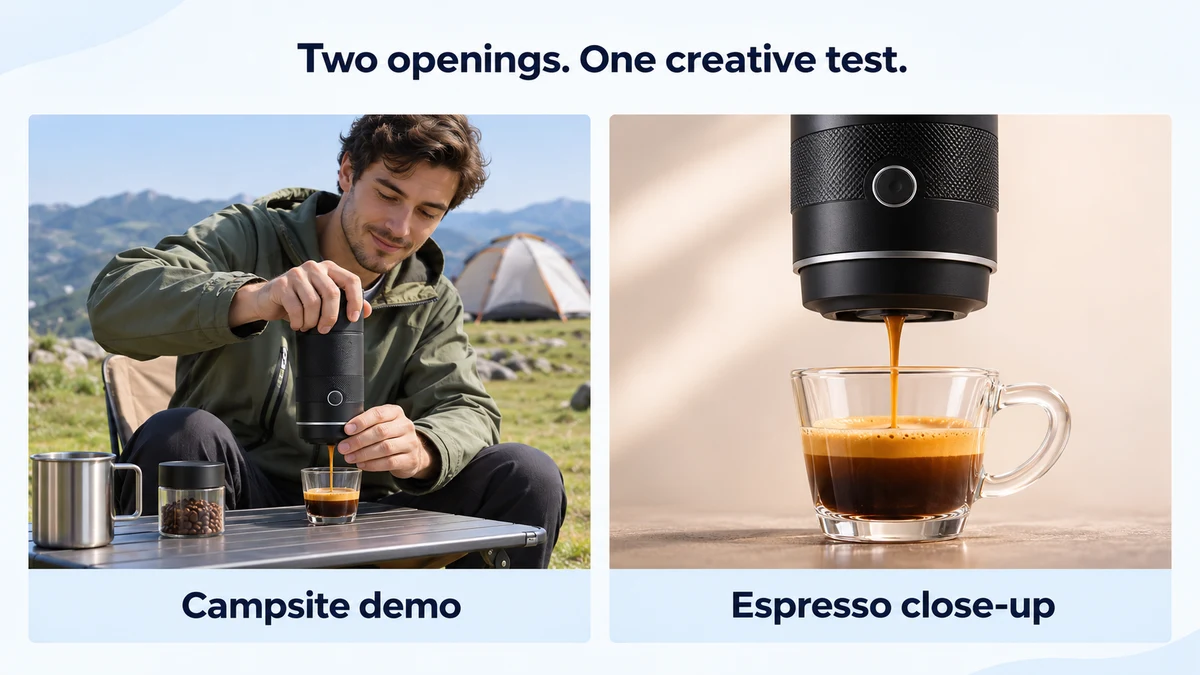
Imagine you find two recurring ways to open a portable espresso ad. One starts outdoors and shows where you can use it. The other starts with espresso pouring into a cup and shows what you can make. The illustration above represents two possible openings for your own ad.
A testable hypothesis would be “A campsite opening will drive more landing-page visits per dollar than an espresso close-up for our portable coffee audience.” Build two versions around that assumption. Keep the product, offer, audience, landing page, and the rest of the video consistent. Compare cost per landing-page view if the immediate goal is to get shoppers to the page.
A useful creative brief only needs three things here. Name the observation, describe the two openings, and say how you'll judge the result. Include the ad links so your team can see where the ideas came from.
How to Research and Create Ads in Your AI Agent
With Nexscope MCP connected, you can search Facebook ads, turn your findings into a creative brief, and generate original images and video clips in the same conversation.
Step 1. Connect Nexscope MCP
Copy the setup prompt below into your MCP-compatible AI agent and complete the authorization step when prompted. Nexscope MCP Connection Guide
Set up Nexscope for me — read and follow https://www.nexscope.ai/agents.md
Step 2. Search Ads and Write a Creative Brief
Use the Facebook Ad Library Search MCP tool to find ads by keyword.
Paste this research prompt into your connected agent:
Use Nexscope to find active Facebook Ad Library ads in the United States for “portable espresso maker.” Pick up to five relevant ads from different advertisers. For each ad, include the advertiser, original ad link, visible hook, selling point, offer, and format. Mark unavailable details as “not visible.” Group the ads by selling point and suggest one opening to test in my next video. Keep observed patterns separate from your test idea.
Step 3. Generate an Image and a Video Clip
After you review the brief, ask your agent to use GPT Image 2.5 to create a concept frame using your own product photo. Then ask it to use Seedance 2.5 to turn the approved frame into a short clip. For the espresso example, you might say:
Use my product photo to create an original vertical image of our espresso maker on a campsite table. Keep the device and branding consistent with the photo. Show me the frame first. Once I approve it, use it as the first frame of a short video that opens on espresso flowing into a cup.
Want to try a different look for your ad? There are plenty more image and video models to explore in the Nexscope Creative MCP directory. Pick one that fits your idea and try it in the same agent.
You can go from a public ad search to an original creative concept and a draft clip in your own agent. Use the competitor links as research references and your own product assets for the creative you plan to test.
Find Facebook Ads to Research
Explore the tools for finding ads by keyword, reviewing advertisers, and inspecting individual creatives.
Explore Facebook Ad Library DataFrequently Asked Questions
Can I Search the Facebook Ad Library by Keyword?
Yes. Select a country and ad category, then enter a product name or phrase. Start with the term a shopper would use and narrow it if the results are too broad.
How Do I Find Ads from a Specific Brand?
Type the advertiser's name and choose the matching Facebook Page. Check the Page name and country before comparing the results.
Why Is an Ad Missing from My Search Results?
Check your country, ad category, and filters. Try a broader keyword or search for the advertiser directly. The ad's status and the library's coverage can also affect whether it appears.
Can I See a Competitor's Conversion Rate or ROAS?
The public library is useful for reviewing the creative and offer. To calculate conversion rate or ROAS, you need the campaign and sales data for the ads you're measuring. Transparency disclosures vary by ad category.
Can My AI Agent Search the Facebook Ad Library?
Yes. Connect Nexscope MCP to a compatible agent, then ask it to search by keyword, review ads from an advertiser, or inspect a specific ad. Include the country and the details you want it to return.
Sources
- Meta. Accessed 2026. Meta Ad Library. facebook.com
- Nexscope. Accessed 2026. Nexscope MCP. nexscope.ai
- Nexscope. Accessed 2026. MCP Tool Map. nexscope.ai
- Nexscope. Accessed 2026. Facebook Ad Library Search. nexscope.ai
- Nexscope. Accessed 2026. GPT Image 2.5 and Seedance 2.5 MCP Tool Documentation. nexscope.ai