
Nexscope Is Now Available in WorkBuddy

Table of Contents
Nexscope is now available as a connector in WorkBuddy, bringing ecommerce data into the conversations where research happens. Connect a Nexscope account, ask a question, and let WorkBuddy call Nexscope tools to explore products, keywords, markets, and competitors.
The integration gives sellers and ecommerce teams a direct way to move from a business question to a data-backed analysis. An Amazon keyword check, for example, can begin with a single prompt about search demand and competition.
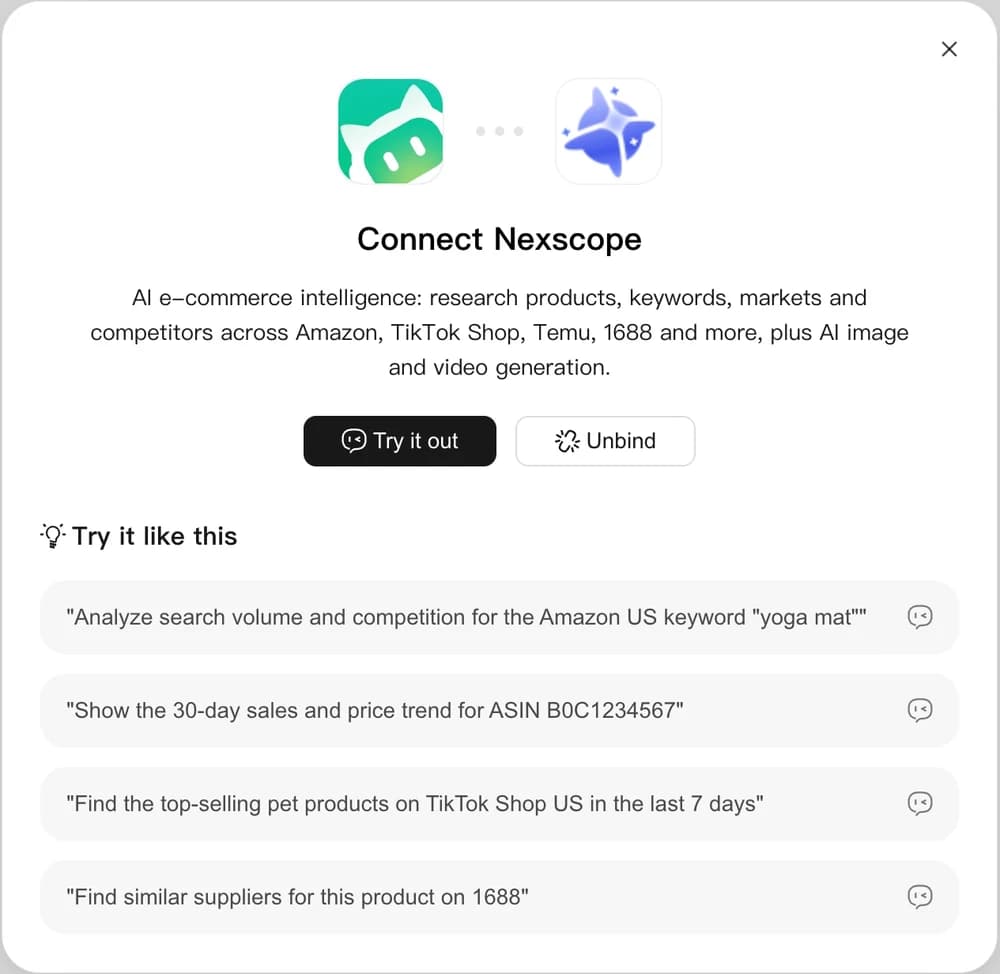
The Nexscope connector brings ecommerce research prompts into WorkBuddy.
Ecommerce Research Inside WorkBuddy
Nexscope supplies ecommerce data through its APIs and MCP tools. WorkBuddy provides the conversation interface and uses the connected tools to carry out the research request.
The connector covers product, keyword, market, and competitor research across Amazon, TikTok Shop, Temu, 1688, and more. Its scope also includes AI image and video generation, bringing research and creative tasks into the same conversation workflow.
The connector page includes four starter prompts. The examples below build on those prompts with additional research and creative requests you can adapt to your business:
| Example task | Example request |
|---|---|
| Amazon keyword research | Analyze search volume and competition for a keyword in a specific marketplace. |
| Amazon product tracking | Examine a product's sales and price trends using its ASIN and a defined period. |
| TikTok Shop product discovery | Find top-selling products in a category and market over a chosen period. |
| Supplier research | Find similar suppliers for a product on 1688. |
| Market research | Research the US yoga accessories market and summarize the product and keyword signals available through Nexscope. |
| Competitor research | Compare these Amazon competitor ASINs and summarize the differences in the product data available. |
| Temu product research | Find products related to this keyword on Temu and compare the returned product information. |
| AI image generation | Generate a studio-style product image from this brief, with a clean background and space for ad copy. |
| AI video generation | Create a short product video from this creative brief for a social media campaign. |
These are example requests, not a complete tool catalog. Describe the outcome you need and let WorkBuddy identify the relevant connected tools. For research requests, include the platform, market, product or keyword, and time period where relevant. For creative requests, describe the subject, format, and intended use.
How to Connect Nexscope to WorkBuddy
Have WorkBuddy open and a Nexscope account ready. The built-in connector uses a browser-based account authorization flow, so this setup does not require manually pasting an API key or configuring an MCP server URL.
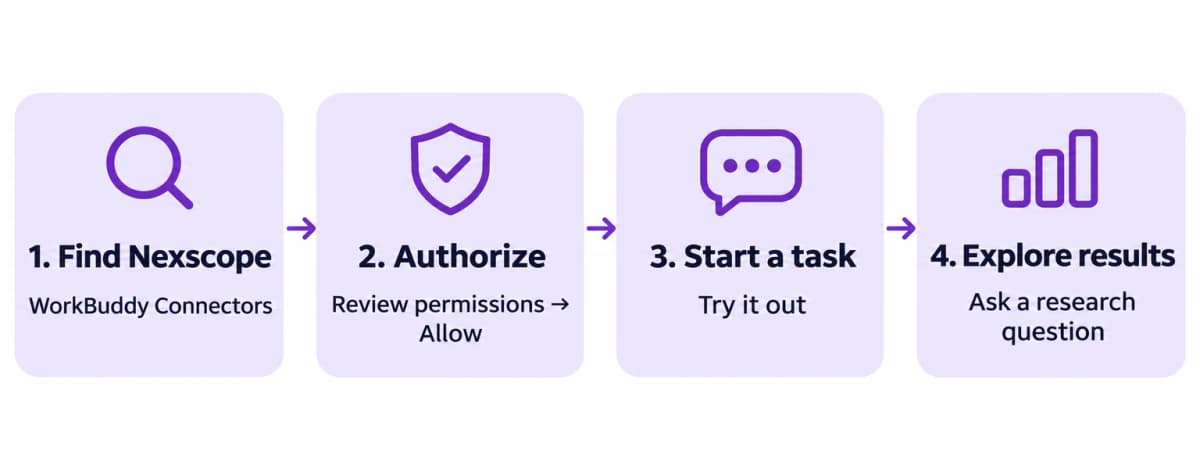
1. Find the Nexscope Connector
In WorkBuddy's left sidebar, open Experts · Skills · Connectors. Select the Connectors tab, then search for Nexscope.
Open the Nexscope card and click Connect to begin linking the account.
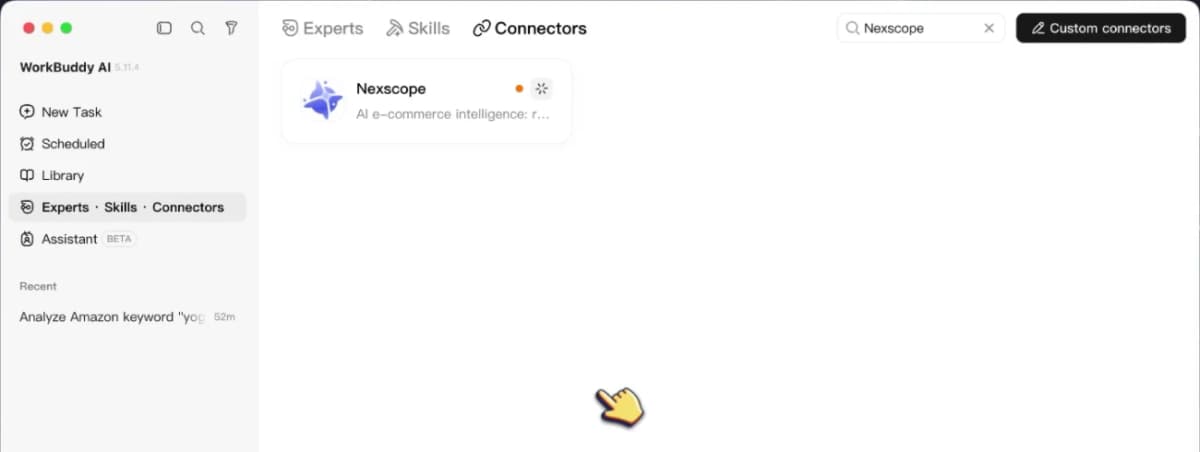
Search for Nexscope in the Connectors tab.
2. Connect Your Account
WorkBuddy opens a Nexscope page in the browser. On the Connect account screen, check the account shown before continuing.
- If it is the account you want to use, click Review permissions.
- To use a different account, select Switch account first.
3. Authorize MCP Access
The next screen is Authorize MCP access. Review the requested permission to view and run MCP tools and read their results. The page also explains that paid tools use your credits.
Click Allow to approve access. When the browser asks to open WorkBuddy AI, accept the prompt to return to the app.
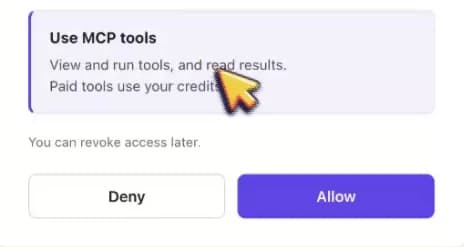
Approve the tool permissions to finish connecting your Nexscope account.
WorkBuddy displays Connector Nexscope connected when the connection succeeds. Opening the connector again shows Try it out and Unbind.
4. Start a Research Task
Click Try it out, or choose a suggested prompt from the connector panel. The walkthrough uses this Amazon US keyword request:
Analyze search volume and competition for the Amazon US keyword "yoga mat"
Check the prompt in the new task, then send it. WorkBuddy uses the Nexscope connection to gather information for the analysis.
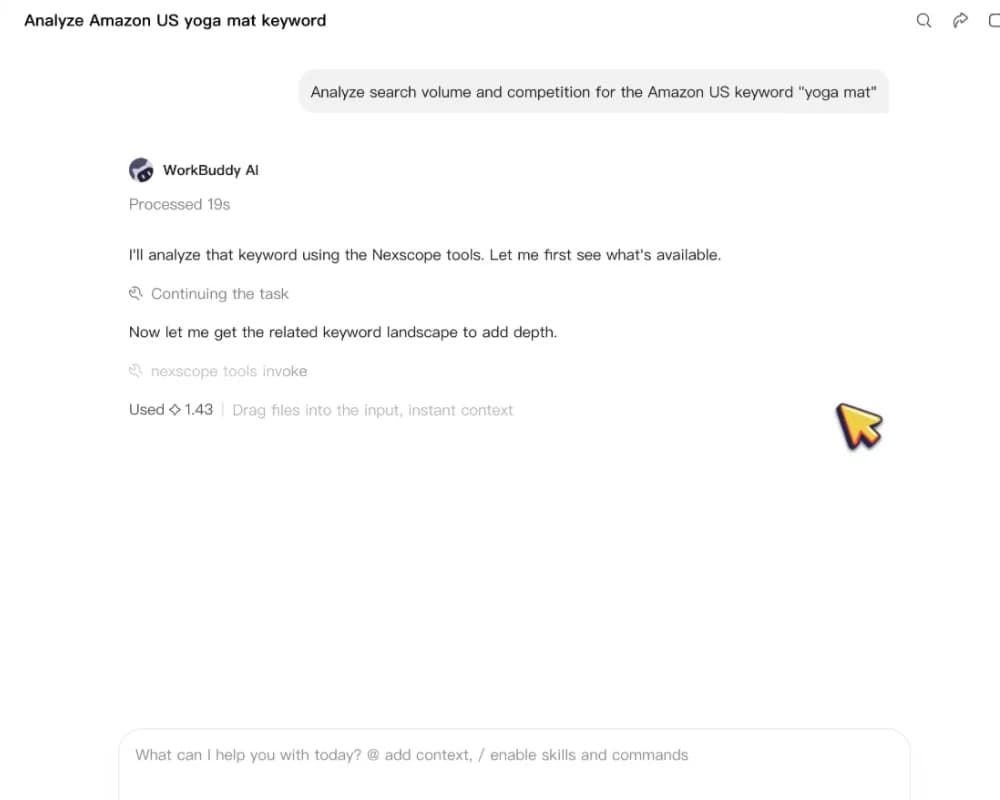
A specific keyword and marketplace give the research task a clear scope.
5. Review the Analysis
Read the returned analysis to understand the keyword's demand, competition, and related search opportunities. The walkthrough shows WorkBuddy using Nexscope tools and presenting its findings in text, tables, and a visual report.
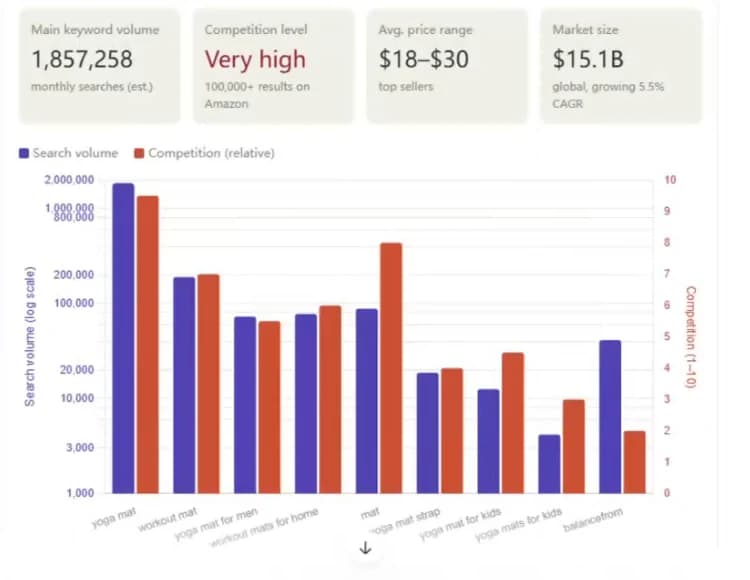
An example report shown in the walkthrough. The presentation illustrates how research results can be organized.
Continue with a more focused question, such as:
Compare the related keywords by demand and competition, and explain which ones deserve a closer look for a new listing.
Keep follow-up requests tied to the data returned. For another product or marketplace, specify the new target so the next analysis answers the right question.
Try Your First Nexscope Research Task
The Nexscope connector makes ecommerce data available within a WorkBuddy research conversation, from the initial question through the analysis and follow-up.
Open WorkBuddy → Connectors → Nexscope, connect your account, and start with one question about a keyword, product, or market. The built-in examples are a starting point; replace their keywords and product identifiers with the ones relevant to your business.
Get Started with WorkBuddy
Open WorkBuddy, go to Connectors, search for Nexscope, and connect your account.
Get Started with WorkBuddy →Building your own integration? Get your Nexscope API key.
FAQ
Do I need to enter an API key manually?
No. The built-in Nexscope connector shown here links your account through a browser authorization flow. Select Connect, review the account and permissions, and click Allow to return to WorkBuddy.
Does using Nexscope in WorkBuddy consume credits?
Paid Nexscope tools use your Nexscope credits, as stated on the authorization screen. Connecting an account does not make paid tool calls free.
How do I disconnect Nexscope from WorkBuddy?
Open the connected Nexscope card and select Unbind. This is the disconnect action shown alongside Try it out in the connector panel.
Sources
- Nexscope Team. 2026. WorkBuddy connector setup walkthrough and connected-state screenshot.
- Nexscope. 2026. MCP Tools for Ecommerce, Social Media & SEO. nexscope.ai.